


|
|

This chapter provides the following information:
Translated versions of the following safety warnings are provided in the "Translated Safety Warnings" appendix.
 | Warning Do not work on the system or connect or disconnect cables during periods of lightning activity. |
| Warning Do not touch the power supply when the power cord is connected. For systems with a power switch, line voltages are present within the power supply even when the power switch is off and the power cord is connected. For systems without a power switch, line voltages are present within the power supply when the power cord is connected. |
| Warning Read the installation instructions before you connect the system to its power source. |
| Warning This product relies on the building's installation for short-circuit (overcurrent) protection. Ensure that a fuse or circuit breaker no larger than 120 VAC, 15A U.S. (240 VAC, 10A international) is used on the phase conductors (all current-carrying conductors). |
| Warning To prevent the unit from overheating, do not operate it in an area that exceeds the maximum recommended ambient temperature of 113×F (45×C). To prevent airflow restriction, allow at least 3 inches (7.6 cm) of clearance around the ventilation openings. |
| Warning The device is designed to work with TN power systems. |
| Warning This equipment is intended to be grounded. Ensure that the host is connected to earth ground during normal use. |
| Warning Ultimate disposal of this product should be handled according to all national laws and regulations. |
| Warning Only trained and qualified personnel should be allowed to install or replace this equipment. |
| Warning Care must be given to connecting units to the supply circuit so that wiring is not overloaded. |
| Warning To prevent bodily injury when mounting or servicing this unit in a rack, you must take special precautions to ensure that the system remains stable. The following guidelines are provided to ensure your safety: |
| Warning Unplug the power cord before you work on a system that does not have an on/off switch. |
| Warning Before working on equipment that is connected to power lines, remove jewelry (including rings, necklaces, and watches). Metal objects will heat up when connected to power and ground and can cause serious burns or weld the metal object to the terminals. |
When determining where to place the FastHub, ensure the following conditions are met:
Each FastHub is shipped with the following items:
Follow these steps to unpack the FastHub:
Step 1 Open the shipping container and carefully remove the contents.
Step 2 Return all packing materials to the shipping container and save it.
Step 3 Ensure that all items listed in the packing list were included in the shipment. Check each item for damage.
You can install the FastHub in a 19- or 24-inch standard or telco rack, set it on a desk or table, or mount it on a wall.
This section provides procedures for setting the FastHub on a tabletop and for installing the FastHub in a standard 19-inch rack with the front panel forward. For information about rack-mounting alternatives and wall-mounting the FastHub, see the Using the Universal Mounting Brackets document.
To set the FastHub on a desk or table:
Step 1 Place the FastHub on a desk or table close to an AC power receptacle.
Step 2 Locate the adhesive strip with the rubber feet that shipped with the FastHub. Attach the rubber feet to the four round recessed areas on the bottom corners of the FastHub.
Step 3 Attach the AC power cord to the FastHub. If your configuration has an RPS, see the RPS documentation.
Step 4 See the "Guidelines for Connecting FastHubs and Other Repeaters" chapter for information on making additional connections to other devices.
To install the FastHub, with the front panel forward, in a 19-inch rack:
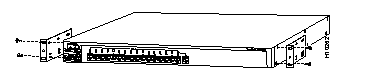
Step 1 Place the FastHub on a level surface, and attach a rack-mount bracket on each side, using the supplied flat-head screws, as shown in Figure 3-1.
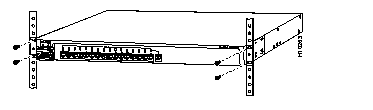
Step 2 Place the FastHub in the rack, and secure it with the supplied washers and screws, as shown in Figure 3-2.
Step 3 Attach the cable guide to the left or right rack-mount bracket, using the supplied black screw, as shown in Figure 3-3.

Step 4 Attach the power cord to the FastHub. If your configuration has an RPS, see the RPS documentation.
Step 5 See the "Guidelines for Connecting FastHubs and Other Repeaters" chapter for information on making additional connections to other devices.
For information about rack-mounting alternatives and wall-mounting the FastHub, see the Using the Universal Mounting Brackets document.
This section provides information on connecting from the 100BaseTX ports on the FastHub and explains how to avoid potential problems with shielded twisted-pair (STP) cabling in Token Ring environments.
 | Caution You will disable both ports if you connect to both the uplink port (port 16) and port 16x. |
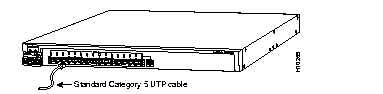
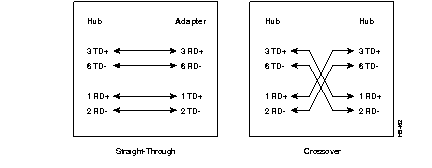
All 100BaseTX ports on the FastHub can connect to any 100BaseTX device through standard Category 5 unshielded twisted-pair (UTP) cable (see Figure 3-4). You must provide the Category 5 UTP cable(s) between the FastHub and the 100BaseTX device. The pinouts for the 100BaseTX port connectors are listed in Table 3-1. Straight-through and crossover cable schematics are shown in Figure 3-5.
Ports 1x through 16x are internally crossed. Use a standard Category 5 UTP crossover cable to connect any of these ports to another hub, switch, or router (unless you are connecting to the uplink port on another FastHub or 100BaseT hub). Attached servers or workstations must have a 100BaseTX-compatible adapter installed.
Port 16, which is the uplink port, is not internally crossed. Use a standard Category 5 UTP straight-through cable to connect this uplink port to another FastHub 100BaseTX port or to the 100BaseTX port on another hub, switch, or router. Remember that the port on the device to which you are connecting must be an X port.
| Pin | Signal |
|---|---|
| 1 | RD+ |
| 2 | RD- |
| 3 | TD+ |
| 4 | NC |
| 5 | NC |
| 6 | TD- |
| 7 | NC |
| 8 | NC |
For more information about cables and connectors, see the "Ports" section in the "Overview" chapter.
Shielded twisted-pair (STP) cable is the most commonly used cable in Token Ring environments. The media interface connectors (MICs) and baluns--used to connect STP and UTP cabling--create a loopback when they are disconnected; the loopback might cause anomalies with the FastHub.
To prevent loopback problems when using STP cabling in a Token Ring network environment, make sure the MICs and baluns are never left unconnected when they are part of a link connected to the FastHub (see Figure 3-6).

The LED of each port on the FastHub indicates the status of the port, as follows:
The status, RPS, and port status LEDs also facilitate troubleshooting during system operation. Table 3-2 lists symptoms and possible causes associated with system problems and provides corrective actions. Table 3-3 to isolate faults associated specifically with the power distribution system.
| Symptom | Possible Cause | Corrective Action |
|---|---|---|
| System status LED is off. | Power cord not connected. | Plug in both ends of power cord. |
| System status LED is solid amber. | Power problem related to FastHub main system board (not internal power supply or RPS). | Call Cisco Systems. |
Port status LED is off. | Devices not powered up. | Ensure both devices have power. |
| Cable connection loose. | Verify connection at both ends of cable. | |
| Wrong cable type. | Verify cable type (crossover vs. straight-through). | |
| Incorrect wiring. | See the "Ports" section in the "Overview" chapter for pinout information. | |
| Faulty cable. | Replace cable with a known good one. | |
| Port status LED is rapidly alternating green/amber. | Autopartition, jabber, or isolated (carrier integrity error). | Verify port termination and check integrity of connected devices. |
Port status LED is solid amber (port disabled or autopartitioned). | Device at other end is malfunctioning. | Investigate device at other end of cable attached to disabled port. |
| Port disabled. | Enable port through in-band or out-of-band management. |
| System Status LED | RPS LED | Meaning |
|---|---|---|
| Solid green | Off | Power OK (no RPS or RPS not powered up). |
| Solid green | Solid green | Power OK (RPS powered up and OK). |
| Solid green | Solid amber | Internal power supply not powered up; RPS connected but not OK. |
| Solid green | Flashing green | Internal power supply and RPS are powered up. Only one power source can be supplying power to the FastHub. If you are using the RPS, the FastHub power cord must not be plugged in. If you are using the internal power supply, the RPS can be connected but must be powered down. |
|
|