


|
|

This chapter is an abbreviated procedure for installing the BMM in a FastHub 316T or FastHub 316C repeater. Use this chapter if you are familiar with installing and managing 10BaseT hubs and you are aware of the configuration and planning requirements of a 100BaseTX network.
 | Caution If you do not have 10BaseT hub experience, are not familiar with 100BaseTX, or want to change the default settings, use the preinstallation guidelines and installation procedure described in the "Installation" chapter. |
Check the package. It should contain the following items:
Your BMM ships with the default parameters listed in Table 3-1 in the "Out-of-Band Management" chapter. You can change these parameters with the management console or with any SNMP-compatible management station. See the "Standard MIBs and MIB Extensions" section in the "In-Band Management" chapter for a list of the supported MIB objects and their functions.
Follow these steps to install the BMM:
Step 1 Remove the slot cover from the lower, right FastHub slot by loosening the thumbscrews on each side.
Step 2 Unpack the BMM.
| Caution To prevent ESD damage, handle the BMM by its front panel or board edges only. |
Step 3 Hold the BMM by its front panel, align the sides of the BMM with the card guides in the slot, and carefully slide it into the slot until the BMM faceplate is flush with the FastHub front panel (see Figure 1).
Step 4 Press firmly on the faceplate to ensure that the backplane connector is fully seated in the backplane.
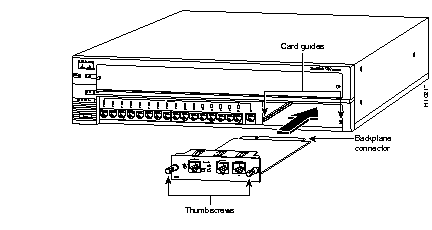
Step 5 Tighten the thumbscrews on each side of the BMM.
Use the following module LED color indications to verify the operating status of the BMM:
| MOD LED Color | Module Status |
|---|---|
| Green | BMM running POST (approximately 30 seconds). |
| Green | POST completed; BMM operational and acting as primary supervisor. |
| Solid amber | BMM powered up and in standby mode (appears when multiple BMMs are in a FastHub stack). |
| Flashing amber | BMM failed POST. |
Refer to the section "Connecting Ports" in the "Installation" chapter to perform the following tasks:
|
|