


|
|
This chapter introduces the FastHub 112T and the FastHub 124T and covers the following topics:
The FastHub 112T and FastHub 124T are unmanaged, autosensing Class II repeaters for workgroups and server farms. The FastHubs support both 10-Mbps and 100-Mbps connections to workstations, servers, switches, and routers. Table 1-1 summarizes FastHub features.
| Feature | Description |
|---|---|
| Compatibility | |
|
Performance |
|
|
Power redundancy | Supports connection of optional Cisco redundant power system (RPS) as a backup power source. |
| Internal 10BaseT/100BaseTX bridge | Supports a 10BaseT network segment and a 100BaseTX network segment. Hub ports can be in either segment and communicate with one another via the internal bridge. |
This section describes the hub front-panel features, including the network ports and LEDs.
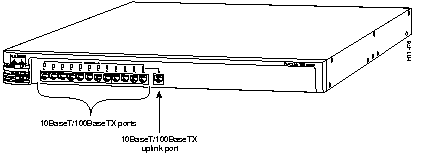
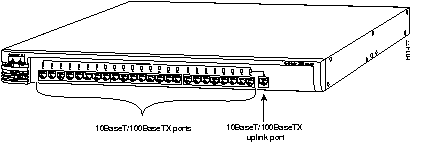
The front panel has 12 (FastHub 112T) or 24 (FastHub 124T) 10BaseT/100BaseTX network ports and a 10BaseT/100BaseTX uplink port, which are illustrated in Figure 1-1 and Figure 1-2.
All ports support the 10BaseT and 100BaseT IEEE 802.3 and IEEE 802.3u specifications and connect to any 10BaseT with Category 3 or 4 unshielded twisted-pair (UTP) cable or to any 100BaseTX device with Category 5 UTP cable.
This section describes how to use these front-panel LEDs:
Figure 1-3 is a close-up view of the LEDs that are on the FastHub front panel.
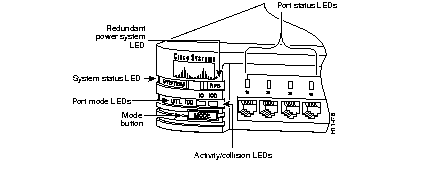
The green system status (SYSTEM) LED shows whether the hub is receiving power and functioning properly, as shown in Table 1-2.
| LED Status | Description |
|---|---|
| Off | FastHub is not powered up. |
| On | FastHub is operating normally. |
The RPS LED indicates the RPS status. Table 1-3 provides a description of the LED colors and what they mean.
| Color | Description |
|---|---|
| Off | Power is OK (internal power supply is powered up), and the RPS is not connected to the FastHub. |
| Solid green | Power is OK (RPS is powered up and operational). |
| Solid amber | RPS is not operational or is not connected properly. |
| Flashing green | RPS and internal power supply are both powered up. Only one power source can be supplying power to the hub.
If you are using the RPS, the AC power cord for the internal power supply must not be connected to the hub rear panel. If you are using the internal power supply, the RPS can be connected to the hub but must be powered down. |
The FastHub has two LEDs that indicate packet collisions and activity on the 10BaseT and 100BaseTX segments. These LEDs are described in Table 1-4.
| LED | Description |
|---|---|
| 10 |
|
|
100 |
|
Each network port has an LED above the port. These LEDs, as a group or individually, display information about the hub and about individual ports. Table 1-5 summarizes the three different ways (called modes) to use the LEDs.
| Mode | Description |
|---|---|
| Port status (default) | Use the LEDs to determine the status of individual network ports. Table 1-7 describes this function. |
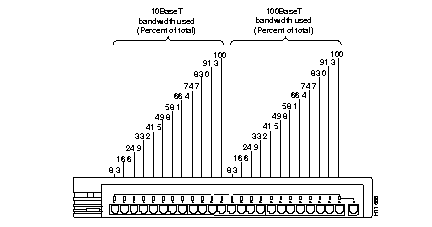
| Bandwidth utilization | Use the LEDs to determine what percentage of the hub total bandwidth is being used at any one time. Figure 1-4 and Figure 1-5 illustrate this function. |
| 100BaseT connections | Use the LEDs to determine which ports are connected to 100BaseTX network devices. |
Table 1-6 describes how to use the Mode button on the front panel to change the LED mode of the hub. Use the LEDs to determine information about the hub based on the mode being used.
When you push the Mode button to select an LED mode, the selected mode stays active for 15 seconds before the hub returns to the default mode (port status).
| For this Mode... | Push the Mode Button... | Confirm... |
|---|---|---|
| 100 | Once | Green 100 LED is on. |
| UTL | Twice | Green UTL LED is on. |
This is the default LED mode. The numbered LEDs above the network ports show the status of the corresponding ports. The UTL LED and the 100 LED are off when the hub is in port status mode.
Table 1-7 describes how port status is indicated per port by the LED color and light pattern.
| Color | Port Status |
|---|---|
| Off | No link, or link is down. |
| Green | Link operational. |
| Amber | The port is partitioned. After a packet is successfully sent over this port, the LED is green (normal operating state). |
Use the LEDs as group to determine what percentage of the hub bandwidth is being used at any one time.
To enter UTL mode from the default mode, push the Mode button once. The UTL LED goes on. In this mode, the hub uses different sets of LEDs to the indicate bandwidth being used at either speed (10 Mbps or 100 Mbps). The more LEDs that are lit, the higher the percentage of bandwidth being used.
FastHub 112T--Port LEDs 1 through 6 in Figure 1-4 indicate 10-Mbps bandwidth, and port LEDs 7 through 12 indicate 100-Mbps bandwidth, as shown in Figure 1-4.
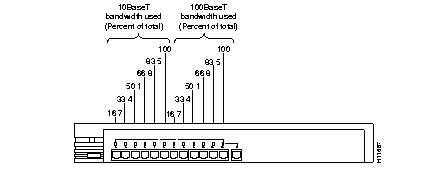
FastHub 124T--Port LEDs 1 through 12 in Figure 1-5 indicate 10-Mbps bandwidth, and port LEDs 13 through 24 indicate 100-Mbps bandwidth.
Use the LEDs to determine which hub ports are connected to 100BaseTX network devices, as shown in Table 1-8. To enter 100 mode from the default mode, push the mode button twice. The 100 LED goes on.
| LED Status | Description. |
|---|---|
| On | Port is connected to a 100BaseTX network device. |
| Off | Port is not connected or is connected to a 10BaseTX network device. |
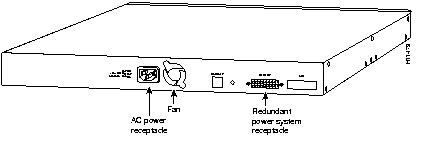
The hub rear panel has the following connectors:
Only one power source can supply power to the hub at any one time.
You can create 10- and 100-Mbps workgroups by interconnecting FastHubs (such as FastHub 112T, FastHub 124T, FastHub 216T, and FastHub 300 series) as shown in Figure 1-7.

You can use the FastHubs to create 10- and 100-Mbps server farms to increase centralized and decentralized server performance as shown in Figure 1-8.

|
|