


|
|

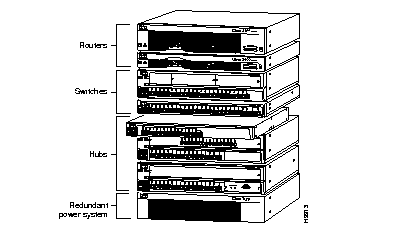
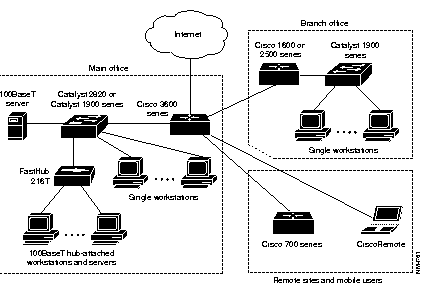
The FastHub 216T is a managed 16-port 100BaseT Class II repeater for workgroups and server farms. It is a member of an extended network system of stackable, modular LAN and WAN products that increase LAN performance, connect remote offices and users, and provide secure access. Figure 1-1 shows the network system units.
The FastHub has 16 fixed 100BaseTX ports (with an alternative uplink port for connecting to other 100BaseTX hubs). Table 1-1 summarizes the FastHub features.
| Feature | Description |
|---|---|
| Compatibility |
|
|
Performance | 100-Mbps peak and aggregate throughput. |
| Manageability |
|
|
Redundancy | Supports connection to the optional Cisco redundant power system (RPS). |
The front panel of the FastHub provides 16 100BaseTX ports, a 100BaseTX uplink port, a set of LEDs, and a Mode button.
The ports on the front panel of the FastHub are all 100BaseTX ports with fixed RJ-45 connectors (see Figure 1-2). All ports are compatible with the 100BaseTX IEEE-802.3u specification and can connect to any 100BaseTX device through Category 5 unshielded twisted-pair (UTP) cable.
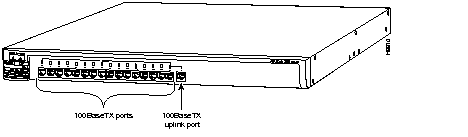
Ports 1x through 16x have their transmit (TD) and receive (RD) pairs internally crossed. Category 5 UTP crossover cable is required when connecting these ports to another hub, switch, or router (unless you are connecting to the uplink port on another FastHub or 100BaseT hub).
Port 16, which is to the right of port 16x, is the 100BaseTX uplink port. This uplink port is not internally crossed. Category 5 UTP straight-through cable is required when connecting this port to another FastHub 100BaseTX port or to the 100BaseTX port on another hub, switch, or router.
 | Caution You will disable both ports if you connect to both the uplink port (port 16) and port 16x. |
For more information on connecting to these ports, see the "Connecting to the 100BaseTX Ports" section in the "Installing the FastHub" chapter.
The FastHub LEDs enable you to monitor network activity and performance. Figure 1-3 shows the location of the LEDs and the Mode button, which you use to select the modes indicated by the port mode LED.
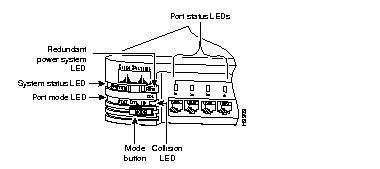
The redundant power system (RPS) LED shows the status of the RPS (see Table 1-2).
| Color | RPS Status |
|---|---|
| Off | Power OK (RPS is not connected or RPS is not powered up). |
| Solid green | Power OK (RPS is powered up and OK). |
| Solid amber | Internal power supply is not powered up, RPS is connected but not OK. |
| Flashing green | RPS and FastHub internal power supply are both powered up.
Only one power source can be supplying power to the FastHub. If you are using the RPS, the FastHub power cord must not be plugged in. If you are using the internal power supply, the RPS can be connected but must be powered down. |
When the RPS is in use, turn off the internal power supply by unplugging the AC power cord.
The system status (SYSTEM) LED shows whether the FastHub is powered up and indicates any problem with the main system board of the FastHub (see Table 1-3).
| Color | System Status |
|---|---|
| Off | FastHub is powered down. |
| Solid green | FastHub is powered up and operational; no power problems. |
| Solid amber | FastHub is powered up but may not be functioning properly; problem related to the main system board of the FastHub (not internal power supply or RPS). |
| Flashing amber | Power-on self-test (POST) failed. |
The group collision (COL) LED shows the frequency of collisions for all ports on the FastHub (see Table 1-4). The LED flashes amber if one or more ports on the FastHub are involved in a collision.
| Color | System Status |
|---|---|
| Off | No activity |
| Flashing amber | Collision |
| Solid amber | High number of collisions |
The port mode LED indicates the mode you selected using the Mode button:
The port status LEDs--located above the 100BaseTX ports--indicate the status of each individual port, depending on the mode you select.
To change the mode being displayed by a port LED, press the Mode button to highlight in sequence each of the modes: STAT, UTL, and ID. The Mode button is independent of the Collision LED. When the desired mode is selected, release the button to make the change. As long as you hold the Mode button down, the mode does not change. The selected mode remains on for 30 seconds before returning to the default mode of STAT (port status).
In port status (STAT) mode, each port status LED shows the status of the individual port (see Table 1-5).
| Color | Port Status |
|---|---|
| Off | No link (link down). |
| Green | Link operational (with no activity). |
| Flashing green | Link operational (with activity). |
| Rapidly alternating green/amber | Faulty link1. |
| Alternating green/amber | FastHub reset in progress. |
| Solid amber | Port disabled (through in-band or out-of-band management). |
In utilization (UTL) mode, bandwidth usage is shown for the FastHub. The port LEDs show the current bandwidth and the peak bandwidth usage that occurred since the last reset.
The far-right solid green LED denotes the peak bandwidth that was recorded since the last reset. All LEDs to the left of the solid green LED operate in a scalable pattern, flashing green from left to right, to show the current bandwidth utilization. Table 1-6 lists the port LEDs and the bandwidth associated with each LED.
| LED | Mbps Activity |
|---|---|
| Port 1 | 0 to 6.25 |
| Port 2 | 12.5 |
| Port 3 | 18.75 |
| Port 4 | 25 |
| Port 5 | 31.25 |
| Port 6 | 37.5 |
| Port 7 | 43.75 |
| Port 8 | 50 |
| Port 9 | 56.25 |
| Port 10 | 62.50 |
| Port 11 | 58.75 |
| Port 12 | 75 |
| Port 13 | 81.25 |
| Port 14 | 87.5 |
| Port 15 | 93.75 |
| Port 16 | 100 |
In unit identification (ID) mode, the LED for port 1 is solid green, indicating that the unit ID number for the FastHub is 1. The unit ID number coincides with the unit number displayed in the management console screens. For the FastHub 216T, the unit ID number is always 1.
The rear panel of the FastHub (see Figure 1-4) provides connectors--an AC power receptacle, an RJ-45 console port, and a redundant power system (RPS) receptacle--and a reset button (unlabeled).
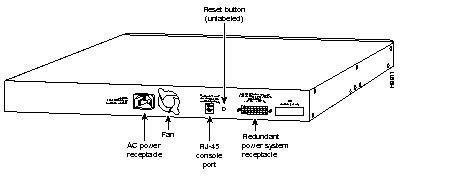
You can provide power to the FastHub either by using the internal power supply or by connecting the Cisco RPS to the RPS receptacle on the FastHub. Only one power source can be supplying power to the FastHub. Disconnecting power to the FastHub resets the FastHub itself.
If you want to use the internal power supply, which is an autoranging unit supporting input voltages of 90 to 127/200 to 250 VAC, use the supplied AC power cord to connect the AC power receptacle to an AC power outlet.
If you are using the RPS, the supplied AC power cord must not be plugged in. See the Cisco RPS documentation for detailed information on connecting to the RPS.
 | Warning Use the Cisco RPS (model NFS0600-9632PE) only to power the external device. |
You can configure and manage the FastHub through the management console by connecting the console port on the FastHub to a terminal or modem. The FastHub is supplied with the RJ-45-to-RJ-45 rollover cable and adapters you need to properly connect to a terminal or modem.
For additional information on connecting from this port, see the "Connecting to the Console Port" section in the "Installing the FastHub" chapter.
The reset button, which is unlabeled, is used to reset network management for the FastHub. Located between the console port and RPS receptacle, the reset button is recessed within the back panel to prevent an accidental reset. Use a small screwdriver or other pointed object to press the reset button. For more information about resetting the FastHub, see the "Reset Methods" section in the "Troubleshooting" chapter.
This section describes several possible network configurations using the FastHub.
You can create 100-Mbps workgroups by interconnecting FastHubs (FastHub 116T, FastHub 216T, and FastHub 300 series), as shown in Figure 1-5.

Using the FastHub, you can create 100-Mbps server farms to increase centralized and decentralized server performance, as shown in Figure 1-6.

A system of routers, switches, and hubs can be combined to create a high-performance network that extends beyond the main office LAN to connect to branch offices, remote sites, mobile users, and the Internet. Figure 1-7 is an application for an extended network system.
|
|