


|
|

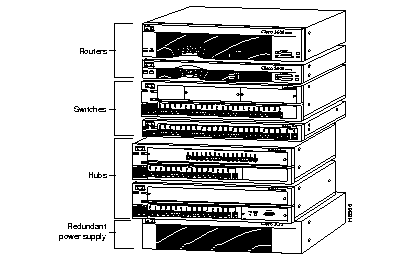
The FastHub 316T and FastHub 316C are members of the NetBeyond extended network system of modular, stackable products that you can manage from a central location. The routers, switches, and hubs that make up the system can increase your LAN performance and provide both local and remote users with secure access to data files and the Internet. Figure 1-1 shows the network system units.
The FastHub 300 Series includes two stackable, manageable, 100-Mbps Class II repeaters:
A 16-port expansion module can be added to expand each FastHub unit to 32 100BaseT ports. Up to 4 FastHub units can be interconnected through a proprietary expansion cable to form a hub stack with a maximum of 128 ports. The four-unit hub stack operates as a single logical repeater with one network management module (NMM) per hub stack. Two hub stacks can be connected through the 100BaseT ports to support up to 254 ports in a single collision domain.
Table 1-1 summarizes FastHub features.
| Feature | Description |
|---|---|
| Compatibility |
|
|
Performance |
|
|
Stackability |
|
|
Manageability |
|
|
Redundancy |
|
This section provides physical and functional descriptions of the two FastHub 300 Series repeaters.
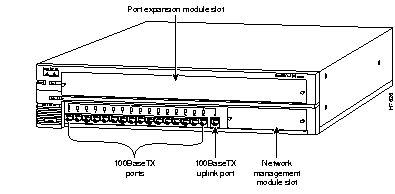
The FastHub 316T base unit (see Figure 1-2) provides 16 100Base-TX ports for connecting to devices using Category 5 unshielded twisted-pair (UTP) cabling. The uplink port (port 16 to the right of port 16x) is not internally crossed, providing a means of cascading hubs using standard straight-through cables.
All 100BaseTX ports use RJ-45 twisted-pair connectors.
 | Caution Do not connect to both the uplink port (port 16) and port 16x; this disables both ports. |
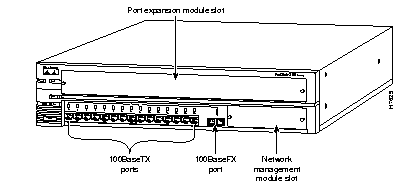
The FastHub 316C base unit (see Figure 1-3) provides 15 100BaseTX ports and
1 100BaseFX port. The 100BaseFX port provides for connecting to a device using two-strand, multimode fiber-optic cabling.
The 100BaseFX port uses an SC connector.
The FastHub LEDs enable you to monitor network activity and performance. Figure 1-4 shows the location of the LEDs (for simplicity, only the FastHub 316T base unit is shown; both base-unit LED locations and functions are identical).
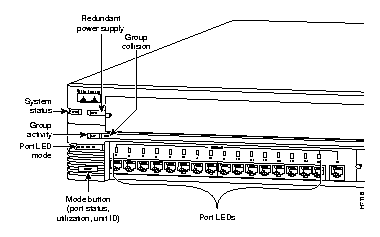
The system status LED (see Table 1-2) shows whether a unit is powered and provides an indication of a problem with a unit's main system board.
| Color | System Status |
|---|---|
| Off | Unit powered off. |
| Solid green | Unit powered and operational; no power problems. |
| Solid amber | Unit powered but not operational; problem related to FastHub main system board (not the internal power supply or RPS). |
The group collision LED (see Table 1-3) shows the frequency of collisions for all ports on a unit, including port expansion module ports. The LED flashes if one or more ports on the unit are involved in a collision.
In a hub stack, the group collision LEDs on individual units show the frequency of collisions across the entire collision domain. For example, if a port on unit 1 and a port on unit 2 both have collisions, the group collision LEDs on both units flash.
| Color | System Status |
|---|---|
| Off | No collision |
| Flashing amber | Collision |
| Solid amber | High number of collisions |
The group activity LED (see Table 1-4) shows network activity for all ports on a unit.
| Color | System Status |
|---|---|
| Off | No activity |
| Flashing green | Activity |
The RPS LED (see Table 1-5) shows the status of the RPS.
| Color | RPS Status |
|---|---|
| Off | RPS off or not installed. |
| Solid green | RPS operational. |
| Flashing green | RPS and FastHub power supplies are both powered on. Only one power source can be supplying power to a unit. If you are using the RPS, the FastHub power cord must not be plugged in. If you are using the FastHub power supply, the RPS can be connected but must be powered off. |
| Solid amber | RPS not operational. |
The NMM LED (see Table 1-6), located on the NMM front panel, shows the status of the NMM module.
| Color | NMM Status |
|---|---|
| Off | FastHub not powered or NMM not properly seated. |
| Flashing green | NMM power-on self-test (POST) in progress. |
| Solid green | Primary NMM operational (enabled). |
| Solid amber | Secondary NMM operational (in standby). |
| Flashing amber | NMM failed POST. |
Each FastHub port has an LED that operates in three modes:
To change the mode being displayed by a port LED, press the Mode button to highlight in sequence each of the modes: STAT, UTL, and ID. When the desired mode is selected, release the button to make the change. As long as you hold the Mode button down, the mode does not change.
The selected mode remains on for 30 seconds before returning to the default mode of STAT (port status).
In port status mode, port LEDs show individual port status (see Table 1-7).
| Color | Port Status |
|---|---|
| Off | No link (link down). |
| Green | Link operational (with no activity). |
| Flashing green | Link operational (with activity). |
| Rapidly alternating green/amber | Faulty link1. |
| Alternating green/amber | FastHub reset in progress. |
| Solid amber | Port disabled (through in-band or out-of-band management). |
Invoke the utilization mode by pressing the Mode button and releasing it when UTL is highlighted. In utilization mode, bandwidth usage is shown for the entire hub stack. The port LEDs show the current bandwidth and the peak bandwidth usage that occurred since the last reset.
The far-right solid green LED denotes the peak bandwidth that was recorded since the last reset. All LEDs to the left of the solid green LED operate in a scalable pattern, flashing green from left to right, to show the current bandwidth utilization. Table 1-8 lists the port LEDs and the bandwidth associated with each LED.
| LED | Mbps Activity |
|---|---|
| Port 1 | 0 to 6.25 |
| Port 2 | 12.5 |
| Port 3 | 18.75 |
| Port 4 | 25 |
| Port 5 | 31.25 |
| Port 6 | 37.5 |
| Port 7 | 43.75 |
| Port 8 | 50 |
| Port 9 | 56.25 |
| Port 10 | 62.50 |
| Port 11 | 58.75 |
| Port 12 | 75 |
| Port 13 | 81.25 |
| Port 14 | 87.5 |
| Port 15 | 93.75 |
| Port 16 | 100 |
Invoke the ID mode by pressing the Mode button and releasing it when ID is highlighted. In ID mode, port LEDs show the ID number of each unit within the hub stack. For example, the FastHub with unit ID 3 has its port 3 LED on (green); all other port LEDs on unit 3 are off. The unit numbers coincide with the unit numbers displayed in the NMM management console screens.
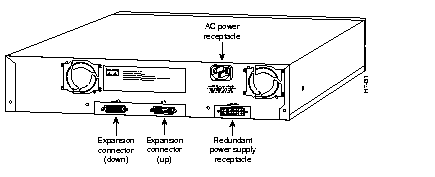
Figure 1-5 shows the location of the rear panel connectors.
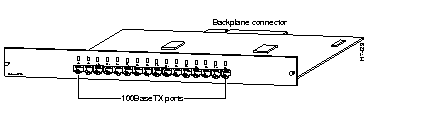
The FastHub has a slot for an optional 100BaseTX/16 port expansion module. This hot-insertable module (see Figure 1-6) provides an additional 16 100BaseTX ports, creating a 32-port repeater within a single unit.
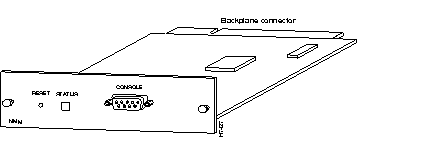
The FastHub has a second, smaller slot in the bottom-right corner of the unit for an optional NMM. This hot-insertable module (see Figure 1-7) provides manageability for a hub stack on a per port, per unit, and per hub-stack basis. A single NMM can reside in any unit in the hub stack and manage all units in the hub stack.
Figure 1-7 shows the location of NMM front-panel components.
For management redundancy, install a second NMM in the same hub stack. One module serves as the primary NMM, and the other operates in a standby role.
The NMM provides support for Simple Network Management Protocol (SNMP), Telnet, terminal-based out-of-band management, and Remote Monitoring (RMON).
See the "Out-of-Band Management" chapter for detailed information on using the NMM management console.
This section describes several possible network configurations.
You can create 100-Mbps workgroups by interconnecting up to 4 FastHubs. The network can be further scaled by connecting two FastHub stacks together, as shown in Figure 1-8.
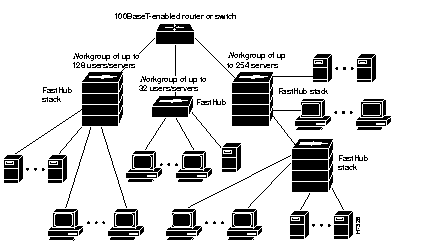
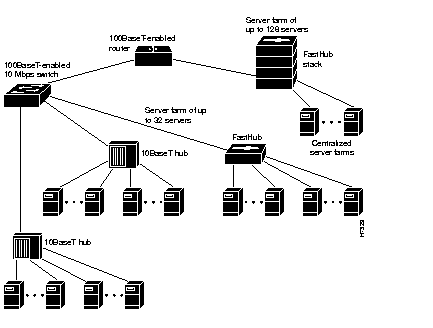
You can create 100-Mbps server farms to increase centralized and decentralized server performance, as shown in Figure 1-9.
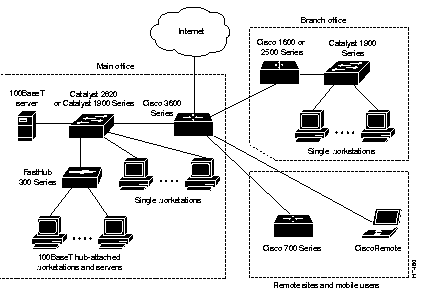
NetBeyond routers, switches, and hubs can be combined to create a high-performance network that extends beyond the main office LAN to connect the company network to the Internet and to mobile users. Figure 1-10 shows an example of a network system.
|
|