


|
|

This chapter introduces the Catalyst 2820 series Ethernet switches and covers the following topics:
The Catalyst 2820 series Ethernet switches can provide up to 25 10-Mbps switched Ethernet connections: 24 10-Mbps connections to 10BaseT-compatible devices, such as single workstations and 10BaseT hubs, and 1 10-Mbps connection to an AUI. Through the use of optional Catalyst 2820 modules, these switches can also increase the performance of large and small Ethernet workgroups by providing 100BaseT, FDDI, and ATM connectivity to servers and backbones.
The Catalyst 2820 series Ethernet switches--also referred to as the Catalyst 2820 switches--consist of the following switches:
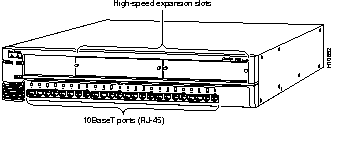
Each Catalyst 2820 switch, as represented in the following illustration, provides the key features summarized in Table 1-1.

| Feature | Description |
|---|---|
| Performance and Configuration |
|
| |
| |
| |
| |
| |
| |
| Management |
|
| |
| |
|
Power Redundancy |
|
The front panel of a Catalyst 2820 switch provides 24 switched 10BaseT ports, 2 expansion slots, a set of LEDs, and a Mode button. (The switch also provides a switched Ethernet AUI port on the rear panel.)
The 24 switched 10-Mbps ports (1x through 24x) on the front panel (see Figure 1-1) use standard RJ-45 connectors. These fixed ports can be connected to 10BaseT-compatible devices, such as individual workstations and hubs, with Category 3, 4, or 5 unshielded twisted-pair (UTP) cabling. For information on connecting to these ports, see the "Connecting to the Switched 10BaseT RJ-45 Ports" section in the "Installation" chapter.
The two expansion slots are for the optional Catalyst 2820 100BaseTX, 100BaseFX, FDDI, and Asynchronous Transfer Mode (ATM) modules. The ports on these modules can be connected to backbones, servers, switches, and routers with Category 5 UTP or fiber-optic cabling. For more information about these modules, refer to the Catalyst 2820 Modules User Guide and the Catalyst 2820 ATM Modules Installation and Configuration Guide.
You can use the LEDs on the switch to monitor network activity and switch performance. The Mode button is used to select the modes indicated by the port mode LED. Figure 1-2 shows the location of the LEDs and the Mode button.
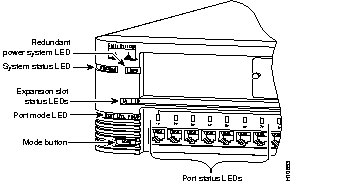
The redundant power system (RPS) LED shows the RPS status. Table 1-2 provides a description of the LED colors and their meanings.
| Color | RPS Status |
|---|---|
| Off | Power is OK (internal power supply is powered up). |
| Solid green | Power is OK (RPS is powered up and operational). |
| Solid amber | RPS is not operational or is not connected properly. |
| Flashing green | RPS and internal power supply are both powered up. Only one power source can be supplying power to the switch.
If you are using the RPS, the AC power cord of the switch must not be plugged in. If you are using the internal power supply, the RPS can be connected but must be powered down. |
The system status (SYSTEM) LED indicates whether the switch is receiving power and functioning properly. Table 1-3 provides a description of the LED colors and their meanings.
| Color | System Status |
|---|---|
| Off | Switch is not powered up. |
| Solid green | Switch is operating normally. |
| Solid amber | Switch is receiving power but might not be functioning properly. One or more power-on self-test (POST) errors occurred. Refer to the Management Console Logon Screen for the message identifying which nonfatal POST test(s) failed. Note: No message is displayed if a fatal POST error occurs. |
The expansion slot status (A and B) LEDs show the status of an inserted module. Table 1-4 provides a description of the LED colors and their meanings.
| Color | Expansion Slot Status |
|---|---|
| Off | No module is in the slot, or module has not been identified by the system and is not operational. |
| Solid green | Module is operational. |
| Flashing green | Module is running POST. |
| Solid amber | Module failed POST and is not operational. |
The port mode LED indicates the mode you selected using the Mode button:
The port status LEDs, located above the 10BaseT ports, indicate the status of each of these individual ports. This section discusses the LEDs for the 10BaseT ports only. The LEDs on any installed module indicate the status of the module ports. For information about the modules, refer to the Catalyst 2820 Modules User Guide and Catalyst 2820 ATM Modules Installation and Configuration Guide.
To change the mode being displayed by a port status LED, press the Mode button to highlight in sequence each of the modes: STAT (port status), UTL (bandwidth utilization), and FDUP (full-duplex mode). As long as you hold the Mode button down, the mode does not change back to the default mode selected through the Console Settings Menu. After you release the Mode button, the selected mode remains on for 30 seconds before returning to the default mode.
In port status (STAT) mode, each port status LED indicates the status of the individual port. Table 1-5 provides a description of the LED colors and their meanings.
| Color | Port Status |
|---|---|
| Off | No link. |
| Solid green | Link operational (with no activity). |
| Flashing green | Link operational (with activity). |
| Alternating green and amber | Link fault. Error frames can affect connectivity, and errors such as excessive collisions, CRC errors, and alignment and jabber errors are monitored for a link-fault indication. |
| Solid amber | Port is not forwarding. For example, this could be because the port was disabled by management, suspended due to an address violation, or suspended by Spanning-Tree Protocol due to the presence of network loops. |
In utilization (UTL) mode, the port status LEDs show the current and peak bandwidth utilization of the switch (see Table 1-6). Current bandwidth utilization is shown with a series of lit port status LEDs ending with a rapidly blinking one. Peak bandwidth utilization is indicated by the right-most solidly lit LED.
The peak utilization is recorded in the bandwidth-capture interval. For information on how to change the bandwidth-capture interval, see the "Bandwidth Usage Report" section in the "Configuration and Management" chapter.
| Port Status LEDs | Mbps Activity |
|---|---|
| 1 to 8 | 0.1 to < 6 |
| 9 to 16 | 6 to < 120 |
| 17 to 24 | above 120 |
All ports and both module slots on the switches support full-duplex operation. In full-duplex (FDUP) mode, the port status LEDs indicate which 10BaseT ports are operating in full-duplex mode. Table 1-7 provides a description of the LED colors and their meanings. (Modules supporting full-duplex operation have a resident LED to indicate full-duplex status.)
| Color | Full-Duplex |
|---|---|
| Off | Half-duplex mode is operational. |
| Solid green | Full-duplex mode is operational. |
The rear panel of a Catalyst 2820 switch provides an AC power receptacle, an RJ-45 console port, a redundant power system (RPS) receptacle, and a switched Ethernet
AUI port (see Figure 1-3).
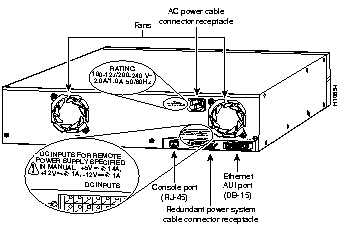
You can configure and manage the switch through the management console by connecting the console port to a management station or modem. To properly connect the console port to a management station or modem, you need to use the supplied RJ-45-to-RJ-45 rollover cable and adapters. For additional information on connecting to this port, see the "Connecting to the Console Port" section in the "Installation" chapter.
You can connect the switched Ethernet AUI port to an Ethernet transceiver, which is then connected to a 10-Mbps Ethernet device through thick coaxial, thin coaxial, fiber-optic, or UTP cable. For additional information on connecting to this port, see the "Connecting to the Switched Ethernet AUI Port" section in the "Installation" chapter.
You can provide power to the switch either by using the internal power supply or by connecting the Cisco 600W redundant AC power system (RPS) to the RPS receptacle on the switch. Only one power source can be supplying power to the switch.
If you want to use the internal power supply, which is an autoranging unit supporting input voltages of 90 to 127/200 to 250 VAC, use the supplied AC power cord to connect the AC power receptacle to an AC power outlet.
If you want to use the RPS, you must disconnect the AC power cord from the internal power supply. See the Cisco RPS documentation for detailed information on connecting to the RPS.
 | Warning Attach only the Cisco RPS (model PWR600-AC-RPS) to the RPS receptacle. |
This section provides example configurations of how Catalyst 2820 switches can be used in your network:
In Figure 1-4, a Catalyst 2820 switch supports up to 25 switched (dedicated) Ethernet connections to workstations or 10BaseT hubs. Each workstation or hub directly connected to a port on the switch has a dedicated bandwidth of 10 Mbps. However, all the workstations connected to the 10BaseT hub or repeater share the 10 Mbps of bandwidth available within the attached hub or repeater.
The two 100-Mbps servers are connected to the Catalyst 2820 single-port 100BaseT switch modules. These switched ports can be configured for full-duplex operation so that each port provides a total of 200 Mbps of bandwidth between each server. These servers are accessible to all the users in the workgroup. Single workstations can also be configured for full-duplex operation so that each switched port provides 20 Mbps of bandwidth. Hubs only operate in half-duplex mode; therefore, all ports connected to hubs must operate in half-duplex mode, providing 10 Mbps of bandwidth.

You can connect Catalyst 2820 switches to servers and other switches via the Catalyst 2820 FDDI, ATM, and 100BaseTX and 100BaseFX switch modules. In Figure 1-5, three Catalyst 2820 switches are connected to each other and to servers through the Catalyst 2820 single-port 100BaseT switch modules. If the ports on these modules are configured for full-duplex operation, they can provide a total of 200 Mbps of bandwidth on each port. Switched 10BaseT ports can also be configured for full-duplex operation to provide 20 Mbps of bandwidth to endstations.

You can create a 100-Mbps or ATM collapsed backbone by connecting Catalyst 2820 switches to a 100BaseT backbone switch or router, as shown in Figure 1-6. In this example, two Catalyst 2820 switches are connected to a Catalyst 5000 series switch, LightStream 1010 switch, or Cisco 7000 series router through the Catalyst 2820 ATM module or Catalyst 2820 single-port 100BaseT switch module in CollisionFree full-duplex mode, allowing up to 200 Mbps of bandwidth to both Catalyst 2820 switches. In addition, the distance between each Catalyst 2820 switch and the backbone switch or router can be increased to up to 2 kilometers by using the Catalyst 2820 single-port 100BaseFX switch module in full-duplex mode with fiber-optic cabling.

You can create a 100-Mbps or ATM redundant backbone network by connecting Catalyst 2820 switches to 100BaseT or ATM backbone switches or routers, as shown in Figure 1-7. In this example, each Catalyst 2820 switch is connected to the two Catalyst 5000 series switches, LightStream 1010 switches, or Cisco 7000 series routers, shown at the top-left and top-right corners, in a redundant configuration. If connectivity is lost to one of the backbone routers or switches, the network then uses the redundant connection to keep the devices working.
In addition, Spanning-Tree Protocol, available only on the switches, ensures that only one of the two connections from each switch is active (the primary link), ensuring that there are no loops in the network paths between any two end nodes. If the primary link fails, the secondary link automatically becomes active.
The Catalyst 2820 switches in this example are connected to the backbone switches or routers through the Catalyst 2820 single-port 100BaseT switch module in CollisionFree full-duplex mode or through the Catalyst 2820 ATM module. In addition, the distance between each Catalyst 2820 switch and the backbone switch or router can be increased to up to 2 kilometers by using a fiber-optic cable (full-duplex connection).

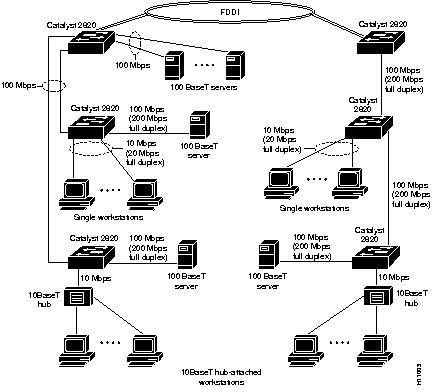
In Figure 1-8, two Catalyst 2820 switches, each equipped with a Catalyst 2820 Fiber DAS module, are connected to an FDDI network backbone. The Catalyst 2820 switch on the left is also configured with a Catalyst 2820 4-port 100BaseT repeater module, which connects to two other Catalyst 2820 switches and two servers via shared 100BaseT connections. (An 8-port 100BaseT repeater module is also available for the Catalyst 2820 switch.)
The three Catalyst 2820 switches on the right are configured with Catalyst 2820 single-port 100BaseT switch modules and daisy-chained to each other via a switched full-duplex 100BaseT connection. Two of the Catalyst 2820 switches on the right are also connected to single workstations, a server, and a 10BaseT hub. The 10BaseT hub supports more 10BaseT workstations that share the 10 Mbps of bandwidth between the workstations connected to this hub. The server is connected to the 100-Mbps port on the Catalyst 2820 switch and supports all the nodes connected to that switch.
A system of routers, switches, and hubs can be combined to create a high-performance network that extends beyond the main office LAN to connect to branch offices, remote sites, mobile users, and the Internet. Figure 1-9 is an example of an extended network.

|
|