


|
|

This chapter contains detailed procedures for installing the Catalyst 2800 on a table, shelf, or rack, and connecting it to other devices. The first thing to do is to ensure that you have all the components. When unpacking the unit, turn to the "Packing List" section in the "Fast Install Guide" preface for the list of included items.
The nature of rack-mounted equipment requires that the following guidelines be observed:
To install the unit in the rack:
Step 1 Position the unit on the rack by lining up the integrated mounting ears with the holes in the rack, as shown in Figure 4-1.
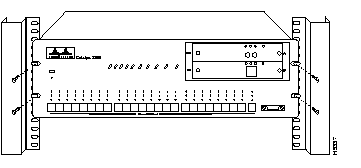
Step 2 Attach the Catalyst 2800 unit to the rack with the four provided screws.
Step 3 Connect the power cord to the Catalyst 2800 and to the power outlet.
Step 4 Turn the unit on using the power switch on the rear panel.
The power LED will come on, and the Catalyst 2800 will automatically start a self-test. This test is described in the "Power-On Self-Test (POST)" section in this chapter.
Use these instructions to install the Catalyst 2800 on a table or shelf.
Step 1 Attach the four rubber feet included in the cushioning kit to the bottom of the unit.
Step 2 Place the Catalyst 2800 unit on the table or shelf near a power source.
Step 3 Connect the power cord to Catalyst 2800 and to the power outlet.
Step 4 Turn the Catalyst 2800 on using the power switch on the rear panel.
The power LED will come on, and Catalyst 2800 will automatically start the series of tests described in the "Power-On Self-Test (POST)" section in this chapter.
When the Catalyst 2800 is first turned on it lights all LEDs and executes a Power-On Self-Test (POST). There are fifteen tests run in reverse order starting with number fifteen. As a test is running, the column of port LEDs with that test number are turned off. When the test passes, the LEDs are turned back on and the next test is performed. A complete description of the fifteen POST tests is included in the "POST Failure" section in the "Troubleshooting" chapter.
Tests nine and ten each take about thirty seconds; the other tests last a few seconds each. If a test fails, the associated LED column remains off during the remainder of the tests. When all the tests have completed, the LEDs for each passed test remain on, and the LEDs for each failed test remain off. When all tests pass, all LEDs are turned off.
For more details about the POST, see the "POST Failure" section in the "Troubleshooting" chapter.
The Catalyst 2800 is configured with the default settings shown in Table 4-1. See the "Out-of-Band Management" chapter for descriptions of the Management Console menus listed below.
| Catalyst 2800 Feature | Default Setting | Management Console Menu |
|---|---|---|
| Switching mode | FastForward | "System Configuration" |
| Spanning-Tree Protocol | Enabled | "Spanning-Tree Configuration" |
| Addressing security | Disabled | "Port Addressing" |
| VLAN configuration | All ports belong to VLAN1 | "VLAN Configuration" |
| Port monitoring | Disabled | "Monitoring Configuration" |
| Flooding unknown unicast packets | Enabled | "Port Addressing" |
| Flooding unregistered multicast packets | Enabled | "Port Addressing" |
| Full duplex for Catalyst 2800 1-port 100Base-T modules | Disabled | "Port Configuration" |
| Assign IP address to Catalyst 2800 | 0.0.0.0 | "IP Configuration" |
| Define trap manager | 0.0.0.0 | "Network Management (SNMP) Configuration" |
| Action on address violation | Suspend | "System Configuration" |
If you find some of these terms unfamiliar, they are described in detail in the "Concepts" chapter. See the "Configuration Menus" section in the "Out-of-Band Management" chapter for instructions on changing the default settings. If you are using SNMP, you can set these parameters according to the list of supported MIB objects found in the "Standard MIBs and MIB Extensions" section in the "In-Band Management" chapter.
Once the Catalyst 2800 is installed you can begin connecting devices to its ports. Note that all UTP connections, whether 10Base-T, 100Base-TX, or FDDI UTP must be within 100 meters of the Catalyst 2800.
Use the following procedure to connect the Catalyst 2800 to 10Base-T ports 1 through 24:
Step 1 Insert the cable into one RJ-45 connector as shown in Figure 4-2.
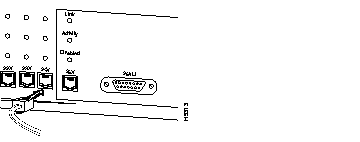
Step 2 Insert the other end of the cable into the RJ-45 connector of the target device. The link LED will light when both Catalyst 2800 and the connected device are turned on. If the link LED does not light, the device at the other end may not be turned on, there may be a cable problem or a problem with the adapter installed in the attached device. See the "Troubleshooting" chapter for more information.
Step 3 Reboot the connected device as needed.
Repeat steps 1 through 3 for each device that needs to be connected.
Port 25 is described separately because it can be connected via an RJ-45 or AUI connector. Only one connector for the port can be used at a time. The Catalyst 2800 can self-sense the connector being used, and no configuration is necessary. You can also define which connector is to be used through the Catalyst 2800 management console as described in the "Port Configuration" section in the "Out-of-Band Management" chapter, or with the objects listed in the "Standard MIBs and MIB Extensions" section in the "In-Band Management" chapter.

If you're using the RJ-45 connector, use the procedure in the "Connecting to 10BaseT Ports 1 Through 24" section in this chapter.
Procedures for installing Catalyst 2800 modules in the Catalyst 2800 high-speed expansion slots are included in the Catalyst 2800 Modules User Guide.
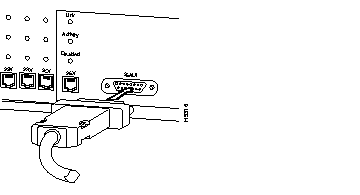
Use the AUI connector on the front panel to connect to an external transceiver for attachment to a thick coaxial, thin coaxial, or fiber-optic cable.
Step 1 Install the appropriate external transceiver on the network. Refer to the transceiver manual for installation instructions.
Step 2 Insert the AUI cable into the AUI connector on Catalyst 2800, as shown in Figure 4-4.
Step 3 Slide the latch into the closed position.
Step 4 Attach the other end of the cable to the transceiver.
Use the RS-232 cable shipped with Catalyst 2800 to connect a terminal to the RS-232 port on the Catalyst 2800's back panel.
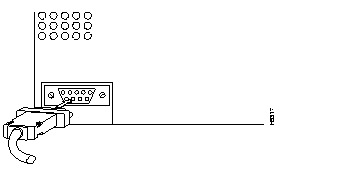
Step 1 Using the cable supplied with the Catalyst 2800, insert the connector into the receptacle as shown in Figure 4-5.
Step 2 Insert the other end of the cable into the terminal.
Step 3 Boot the terminal emulation program on your terminal.
The management console logon panel appears.
The Catalyst 2800 is configured to expect the following parameters:
|
|