


|
|

As enhancements are made to the Catalyst 3900, you may need to update the software, or microcode, that is contained in the Catalyst 3900. This chapter describes how to upgrade the Catalyst 3900 flash electrically erasable programmable read-only memory (EEPROM).
 | Caution After downloading the new software you must reset the switch. The Catalyst 3900 is not operational while it is resetting. Before starting this procedure, make sure the network will not be effected. |
The download procedures depend on the download method you choose. This chapter provides information about the following:
When using TFTP to update the Catalyst 3900 software, remember the following:
You can use TFTP to update the main image or the ATM firmware of the Catalyst 3900. To perform a software download via TFTP, the Catalyst 3900 must have access to a TFTP server. Perform the following steps to download the software:
Step 1 Copy the binary file C39K_xyz.bin to the TFTP server and prepare the TFTP server.
Step 2 If you have not already done so, start a console session as described in the section "Planning for Configuration and Management."
Step 3 Select Download/Upload on the Main Menu. The Download/Upload panel (Figure 8-1) is displayed.

Step 4 Select TFTP Download/Upload. The TFTP Download/Upload panel (Figure 8-2) is displayed.
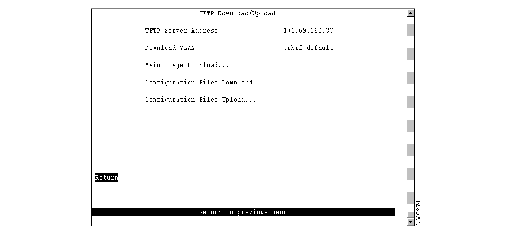
Step 5 Fill in the following fields:
Step 6 Select Main Image Download. The Main Image Download panel (Figure 8-3) is displayed.
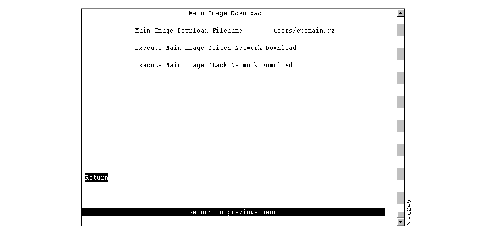
Step 7 Specify the path and filename as it exists on the TFTP server.
Step 8 Select Execute Main Image Switch Network Download. Or, if the switch is part of a stack, select Execute Main Image Stack Network Download.
Step 9 If the Catalyst 3900 is participating in a stack, you will be prompted to specify whether you want to download the new software to a single switch or to the entire stack.
Step 10 Enter Y or N to confirm the download when the following message is displayed:
Step 11 Press Enter when you see the message:
Step 12 Reset the Catalyst 3900 to activate the new code by selecting Reset on the Main Menu panel or by pressing the Reset button.
You can also use TFTP to store and retrieve the configuration parameters for the Catalyst 3900. To store and retrieve parameters, do the following:
Step 1 If you have not already done so, start a console session as described in the section "Planning for Configuration and Management."
Step 2 Select Download/Upload on the Main Menu. The Download/Upload panel (Figure 8-1) is displayed.
Step 3 Select TFTP Download/Upload. The TFTP Download/Upload panel (Figure 8-2) is displayed.
Step 4 Fill in the following fields:
Step 5 Select the desired option.
To store the current configuration on the TFTP server:

To retrieve configuration information that has been stored on a TFTP server:
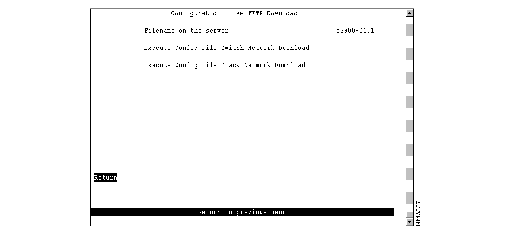
Step 6 Confirm the download or upload.
Step 7 Press Enter when you see the message:
Step 8 Reset the Catalyst 3900 to activate the new code by selecting the Reset option on the Main Menu panel or by pressing the Reset button.
You can use the serial link to update the main image of the Catalyst 3900. To perform a software upgrade through the serial port, your terminal emulator must support the Xmodem protocol. To download software through the serial port, do the following:
Step 1 Insert the upgrade disk in your terminal drive.
Step 2 If you have not already done so, start a console session as described in the "Planning for Configuration and Management" section.
Step 3 Select Download/Upload on the Main Menu. The Download/Upload panel (Figure 8-1) is displayed.
Step 4 Select Serial Link Download. The Serial Link Download panel (Figure 8-6) is displayed.
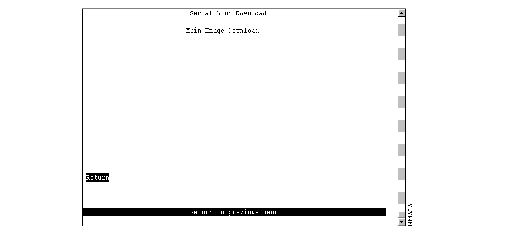
Step 5 Select Main Image Download.
Step 6 Confirm the download. The download takes approximately 12 minutes at 9600 baud.
When the download is complete, the following messages appear:
Step 7 Enter Y to confirm the reset. The procedure is complete.
This section provides information on initiating the download procedure with the System Request Menu.
Follow these steps to begin a software upgrade:
Step 1 If you have not already done so, start a console session as described in the "Planning for Configuration and Management" chapter and advance to the Copyright panel.
Step 2 Press the System Request button (SYSREQ). The System Request Menu is displayed.
Step 3 Select your download option from the console.
Step 4 The following messages appear:
Step 5 Use a terminal emulator program on your PC to download the binary file using Xmodem protocol. The download takes approximately 12 minutes at 9600 baud.
When the download is complete, the following messages appear:
Step 6 Once the download is complete, press any key.
Step 7 On the System Request Menu, select Reset the system to reset the Catalyst 3900.
|
|