


|
|

Now that you have installed Resource Manager, you need to set up Resource Manager and perform administrator tasks. This chapter consists of the following sections:
To access Resource Manager, enter the following URL in your web browser:
http://server_name
where server_name is the name of the server on which you installed Resource Manager.
If you used the alternative port, enter
http://server_name:1741
where :1741 is the alternative port on which Resource Manager was installed.
The main Resource Manager screen appears. (See Figure 2-1.)
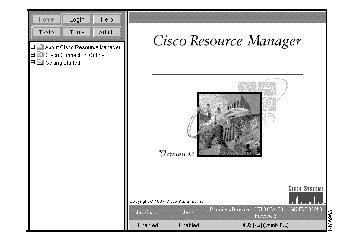
The Resource Manager desktop is composed of a series of pages consisting of two frames:
If you cannot access the Resource Manager server or the desktop is not displaying correctly, consult the "Troubleshooting" appendix. In addition, consult the Troubleshooting section in Learning to Use Cisco Resource Manager.
Now that you have accessed the Resource Manager server, you need to log in as the administrator and set up the server for other users. The following sections explain how to perform administrator tasks.
Although most Resource Manager modules are available to anyone who can connect to the Resource Manager server, some tasks are restricted to users who have a valid administrator login and password.
To access all Resource Manager modules, you need to log in as the administrator by following these steps:
Step 1 Click Login on the Resource Manager button bar. The Username and Password Required dialog box appears. (See Figure 2-2.)
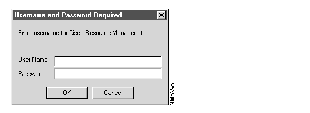
Step 2 Enter the following information in the Username and Password Required dialog box:
admin
admin
The web browser appears to refresh, and the Login button changes to Logout. The administrator tasks are transparent until you access the administrator options, as described in the following sections.
If you enter an invalid password or click Cancel when prompted for a password, the browser displays an Authorization Required message.
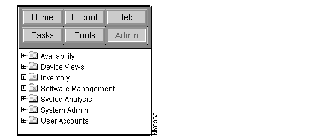
Step 3 Click Admin in the button bar. The administrator folders appear. (See Figure 2-3.) These folders contain the administrator tools and tasks.
Security for Resource Manager is provided by the Windows NT operating system on which you installed Resource Manager. There are two levels of users within Resource Manager:
Resource Manager does not distinguish among different users with administrator privileges.
When Resource Manager is installed, the administrator password is created automatically. To prevent all users from accessing privileged modules, you need to change the administrator password. You can change the administrator password from the Windows NT system by selecting Start > Programs > Administrative Tools > User Manager. For more detailed instructions, refer to your Windows NT documentation.
All users with administrator privileges have access to all privileged administrator tasks and modules, such as System Administration and Software Management. Therefore, make sure you monitor closely which users are given administrator privileges.
To end your administrator tasks, you must log out of Resource Manager and quit the web browser. Follow these steps to log out of Resource Manager:
Step 1 Close all secondary browser windows that are open. You should have only one browser window opened displaying the Resource Manager interface.
Step 2 Click Logout on the Resource Manager button bar. The Cisco Resource Manager Logout dialog box appears.
Step 3 To log out of Resource Manager and quit the web browser, click Confirm Logout. A dialog box appears asking if you to confirm whether you want to close the browser window.
Step 4 Click OK.
You are logged out of Resource Manager and the web browser quits.
Now that you have performed the necessary administrator tasks, you can continue with "Preparing to Use Resource Manager Modules."
|
|