


|
|
Cisco's SwitchProbe models include Ethernet, Token Ring, Fast Ethernet, Copper Distributed Data Interface (CDDI), Fiber Distributed Data Interface (FDDI), and wide area network (WAN). This chapter contains the following information about the SwitchProbe models:
Refer to the appendix "Specifications" for complete physical specifications.
 | Caution Before connecting the SwitchProbe device to the network, please note the following: |
After the SwitchProbe device is configured, it can be connected to the network link. While more detailed instructions are provided in the "Physical Description" chapter, an overview of the most common network connections is given in the following paragraphs.
Cisco SwitchProbe devices have one LAN port that provides a communication path for the agent through the LAN to the management console. This port is always Interface 1. Depending on the specific model, this interface can be Ethernet or Token Ring.
CDDI, FDDI, and Fast Ethernet SwitchProbe devices can be managed in-band through the high-speed interface instead of through Interface 1. See the "Installation" chapter for instructions on configuring the SwitchProbe device for in-band management.
The Ethernet interface supports 10Base5 (Thicknet), 10Base2 (Thinnet), and 10BaseT (UTP). The default configuration is indicated on the rear panel with an appropriate label. The connector for each topology is as follows:
The two LEDs on the Ethernet interface card are described in Table 4-1.
| LED Color | Status | Description |
|---|---|---|
| Green | On
Off | Link signal detected.
No link signal detected or no cable attached. |
| Amber | On
Blink Off | Heavy traffic on the network.
Moderate traffic on the network. No traffic on the network. |
The AUI interface is described in Table 4-2.
| Pin | Signal Name | Direction |
|---|---|---|
| 1 | Logic Ground | (GND) |
| 2 | Collision Input+ (CI+) | In |
| 3 | Transmit Data+ (DO+) | Out |
| 4 | Logic Ground | (GND) |
| 5 | Receive Data+ (DI+) | In |
| 6 | +12V Logic Ground | (GND) |
| 7 | Not used | |
| 8 | Logic Ground | (GND) |
| 9 | Collision Input- (CI-) | In |
| 10 | Transmit Data- (DO-) | Out |
| 11 | Logic Ground | (GND) |
| 12 | Receive Data- (DI-) | In |
| 13 | +12V Power (+12) | Out |
| 14 | Logic Ground | (GND) |
| 15 | Not used |
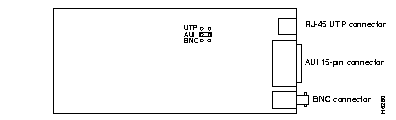
To select the Ethernet connection, you must change an internal jumper located on the Ethernet interface card (see Figure 4-1). To change the connection type, open the unit by removing the screws holding the cover in place and slipping off the cover. Remove the network interface card. The jumper is located on the board behind the connectors. Place the jumper on the selected option: UTP, AUI, or BNC.
 | Warning Before working on a system that has an on/off switch, turn OFF the power and unplug the power cord. |
| Warning Before working on a chassis or working near power supplies, unplug the power cord on AC units; disconnect the power at the circuit breaker on DC units. |
| Warning Before working on equipment that is connected to power lines, remove jewelry (including rings, necklaces, and watches). Metal objects heat up when connected to power and ground and can cause serious burns or weld the metal object to the terminals. |
| Warning Do not touch the power supply when the power cord is connected. For systems with a power switch, line voltages are present within the power supply even when the power switch is off and the power cord is connected. For systems without a power switch, line voltages are present within the power supply when the power cord is connected. |
To see the warnings in multiple languages, refer to the appendix, "Translated Safety Warnings."
The 100BaseFX interface adapter card has two LEDs, which are described in Table 4-3. The 100BaseTX interface adapter card has four LEDs. Two of the LEDs are 100-Mbps indicators, as described in Table 4-3. The remaining two LEDs are 10-Mbps indicators and are inactive, because 10-Mbps connection speed is not currently supported through the Fast Ethernet interface.
| LED Color | Status | Description |
|---|---|---|
| Green | On
Off | Link signal detected.
No link signal detected or no cable attached. |
| Amber | On
Blink Off | Heavy traffic on the network.
Moderate traffic on the network. No traffic on the network. |
Use an RJ-45 jack to connect the SwitchProbe device to the network. This connector accepts a 100-ohm Category 5 UTP or STP cable with an RJ-45 plug. The 100BaseTX connectors are illustrated in Table 4-4.
| Pin | 100BaseTX |
|---|---|
| 1 | Transmit+ |
| 2 | Transmit- |
| 3 | Receive+ |
| 4 | Not used |
| 5 | Not used |
| 6 | Receive- |
| 7 | Not used |
| 8 | Not used |
Use the SC modular connector to connect the SwitchProbe device to the network. This connector accepts an SC-to-SC 62.5/125-micron, multimode fiber-optic cable. When plugging in the SC connectors, be sure they are not upside-down. If the link light does not come on, try reversing the connector on one end of the cable.
Use the two RJ-45 jacks, labeled DTE and DCE, to connect the SwitchProbe device to the Fast Ethernet FDX TX Tap. Each RJ-45 jack accepts a 100-ohm Category 5 UTP or STP cable. To connect the Fast Ethernet SwitchProbe model to the Fast Ethernet Tap with 100BaseTX connectors, perform the following steps, making sure to connect to the Tap ports labeled (Probe).
Step 1 Use a Category 5 cable to connect Switch 1 to the DTE Network port on the Fast Ethernet Tap.
Step 2 Connect Switch 2 to the DCE Network port on the Fast Ethernet Tap. Use the cable previously plugged into Switch 1.
Step 3 Use a Category 5 crossover cable to connect the DTE Network port of the Fast Ethernet Tap to the DTE interface of the SwitchProbe.
Step 4 Use a Category 5 crossover cable to connect the DCE Network port of the Fast Ethernet Tap to the DCE interface of the SwitchProbe.
The Fast Ethernet FDX TX Tap is, in turn, connected to the network. The Fast Ethernet FDX TX Tap and the procedure for connecting it to the network are described in the "Connecting the Fast Ethernet Tap to the Network" section in this chapter.
As an alternate configuration, this SwitchProbe device can monitor two half-duplex Fast Ethernet links. Connect each interface directly to the network. In this configuration, the Fast Ethernet FDX TX Tap is not used and a change of probe firmware is required.
Use the two duplex SC connectors, labeled DTE and DCE, to connect the SwitchProbe device to the Fast Ethernet FDX Tap. Each SC connector accepts a 62.5/125-micron multimode, fiber-optic cable. To connect the Fast Ethernet SwitchProbe model to the Fast Ethernet Tap with 100BaseFX connectors, use the following steps, making sure to connect to the Fast Ethernet FDX Tap ports labeled "Probe."
Step 1 Use a Category 5 cable to connect Switch 1 to the DTE Network port on the Fast Ethernet Tap.
Step 2 Connect Switch 2 to the DCE Network port on the Fast Ethernet Tap. Use the cable previously plugged into Switch 1.
Step 3 Use a Category 5 crossover cable to connect the DTE Network port of the Fast Ethernet Tap to the DTE interface of the SwitchProbe.
Step 4 Use a Category 5 crossover cable to connect the DCE Network port of the Fast Ethernet Tap to the DCE interface of the SwitchProbe.
When plugging in the SC connectors, be sure they are not upside-down. If the link light does not come on, try reversing the connector on one end of the cable. The Fast Ethernet FDX Tap is, in turn, connected to the network, using the included adapter cable and coupler. The Fast Ethernet FDX Tap and the procedure for connecting it to the network are described in the "Connecting the Fast Ethernet Tap to the Network" section in this chapter.
As an alternate configuration, this SwitchProbe device can monitor two half-duplex Fast Ethernet links. Connect each interface directly to the network. In this configuration, the Fast Ethernet FDX Tap is not used.
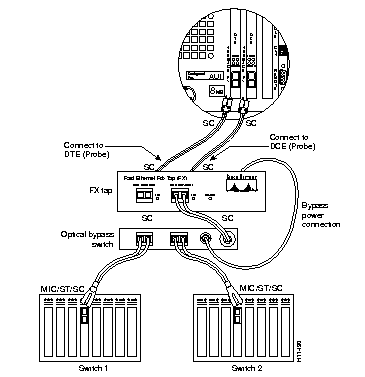
For the highest degree of fault tolerance, you can connect the Fast Ethernet Tap to the network using an optical bypass switch. To do so, see Figure 4-2, and use the following steps.
Step 1 Use the cable included with the probe to connect Switch 1 to one port on the optical bypass switch.
Step 2 Use the second cable included with the probe to connect to the second port of the optical bypass switch.
Step 3 Connect the bypass power cable to the Bypass connector on the rear panel of the tap.
Step 4 Connect the SC cables of the optical bypass switch to the DTE and DCE ports on the front panel of the tap.
The Full-Duplex Fast Ethernet SwitchProbe model includes a Fast Ethernet FDX Tap to monitor full-duplex network links.
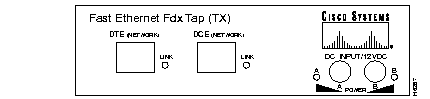
The front panel (see Figure 4-3) has DTE and DCE connectors for connection to the network. On a Fast Ethernet FDX Tap for 100BaseTX, these connectors are RJ-45 jacks. On a Fast Ethernet FDX Tap for 100BaseFX, these are SC connectors. These connectors are described in the "Connecting to a 100BASE-FX Network Using An Optical Bypass Switch" section.
Two LEDs on the front panel indicate link status. When a link LED is on, the corresponding port has a good link status signal. If the LED is off, no cable is connected, or there is a problem with the corresponding port on the hub or device it is attached to. The power connector on the Fast Ethernet FDX Tap is designed to be used only with the adapter supplied with the Fast Ethernet FDX Tap.
| Caution Use only the power transformer supplied with the Fast Ethernet FDX Tap. If you use any power transformer other than the one supplied with the Fast Ethernet FDX Tap, it can cause permanent damage to the Fast Ethernet FDX Tap. |
Two LEDs on the front panel indicate power status. The power LED is on when the Fast Ethernet FDX Tap is receiving good power on the corresponding port.
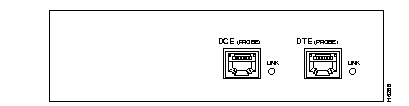
The rear panel (see Figure 4-4) has DTE and DCE connectors for connection to the SwitchProbe device. On a Fast Ethernet FDX Tap for 100BaseTX, the DTE and DCE connectors are RJ-45 jacks. On a Fast Ethernet FDX Tap for 100BaseFX, these are SC connectors. These connectors are described in the "HSSI WAN Tap" section.
Two LEDs on the rear panel indicate link status. When a link LED is on, the corresponding port has a good link status signal. If the LED is off, there is no cable connected, or there is a problem with the corresponding port on the SwitchProbe device.
On the Fast Ethernet FDX Tap for 100BaseFX, there is a 6-pin DIN connector for connection to an optional optical bypass switch. The pinout is shown in Table 4-5.
| Pin | Meaning |
|---|---|
| 1 | Secondary +5 V |
| 2 | Primary GND |
| 3 | Primary GND |
| 4 | Secondary GND |
| 5 | Common to 6 |
| 6 | Common to 5 |
To maintain the integrity of the network, in case the Fast Ethernet FDX Tap fails or is turned off, use an optical bypass switch. You can use an optical bypass switch with a 6-pin DIN connector. If you use an optical bypass switch, connect it between the Fast Ethernet FDX Tap and the network. For easy installation, make sure it has SC connectors.
When plugging in the SC connectors, make sure they are not upside-down. If the link light does not come on, try reversing the connector on one end of the cable.
To connect the Fast Ethernet Tap to a 100BaseTX network, see Figure 4-5, and follow these steps:
Step 1 Use a Category 5 cable to connect Switch 1 to the DTE Network port on the Fast Ethernet Tap.
Step 2 Connect Switch 2 to the DCE Network port on the Fast Ethernet Tap. Use the cable previously plugged into Switch 1.
Step 3 Use a Category 5 crossover cable to connect the DTE Network port of the Fast Ethernet Tap to the DTE interface of the SwitchProbe.
Step 4 Use a Category 5 crossover cable to connect the DCE Network port of the Fast Ethernet Tap to the DCE interface of the SwitchProbe.
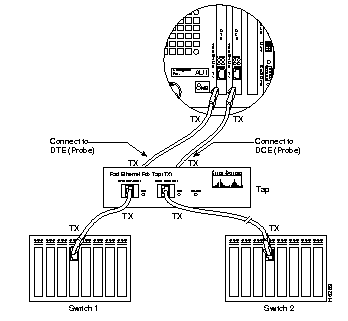
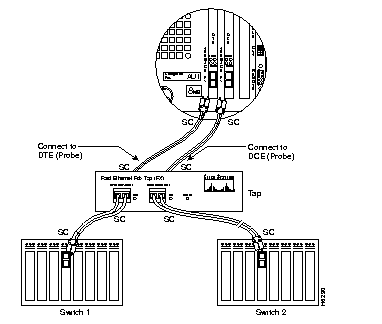
To connect the Fast Ethernet Tap to a 100BaseFX network with SC connectors, see Figure 4-6, and follow these steps:
Step 1 Use the SC-to-SC cable included with the SwitchProbe device to connect Switch 1 to the DTE Network port on the Fast Ethernet FDX Tap.
Step 2 Connect Switch 2 to the DCE Network port on the Fast Ethernet FDX Tap. Use the cable that was formerly plugged into Switch 1.
| Warning Do not stare into the laser beam. |
To see the warnings in multiple languages, refer to the appendix, "Translated Safety Warnings."
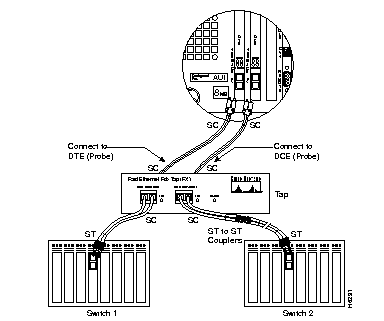
To connect the Fast Ethernet Tap to a 100BaseFX network with ST connectors, see Figure 4-7, and follow these steps:
Step 1 Use the SC-to-ST cable included with the SwitchProbe device to connect Switch 1 to the DTE Network port on the Fast Ethernet FDX Tap. The ST connector is plugged into Switch 1, and the SC connector is plugged into the Tap.
Step 2 Use the other SC-to-ST cable included with the SwitchProbe device to connect the ST to ST coupler to the DCE Network port on the Fast Ethernet FDX Tap. The SC connector is plugged into the Tap, and the ST connector is plugged into the coupler.
Step 3 Connect Switch 2 to the ST-to-ST coupler. Use the cable that was formerly plugged into Switch 1.
| Warning Do not stare into the laser beam. |
To see the warnings in multiple languages, refer to the appendix, "Translated Safety Warnings."
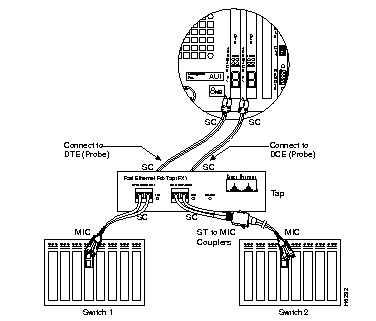
To connect the Fast Ethernet Tap to a 100BaseFX network with MIC connectors, see Figure 4-8, and follow these steps:
Step 1 Use the SC-to-MIC cable included with the SwitchProbe device to connect Switch 1 to the DTE Network port on the Fast Ethernet FDX Tap. The MIC connector is plugged into Switch 1, and the SC connector is plugged into the Tap.
Step 2 Use the SC-to-ST cable included with the SwitchProbe device to connect the ST-to-MIC coupler to the DCE Network port on the Fast Ethernet FDX Tap. The SC connector is plugged into the Tap, and the ST connector is plugged into the coupler.
Step 3 Connect Switch 2 to the ST-to-MIC coupler. Use the cable that was formerly plugged into Switch 1.
| Warning Do not stare into the laser beam. |
To see the warnings in multiple languages, refer to the appendix, "Translated Safety Warnings."
The CDDI or FDDI SAS interface adapter card includes a single two-color (green or amber) LED labeled PHY that indicates the operating status of the controller. The LED function is described in Table 4-6.
| LED Color | Status | Description |
|---|---|---|
| Green | On Flashing | PHY connection complete. This should be the state after the SwitchProbe device boots up and the cable is attached.
PHY connection is in progress or no cable is attached. |
| Amber | On Flashing | Indicates broken port or link confidence test (LCT) failure; retry loop. If this is on before the system boots, it indicates self-test failure.
Illegal topology. |
| Off | Off | Port disabled by management, or controller failure. |
For the FDDI DAS interface, two additional LEDs show the status of the second ring connection. The LEDs are labeled "A" and "B". These LEDs are described in the "FDDI Dual Attach" section in Table 4-9.
This model connects to the ring in a single-attachment configuration through a concentrator. An RJ-45 modular connector is provided so that you can connect the SwitchProbe device to the ring. This connector accepts a 100-ohm Category 5 UTP or STP cable with a transport protocol-media interface connector (TP-MIC) plug described in Table 4-7.
| Pin | Meaning |
|---|---|
| 1 | TX+ |
| 2 | TX- |
| 3, 4, 5, 6 | Not used |
| 7 | RX+ |
| 8 | RX- |
| Warning Class 1 laser product. |
To see the warnings in multiple languages, refer to the appendix, "Translated Safety Warnings."
This model connects to the ring in a single-attachment configuration using a concentrator. A single duplex SC connector is provided for connecting the SwitchProbe device to the ring. This connector accepts either an SC-to-MIC or SC-to-SC 62.5/125-micron, multimode, fiber-optic cable.
Two SC connectors enable you to connect the SwitchProbe device to the ring: either an SC-to-MIC or SC-to-SC 62.5/125-micron multimode, fiber-optic cable.
With the modular RJ-12 connector (described in Table 4-8), you can connect the SwitchProbe device to an optical bypass switch. This enables the optical bypass switch to maintain FDDI dual-ring integrity if the SwitchProbe device fails or is turned off.
| Pin | Meaning |
|---|---|
| 1 | Relay drive: +5 VDC |
| 2 | Relay drive: +5 VDC |
| 3 | Bypass_enable |
| 4 | Bypass_enable |
| 5 | Bypass_present |
| Caution To prevent possible damage to the SwitchProbe unit, do not insert telecommunications cabling into the optical bypass switch connector. |
You can either connect the SwitchProbe device directly to the ring as a DAS or use a concentrator to connect it in a "dual homing" configuration. The network traffic that the SwitchProbe device sees is the same, no matter how you connect the SwitchProbe device to the ring.
To connect the FDDI DAS SwitchProbe device in a dual-homing configuration, use the two free M-ports on the concentrator, and follow these steps:
Step 1 Connect the B port of the SwitchProbe device to one of the M ports of a concentrator.
Step 2 Connect the A port of the SwitchProbe device to an M port on the same or a different concentrator. Connecting to a different concentrator results in better fault tolerance in the event that one of the concentrators fail.
Under normal operating conditions, the link between the B port and the M port is active, and the link between the A port and the M port is in hot standby mode. If the B-to-M link fails, the A-to-M link becomes active, providing fault tolerance because the SwitchProbe device remains attached to the ring. The status of the A-M and B-M links is indicated by the LEDs, as described in Table 4-9.
| LED B | LED A | Description |
|---|---|---|
| Solid green | Alternately green and amber | This is the normal mode of operation. This indicates the B-M link is active, and the A-M link is in standby mode. |
| Flashing green | Solid green | The B-M link has failed, and the A-M link has taken over. The SwitchProbe device is still attached to the ring. |
| Flashing green | Flashing green | Both the B-M and A-M links have failed. The SwitchProbe device is off the ring. Verify connectivity. |
| Flashing amber | Flashing amber | Illegal topology. Verify connectivity. |
| Solid amber | Solid amber | If on before the SwitchProbe unit boots up, indicates an internal self-test failure. If on after the SwitchProbe unit boots up, indicates a link confidence test (LCT) failure. |
| Off | Off | If off after the SwitchProbe unit boots up and if the Error LED on the front panel is blinking, indicates a SwitchProbe device failure. |
For the RJ-45 UTP connector, the pin designations are described in Table 4-10.
| Pin | Signal Name | IBM-Type 3-Wire Color |
|---|---|---|
| 1 | Not used | |
| 2 | Not used | |
| 3 | T- | Blue with white stripe |
| 4 | R+ | White with orange stripe |
| 5 | R- | Orange with white stripe |
| 6 | T+ | White with blue stripe |
| 7 | Not used | |
| 8 | Not used |
The default configuration is through the STP connector. You can attach to UTP by inserting the appropriate UTP cable into the UTP connector. The unit automatically detects and configures for the UTP connection.
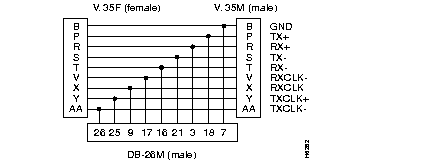
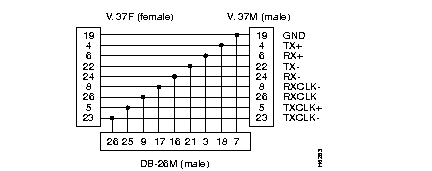
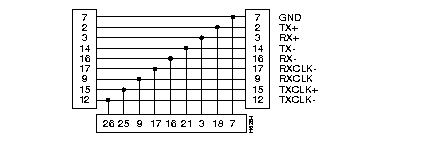
The WAN interface supports connections to V.35, X.21, EIA/TIA 449, EIA/TIA 530, and X.21 with one or two clock sources. The interface has a single port with a 26-pin D-type connector. For each supported connection, you must use an appropriate adapter cable.
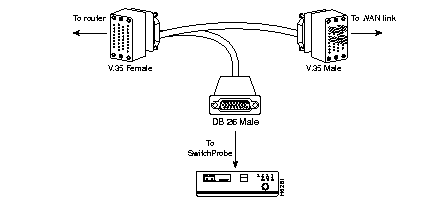
Connect to the WAN link through a T-cable, supplied with the SwitchProbe, which provides a passive tap to the WAN connection between the router and the WAN link terminating device (DSU/CSU). The router to DSU/CSU (DTE to DCE) connection is a straight passthrough cable.
Figure 4-9 shows how to connect the tap cable between the router and the WAN link termination. The cable shown is for V.35 connections, but the procedure is the same for other supported interfaces.
Interface types supported are V.35, EIA/TIA 449, EIA/TIA 530, X.21 with one clock source, and X.21 with two clock sources. The cable configurations for these interfaces are shown in Figure 4-10 through Figure 4-14. Only the pins that are connected to the SwitchProbe are shown. Pins that go straight through, connecting DTE to DCE, are not shown.
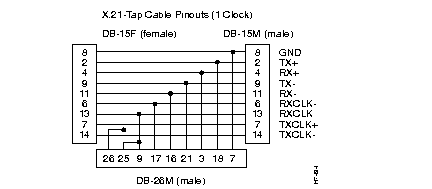
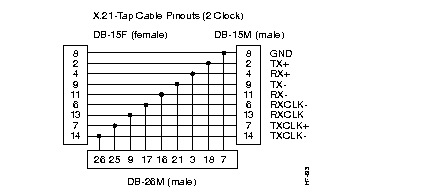
The HSSI WAN probe taps the DTE and DCE circuits of the HSSI link through an active Tap interface. The HSSI WAN installation involves connecting the HSSI Tap Module between the router and CSU/DSU, and then connecting the HSSI interface on the rear panel of the probe to the Tap.
See Figure 4-15 and use the following procedure to connect the HSSI WAN probe to the network using the HSSI Tap Module.
Step 1 Configure the probe with its IP address, Net Mask, and Default Gateway Address as described in "Accessing the Agent Configuration Utility," in the chapter, "Installation."
Step 2 Set the interface speed as described in "Changing the Token Ring and WAN Interface Speed," in the chapter, "Installation" if the speed of the network you are connecting to is not 1250 kbps.
Step 3 Set the encapsulation protocol as described in "Changing Encapsulation Protocol (WAN Only)," in the chapter, "Installation" if the encapsulation protocol used on the network you are connecting to is not Wellfleet HDLC.
Step 4 Connect the router to the HSSI IN port on the HSSI Tap Module, using the original cable.
Step 5 Connect the DSU/CSU to the HSSI OUT port on the HSSI Tap Module, using the HSSI cable included with the probe.
Step 6 Connect the single DB26 port on the back of the HSSI Tap Module to the HSSI WAN interface on the rear probe panel, using the Tap cable supplied with the probe.

HSSI WAN probes use a HSSI Monitor Tap Module to tap into the DTE and DCE circuits of the WAN link.The Tap measures 1.5 inch height x 4 inch width x 4 inch depth and can be set on a tabletop in an office-type environment.
The front panel includes a single DB26 connector used to connect the Tap module to the WAN port on the back of the probe. A single LED, labeled "Interlock," indicates that the corresponding port has a good link status signal. If the LED is off, it may be because there is no cable connected, or there is a problem with the corresponding WAN port on the probe.
The rear panel includes two SCSI II connectors. The connector labeled "HSSI OUT" is used to connect the Tap to the DSU/CSU; the connector labeled "HSSI IN" is used to connect the Tap to the router, as illustrated in Figure 4-15.
|
|