Troubleshooting the Router Hardware Configuration
Your router went through extensive testing and burn-in before leaving the factory. However, if your router appears to have problems starting up, follow the steps in this chapter to help identify the problem.
This chapter contains the following sections:
Troubleshooting Overview
Use the information in this chapter only to help isolate problems. This section is designed to help you rule out the router as the problem source. Whether or not you can locate the source of your problem, contact a customer service representative for information on how to proceed in resolving the problem. Before you call, have the following information ready:
- Chassis type and serial number
- Maintenance agreement or warranty information
- Type of software and version number
- Date you received the new chassis
- Brief description of the problem you are having
- Brief explanation of what steps you have taken to isolate the problem
The key to problem solving in a system such as a router is to try to isolate the problem to a specific subsystem. By comparing what the system is doing to what it should be doing, the task of isolating a problem is greatly simplified.
When problem solving, consider the following subsystems of the router:
- Power system--This subsystem includes the power supply and the wiring.
- Cooling system--The blower assembly should come on when the power is turned on.
- Network interfaces-- The LEDs related to the network interfaces can be used to help identify a failure. For complete information on LED indications, refer to the section "Reading LED Indicators."
- System cables--This subsystem includes all of the external cables that connect the system to the network.
Troubleshooting the Power and Cooling Systems
Check the following items to help isolate the problem:
- With the power switch ON, does the blower operate?
- If yes, the AC input checks out.
- If no, suspect the AC input, AC source, the router's circuit breaker, or the power supply cable.
- With the power switch ON and system LEDs lit, does the fan operate?
- Does the system shut down after being on a short time?
- Suspect an environmentally induced shutdown.
- Check the environmental site requirements in the section "General Site Requirements" in Chapter 2, and ensure that the chassis intake and exhaust vents are clear.
- Suspect a power supply failure.
- System partially boots, but LEDs do not light.
- Suspect a 5-volt power supply failure.
Troubleshooting the Network Interfaces and Cables
Check for the following symptoms to help isolate the problem:
- Network interface is not recognized by the system.
- Check the LED that corresponds to the network interface.
- Network interface is recognized, but interface port(s) will not initialize.
- Check the external cable connection.
- System will not boot properly or constantly/intermittently reboots.
- Suspect the processor or software.
- System boots, but console screen is frozen.
- Check the external console connection.
- Verify the console baud rate in the terminal's documentation.
- System powers on and boots with a particular interface disconnected.
- Suspect the network interface.
- System powers on and boots with a particular network interface or cable disconnected.
- Suspect the network interface or cable.
Reading LED Indicators
The light-emitting diode (LED) indicator lights are located on the front of the router chassis. (See Figure 5-1.) Note the activity of the LEDs to judge the activity of the network interface to which it corresponds.
System LED Operation
Figure 5-1 shows the router chassis front panel with indicator LEDs.
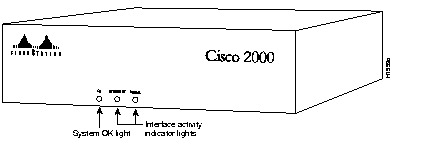
Figure 5-1: Router LED Indicator Lights
The LEDs represent the following, depending on which option is installed as the second interface:
- OK--Indicates that the software has successfully completed its internal startup diagnostic and that the system functions are operating properly.
- Token Ring/Ethernet--Indicates input/output activity on that interface.
- Serial--Indicates input/output activity on the serial interface.
Note If an interface is extremely busy, its light will be on all the time.
This section describes how to test for problems with system memory and nonvolatile memory using the bootstrap program. This program can help you isolate or rule out hardware problems encountered when installing your router. A summary of the bootstrap diagnostic tests and command options is provided.
Diagnostic Tests
The bootstrap diagnostics help initialize the processor hardware and boot the main operating system software. If you set the software configuration register (bits 3, 2, 1, and 0) to zero, you can start the server in standalone bootstrap mode. The bootstrap mode prompt is an angle bracket (>).
To enable the Break key, and to default to booting in the bootstrap mode, at the bootstrap prompt (>), set the configuration register to 0x0 as follows:
config-register 0x0
 | Time Saver Break (system interrupt) is always enabled for 60 seconds after rebooting the system, even if break is configured to be off by setting the configuration register. During the 60-second window, you can break to the bootstrap mode prompt. |
The bootstrap o/r command will reset the virtual configuration register to the defaults as follows:
- 9600 baud console UART speed
- Break/abort is disabled
- Ignore the system configuration
- Boot from ROM
Once in the bootstrap mode, enter ? at the > prompt to display a list of available commands and options, as follows:
?
$            Toggle cache state
B [filename] [TFTP Server IP address | TFTP Server Name]
             Load and execute system image from ROM or from TFTP server
C [address]  Continue [optional address]
D /S M L V   Deposit value V of size S into location L with modifier M
E /S M L     Examine location L with size S with modifier M
G [address]  Begin execution
H            Help for commands
I            Initialize
K            Displays Stack trace
L [filename] [TFTP Server IP address | TFTP Server Name]
             Load system image from ROM or from TFTP server, but do not
             begin execution
O            Show software configuration register option settings
P            Set break point
S            Single step next instruction
T function   Test device (? for help)
Deposit and Examine sizes may be B (byte), L (long) or S (short).
Modifiers may be R (register) or S (byte swap).
Register names are: D0-D7, A0-A7, SS, US, SR, and PC.
The following system bootstrap commands are among the most useful:
- Boot--The b command with no argument reboots the system and boots the default software from ROM as defined by the lower four bits of the configuration register which form the boot field. You can include an argument, filename, to specify a file to be booted over the network using the Trivial File Transfer Protocol (TFTP). You can also include a second argument, host, which is the Internet address or name of a particular server host. You must enter i and press Return before entering b. The syntax of the command follows:
b filename address | server name
- To prevent the router from automatically netbooting, use the config configuration command.
- To netboot, enter the following at the bootstrap prompt:
b filename host
- Continue--The c command allows you to exit the bootstrap mode without rebooting the router after you press the Break key.
- Examine--The e command will read the configuration register and show which bits are set.
- Help--The h command prints a summary of the bootstrap commands to the console screen.
- Initialize--The i command causes the bootstrap program to reinitialize the hardware and clear the contents of memory. (If you plan to use the i command, do so before running any tests or booting software.)
- Display Stack Trace--The k command displays a stack trace of system software.
- Display/Reset Virtual Configuration Register--The o command with the /r option will reset the configuration register to the default and ignore the configuration register (sets the ignore NVRAM contents bit, 0x0040). To reset to the default, enter the following at the > prompt:
o/r
i
- The i command will automatically reboot the router.
Note To enable the router to read the nonvolatile RAM configuration, clear the
ignore NVRAM contents bit (0x0040) with the
config-register command after using the
o/r command.
Table 5-1 lists additional o command options.
O Command Options
| Monitor Command
| Function
|
|---|
| o
| Displays the virtual configuration register, currently in effect, with a description of the bits
|
| o/r
| Resets the virtual configuration register to the defaults as follows:
9600 baud console UART speed
break/abort has no effect
ignore the system configuration
boot from ROM
|
| o/r 0xvalue
| Sets the virtual configuration register to the (hex) value, value
|
- Memory/Bus Diagnostic--The t command runs various diagnostic tests. To display a list of the diagnostic tests, enter t ?. The m option runs the memory test.
- By default, the memory test examines processor memory. Test nonvolatile memory by supplying starting and ending addresses.
 | Caution Testing nonvolatile memory invalidates any configuration information it contains; therefore, you should save the configuration in a file on a host in your network before testing. |
- To test memory, enter the t command with the m option at the > prompt, as follows:
t m
- To use the default addresses and select the default tests, or to enter addresses to test specific memory areas, press the Return key after each prompt displayed.
Running a single pass of the diagnostic takes about ten minutes. If the program encounters memory problems, it will display appropriate error messages on the console terminal. Be sure to reinitialize the processor before booting the system by entering i at the bootstrap prompt.
Running the Diagnostics
Follow these steps to run the bootstrap diagnostics:
Step 1 Turn OFF the unit.
Step 2 Restart the router.
Step 3 Within 60 seconds, press the Break key on the console terminal to force the server into bootstrap mode. Wait for the server to print the two-line banner message and for the angle bracket (>) prompt to appear.
Note If you start the server with Break disable (bit 08) turned off in the software configuration register, you can press the Break key on the console terminal to force the server into bootstrap mode. Enter
c to continue normal execution of the system software; however, the memory test will fail unless you reinitialize the system by entering
i at the prompt.



