


|
|

Product Numbers: Boot-Card-2500=
This document describes the procedures for upgrading the boot image using a flash memory card (PCMCIA) on your Cisco 2500 series router, model 2505 or model 2513.
This document contains the following sections:
Electrostatic discharge (ESD) is a discharge of stored static electricity that can damage equipment and impair electrical circuitry. It occurs when electronic components are improperly handled and can result in complete or intermittent failures.
Following are guidelines for preventing ESD damage:
 | Caution To avoid damaging the equipment, periodically check the resistance value of the antistatic strap. The measurement should be between 1 and 10 megohms. |
Following is the procedure for opening the chassis by removing the chassis cover.
Following are the tools required for removing the chassis cover:
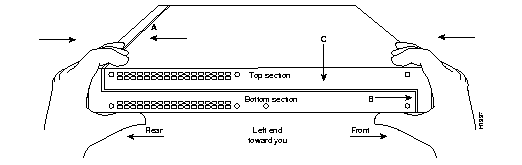
Open the router chassis to gain access to its interior components: the system card, flash memory card connector, system code single in-line memory modules (SIMMs), and dynamic random access memory (DRAM) SIMMs. Following are the steps required to remove the chassis cover. When you open the chassis, refer to Figure 1.
Step 1 Turn OFF the power but, to channel ESD voltages to ground, do not unplug the power cable.
Step 2 Remove all interface cables from the rear panel of the router.
Step 3 Turn the unit upside down so that the top of the chassis is resting on a stable surface, and the front of the chassis is toward you. (See Figure 1.)
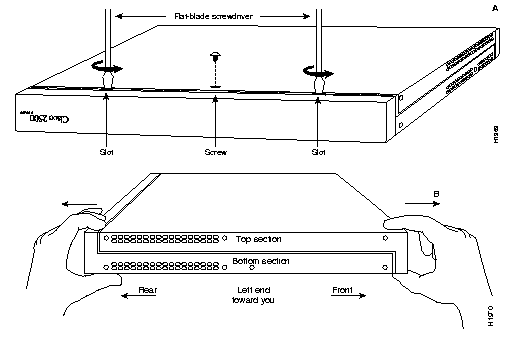
Step 4 Remove the single screw located on the bottom of the chassis on the chassis side closest to you. Note that the chassis consists of two sections: top and bottom.
Step 5 If required, insert a medium flat-blade screwdriver into the slots shown in Figure 1, and gently rotate the blade so that the top and bottom sections separate slightly.
Step 6 Holding the chassis with both hands, position it as shown in Figure 1, Part B.
Step 7 Gently pull the top section away from the bottom section. (See Figure 1, Part B.) The fit is very snug, so it may be necessary to work the chassis sections apart at one end and then the other, working back and forth.
Step 8 When the top section is off, set it aside.
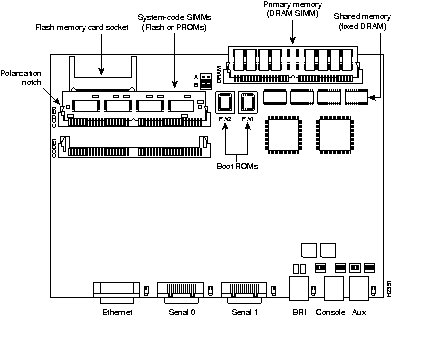
Figure 2 shows the layout of the system card, which is attached to the bottom section of the chassis. The fan and power supply are not shown in Figure 2.
 | Warning To prevent shock hazard and injury, do not touch the power supply and fan assemblies. These components should be serviced by a technical service representative. |
The upgrade software is on a Flash memory card. Insert the flash memory card into the socket on the Cisco Model 2500 card and then turn the system ON to initiate the upgrade. The flash memory card is usable for one upgrade only.
Step 1 Turn the power switch OFF, but to channel ESD voltages to ground, do not unplug the power cord.
Step 2 Attach an ESD-preventive wrist or ankle strap.
Step 3 Open the chassis cover according to the procedure in the section "Removing the Chassis Cover."
Step 4 Turn the chassis so the system card is in the position shown in Figure 2, with the system-code SIMMs toward you.
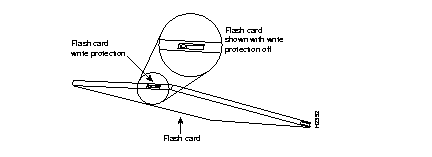
Step 5 Verify that the flash memory card is set with write protection off. The write protect switch is located on the top edge of the card when oriented with the printing right side up. (See Figure 3.)
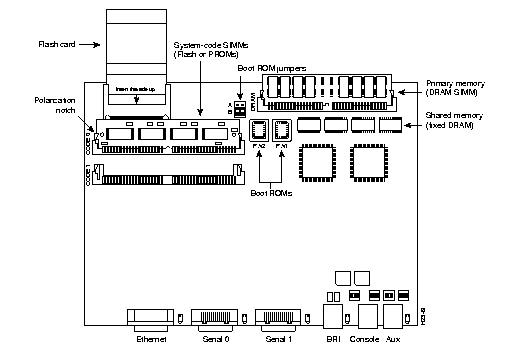
Step 6 Locate the flash card socket at the left upper corner of the system card, and insert the card into the socket. (See Figure 4.)
Step 7 Reconnect the system console to the unit.
Step 8 Turn the power switch to the ON position. The system automatically starts the upgrade procedure. The upgrade screen will display on the system console. (See Figure 5.)
Step 9 When the update is complete the following message will display on the console screen:
Step 10 Turn the power switch to OFF and then remove the flash card from the flash card socket.
Step 11 Replace the router cover using the procedure in the section "Closing the Chassis."
Take the following steps to replace the chassis cover:
Step 1 Position the two chassis sections as shown in Figure 6.
Step 2 Referring to Figure 6, press the two chassis sections together and ensure the following:
| **before**To fit the two sections together, may be necessary to work them together at one end and then the other, working back and forth; however, use care to prevent bending the edges of the chassis.@@before@@ | Caution **after**To fit the two sections together, may be necessary to work them together at one end and then the other, working back and forth; however, use care to prevent bending the edges of the chassis.@@after@@ |
Step 3 When the two sections fit together snugly, turn the chassis so that the bottom is facing up, with the front panel toward you. (See Figure 1.)
Step 4 Replace the cover screw. Tighten the screw to no more than 8 or 9 inch-pounds of torque.
Step 5 Reinstall the chassis on the wall, in the rack, or on a desk, or a table top.
Step 6 Replace all cables and turn ON the power to the chassis.
Step 7 This concludes Upgrading Boot Image with Flash Memory Cards for Cisco 2500 Series Routers.
Cisco Information Online (CIO) is Cisco System's primary, real-time support channel. You can use your product serial number to activate CIO for a single user during your warranty period. maintenance customers and partners can self-register on CIO to obtain additional content and services.
Available 24 hours a day, 7 days a week, CIO provides a wealth of standard and value-added services to Cisco's customers and business partners. CIO services include product information, software updates, release notes, technical tips, the Bug Navigator, configuration notes, brochures, descriptions of service offerings, and download access to public an d authorized files.
CIO serves a wide variety of users through two interfaces that are updated and enhanced simultaneously--a character-based version and a multimedia version that resides on the World Wide Web (WWW). The character-based CIO (called "CIO Classic") supports Zmodem, Kermit, Xmodem, FTP, Internet e-mail, and fax download options, and is excellent for quick access to information over lower bandwidths. The WWW version of CIO provides richly formatted documents with photographs, figures, graphics, and video, as well as hyperlinks to related information.
You can access CIO in the following ways:
For a copy of CIO's Frequently Asked Questions (FAQ), contact cio-help@cisco.com. For additional information, contact cio-team@cisco.com.

|
|