


|
|

This document describes how to install and configure WAN interface cards in Cisco 1600 series routers and contains the following sections:
This section lists safety warnings that you should be aware of before installing a WAN interface card in the router.
The following conventions are used for the safety information in this document:
 | Caution This symbol means reader be careful. In this situation, you might do something that could result in equipment damage or loss of data. |
 | Warning This symbol means danger. You are in a situation that could cause bodily injury. Before you work on any equipment, be aware of the hazards involved with electrical circuitry and be familiar with standard practices for preventing accidents. (Translated versions of the warnings in this document appear in the regulatory compliance and safety information document that came with the router.) |
Waarschuwing Dit waarschuwingssymbool betekent gevaar. U verkeert in een situatie die lichamelijk letsel kan veroorzaken. Voordat u aan enige apparatuur gaat werken, dient u zich bewust te zijn van de bij elektrische schakelingen betrokken risico's en dient u op de hoogte te zijn van standaard maatregelen om ongelukken te voorkomen.
Varoitus Tämä varoitusmerkki merkitsee vaaraa. Olet tilanteessa, joka voi johtaa ruumiinvammaan. Ennen kuin työskentelet minkään laitteiston parissa, ota selvää sähkökytkentöihin liittyvistä vaaroista ja tavanomaisista onnettomuuksien ehkäisykeinoista.
Attention Ce symbole d'avertissement indique un danger. Vous vous trouvez dans une situation pouvant causer des blessures ou des dommages corporels. Avant de travailler sur un équipement, soyez conscient des dangers posés par les circuits électriques et familiarisez-vous avec les procédures couramment utilisées pour éviter les accidents.
Warnung Dieses Warnsymbol bedeutet Gefahr. Sie befinden sich in einer Situation, die zu einer Körperverletzung führen könnte. Bevor Sie mit der Arbeit an irgendeinem Gerät beginnen, seien Sie sich der mit elektrischen Stromkreisen verbundenen Gefahren und der Standardpraktiken zur Vermeidung von Unfällen bewußt.
Avvertenza Questo simbolo di avvertenza indica un pericolo. La situazione potrebbe causare infortuni alle persone. Prima di lavorare su qualsiasi apparecchiatura, occorre conoscere i pericoli relativi ai circuiti elettrici ed essere al corrente delle pratiche standard per la prevenzione di incidenti.
Advarsel Dette varselsymbolet betyr fare. Du befinner deg i en situasjon som kan føre til personskade. Før du utfører arbeid på utstyr, må du vare oppmerksom på de faremomentene som elektriske kretser innebærer, samt gjøre deg kjent med vanlig praksis når det gjelder å unngå ulykker.
Aviso Este símbolo de aviso indica perigo. Encontra-se numa situação que lhe poderá causar danos físicos. Antes de começar a trabalhar com qualquer equipamento, familiarize-se com os perigos relacionados com circuitos eléctricos, e com quaisquer práticas comuns que possam prevenir possíveis acidentes.
¡Advertencia! Este símbolo de aviso significa peligro. Existe riesgo para su integridad física. Antes de manipular cualquier equipo, considerar los riesgos que entraña la corriente eléctrica y familiarizarse con los procedimientos estándar de prevención de accidentes.
Varning! Denna varningssymbol signalerar fara. Du befinner dig i en situation som kan leda till personskada. Innan du utför arbete på någon utrustning måste du vara medveten om farorna med elkretsar och känna till vanligt förfarande för att förebygga skador.
Follow these guidelines when working on equipment powered by electricity:
| Warning Only trained and qualified personnel should be allowed to install or replace this equipment. |
| Warning Before working on equipment that is connected to power lines, remove jewelry (including rings, necklaces, and watches). Metal objects will heat up when connected to power and ground and can cause serious burns or weld the metal object to the terminals. |
| Warning Before opening the chassis, disconnect the telephone-network cables to avoid contact with telephone-network voltages. |
| Warning Do not work on the system or connect or disconnect cables during periods of lightning activity. |
| Warning Do not touch the power supply when the power cord is connected. For systems with a power switch, line voltages are present within the power supply even when the power switch is OFF and the power cord is connected. For systems without a power switch, line voltages are present within the power supply when the power cord is connected. |
Electrostatic discharge (ESD) can damage equipment and impair electrical circuitry. It occurs when electronic printed circuit cards are improperly handled and can result in complete or intermittent failures. Always follow ESD prevention procedures when removing and replacing cards. Ensure that the router chassis is electrically connected to earth ground. Wear an ESD-preventive wrist strap, ensuring that it makes good skin contact. Connect the clip to an unpainted surface of the chassis frame to safely channel unwanted ESD voltages to ground. To properly guard against ESD damage and shocks, the wrist strap and cord must operate effectively. If no wrist strap is available, ground yourself by touching the metal part of the chassis.
| Caution For safety, periodically check the resistance value of the antistatic strap, which should be between 1 and 10 megohms (Mohm). |
This section provides the following regulatory compliance statements:
The equipment described in this document generates and may radiate radio-frequency energy. If it is not installed in accordance with Cisco's installation instructions, it may cause interference with radio and television reception. This equipment has been tested and found to comply with the limits for a Class B digital device in accordance with the specifications in part 15 of the FCC rules. These specifications are designed to provide reasonable protection against such interference in a residential installation. However, there is no guarantee that interference will not occur in a particular installation.
You can determine whether your equipment is causing interference by turning it off. If the interference stops, it was probably caused by the Cisco equipment or one of its peripheral devices. If the equipment causes interference to radio or television reception, try to correct the interference by using one or more of the following measures:
Modifications to this product not authorized by Cisco Systems, Inc. could void the FCC approval and negate your authority to operate the product.
This equipment complies with Part 68 of the FCC rules. On the front panel of this equipment is a label that contains, among other information, the FCC registration number. If requested, you must provide this information to the telephone company.
An FCC-compliant cord and modular plug is provided with this equipment. This equipment is designed for connection to the telephone network or premises wiring using a compatible modular jack that is Part 68 compliant. See the installation instructions for details.
This equipment cannot be used on telephone company-provided coin service. Connection to party line service is subject to state tariffs.
If this equipment causes harm to the telephone network, the telephone company will notify you in advance that it may be necessary to temporarily discontinue service. If advance notice is not practical, the telephone company will notify you as soon as possible. Also, you will be advised of your right to file a complaint with the FCC.
The telephone company may make changes in its facilities, equipment, operations, or procedures that could affect the operation of this equipment. If this happens, the telephone company will provide advance notice for you to make the necessary modifications to maintain uninterrupted service.
This device does not include any upgradeable parts.
This equipment uses a universal service order code (USOC) jack with facility interface code 04DU5-56, service order code 6.0N, and jack type RJ-48S.
In addition to the WAN interface card and the router, you will need to provide some of the following items to install and connect your card:
This procedure shows how to install an ISDN S/T WAN interface card in a Cisco 1601 router; however, the same procedure is used to install any card in any Cisco 1600 series router.
Take the following steps to install the card in the router:
Step 1 Turn the router OFF by pressing the power switch to the off ( O ) position.
Step 2 Disconnect the power cable from the 14 VDC power socket on the rear panel of the router.
Step 3 Use the Phillips screwdriver to loosen the captive screws on the card slot's metal cover (shown in Figure 1), as shown in Figure 2.
Step 4 Remove the metal cover.


Step 5 Hold the card by the edges on either side the front panel, and line up the edges of the card with the guides, as shown in Figure 3.
| Caution Do not connect a WAN cable to the card until you have completed the installation procedure. |
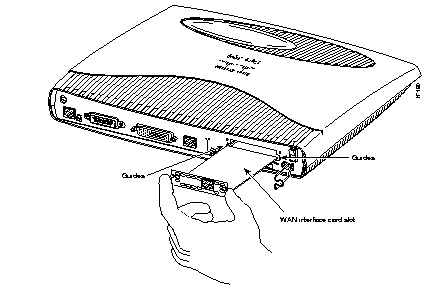
Step 6 Insert the card in the slot and push it towards the front of the router, until it is firmly seated in the connector (inside the router), and the front panel of the card is flush with the rear panel of the router.
Step 7 Use the Phillips screwdriver to tighten the captive screws in the card until the card's front panel is firmly in place against the rear panel of the router.
Step 8 Depending on what card you are using, go to one of the following sections for instructions on connecting the card to the WAN line and configuring the card's WAN interface:
The 1-port serial WAN interface card, shown in Figure 4, provides an EIA/TIA-232, EIA/TIA-449, V.35, X.21, DTE/DCE, EIA-530 DTE, or NRZ/NRZI serial interface to a Cisco 1600 series router.
The serial card has one LED, labeled CONN, which lights when the serial port is connected.When the port is in DTE mode, the CONN LED indicates that DSR, DCD, and CTS have been detected. When the port is in DCE mode, it indicates that DTR and RTS have been detected.
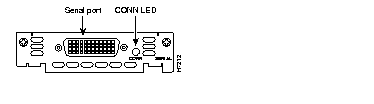
The serial card uses a universal high-density 60-pin receptacle. The serial cable attached to this receptacle determines the port's electrical interface type and mode, DTE or DCE.
Five types of serial cables (also called serial adapter cables or serial transition cables) are available from Cisco Systems. The cables have one of the following types of connectors:
Take the following steps to connect the serial card to the WAN:
Step 1 Confirm that the router is still turned OFF.
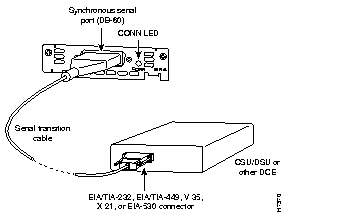
Step 2 Connect one end of appropriate serial cable to the card's DB-60 port.
Step 3 Connect the other end of the cable to one of the following types of equipment, as shown in Figure 5:
Step 4 Turn ON power to the router by pressing the power switch to the on ( | ) position.
Step 5 Check that the CONN LED goes on, which indicates that the card's serial port detects the WAN serial connection.
The ISDN BRI S/T card has three LEDs, which are shown in Figure 6 and described in Table 1.
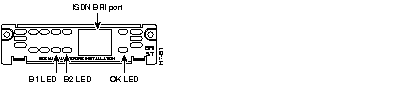
| LED | Meaning |
|---|---|
| B1 | Indicates an ISDN connection on B-channel 1 |
| B2 | Indicates an ISDN connection on B-channel 2 |
| OK | Indicates that the ISDN port has synchronized with the central office switch |
You must provide an RJ-45-to-RJ-45 cable and an external NT1 for this connection.
Take the following steps to connect the ISDN cables:
Step 1 Confirm that the router is still turned OFF.
Step 2 Connect one end of the RJ-45 cable to the card's ISDN BRI S/T port.
Step 3 Connect the other end of the cable to the NT1, as shown in Figure 7.
Step 4 Connect the NT1 to the ISDN wall jack according to the documentation that came with the NT1.
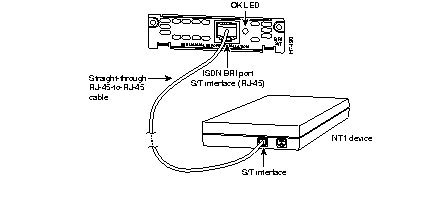
Step 5 Turn ON power to the router by pressing the power switch to the on ( | ) position.
Step 6 Check that the LED labeled OK goes on, which indicates that the card's ISDN port has synchronized with the central office switch.
After you connect the ISDN cable, you can configure the ISDN interface. Refer to the Cisco 1600 Series Software Configuration Guide that came with your router for information on how to configure the ISDN interface.
Cisco documentation and additional literature are available in printed form and on the Cisco Documentation CD-ROMs. You can also access product documentation on the World Wide Web at http://www.cisco.com.
The ISDN BRI S/T Leased Line Card has three LEDs, which are shown in Figure 8 and described in Table 2.

| LED | Meaning |
|---|---|
| B1 | Indicates an ISDN connection on B-channel 1 |
| B21 | Indicates an ISDN connection on B-channel 2 |
| OK | Indicates that the ISDN port has synchronized with the central office switch |
You must provide an RJ-45-to-RJ-45 cable and an external NT1 for this connection.
Take the following steps to connect the ISDN cables:
Step 1 Confirm that the router is still turned OFF.
Step 2 Connect one end of the RJ-45 cable to the card's ISDN BRI leased line port.
Step 3 Connect the other end of the cable to the NT1, as shown in Figure 9.
Step 4 Connect the NT1 to the ISDN wall jack according to the documentation that came with the NT1.
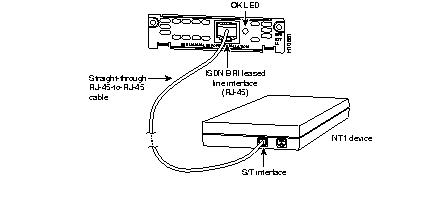
Step 5 Turn ON power to the router by pressing the power switch to the on ( | ) position.
Step 6 Check that the LED labeled OK goes on, which indicates that the card's ISDN port has synchronized with the central office switch.
After you connect the ISDN cable, you can configure the ISDN interface. The leased line WAN interface card supports a 64-kbps leased line on the B1 channel only. The WAN interface card is automatically configured in leased line mode. Refer to the Cisco 1600 Series Software Configuration Guide that came with your router for information on how to configure the ISDN interface.
Cisco documentation and additional literature are available in printed form and on the Cisco Documentation CD-ROMs. You can also access product documentation on the World Wide Web at http://www.cisco.com.
The ISDN BRI U card has three LEDs, which are shown in Figure 10 and described in Table 3.
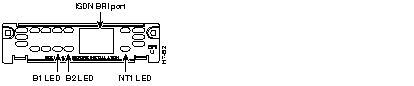
| LED | Meaning |
|---|---|
| B1 | Indicates an ISDN connection on B-channel 1 |
| B2 | Indicates an ISDN connection on B-channel 2 |
| NT1 | Indicates that the card's internal NT1 has synchronized with the central office switch |
You must provide an RJ-45-to-RJ-45 cable for this connection.
Take the following steps to connect the ISDN cables:
Step 1 Confirm that the router is still turned OFF.
Step 2 Connect one end of the RJ-45 cable to the card's ISDN BRI U port.
Step 3 Connect the other end of the cable to the ISDN wall jack, as shown in Figure 11.
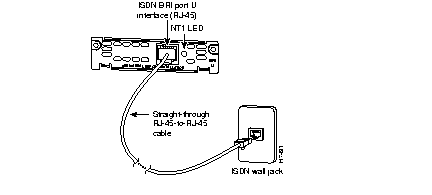
Step 4 Turn ON power to the router by pressing the power switch to the on ( | ) position.
Step 5 Check that the LED labeled NT1 goes on, which indicates that the card's internal NT1 has synchronized with the central office switch.
After you connect the ISDN cable, you can configure the ISDN interface. Refer to the Cisco 1600 Series Software Configuration Guide that came with your Cisco 1600 router.
Cisco documentation and additional literature are available in printed form and on the Cisco Documentation CD-ROMs. You can also access product documentation on the World Wide Web at http://www.cisco.com.
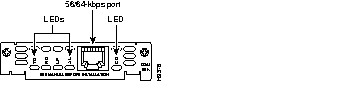
The 1-port 56/64-kbps (56/64K) WAN interface card includes an integral data service unit/channel service unit (DSU/CSU) and can be configured to provide circuit-switched, dedicated, or leased-line service at 56 kbps. This card also supports 64-kbps dedicated lines.
The 56/64K card has five LEDs, which are shown in Figure 12 and described in Table 4.
| LED | Meaning |
|---|---|
| TD | Data is being transmitted to the DTE interface. |
| RD | Data is being received from the DTE interface. |
| LP | The internal DSU/CSU is in loopback mode. |
| AL | An alarm condition is present. |
| CD | The internal DSU/CSU in the WAN interface card in communicating with another DSU/CSU. |
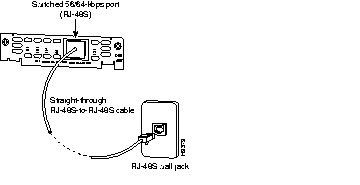
You must provide a straight-through RJ-48S-to-RJ-48S or a straight-through RJ-45-to-RJ-45 cable for this connection.
Step 1 Confirm that the router is OFF.
Step 2 Connect one end of the cable to the card's 56/64K port.
Step 3 Connect the other end to the 56/64K services wall jack, as shown in Figure 13.
Cisco Connection Online (CCO) is Cisco Systems' primary, real-time support channel. Maintenance customers and partners can self-register on CCO to obtain additional information and services.
Available 24 hours a day, 7 days a week, CCO provides a wealth of standard and value-added services to Cisco's customers and business partners. CCO services include product information, product documentation, software updates, release notes, technical tips, the Bug Navigator, configuration notes, brochures, descriptions of service offerings, and download access to public and authorized files.
CCO serves a wide variety of users through two interfaces that are updated and enhanced simultaneously: a character-based version and a multimedia version that resides on the World Wide Web (WWW). The character-based CCO supports Zmodem, Kermit, Xmodem, FTP, and Internet e-mail, and it is excellent for quick access to information over lower bandwidths. The WWW version of CCO provides richly formatted documents with photographs, figures, graphics, and video, as well as hyperlinks to related information.
You can access CCO in the following ways:
For a copy of CCO's Frequently Asked Questions (FAQ), contact cco-help@cisco.com. For additional information, contact cco-team@cisco.com.
If you are a network administrator and need personal technical assistance with a Cisco product that is under warranty or covered by a maintenance contract, contact Cisco's Technical Assistance Center (TAC) at 800 553-2447, 408 526-7209, or tac@cisco.com. To obtain general information about Cisco Systems, Cisco products, or upgrades, contact 800 553-6387, 408 526-7208, or cs-rep@cisco.com.
|
|