|
|

Product Numbers:
| NP-1E= NP-2E= NP-6E= NP-1RV2= NP-2R= NP-1F-D-MM= NP-1F-S-M= | NP-1F-D-SS= NP-1A-SM= NP-1A-SM-LR NP-1A-MM= NP-1A-DS3= NP-1A-E3= NP-2T= NP-4T= | NP-4B= NP-4GB= NP-4GU= NP-8B= NP-CT1= NP-CE1B= NP-CE1U= |
This document contains instructions for installing and configuring network processor modules in the Cisco 4000 series routers: the original Cisco 4000, the memory-enhanced Cisco 4000-M, the Cisco 4500, the memory-enhanced Cisco 4500-M, the Cisco 4700, and the memory-enhanced Cisco 4700-M.
This document includes the following sections, which contain step-by-step procedures for installing or replacing and configuring your new network processor modules:
Warning 
Before working on a chassis or working near power supplies, unplug the power cord on AC units; disconnect the power at the circuit breaker on DC units.
 | Caution To avoid damaging ESD-sensitive components, ensure that you have discharged all static electricity from your body before opening the chassis. Before performing procedures described in this document, review the sections "Safety Recommendations" and "Safety with Electricity" on page 5, and "Tools and Equipment Required"on page 6. |
Warning
Before opening the chassis, disconnect the telephone-network cables to avoid contact with telephone-network voltages.
Warning
Do not work on the system or connect or disconnect cables during lightning activity.
| Warning The ports labeled "Ethernet," "10BaseT," "Token Ring," "Console," and "AUX" are safety extra-low voltage (SELV) circuits. SELV circuits should only be connected to other SELV circuits. Because the BRI circuits are treated like telephone-network voltage, avoid connecting the SELV circuit to the telephone network voltage (TNV) circuits. \Full ISDN Safety and Compliance Conditions are found in the publication "Cisco 4000 Series Public Network Certification." |
Warning
Read the installation instructions before you connect the system to its power source.
Available network processor module options are listed in Table 1.
| Processor Options | Available Ports Per Module |
|---|---|
| Ethernet | Single port, dual port, or six port |
| Synchronous serial | Dual port1 or four port |
| Token Ring | Dual port or single port |
| Multimode FDDI2 | Single attachment or dual attachment |
| Single-mode FDDI | Dual attachment |
| BRI3 | Four port or eight port |
| G.703 | Four port (balanced or unbalanced)4 |
| Channelized CT1/ISDN5 PRI6 | Single channelized CT1/PRI port |
| Channelized E1/ISDN PRI | Single channelized E1/PRI port |
| ATM7 OC3 | Single ATM port 8 |
| ATM OC3 LR-1 | Single ATM Long Reach9 |
| ATM DS-3 | Single ATM DS-3 port |
| ATM E3 | Single ATM E3 port |
The Cisco 4000 series can support up to three network processor modules at a time, including Ethernet, Token Ring, ATM, ISDN BRI, ISDN PRI, serial, and multimode and single-mode FDDI interfaces. You can place network processor modules in any of the three available positions in any combination.
The different models in the Cisco 4000 series routers support different combinations of network processor modules. The following list addresses router-module and module-module compatibility issues, and slot placement considerations:
To successfully operate a multimode FDDI module, or six or more ports, the system must contain at least 4 MB of shared memory--standard on the Cisco 4000-M, Cisco 4500, Cisco 4500-M, Cisco 4700, and Cisco 4700-M. (The standard shared-memory configuration for the original Cisco 4000 was 1 MB.)
To successfully operate Cisco IOS Release 11.0 or 11.1, 16 MB of main memory are required. A Cisco 4500 running IPX requires 16 MB of main memory DRAM.
To successfully operate an ISDN BRI, ATM, channelized T1/ISDN PRI, or channelized E1/ISDN PRI module, the system requires at least 8 MB of main memory DRAM (16 MB in the original Cisco 4000) and 4 MB of shared memory.
To install new boot ROMs in a Cisco 4000 or Cisco 4000-M, refer to the section "Replacing Boot ROMs."
Network processor modules must be supported by the appropriate level of system software. The minimum system software version for the original Cisco 4000 is Software Release 9.1; for the Cisco 4000-M, Software Release 9.14. For the Cisco 4500, Cisco 4500-M, and Cisco 4700 and 4700-M, the minimum software version is Cisco Internetwork Operating System (Cisco IOS) Release 10.2.
Table 2 lists the minimum system software versions for network processor modules.
| Network Processor Module Type | Minimum Software Release Version |
|---|---|
| Multimode FDDI | Software Release 9.14(1) |
| Dual Ethernet | Software Release 9.14(2) |
| Six-port Ethernet | Cisco IOS Software Release 10.3(6) |
| Single-mode FDDI | Software Release 9.14(3) |
| Dual and Version 2 Token Ring | Software Release 9.14(5) |
| Four-port serial | Software Release 9.14(6) |
| ISDN BRI | Cisco IOS Software Release 10.2 |
| G.703 | Cisco IOS Software Release 10.2(7) |
| Channelized CT1/ISDN PRI | Cisco IOS Software Release 10.3(4) |
| Channelized E1/ISDN PRI | Cisco IOS Software Release 10.3(4) |
| ATM | Cisco IOS Software Release 10.3(4) |
| ATM LR | Cisco IOS Software Release 11.2(9)P |
Follow these guidelines to ensure general safety:
| Warning Before working on equipment that is connected to power lines, remove jewelry (including rings, necklaces, and watches). Metal objects will heat up when connected to power and ground and can cause serious burns or can weld to the terminals. |
Follow these guidelines when working on equipment powered by electricity:
Electrostatic discharge (ESD) can damage equipment and impair electrical circuitry, causing intermittent or total failures. It occurs when electronic printed circuit cards are improperly handled.
Always follow ESD prevention procedures when removing and replacing cards. Observe the following guidelines:
| Caution For safety, periodically check the resistance value of the antistatic strap, which should be between 1 and 10 megohms (Mohms). |
You need the following tools and equipment for removing and installing Cisco 4000 series network processor modules.
The following additional external equipment may be required, depending upon the specific module to be removed or installed:
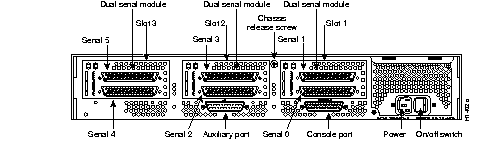
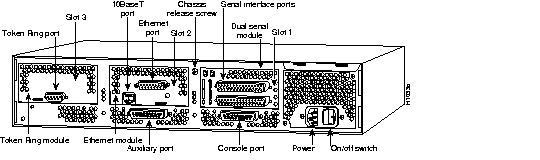
The power cable and power switch are on the lower right side of the rear panel of the router. The system console port, auxiliary port, and network processor module ports are located to the left of the power cable and switch. (See Figure 1.)
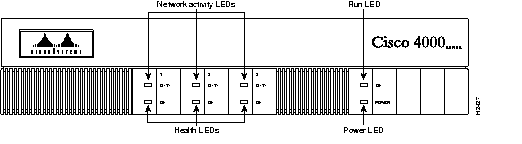
The chassis contains slots for three network processor modules. Numbers for each are printed on the front panel of the chassis. (See Figure 2.) Slot numbers reflect the order in which the system scans the network processor modules.
The location of network processor modules is not slot dependent; you can move a module to any available slot. However, the air flow cooling for specific modules such as the FDDI module is enhanced when the module is installed in a specific slot. The center slot is the preferred location for air flow maximization.
Unit numbering on the chassis rear panel allows the system to differentiate between two interfaces of the same type. The system assigns unit number addresses to these network processor modules by starting with zero for each module interface type and numbering from right to left and from bottom to top. The lowest unit number for an interface type is the module closest to the power supply. (See Figure 3.)
For example, the unit number addresses for the modules in Figure 1 are as listed in Table 3. However, if the Token Ring module were replaced by a second Ethernet module, the unit addresses would be as listed in Table 4.
| Slot | Interface Type | Address |
|---|---|---|
| 1 | Serial port (top)
Serial port (bottom) | 1
0 |
| 2 | Ethernet | 0 |
| 3 | Token Ring | 0 |
| Slot | Interface Type | Address |
|---|---|---|
| 1 | Serial port (top)
Serial port (bottom) | 1
0 |
| 2 | Ethernet | 0 |
| 3 | Ethernet | 1 |
Figure 3 shows a chassis configured with three dual-port serial modules. The unit numbering of these modules is listed in Table 5.
| Slot | Interface Type | Address |
|---|---|---|
| 1 | Serial port (top)
Serial port (bottom) | 1
0 |
| 2 | Serial port (top)
Serial port (bottom) | 3
2 |
| 3 | Serial port (top)
Serial port (bottom) | 5
4 |
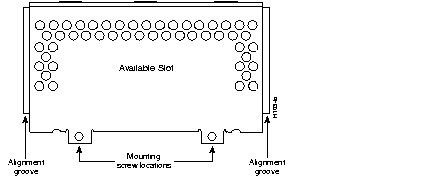
If the router is configured with fewer than three network processor modules, you must place a slot filler panel in the open slot to ensure proper airflow. (See Figure 4.)
To access the network processor modules, you must remove the component tray.
| Warning Do not touch the power supply when the power cord is connected. In systems with a power switch, line voltages are present within the power supply even when the cord is connected and the switch is off. For systems without a power switch, line voltages are present within the power supply when the power cord is connected. |
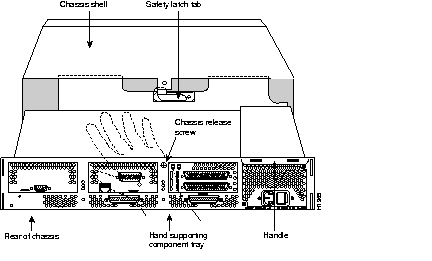
Some Cisco 4000 series routers have a safety latch tab on the chassis that affects the removal of the component tray. (See Figure 5 and Figure 6.)
If you have a chassis with a safety latch tab, follow the procedure in the section "Removing the Component Tray from a Chassis with a Safety Latch."
If you have a chassis without a safety latch tab, follow the procedure in the section "Removing the Component Tray from a Chassis without a Safety Latch."
Take the following steps to remove the component tray from a chassis with a safety latch:
Step 1 Turn OFF the system power.
Step 2 Attach your ESD-preventive wrist strap.
Step 3 Remove all network and power cables.
Step 4 Loosen the nonremovable chassis release screw on the rear panel of the chassis. (See Figure 5.)
Step 5 Slide the component tray out of the chassis shell while facing the rear panel, pulling the handle on the far right side of the chassis until the safety latch catches. (See Figure 5.)
| Warning Before releasing the safety latch, support the component tray from underneath, either on your work surface or with your hands, to prevent personal injury. (See Figure 5.) |
Step 6 Support the component tray with one hand, and push down on the safety latch tab while completely pulling out the component tray.
Step 7 Set the component tray on your work surface.
Proceed with "Removing Network Processor Modules" on page 12.
Take the following steps to remove the component tray from a chassis without a safety latch:
Step 1 Turn OFF the system power.
Step 2 Attach your ESD-preventive wrist strap.
Step 3 Remove all network and power cables.
Step 4 Loosen the nonremovable chassis release screw on the rear panel of the chassis. (See Figure 6.)
| Warning Support the component tray from underneath to prevent it from falling. (See the hand in Figure 6.) |
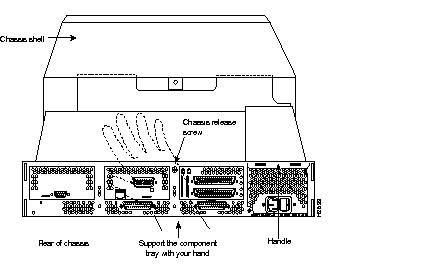
Step 5 While facing the rear panel, pull the handle on the right side of the router while you support the component tray with one hand. Slide the component tray out of the chassis shell.
Step 6 Set the component tray on your work surface.
After you have removed the component tray from the chassis, you can remove the network processor modules from the chassis.
| Caution Some network processor modules are secured to the rear of the chassis with two external screws. These screws must be removed before the module can be safely lifted out of the chassis. |
Take the following steps to remove a network processor module:
Step 1 Orient the component tray as shown in Figure 7, then remove the module mounting screw and the two external rear mounting screws, if these are present. Remove the rear mounting screws and set them aside.
Step 2 Grasp the network processor module handle and pull straight up to lift the module out its connector (See Figure 8).
Step 3 Place the module on an ESD mat.
| Caution Do not wiggle the handle of the network processor module or exert any side-to-side pressure because the handle might work loose and damage the network processor module. |
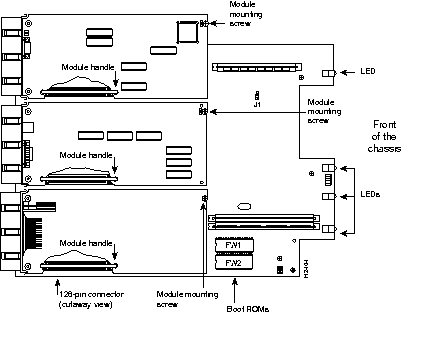
| Caution If any of the network processor modules have daughter cards projecting at right angles to the module (see Figure 9), be careful not to bend the module and disconnect the daughter cards. Reseat any disconnected card carefully, handling the edges without touching module components. |
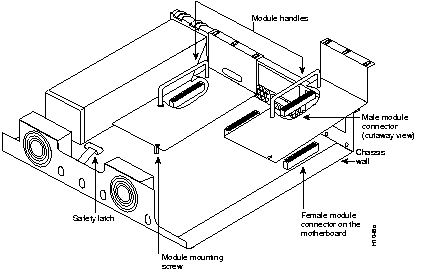
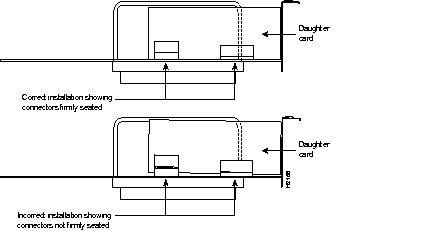
Figure 2 shows the Cisco 4000 series chassis front view, including network activity, health indicators, and run and power LEDs.
When you face the front of the chassis, the three LEDs (labeled OK) on the lower left correspond to the network processor modules present. (See Figure 2.) If a slot is empty, the corresponding LED will be off.
When on, these LEDs indicate that the modules are operational. The LEDs and their functions are as follows:
Three network processor modules provide Ethernet interfaces. The single-port and dual-port network processor modules provide one and two Ethernet interfaces, respectively. Both an attachment unit interface (AUI) and 10BaseT ports are provided for each interface.
The six-port Ethernet network processor module provides six 10BaseT ports, but does not support Ethernet AUI connections.
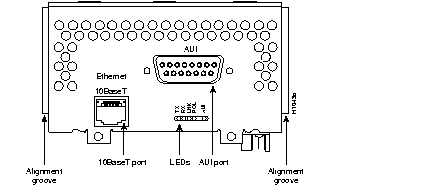
The single-port Ethernet module has an Ethernet AUI connector and a 10BaseT connector. (See Figure 10.) Only one connector on the module can be used at a time. Use either an IEEE 802.3 AUI or a 10BaseT cable to make the connection.
To select either 10BaseT or AUI, see the section Selecting the Media Type, page 19.
The dual-port Ethernet network processor module has ports for two network connections. (See Figure 11.) You can use either the AUI connector or the 10BaseT connector, but not both. For example, Ethernet port 0 can be attached to either a 10BaseT connector or to an AUI connector. At the same time, Ethernet port 1 can also be attached to a 10BaseT connector or an AUI connector.
To select the 10BaseT or AUI connection, see the section Selecting the Media Type, page 19.
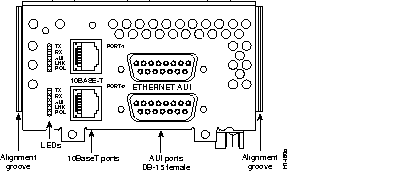
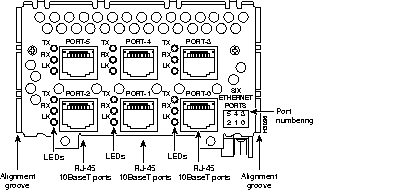
The six-port Ethernet module has ports for six network connections. (See Figure 12.) The port numbering is as shown on the label on the lower right of the module. Only 10BaseT connections are supported on the six-port module.
On single-port Ethernet modules, connect either the Ethernet AUI or the 10BaseT connector. (See Figure 13.)
On dual-port Ethernet modules, connect either the Ethernet AUI connector or the 10BaseT connector on a given Ethernet port (see Figure 14.)
The six-port Ethernet module can support connections on any combination of its six ports.
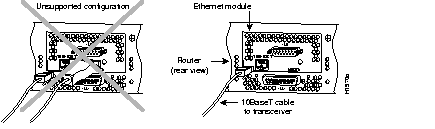
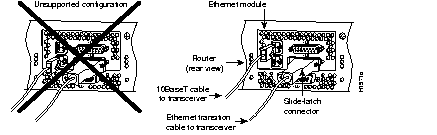
For the single-port and dual-port Ethernet modules, enter the media command in the router's configuration file to select AUI or 10BaseT on the desired interface. The syntax of the media command is as follows:
media-type aui media-type 10basetThe following is an example of configuring the Ethernet 0 interface for a media type AUI connection:
router>enaPassword: router#configure terminalEnter configuration commands, one per line. Edit with DELETE, CTRL/W, and CTRL/U; end with CTRL/Zinterface ethernet 0media-type aui^zrouter#write memory
An Ethernet transceiver cable with thumbscrew connectors can be connected directly to the router port by replacing the slide-latch with a jackscrew (provided in a separate bag). Figure 15 shows a single-port Ethernet module with an Ethernet AUI connection to a transceiver.
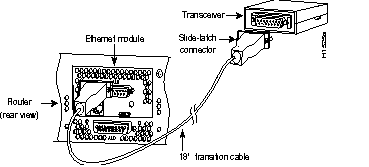
Figure 16 shows the transition cable used as a flexible extension of the Ethernet port, enabling an Ethernet transceiver cable with a slide-latch connector to mate with the female end of the 18-inch transition cable.
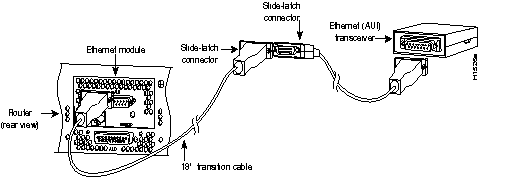
Take the following steps to make AUI connections:
Step 1 Connect the 15-pin D-type Ethernet port labeled AUI to the Ethernet AUI transition cable. (See Figure 13 and Figure 14.)
Step 2 Attach the slide-latch connector of the same cable to your transceiver or hub.
Step 3 Repeat Steps 1 and 2 to make AUI connections for the second port.
Step 4 Continue with the section Replacing the Final Connections to the Router, page 71.
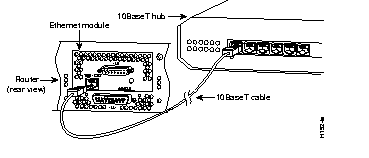
A 10BaseT transition cable can directly connect the router to your network. (See Figure 17.)
Take the following steps to make your 10BaseT connections:
Step 1 Connect the 10BaseT port labeled 10BaseT to the 10BaseT cable. (See Figure 13 and Figure 14.)
Step 2 Attach the other end of the 10BaseT cable to your network.
Step 3 Repeat Steps 1 and 2 for the remaining ports.
Step 4 When all your network connections are complete, continue with the section Replacing the Final Connections to the Router, page 71.
There are five LEDs for the Ethernet network processor module. The following definitions describe the function of the LED when on:
When viewed from the rear of the chassis, the LEDs on the single-port Ethernet module are labeled as shown in Figure 18:

When viewed from the rear of the chassis, the LEDs on the dual-port Ethernet module are labeled as shown in Figure 19.
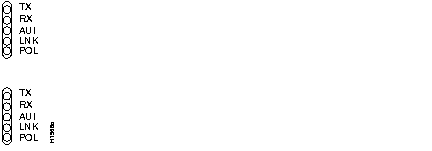
When viewed from the rear of the chassis, the LEDs on the six-port Ethernet module are labeled as shown in Figure 20.

FDDI module options are as follows:
The multimode FDDI network processor module consists of two cards, each with a multimode transceiver, with one card fitting on top of the other. Each FDDI module provides its own combination of attachment stations. Multimode FDDI modules provide either a Dual Attachment Station (DAS) or a single attachment station (SAS), The bottom card is the SAS and contains the PHY-A port. If the DAS option is included, the PHY-B port is located on the module's top card.
The single-mode FDDI network processor modules also provide a DAS.
The single-mode transmitter and the multimode transceiver each provide 11 dB of optical power. If the distance between two connected stations is greater than the maximum distance shown, significant signal loss can result. Distance limitations for single-mode and multimode FDDI stations are listed in Table 6.
| Transceiver Type | Maximum Distance Between Stations |
|---|---|
| Single-mode | Up to 10 kilometers (6.2 miles) |
| Multimode | Up to 2 kilometers (1.25 miles) |
Older versions of the single-mode network processor module use simplex FC-type connectors (see Figure 21) for the transmit and receive ports. Newer versions of the single-mode network processor module use simplex SC-type connectors. (See Figure 22.) The connector accepts standard 8.7 to 10/125-micron single-mode fiber-optic cable. The single-mode interface supports connections at distances up to 6 miles (10 kilometers).


Newer versions of the single-mode module are shipped with an FC-to-SC adapter that lets the module be used with cables installed for the earlier version of the module. (See Figure 23 and Figure 24.)

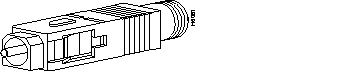
The single-mode transmitter uses a small laser to transmit the light signal to the ring. Keep the transmit port covered whenever a cable is not connected to it.
| Warning Invisible laser radiation may be emitted from the aperture ports of the single-mode FDDI products when no fiber cable is connected. Avoid exposure and do not stare into open apertures. This product meets the Class 1 Laser Emission Requirement from the Center for Devices and Radiological Health (CDRH) FDDI. |
The multimode network processor module connectors are FDDI-standard physical sublayer (PHY) connectors. The media interface connector (MIC) connects to FDDI standard 62.5/125-micron multimode fiber-optic cable. Figure 25 shows the MIC typically used for network and chassis connections in multimode FDDI applications.

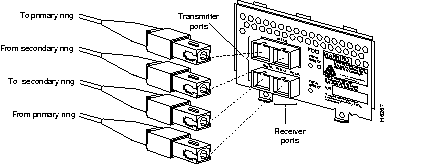
A dual attachment module configuration requires two connections: one to the primary ring and one to the secondary ring. The PHY-A port is the bottom port and the PHY-B port is the top port on both the multimode and single-mode modules.
To connect to another DAS, connect PHY-A on the module to PHY-B on the DAS, and PHY-B on the module to PHY-A on the DAS. (See Figure 26.)
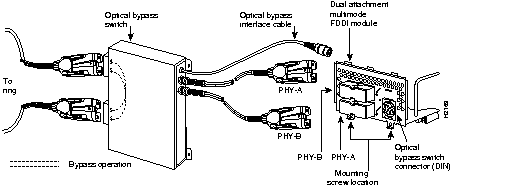
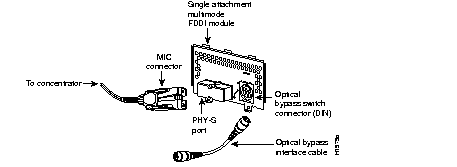
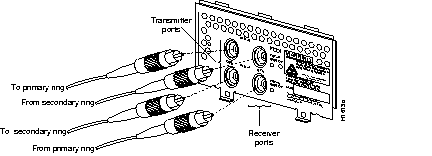
The standard connection scheme for a DAS has the primary ring signal entering the router on the PHY-A receive port and returning to the primary ring from the PHY-B transmit port. The secondary ring signal enters the router on the PHY-B receive port and returns to the primary ring from the PHY-A transmit port. The single attachment module's PHY-S port can be connected through a concentrator to a single attachment ring, or directly to another device.
| Caution Failure to observe these guidelines will prevent the FDDI interface from initializing correctly. |
An optical bypass switch is a passive optical device powered by the FDDI module. If a fault in the router occurs or if power is lost, the bypass switch is automatically enabled and the ring is unaffected. The system software can also enable the switch if a problem is detected or if the router is taken out of the ring. Both FDDI multimode modules have an optical bypass switch connector.
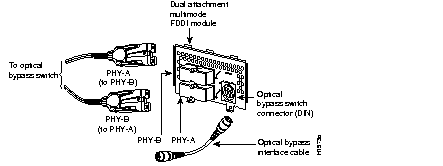
To connect the FDDI module to an external optical bypass switch (not included), connect the interface cable from the optical bypass switch to the six-pin circular DIN connector on the FDDI module panel. (See Figure 26.)
In addition to the parts and tools listed in the section Tools and Equipment Required, page 7, you need the following to install an FDDI module:
| Caution FDDI modules are fastened to the rear of the chassis with two external screws. (See Figure 27, Figure 28, Figure 29, and Figure 30.) These screws must be removed before an FDDI module can be safely lifted out of the chassis. |
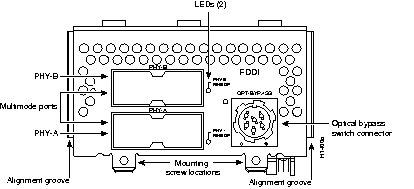
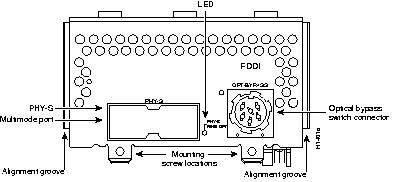
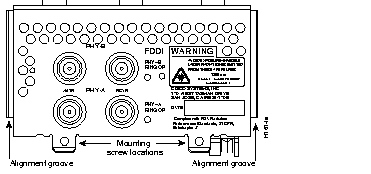
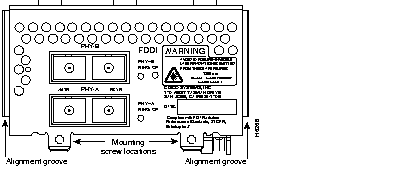
Multimode uses one integrated transmit/receive cable for each physical interface (one for PHY-A and one for PHY-B). Accordingly, you need one multimode cable for a single attachment connection, and two cables for a dual attachment connection. Follow the procedures described in this section to make multimode FDDI connections.
Take the following steps to connect a dual attachment multimode module:
Step 1 Connect PHY-A on the FDDI module to PHY-B on the other DAS using a multimode fiber-optic cable. (See Figure 31.)
Step 2 Connect PHY-B on the FDDI module to PHY-A on the other DAS.
Step 3 When all your network connections are complete, proceed to the section Connecting an Optical Bypass Switch to a Multimode FDDI Network Processor Module, page 28.
Take the following steps to connect a single-attachment multimode module:
Step 1 Using a multimode fiber-optic cable, connect the single attachment module's PHY-S port through a concentrator to a single attachment ring, or connect it point-to-point directly to another device. (See Figure 32.)
Step 2 When all your network connections are complete, proceed to the section "Connecting an Optical Bypass Switch to a Multimode FDDI Network Processor Module" on page 28.
Take the following steps to connect the FDDI module to an external optical bypass switch:
Step 1 Connect the optical bypass switch to the ring. Observe the same guidelines for connecting the PHY-A and PHY-B ports on the bypass switch that apply for direct ring-to-module connections unless the documentation that accompanies the switch indicates otherwise.
Step 2 Using the Receive label on the cable MIC connectors as a key, connect the cables to the network (ring) side of the bypass switch. Connect the cable coming in from the primary ring (from PHY-B at the preceding station) to the PHY-A receive port on the network (ring) side of the bypass switch. This also links the outgoing signal to the secondary ring to the PHY-A transmit port.
Step 3 Connect the cable coming in from the secondary ring (from PHY-A at the preceding station) to the PHY-B receive port on the network (ring) side of the bypass switch. This also connects the outgoing signal to the primary ring to the PHY-B transmit port.
Consider the bypass an extension of the module ports and connect PHY-A to PHY-A and PHY-B to PHY-B. The network cables are already connected to the bypass switch according to the standard PHY-B-to-PHY-A and PHY-A-to-PHY-B scheme.
Step 4 Connect an interface cable between the PHY-A port on the module side of the bypass switch and the module's PHY-A port.
Step 5 Connect an interface cable between the PHY-B port on the module side of the bypass switch and the module's PHY-B port.
Step 6 Connect the control cable from the optical bypass switch to the six-pin circular DIN connector on the FDDI module panel. (See Figure 26, Figure 27, and Figure 28.)
Proceed to the section "FDDI Network Processor Module LEDs."
Take the following steps to connect a single-mode FDDI module:
Step 1 Connect the cable from the primary ring (from PHY-B at the primary ring upstream station) to the module's PHY-A Receive port, labeled RCVR on the module. (See Figure 29, Figure 30, Figure 33, and Figure 34.)
Step 2 Connect the cable to the primary ring (to PHY- A at the primary ring downstream station) to the module's PHY- B transmit port, labeled XMTR.
Step 3 Connect the incoming cable from the secondary ring to the module's PHY- B receive port.
Step 4 Connect the outgoing cable to the secondary ring to the module's PHY- A transmit port, labeled XMTR.
Step 5 Proceed to the next section.
The following information will help you to use the FDDI module LEDs:
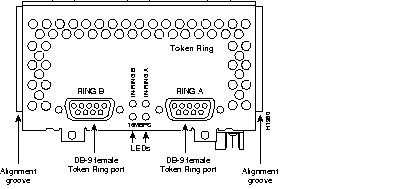
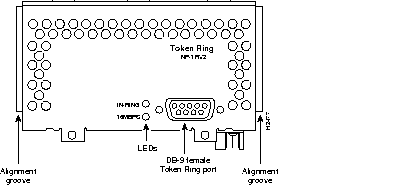
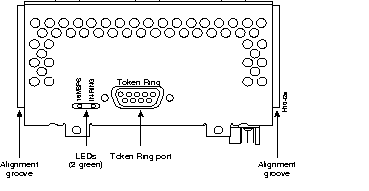
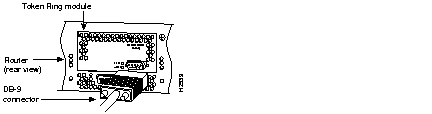
The dual-port Token Ring network processor module has two standard DB-9 connectors (see Figure 35); the single-port modules have one. (See Figure 36 and Figure 37.) On the dual-port module, Port 0 (closest to the power supply) is labeled RING A and Port 1 is labeled RING B. See the section Slot Numbering, page 8 for a description of slot numbering.
Use a standard nine-pin Token Ring lobe cable to connect each Token Ring port directly to a media attachment unit (MAU). (See Figure 38.)
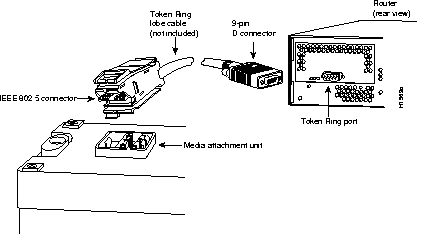
Take the following steps to connect the router to a Token Ring MAU:
Step 1 Attach the DB-9 connector of the Token Ring cable to the network processor module connector. (See Figure 39.)
Step 2 Attach the IEEE 802.5 connector end to the MAU. (See Figure 38.)
Step 3 When you have completed all the network connections, proceed to the section Replacing the Final Connections to the Router, page 71.
For each port on the Token Ring module, there are two green LEDs, labeled 16MBPS and IN-RING. (See Figure 35, Figure 36, and Figure 37.) On the dual-port module, each set of LEDs corresponds to either the ring A or the ring B port. (See Figure 35.)
The LED labeled 16MBPS, when on, indicates ring speed. When off, it indicates a ring speed of 4 Mbps. The LED labeled IN-RING, when on, indicates that the network processor module is inserted into the ring. The LED is off when no module is not inserted into the ring.
The Cisco 4000 series router supports a channelized T1/ISDN PRI (CT1) network processor module which provides one T1 connection via a serial cable to a channel service unit (CSU). The CT1/PRI controller provides up to 24 virtual channels. The system sees each as a serial interface that can be configured individually. This interface is the physical media that supports ISDN PRI.
| Caution The CT1/PRI module cannot be used in the same chassis with the BRI four-port and eight-port network processor modules. |
The CT1/PRI module, shown in Figure 40, provides a controller for transmitting and receiving bidirectional data at the CT1 rate of 1.544 Mbps. The CT1/PRI module can function as a concentrator for remote sites in WANs.
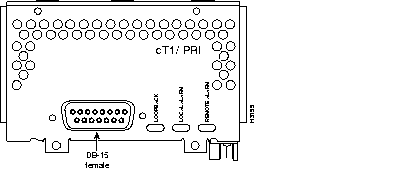
Following are the CT1/PRI specifications:
The three LEDs on the CT1/PRI front panel indicate the following:
Two standard CT1 serial cables are available for the CT1/PRI module from Cisco Systems: null-modem (part number 72-0800-xx) and straight-through (part number 72-0799-xx). Null modem cables are used for back-to-back operation and testing. A straight-through cable connects your router to an external CSU (Channel Service Unit).
The interface cable has two 15-pin DB connectors, one at each end, to connect the CT1 network processor module with the external CT1 CSU. Figure 41 shows the interface cable, connectors, and pinouts.
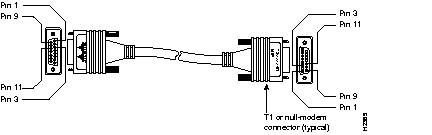
The CT1/PRI interface cables have two male 15-pin DB connectors (one at each end) to connect the CT1 network processor module with the external CSU. Table 7 lists the pinouts for the null-modem CT1 cable, while Table 8 lists the pinouts for the straight-through CT1 cable.
| 15-Pin DB Connector | 15-Pin DB Connector | ||
|---|---|---|---|
| Signal | Pin | Pin | Signal |
| Transmit Tip | 1 | 3 | Receive Tip |
| Receive Tip | 3 | 1 | Transmit Tip |
| Transmit Ring | 9 | 11 | Receive Ring |
| Receive Ring | 11 | 9 | Transmit Ring |
| 15-Pin DB Connector | 15-Pin DB Connector | ||
|---|---|---|---|
| Signal | Pin | Pin | Signal |
| Transmit Tip | 1 | 1 | Transmit Tip |
| Transmit Ring | 9 | 9 | Transmit Ring |
| Receive Tip | 3 | 3 | Receive Tip |
| Receive Ring | 11 | 11 | Receive Ring |
You must enter configuration mode to configure a new CT1 network processor module or to change the configuration of an existing controller.
If you have replaced a previously configured CT1 network processor module, the system will recognize the new module and bring it up in the previous configuration.
When you verify that the new CT1 module is recognized by the router, have the following information ready to begin the configuration procedure:
The following steps describe a basic CT1 configuration. Press Return after each configuration step.
Step 1 At the privileged-level prompt (Router #), enter configuration mode and specify that the console terminal will be the source of the configuration commands, as follows:
conf t
Enter configuration commands, one per line. End with CNTL/Z. Router(config)#Step 2 Specify the controller to configure by entering the command cont CT1 and the unit number. The following example is for the CT1 module unit number 1:
cont CT1 1
Step 3 Specify the clock source for the controller. The clock source command will configure the module to accept the clock from the line or to generate the clock from an internal source:
clock source line
Step 4 Specify the framing type, which can be D4 SuperFrame (sf) or Extended Super Frame (esf). This example shows the esf framing type selected:
framing esf
Step 5 Specify the linecode format as b8zs or ami:
linecode b8zs
Step 6 Enter the channel-group command, channel group, and time slots to be mapped. The channel-group command is used to group individual DS0 slots as a single subinterface.
The example shows channel group 0 and time slots 1, 3 through 5, and 7 selected for mapping:
channel-group 0 timeslots 1,3-5,7 Step 7 Specify the interface, serial, unit number, and channel group to modify:
int serial 1:0
Step 8 Assign an IP address and subnet mask to the interface using the ip address command, as in the following example:
ip address 1.1.15.1 255.255.255.0
Step 9 Add any additional configuration commands required to enable routing protocols and adjust the interface characteristics.
Step 10 When you have entered all the configuration commands, press Ctrl-Z to exit configuration mode.
Step 11 Write the new configuration to memory, as follows:
write memory
The system will display an OK message when the configuration is stored.
Step 12 Exit the privileged level and return to the user level by entering disable at the prompt, as follows:
disable
Step 13 Check the interface configuration using show commands.
The Cisco 4000 series router supports a channelized E1/PRI network processor module with one E1 interface. This interface is the physical media that supports ISDN PRI. This CE1/PRI module provides one channelized E1 connection to a Channel Service Unit (CSU) using a serial cable. The module can function as a concentrator for remote sites in WANs.
The CE1/PRI module controller, shown in Figure 42, facilitates transmission and receipt of bidirectional data at the E1 rate of 2.048 Mbps. The controller provides up to 31 virtual channels. Each channel appears to the system as a serial interface that can be configured individually.
| Caution The CE1/PRI module will not function in the same chassis with the BRI four-port and eight-port network processor modules. |
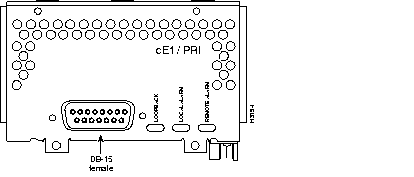
Following are the E1 specifications:
The three LEDs on the front panel of the CE1/PRI module indicate the following:
The jumpers on the CE1/PRI module set capacitive coupling between the transmit (Tx) or receive (Rx) shield and chassis ground and the cable resistance (120-ohm or 75-ohm). By default, the module is set with capacitive coupling between the Rx shield and chassis ground. This provides direct current (DC) isolation between the chassis and external devices, as stated in the G.703 specification. Jumper J2 (see Figure 43) controls this function. To set capacitive coupling between the Tx shield and chassis ground, set jumper J2 as described in Table 9.
Figure 43 also shows the location of jumpers J1, J3, J4, J5, and J7. These jumpers set the cable impedance to 120 ohm or 75 ohm. The jumper settings in Figure 43 show the cable impedance set to 120 ohm.
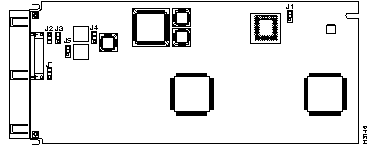
| Jumper | Position | Function |
|---|---|---|
| J2 | 1 and 2
2 and 3 | Connects the Rx shield to chassis ground (default setting)
Connects the Rx shield through capacitive coupling to chassis ground |
| J1, J3, J4, J5, J71 | 1 and 2
2 and 3 | Sets cable impedance to 75 ohm
Sets cable impedance to 120 ohm (default setting) |
| Warning For either impedance option, a jumper installed at J2 bypasses the AC-decoupling capacitor to ground, coupling the interface directly to AC. This is a setting that might pose a risk of severe injury. By default and for safety, J2 is configured with no ground. To prevent interface problems and to reduce the potential for injury, jumper J2 should be configured by trained personnel only. |
Four serial cables are available for the CE1/PRI modules. All four have DB-15 connectors on the CE1/PRI end, and BNC, DB-15, Twinax, or RJ-45 connectors on the network end. Figure 44, Figure 45, Figure 46, and Figure 47 show the CE1 interface cables.


The E1 interface cables have male 15-pin DB connectors at each end for connecting the CE1/PRI module to network equipment. Table 10 lists the pinouts for the E1 interface cables.
| CE1 End | Network End | |||||||||
|---|---|---|---|---|---|---|---|---|---|---|
| DB-151 | BNC | DB-15 | Twinax | RJ-452 | RJ-45/NT3 | |||||
| Pin | Signal4 | Signal | Pin | Signal | Pin | Signal | Pin | Signal | Pin | Signal |
| 9 | TX Tip | TX Tip | 1 | TX Tip | TX-1 | TX Tip | 4 | RX Tip | 1 | TX Tip |
| 2 | TX Ring | TX Shield | 9 | TX Ring | TX-2 | TX Ring | 5 | RX Ring | 2 | TX Ring |
| 10 | TX Shield | - | 2 | TX Shield | Shield | TX Shield | 6 | RX Shield | 3 | TX Shield |
| 8 | RX Tip | RX Tip | 3 | RX Tip | RX-1 | RX Tip | 1 | TX Tip | 4 | RX Tip |
| 15 | RX Ring | RX Shield | 11 | RX Ring | RX-2 | RX Ring | 2 | TX Ring | 5 | RX Ring |
| 7 | RX Shield | - | 4 | RX Shield | Shield | RX Shield | 3 | TX Shield | 6 | RX Shield |
You must enter configuration mode when you install a new CE1/PRI network processor module or to change the configuration of an existing controller. If you replace a previously configured CE1/PRI module, the system will recognize the new module and bring it up in the existing configuration.
After you have verified that the system recognizes the new CE1/PRI module, configure it using the privileged-level configure command. Keep the following information available:
The following steps describe a basic E1 configuration. Press Return after each step.
Step 1 At the privileged-level prompt (Router #), enter configuration mode and specify that the console terminal will be the source of the configuration commands, as follows:
conf t
Enter configuration commands, one per line. End with CNTL/Z. Router(config)#Step 2 Specify the controller to configure by entering the command cont e1 and the unit number. The following example is for the CE1/PRI module unit number 1:
cont e1 1
Step 3 Specify the framing type:
framing crc4
Step 4 Enter the channel-group command, channel group, and time slots to be mapped. The example shows channel group 0 and time slots 1, 3 through 5, and 7 selected for mapping:
channel-group 0 timeslots 1,3-5,7 Step 5 Specify the serial, interface, unit number, and channel group to modify:
int serial 1:0
Step 6 Assign an IP address and subnet mask to the interface with the ip address command, as in the following example:
ip address 1.1.15.1 255.255.255.0
Step 7 Add any additional configuration commands required to enable routing protocols and adjust the interface characteristics.
Step 8 When you have entered all the configuration commands, press Ctrl-Z to exit configuration mode.
Step 9 Write the new configuration to memory as follows:
write memory
The system will display an OK message when the configuration is stored.
Step 10 Exit the privileged level and return to the user level by entering disable at the prompt as follows:
disable
Step 11 Check the interface configuration using show commands.
The ATM processor module for the Cisco 4500, Cisco 4500-M, Cisco 4700, and 4700-M routers provides a User Network Interface (UNI) between the router and an ATM network. This interface to ATM switching fabrics enables the transmitting and receiving data at rates of up to 155 Mbps in each direction (Rx and Tx). The actual rate is determined by the physical layer interface module (PLIM) and the specific physical ATM network layer. All ATM interfaces are full-duplex.
Four ATM network processor modules are available that support PLIMs connecting to the following physical layers:
An ATM network processor module can be installed in any available network processor slot. Unless the middle slot is occupied by an FDDI module, install the ATM network processor module there. You must use the appropriate ATM interface cable and accessories to connect the ATM module with an external ATM network. The cable connects your router to an ATM switch or joins two ATM router interfaces back to back.
For a description of the common ATM terms and acronyms, see the publication Internetworking Terms and Acronyms.
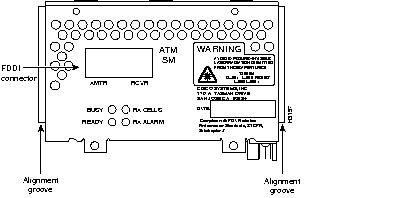
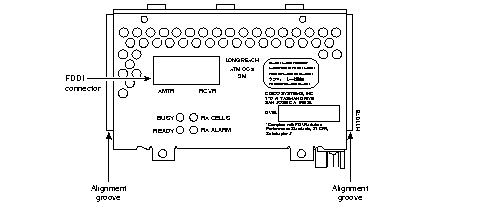
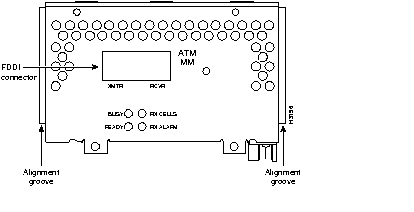
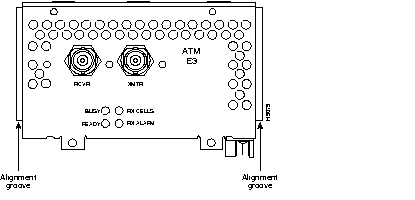
The ATM network processor modules support the following features:
Four LEDs on the front panel of the ATM module indicate the following:
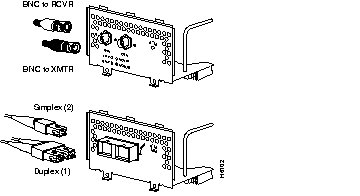
For single-mode or multimode SONET connections, connect the fiber cable to the SC-style receptacle on the front panel of the module. The SONET SC-duplex receptacle is shipped with a dust plug. To remove the plug, squeeze the sides as you pull on it.
For SONET/SDH multimode connections, use one multimode duplex SC connector (see Figure 52) or two single SC connectors. (See Figure 53.)

| Warning Invisible laser radiation can be emitted from the aperture ports of the single-mode ATM products when no fiber-optic cable is connected. Avoid exposure and do not stare into open apertures. This product meets the Class 1 Laser Emission Requirement from CDRH FDDI. |
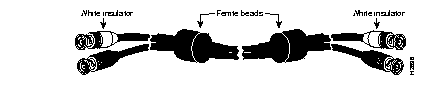
For E3 and DS-3 connections, use the 75 ohm, RG-59, coaxial cable, CAB-ATM-DS3/E3, which has bayonet-style, twist-lock (BNC) connectors and ferrite beads. (See Figure 54.) The E3 and DS-3 PLIMs both require cable CAB-ATM-DS3/E3. Ensure that the transmit and receive portions of the cable are connected to the appropriate module connector.
Connect the ATM module interface cables as shown in Figure 55.
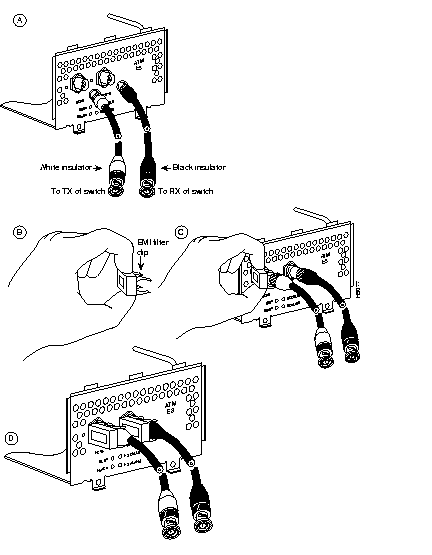
| Caution To ensure compliance with electromagnetic interference (EMI) standards, the E3 PLIM connection requires an EMI filter clip (CLIP-E3-EMI) on both the receive and transmit ports (respectively labeled RCVR and XMTR); the DS-3 PLIM connection does not require this clip. Figure 56 shows the required EMI filter clip assembly. Do not operate the E3 PLIM without this assembly. |
Take these steps to install the CAB-ATM-DS3/E3 cable and EMI filter assembly for an E3 PLIM:
Step 1 Attach the CAB-ATM-DS3/E3 cable to the transmit (XMTR) and receive (RCVR) ports on the E3 PLIM. (See Figure 56, part A.)
One portion of the cable has a white insulator on both ends to ensure that the receive-to-transmit and transmit-to-receive relationship between the E3 PLIM and the ATM switch are maintained.
Step 2 Hold the EMI filter clip as shown in Figure 56, part B and attach it to the receive cable. (See Figure 56, part C.)
Step 3 When attached, one pair of fingers should clip over the front panel receptacle, and the other pair of fingers should clip over the cable connector.
Step 4 Hold the second EMI filter clip as shown in part B of Figure 56, and attach it to the transmit cable. The result should look like part D of Figure 56.
The SONET specification for fiber-optic transmission defines two types of fiber: single mode and multimode. Single-mode fiber is capable of higher bandwidth and greater cable run distances than multimode fiber.
The typical maximum distances for single-mode and multimode transmissions, as defined by SONET, are in Table 11. If the distance between two connected stations is greater than these maximum distances, significant signal loss can result, making transmission unreliable.
| Transceiver Type | Maximum Distance between Stations1 |
|---|---|
| Single-mode | Up to 9 miles (15 kilometers) |
| Single mode--Long Reach | Up to 12.4 miles (20 kilometers) |
| Multimode | Up to 1.5 miles (3 kilometers) |
To design an efficient optical data link, you must evaluate the power budget. Proper operation of an optical data link depends on modulated light reaching the receiver with enough power to be correctly demodulated.
The power budget is defined in two ways:
The following variables reduce the power of the signal (light) transmitted to the receiver in multimode transmission:
Attenuation is significantly lower for optical fiber than for other media. For multimode transmission, chromatic and modal dispersion reduce the available system power by the combined dispersion penalty, measured in decibels (dB). The power lost over the data link is the sum of the component, dispersion, and modal losses.
Table 12 lists the factors of attenuation and dispersion limit for typical fiber-optic cable.
| Limits | Single-Mode | Single-Mode Long Reach | Multimode |
|---|---|---|---|
| Attenuation | 0.5 dB | 10-28 dB | 1.0 dB/km |
| Dispersion | No limit | Refer to vendor cable properties | 500 MHz/km1 |
The LED used for a multimode transmission light source creates multiple propagation paths of light, each with a different path length and time requirement to cross the optical fiber, causing signal dispersion (smear). Higher order mode loss (HOL) results from light from the LED entering the fiber and radiate into the fiber cladding.
A worst-case estimate of power margin (PM) for multimode transmissions assumes minimum transmitter power (PT), maximum link loss (LL), and minimum receiver sensitivity (PR). In a worst-case situation, not all parts of an actual system will operate at the worst-case levels.
The power budget (PB) is the maximum possible amount of power transmitted. The following equation lists the calculation of the power budget:
The power margin calculation is derived from the power budget and subtracts the link loss:
Table 13 lists the factors that contribute to link loss and the estimate of the link loss value attributable to those factors.
After calculating the power budget minus the data link loss, the result should be greater than zero. Results less than zero may have insufficient power to operate the receiver. If the power margin is positive, as a rule, the link will work.
For SONET versions of the ATM module, the signal must meet the worst-case parameters listed in Table 14.
| Link Loss Factor | Estimate of Link Loss Value |
|---|---|
| Higher order mode losses | 0.5 dB |
| Clock recovery module | 1 dB |
| Modal and chromatic dispersion | Dependent on fiber and wavelength used |
| Connector | 0.5 dB |
| Splice | 0.5 dB |
| Fiber attenuation | 1 dB/km |
| Category | Single-Mode | Single-Mode Long Reach | Multimode |
|---|---|---|---|
| PT | -18.5 | -3 | -15 |
| PR | -30 | -36 | -28 |
| PB | -11.5 | -29 | -13 |
The following is an example multimode power budget calculated based on the following variables:
Estimate the power budget as follows:
The value of 3.5 dB indicates that this link would have sufficient power for transmission.
Following is an example with the same parameters as the previous example, but with a multimode link distance of 4 km:
The value of 2.5 dB indicates that this link would have sufficient power for transmission. because of the dispersion limit on the link (4 km x 155.52 MHz > 500 MHz/km), this link will not work with multimode fiber. In this case, single-mode fiber would be the better choice.
The single-mode signal source is an injection laser diode. Single-mode transmission is useful for longer distances because the single transmission path exists within the fiber eliminates smear. In addition, chromatic dispersion is reduced because laser light is essentially monochromatic.
The maximum overload specification on the single-mode receiver is -14 dB. The single-mode receiver can be overloaded when using short lengths of fiber because the transmitter can transmit up to -8 dB, while the receiver could be overloaded at -14 dB, but no damage to the receiver will result. To prevent overloading the receiver connecting short fiber links, insert a 5 to 10 dB attenuator on the link between any single-mode SONET transmitter and the receiver.
The following example of a single-mode power budget is of two buildings, 7 kilometers apart, connected through a patch panel in an intervening building with a total of 12 connectors.
Estimate the power budget as follows:
The value of 2.0 dB indicates that this link would have sufficient power for transmission and is not in excess of the maximum receiver input power.
The following example of a single-mode long reach power budget is of two buildings, 11 kilometers apart, connected through a patch panel in an intervening building with a total of 12 connectors.
Estimate the power budget as follows:
The value of 2.0 dB indicates that this link would have sufficient power for transmission and is not in excess of the maximum receiver input power.
Statistical models more accurately determine the power budget than the worst-case method. Determining the link loss with statistical methods requires accurate knowledge of variations in the data link components. Because statistical power budget analysis is beyond the scope of this document, you can refer to UNI Forum specifications, ITU-T standards, and your equipment specifications.
The following publications contain information on determining attenuation and power budget:
You must enter configuration mode each time you install a new ATM module to change the configuration of an existing module.
If you have replaced a previously configured ATM module, the system will recognize the new module and bring it up in the existing configuration.
When you have verified that the new ATM network processor module is recognized by the router, use the privileged-level configure command to configure the new module. You should have the following information available:
The following steps describe a basic ATM configuration using just PVCs. Press Return after each step.
Step 1 At the privileged-level prompt (Router #), enter configuration mode and specify that the console terminal will be the source of the configuration commands:
Step 2 Specify the unit to configure by entering the command int atm and the unit number. The following example is for ATM unit 0:
Step 3 Specify the framing type.
If you are using a SONET interface, there is only one framing type, stm-1, which is the default and need not be entered:
If you are specifying the framing type for an E3 interface, there are two framing types: G.751 ADM (entered as g751adm) and G.832 ADM (entered as g832adm).
If you are specifying the framing type for a DS-3 interface, there are three framing types: C-bit PLCP (entered as cbitplcp), M23 ADM (entered as m23adm), and M23 PLCP (entered as m23plcp).
Step 4 Assign protocol addresses to the interface:
Step 5 Create the PVCs. A PVC requires the whole path from source to destination to be set up manually. If there are any switches in the path, they have to be properly configured also. The PVC command has the format atm pvc vc-id vpi vci encap [peak-rate sustained-rate burst-size]:
Step 6 Assign the appropriate map list to the interface:
Step 7 Enable the interface:
no shut
Step 8 Create the mapping of protocol addresses to PVCs. Map-lists are used to assign protocol addresses to virtual circuits (VCs):
Step 9 Press Ctrl-Z to complete the configuration.
Step 10 Write the new configuration to memory:
Step 11 Exit the privileged level and return to the user level:
The following example shows a basic configuration using switched virtual circuits (SVCs). Press Return after each step.
Step 1 At the privileged-level prompt (Router #), enter configuration mode and specify that the console terminal will be the source of the configuration commands:
Step 2 Specify the unit to configure by entering the command int atm and the unit number. The following example is for ATM unit 0:
Step 3 Specify the framing type.
If you are using a SONET interface, there is only one framing type, stm-1, which is the default and need not be entered:
If you are specifying the framing type for an E3 interface, there are two framing types: G.751 ADM (entered as g751adm) and G.832 ADM (entered as g832adm).
If you are specifying the framing type for a DS-3 interface, there are three framing types: C-bit PLCP (entered as cbitplcp), M23 ADM (entered as m23adm) and M23 PLCP (entered as m23plcp).
Step 4 Assign protocol addresses to the interface:
Step 5 Create the signaling PVC, which is required by the signaling software to communicate with a switch in order to dynamically set up SVCs. The signaling virtual channel uses VPI 0 and VCI 5.
Step 6 Configure the ATM network service access point (NSAP) address:
where nsap-addr could be:
Step 7 Assign the appropriate map list to the interface:
Step 8 Enable the interface:
Step 9 Create the mapping of protocol addresses to ATM NSAP addresses, as follows:
Step 10 Press Ctrl-Z to complete the configuration.
Step 11 Write the new configuration to memory:
Step 12 Exit the privileged level and return to the user level:
The Cisco 4000 series routers support the following serial interface data communications connections: EIA/TIA-232, EIA/TIA-449, X.21, V.35, and EIA-530. The Cisco 4000 series also supports an E1-G.703/G.704 network processor module with many features and functions common to four-port serial interface data communication interfaces.
Two types of serial modules are available: the four-port serial with four 60-pin D-type connectors, and the dual-port serial with two 50-pin D-subconnectors to attach to the transition cable.
Each port requires a serial adapter cable, which provides the interface between the high-density port and the standard connectors for each electrical interface type. The adapter cable determines the electrical interface type and mode (data terminal equipment [DTE] or data communications equipment [DCE]) of the port to which it is connected.
For most interface types, the adapter cable for DTE mode uses a plug at the network end, and the cable for DCE mode uses a receptacle at the network end. Exceptions are V.35 adapter cables, which are available with either a V.35 plug or a receptacle for either mode, and the EIA-530 adapter cable, which is available only in DTE mode with a DB-25 plug at the network end. The mode (DCE or DTE) is labeled on the molded plastic connector shell at the ends of all cables except V.35 (which uses the standard Winchester block-type connector instead of a molded plastic D-shell).
Following are the available interface cable options for the mode and network-end connectors for each cable:
| Caution For proper router operation, both ends of the EIA/TIA-232 serial DCE cable, and secondary attached cable must be connected. If you must detach this cable, detach the router end first. The line connection will "flap" if you first detach the cable end away from the router, generating interrupts and potentially causing the device to shut down. |
Two configuration requirements must be met for proper operation of the four-port serial module:
Three example configurations that meet these requirements follow:
Note that the Example 3 configuration requires that two of the four ports remain unused.
The data rate depends on the type of electrical interface used. Use EIA/TIA-232 for speeds up to 64 kbps; use X.21, EIA/TIA-449, V.35, or EIA-530 for higher speeds.
When connecting serial devices, consider the adapter cables as an extension of the router for external connections. Therefore, use DTE cables to connect the router to remote DCE devices such as modems or DSUs, and DCE cables to connect the router to remote DTE devices such as hosts or another router.
Serial signals can travel a limited distance at any given bit rate; generally, the slower the baud rate, the greater the distance. All serial signals are subject to distance limits, beyond which a signal degrades significantly or is completely lost. Table 15 lists the recommended maximum speeds and distances for each serial interface type from the IEEE EIA/TIA-449 specification.
You may produce good results at speeds and distances greater than those listed if you compensate for potential electrical problems. For example, the recommended maximum rate for V.35 is 2 Mbps, but 4 Mbps is commonly used. If you elect to use variable rate settings different than the IEEE specifications, do so at your own risk.
| Data Rate | EIA/TIA-232 Distances | EIA/TIA-449, X.21, V.35, EIA-530 Distances | |||
|---|---|---|---|---|---|
| bps | Feet | Meters | Feet | Meters | |
| 2400 | 200 | 60 | 4100 | 1250 | |
| 4800 | 100 | 30 | 2050 | 625 | |
| 9600 | 50 | 15 | 1025 | 312 | |
| 19200 | 25 | 7.6 | 513 | 156 | |
| 38400 | 12 | 3.7 | 256 | 78 | |
| 56000 | 8.6 | 2.6 | 102 | 31 | |
| 1544000 (CT1) | N/A | N/A | 50 | 15 | |
Balanced drivers enable EIA/TIA-449 signals to travel greater distances than EIA/TIA-232 signals. The recommended distance limits for EIA/TIA-449 are also valid for V.35, X.21, and EIA-530. Typically, EIA/TIA-449 and EIA-530 support 2-Mbps rates, and V.35 can support 4-Mbps rates.
EIA/TIA-232, the most common interface standard in the United States, supports unbalanced circuits at signal speeds up to 64 kbps. The network end of the adapter cable is a standard 25-pin D-shell connector (known as a DB-25). (See Figure 57.) The router console and auxiliary ports also use EIA/TIA-232 connections; however, the serial module ports support synchronous connections, while the console and auxiliary ports support asynchronous connections.
EIA/TIA-449, which supports balanced (EIA/TIA-422) and unbalanced (EIA/TIA-423) transmissions, is a faster (up to 2 Mbps) version of EIA/TIA-232 that provides more functions and supports transmissions over greater distances.
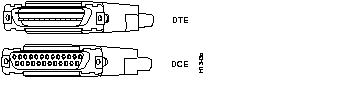
The network end of the EIA/TIA-449 adapter cable provides a standard 37-pin D-shell connector. (See Figure 58.) EIA/TIA-449 cables are available as either DTE (DB-37 plug) or DCE (DB-37 receptacle).

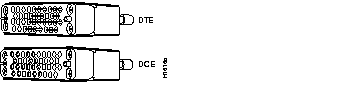
The V.35 interface is recommended for speeds up to 48 kbps (although it is effectively used at speeds of 4 Mbps). The network end of the V.35 adapter cable provides a standard 34-pin Winchester-type connector. (See Figure 59.) V.35 cables are available with a standard V.35 plug or receptacle in either DTE or DCE mode.
The X.21 interface uses a 15-pin connection for balanced circuits and is commonly used in the United Kingdom to connect public data networks. X.21 relocates some of the logic functions to the DTE and DCE interfaces and requires fewer circuits and a smaller connector than EIA/TIA-232.
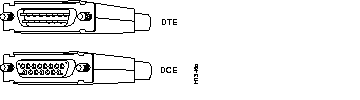
The network end of the X.21 adapter cable is a standard DB-15 connector. (See Figure 60.) X.21 cables are available as either DTE (DB-15 plug) or DCE (DB-15 receptacle).
EIA-530 supports balanced transmission and provides the increased functionality, speed, and distance of EIA/TIA-449 on the smaller, DB-25 connector used for EIA/TIA-232. The EIA-530 standard was created to support the more sophisticated circuitry of EIA/TIA-449 on the existing EIA/TIA-232 (DB-25) hardware instead of the larger, 37-pin connectors used for EIA/TIA-449.
Like EIA/TIA-449, EIA-530 refers to the electrical specifications of EIA/TIA-422 and EIA/TIA-423. Although the EIA-530 specification recommends a maximum speed of 2 Mbps, it is used successfully at 4 Mbps or faster speeds over short distances.
The EIA-530 adapter cable is available in DTE mode only. The network end of the EIA-530 adapter cable is a standard DB-25 plug commonly used for EIA/TIA-232 connections. Figure 61 shows the DB-25 connector at the network end of the adapter cable.

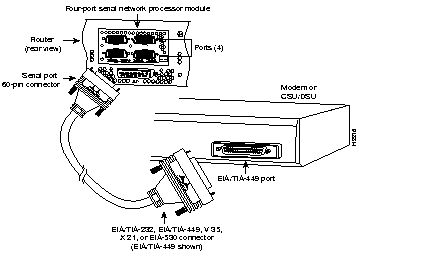
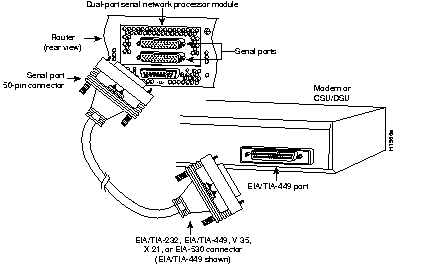
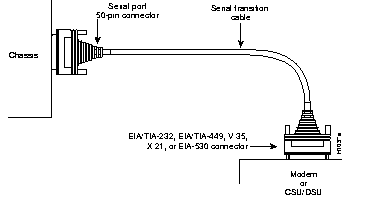
The 60-pin D-subconnector is standard on the four-port serial module except the G.703/G.704, which has a 15-pin D-subconnector. The 50-pin D-subconnector is standard on the dual-port serial modules. Use the specific serial transition cable for the module type and the correct EIA/TIA standard connector for your modem or CSU/DSU. (See Figure 63 and Figure 64.)
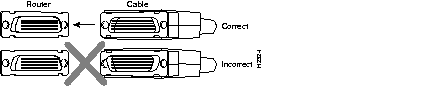
| Caution The connector on the four-port serial module is upside down. The cable should match that orientation. Ensure that the 60-pin connectors on the cable and the network processor modules match. Do not force the cable into the connector upside down. (See Figure 62.) |
Step 1 Attach the ends of your serial transition cables to the synchronous serial ports of the serial modules. (See Figure 63 and Figure 64.)
Step 2 Attach the EIA/TIA-232, EIA/TIA-449, V.35, X.21, or EIA-530 end of the cable to the CSU/DSU or modem.
Step 3 If all your network connections are complete, proceed to the section Replacing the Final Connections to the Router, page 71.
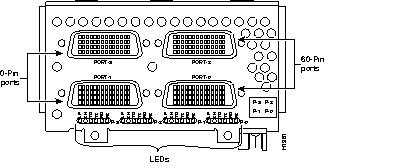
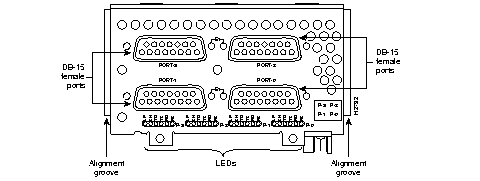
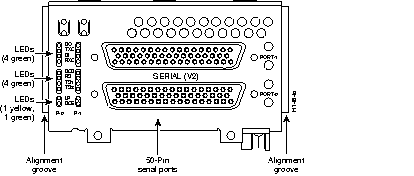
The four-port serial module ports are 60-pin D-subconnectors; the G.703/G.704 module ports are 15-pin D-subconnectors. On the four-port serial module, the port numbering is as shown on the label on the lower right in Figure 65. The dual-port module ports are 50-pin D-subconnectors. (See Figure 65, Figure 66, and Figure 67.) Serial ports can be configured as DTE or DCE, depending on the special serial cable used.
On the G.703/G.704 network processor module, the port numbering is as shown on the lower right in Figure 66.
On the dual-port serial module, the port numbering is as shown on the right in Figure 67.
Two LED daughter cards are attached to the front of the dual-port serial module. (See Figure 68.)
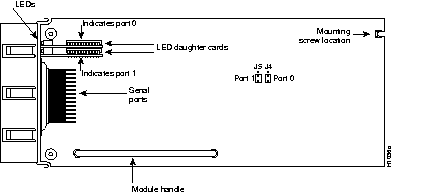
The dual-port serial module contains two jumpers, J4 and J5 (see Figure 68), which determine whether the ports are configured for nonreturn to zero (NRZ) or nonreturn to zero inverted (NRZI). The factory-configured (default) jumper setting connects pins 2 and 3 for NRZ.
To configure for NRZI mode on each port, the jumper must connect pins 1 and 2 of the respective jumper locations. (See Figure 69.) J-4 configures serial port 0, and J-5 configures serial port 1. (For NRZ only, the jumpers that connect pins 2 and 3 can be removed.)
If the module is operating as DTE in NRZI mode, the sense of the dte-invert-timing command has to be manually changed. For example, if the command no dte-invert-timing was previously entered in the configuration file, then dte-invert-timing must be configured for the module to operate as DTE in NRZI mode. (See the section Configuring the Serial Interfaces, page 72.)
To set the jumpers for NRZI, move the jumpers to the position shown in Figure 69.

You must use a special serial transition cable to connect Cisco 4000 series routers to a modem, CSU/DSU, or other device, as shown in Figure 70. This cable, which is available from your customer service representative, is normally ordered with the system. In all, nine different serial cables are available for the two versions of serial modules: DTE and DCE versions of V.35, EIA/TIA-232, EIA/TIA-449, and X.21, plus a DTE version of EIA-530. The cables for the two versions are not interchangeable.
Serial ports configured as DCE must also be configured with the clockrate command. An error message will be generated if there is a mismatch between the cable and the software configuration of the port--for example, if the cable is DTE and clock rate is set, or if the cable is DCE and clock rate is not configured.
The four-port serial module (including the G.703/G.704 module) has six LEDs per port. LEDs and colors are explained in Table 16. The LEDs on the four-port serial module have different functions than those on the dual-port serial module.
The LEDs are named in accordance with standard serial interface naming conventions. For example, TD is always associated with the data that is driven by the DTE whether the port on the serial module is a DTE or a DCE. TD will reflect output data when the port is a DTE and input data when the port is a DCE. RD is controlled in a similar way. TC and RC are always associated with the clocks that are driven by the DCE: outputs for a DCE port and inputs for a DTE.
The TC, RC, TD, RD LEDs are on only when the associated line is changing state; if a line remains high or low, the LED is off.
| LED | Color | Indication |
|---|---|---|
| LP | Yellow | Loop |
| CN | Green | Connect (DSR, DTR, DCD, RTS, CTS) |
| TD | Green | Transmit Data |
| TC | Green | Transmit Clock |
| RD | Green | Receive Data |
| RC | Green | Receive Clock |
The dual-port serial module has two LED cards and ten LEDs per port (see Figure 71), and can be configured for either DTE or DCE. Viewed from the connector end of the module, the left card is labeled P-0 (for port 0), and the right card is labeled P-1 (for port 1). The lower serial port is port 0, and the upper serial port is port 1, as shown on the labels.
Figure 68 shows the top view of the dual-port serial module. Note the locations of the LED daughter cards and the ports that they indicate.
When DCE cables are used, the bottom LED will go on.
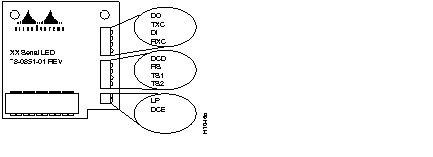
The dual-port serial module LEDs are described in Table 17.
| Serial LED Card Outer Labels | Indication | DTE | DCE |
|---|---|---|---|
| DO | Data Out | TXD | RXD |
| TXC | Transmit Clock | ||
| DI | Data In | RXD | TXD |
| RXC | Receive Clock | ||
| DCD | Data Carrier Detect | ||
| RS | Receive Signaling | CTS | RTS |
| TS1 | Transmit Signaling 1 | RTS | CTS |
| TS2 | Transmit Signaling 2 | DTR | DRS |
| LP | Loop | ||
| DCE | On if network processor module is DCE |
For information on configuring the serial interfaces, proceed to the section Configuring the Serial Interfaces, page 72.
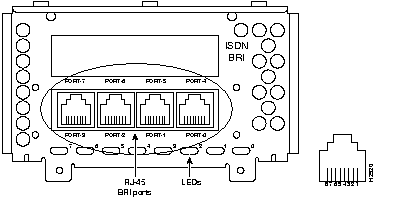
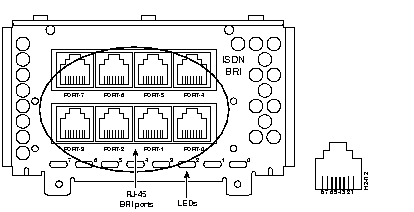
The BRI network processor modules (see Figure 72 and Figure 73) support either four or eight BRI ports. Each BRI port is an RJ-45 8-pin connector. Use an appropriate cable to connect the BRI module directly to the ISDN through an ISDN CSU/DSU called the NCT1. In all locations except North America, the common carrier will provide the NCT1 connection. In the U.S. and Canada, NCT1 is owned by the customer.
| Caution The BRI four-port and eight-port network processor modules can not be used with the CT1/PRI module or the CE1/PRI module. |
| Warning Network hazardous voltages are exposed in the BRI cable. If you detach this cable, detach the end away from the router first to avoid possible electric shock. Hazardous voltages are also exposed on the BRI module near the BRI port (RJ-45 connector), even when power is turned OFF. (See Figure 72 and Figure 73.) |
Specifications for the BRI cable are listed in Table 18.
| Parameter | High-Capacitance Cable | Low-Capacitance Cable |
|---|---|---|
| Resistance (@ 96 kHz1) | 160 ohms/km | 160 ohms/km |
| Capacitance (@ 1 kHz) | 120 nF/km2 | 30 nF/km |
| Impedance (@ 96 kHz) | 75 ohms | 150 ohms |
| Wire diameter | 0.024" (0.6 mm) | 0.024" (0.6 mm) |
| Distance limitation | 32.8' (10 m) | 32.8' (10 m) |
The BRI module supports point-to-point operation at OSI Layer 1. Only one source (the transmitter) and one sink (the receiver) are actively transmitting at any time in each direction at an S interface (ITU-T specification I.430 section 3.1). The BRI module does not support a point-to-multipoint wiring configuration, so D-channel access procedures are not implemented.
The BRI interface port pinout is listed in Table 19.
| 8 Pin1 | TE1 | NT2 | Polarity |
|---|---|---|---|
| 3 | Transmit | Receive | + |
| 4 | Receive | Transmit | + |
| 5 | Receive | Transmit | - |
| 6 | Transmit | Receive | - |
| Caution To prevent damage to the system, make certain that you connect the BRI cable to the BRI connector only and not to any other RJ-45 connector. |
An external loopback RJ-45 connector, which is useful for isolating hardware problems on an individual BRI port, can be constructed by taking the following steps:
Step 1 Connect pin 3 to pin 4. (See Figure 72 and Figure 73.)
Step 2 Connect pin 5 to pin 6.
Step 3 Connect a 50 ohm resistor across pin 3 and pin 5.
With the loopback RJ-45 connector plug installed in a BRI port, use the test interface command to verify that the hardware is functioning correctly.
When on, the multiport BRI module status LEDs indicate a Layer 1 connection on the corresponding port. When off, the LEDs indicate that a link is not established on the port.
The Cisco 4000 series routers provide an alternative boot image called the boothelper, which is a subset of the full Cisco IOS image. The boot helper image enables you to netboot a new image to Flash memory if the image in Flash memory is inadvertently erased.
The original Cisco 4000 and the Cisco 4000-M use boot ROMs for storing the boothelper Cisco IOS image. To upgrade the boot ROM software to a new image in these models, the existing boot ROMs must be replaced. In the Cisco 4500, Cisco 4500-M, Cisco 4700, and Cisco 4700-M, the boothelper image is stored in Flash memory and can be upgraded while the full Cisco IOS image is operating.
| Caution The correct placement of the boot ROMs is crucial. Improper positioning can damage new components when the system is powered ON. To prevent damage to the ROMs from ESD (when handling the system and its components), follow the ESD procedures described in Safety with Electricity, page 6. Be careful not to damage or scratch the printed circuit card under the ROMs. Read through all of the instructions in this section before proceeding. |
Take the following steps to replace existing boot ROMs:
Step 1 Open the chassis and expose the boot ROMs using the procedures described in the section Accessing the Network Processor Modules, page 11.
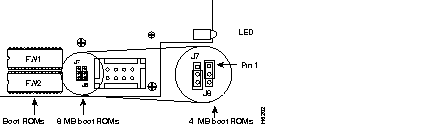
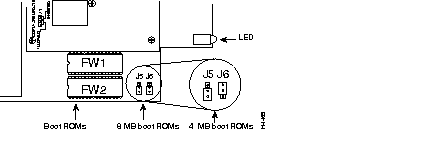
Step 2 When the boot ROMs, FW1 and FW2, on the system card are exposed (see Figure 7 and Figure 74), follow the procedures in this section to replace the ROMs.
Step 3 Locate the boot ROMs, FW1 and FW2. (See Figure 74 for the Cisco 4000-M and Figure 75 for the Cisco 4000.)
Step 4 Using an EPROM extraction tool or a small flat-blade screwdriver, gently remove the boot ROMs and set them aside.
Step 5 Insert the new boot ROMs in their respective sockets in the orientation shown in Figure 74, being careful not to bend or crush any of the bottom pins. To straighten out a bent pin, use needlenose pliers. Align the notch in the new ROM with the notch in the ROM socket, ignoring the orientation of the label.
Step 6 If you have a Cisco 4000-M, jumpers J7 and J8 must be set to designate the capacity of the Boot ROMs.
Step 7 If you have a Cisco 4000, jumpers J5 and J6 must be set to designate the capacity of the boot ROMs.
Step 8 Proceed to the section, "Replacing the Component Tray."
Take the following steps to replace or add a network processor module:
Step 1 Hold the module by its handle, align it with the grooves in the chassis (not shown) and over its connector, and push the module lightly against the chassis wall. (See Figure 8.)
Step 2 Push the network processor module into place without bending the connector pins, inserting the male module connector into the female connector on the motherboard.
Step 3 Replace the module mounting screw in its place on the end of the module. (See Figure 7.)
Step 4 Replace any required external rear mounting screws to attach the module to the rear of the chassis.
| Caution Do not overtorque the screws because you may damage the network processor module or the underlying motherboard. The maximum screw torque is 7-inch-lb. |
Take the following steps to replace the component tray in the chassis shell:
Step 1 Reinsert the component tray into the shell, pushing on the back of the tray while pressing on the chassis release screw with the thumb of your right-hand.
Step 2 Retighten the chassis release screw.
Take the following steps to make the final connections to the router:
Step 1 Plug the system power cord into a 3-terminal, single-phase power source that provides power within the acceptable range (200W, 85 to 264 VAC, 50 to 60 Hz or 40 to 72 VDC).
Step 2 Turn ON the system power switch. The POWER LED on the front should go ON. (See Figure 2.)
Step 3 Check the OK LED on the right side of the front panel (see Figure 2) to verify that it goes ON after a few seconds delay when booting.
If you have installed a new network processor module or want to change the configuration of an existing interface, you must enter configuration mode. If you replaced a previously configured module, the system will recognize the new interfaces and bring up each in the existing configuration.
When the new module is installed correctly, use the privileged-level configure command to configure the new interfaces.
You should have available the following information:
The following sections describe the commands for configuring an external clock signal for a DCE interface and for configuring a port for NRZI encoding or 32-bit cyclic redundancy check (CRC). Configuration commands are entered at the privileged level of the EXEC command interpreter.
For more information on clock signal and NRZI encoding, see the section Dual-Port Serial Module Jumper Settings, page 63. For G.703/G.704 interface configuration, see the section Configuring G.703/G.704 Interfaces, page 74.
All serial interfaces support both DTE and DCE modes, depending on the mode of the interface cable attached to the port. Follow these guidelines to set DTE and DCE modes:
All DCE interfaces require a noninverted internal transmit clock signal, which is generated by the serial module. The default operation on a DCE interface is for the DCE device to generate its own clock signal (TXC) and send it to the remote DTE. The remote device returns the clock signal to the DCE. The clockrate command specifies the rate as a bits-per-second value. In the following example, the clock rate for the top serial interface on a dual-port serial module is defined as 72 kbps:
interface serial 1
clockrate 72000
Use the no clockrate command to remove the clock rate for DTE operation. Following are the acceptable clock rate settings:
1200 | 125000 |
Speeds above 64 kbps (64000) are not supported for EIA/TIA-232. On all interface types, if your cable is too long, faster speeds might not work.
Systems that use long cables may experience high error rates when operating at the higher transmission speeds. Slight variances in cable construction, temperature, and other factors can cause the clock and data signals to shift out of phase. If a DCE port is reporting a high number of error packets, a phase shift might have occurred. Inverting the clock can often correct this shift.
When a port is operating in DCE mode, the default operation is for the attached DTE device to return the clock signal (SCTE) to the DCE port. The DCE sends SCT and SCR clock signals to the DTE, and the DTE returns an SCTE clock signal to the DCE. If the DTE device does not return SCTE, use the dce-terminal-timing-enable command to configure the DCE port to use its own clock signal in place of the SCTE signal normally returned from the DTE device.
To configure an interface to accept the serial interface internal clock in place of the SCTE clock, specify the interface followed by the dce-terminal-timing-enable command. In the example that follows, the serial 0 port has been configured to accept the internal clock signal:
interface serial 0
dce-terminal-timing-enable
To turn off this command, use the no dce-terminal-timing-enable command.
When the serial port is a DTE, the invert-txc command inverts the TXC clock signal it receives from the remote DCE. When the serial port is a DCE, this command inverts the clock signal to the remote DTE port. Use the no invert-txc command to change the clock signal back to its original phase. The no invert-txc command is redundant with the four-port serial module because the module will automatically discover the polarity of the clock and invert the signal.
All interfaces support both NRZ and NRZI formats; which use two different voltage levels for transmission. NRZ signals maintain constant voltage levels with no signal transitions (no return to a zero voltage level) during a bit interval and are decoded using absolute values (0 and 1). NRZI uses the same constant signal levels but interprets the presence of data at the beginning of a bit interval as a signal transition and the absence of data as no transition. NRZI uses differential encoding to decode signals, rather than determining absolute values.
NRZ format, the factory default on all interfaces, is the most common. NRZI format is commonly used with EIA/TIA-232 connections in IBM environments. To enable NRZI encoding on any interface, specify the port address of the interface followed by the command nrzi-encoding. In the example that follows, serial port 0 is configured for NRZI encoding:
router#configure terminalinterface serial 0nrzi-encoding^Z
All Cisco 4000 series router serial interfaces support CRC-ITU-T, a 16-bit CRC. CRC is an error-checking technique that uses a calculated numeric value to detect errors in transmitted data. The sender of a data frame divides the bits in the frame message by a predetermined number to calculate a remainder or frame check sequence (FCS). Before it sends the frame, the sender appends the FCS value to the message so that the frame contents are exactly divisible by the predetermined number. The receiver divides the frame contents by the predetermined number. If the result is not 0, the receiver assumes that a transmission error occurred and issues a request to the sender to resend the frame.
The designator 16 indicates the number of check digits per frame that are used to calculate the FCS. CRC-16, which transmits streams of 8-bit characters, generates a 16-bit FCS. Both the sender and the receiver must use the same setting of 16.
The default for all serial interfaces is for 16-bit CRC.
This section provides configuration guidelines for the Cisco 4000 series G.703/G.704 network processor module (balanced and unbalanced). The E1-G.703/G.704 interface supports both framed (G.704) and unframed (G.703) modes of operation; the default is for unframed operation.
The E1-G.703/G.704 interface is a 2.048-Mbps E1 telecommunications interface.
Many of the G.703/G.704 network processor module features and functions are common to synchronous serial data communications interfaces; this section describes the E1-G.703/G.704 features that differ from data communications interfaces features.
| Caution If you are installing a new E1-G.703/G.704 interface in an installed system, ensure that your system configuration meets the minimum requirements for the new interfaces. Refer to the section System Prerequisites, page 4 for a description of these prerequisites. |
The E1-G.703/G.704 interface mounts on the G.703/G.704 network processor module and connects Cisco 4000 series routers with 2.048-Mbps leased-line services. The E1-G.703/G.704 interface supports both framed and unframed modes of operation, a loopback test, and a four-bit CRC. The interface can operate with either a line-recovered or an internal clock signal.
Two versions of the E1-G.703/G.704 interface are available: one supports balanced mode, and the other supports unbalanced mode.
The G.703/G.704 network processor module uses a 15-pin port that supports the E1-G.703/G.704 telecommunications interface. Figure 66 shows the E1-G.703/G.704 interface ports.
G.703 is an International Telecommunication Union Telecommunication Standardization Sector (ITU-T) electrical and mechanical specification for connections between telecommunications interfaces and DTE.
Typically, G.703 provides a means of connecting standard serial interfaces such as V.35 to telephone lines or Postal Telephone and Telegraph (PTT) networks.
The E1-G.703/G.704 port supports point-to-point connections to Cisco 4000 series routers from 2.048-Mbps, E1 leased-line services, and eliminates the need for a separate, external data termination unit that is typically used to convert standard serial interfaces, such as V.35, to E1-G.703/G.704.
The E1-G.703/G.704 interface is available in either balanced or unbalanced mode. Balanced interfaces typically use three conductors and three signal states: high, low, and ground. The high and low signals mirror each other. Unbalanced interfaces use only two signals: signal and ground.
A unique port supports each type. Neither the modes nor the cables are interchangeable; you cannot configure a balanced port to support an unbalanced line, nor can you attach an interface cable intended for a balanced port to an unbalanced port.
In addition to the agency approval label on each G.703/G.704 network processor module port, the show controllers command shows the mode of each interface. The fourth line of the following example shows that this is output from an unbalanced G.703/G.704 network processor module:
Router# show controller serial 0
HD unit 0, NIM slot 1, NIM type code 12, NIM version 1
idb = 0x8C18, driver structure at 0x4B7A30, regaddr = 0x8100000
buffer size 1524  G.703 Unbalanced
cpb = 0x3, eda = 0xA80, cda = 0x800
RX ring with 32 entries at 0x6030800
00 bd_ptr=0x0800 pak=0x4B7ADC ds=0x603018C status=80 pak_size=0
01 bd_ptr=0x0814 pak=0x4B7C30 ds=0x60315A0 status=80 pak_size=0
02 bd_ptr=0x0828 pak=0x4B7D84 ds=0x6031C24 status=80 pak_size=0
[text ellided from example]
32 bd_ptr=0x0A80 pak=0x4BA55C ds=0x603DF9C status=80 pak_size=0
cpb = 0x3, eda = 0x1000, cda = 0x1000
TX ring with 8 entries at 0x6031000
00 bd_ptr=0x1000 pak=0x000000 ds=0x000000 status=80 pak_size=0
01 bd_ptr=0x1014 pak=0x000000 ds=0x000000 status=80 pak_size=0
02 bd_ptr=0x1028 pak=0x000000 ds=0x000000 status=80 pak_size=0
[text ellided from example]
08 bd_ptr=0x10A0 pak=0x000000 ds=0x000000 status=80 pak_size=0
0 missed datagrams, 0 overruns, 0 bad frame addresses
0 bad datagram encapsulations, 0 memory errors
0 transmitter underruns
The E1-G.703 interface is divided into 32 time slots or frames. (See Figure 76.) Each of the 32 time slots is an 8-bit frame that transmits data at 64 kbps. Each of these time slots can be configured to carry data or to remain empty. (The E1-G.703/G.704 port inserts an idle pattern into empty time slots.) Observe the following guidelines for framed and unframed operation:

Framed mode (G.704) enables you to specify a bandwidth for the interface by designating some of the 32 time slots for data and reserving others for framing (timing). When you use framed mode, you must designate start and stop time slots; the slots within these boundaries are used for data, and the remaining slots are left idle. For example, on an interface with framing set on time slots 1 through 8, the interface will carry data within the specified 8 frames, and frames 9 through 31 will remain idle. Because each time slot transmits at 64 kbps, the interface will operate at 512 kbps (8 frames x 64 kbps = 512 kbps).
By configuring 16 of the time slots to carry data and 16 to remain empty, you configure the interface for 1.024 Mbps (by leaving half of the time slots empty and unable to carry data). The G.703/G.704 network processor module inserts an idle pattern into unused time slots, identifying them as overhead (unused for data). Only one contiguous time slot range can be used.
In PBX systems, time slot 16 is always left unused. By default, time slot 16 is not enabled for data in the G.703/G.704 network processor module E1-G.703/G.704 interface. Time slot 16 is used for data if it is within the specified range of data slots. The command timeslot 16 overrides the default and enables time slot 16 to carry data.
Unframed mode is the default mode. You can specify unframed mode with the command timeslot 0, which specifies time slot 0 as the start slot with no stop (ending) time slot; therefore, all slots are used for data. The no timeslot command also restores the default of unframed mode.
Framed mode supports a four-bit CRC, which you enable with a software command. The default is for no CRC. Refer to the section Configuring CRC-4 for E1-G.703/G.704 Interfaces, page 80.
The E1-G.703/G.704 interface, which is a Telecommunications interface, does not operate in the DTE and DCE modes that are typical of data communications interfaces. The E1-G.703/G.704 interface operates with either a line-recovered or an internal clock signal.
The default is to use the clock signal that the interface recovers from the received data stream. The interface can also operate with an internal clock signal. The E1-G.703/G.704 port generates the internal clock signal, and does not use the module-generated clock.
The G.703/G.704 network processor module is configured at the factory with four E1-G.703/G.704 interface ports. Each port provides one 15-pin, D-shell (DB-15) receptacle, which supports only E1-G.703/G.704 interfaces. (See Figure 66.)
The G.703/G.704 network processor module uses a DB-15 receptacle for both the balanced and unbalanced ports. You must connect the correct type of interface cable for the port to operate.
The G.703/G.704 network processor module end of all E1-G.703/G.704 adapter cables is a DB-15 connector. At the network end, the adapter cable for unbalanced connections uses a BNC connector. The adapter cables for balanced mode are available with several connector types to accommodate connection standards in different countries.
You must use the proprietary cables to connect the E1-G.703/G.704 port to your network. Cables for balanced and unbalanced mode are available with the following types of network-end connectors:
In addition to these cables, some connections require bare-wire connections directly to terminal posts.
Table 20 lists the model numbers and descriptions of the E1-G.703/G.704 ports and cables.
| Port and Cable Model Numbers | Description |
|---|---|
| NP-4GB=1 | Four-port E1-G.703/G.704, 120 ohm, balanced |
| NP-4GU= | Four-port E1-G.703/G.704, 75 ohm, unbalanced |
| CAB-E1-TWINAX= | E1 cable, TWINAX, 120 ohm, balanced, 5 m |
| CAB-E1-DB15= | E1 cable, DB-15, 120 ohm, balanced, 5 m |
| CAB-E1-BNC= | E1 cable, BNC, 75 ohm, unbalanced, 5 m |
Unbalanced G.703 interfaces allow for a longer maximum cable length than those specified for balanced circuits. Table 21 lists the maximum cable lengths for each E1-G.703/G.704 cable type by the connector used at the network end (away from the network processor module).
| Connection Type | BNC | Twinax |
|---|---|---|
| Balanced | - | 300 m |
| Unbalanced | 600 m | - |
Figure 77, Figure 78, and Figure 79 show the unbalanced and balanced cables used for connection between the E1-G.703/G.704 port and your network. The port adapter end of each cable has a DB-15 connector.
| Caution It is a requirement of the statutory approval of the E1-G.703/G.704 interface that the jackscrews of the connector backshell are securely screwed down while the E1-G.703/G.704 network processor module is operating. |
This section describes the commands for configuring individual interfaces for framed or unframed mode, four-bit CRC, and loopback, and for specifying a clock source.
When you have verified that the new G.703/G.704 network processor modules are installed correctly (the enabled LED goes on), use the privileged level configure command to configure the new interfaces.
You should have available the information you will need, such as the following:
The following are the default settings for all E1-G.703/G.704 interfaces; each can be enabled or disabled with software commands:
The E1-G.703/G.704 interfaces support both framed (G.704) and unframed (G.703) modes of operation; the default is for unframed operation. To enable framed operation, you must specify the start and stop slots, separated by a hyphen, as follows:
[no]timeslot0/start-slot-31/stop_slot
Following is a sample display of the timeslot command with a start slot of 1 and a stop slot of 13:
router# timeslot 1-13
Invalid combinations of start and stop slots will be ignored and the interface will be left unchanged.
The system default is not to use time slot 16 for data. To use slot 16 for data, use the timeslot 16 command. To restore the system default, use the no timeslot 16 command.
The E1-G.703/G.704 port operates either with an external clock signal that it recovers from the received data stream (the default clocking) or with its own internal clock signal. To specify the clock source, use the clock source {line | internal} command.
To change the default and use the internal clock, use the clock source internal command.
To return the interface to the default state, use the clock source line command. (You can also negate either of these commands to change a setting; for example, the no clock source internal command also returns the interface to the default state.) All E1-G.703/G.704 interfaces operate at a default clock rate of 2.048 Mbps; the clock rate cannot be configured.
CRC-4 is a 4-bit error checking technique that uses a calculated numeric value to perform an ongoing data integrity check and detect errors in transmitted data. The E1-G.703/G.704 network processor module supports CRC in framed mode only. By default, CRC-4 is not enabled.
To enable CRC-4 on the E1 interface, specify the port address of the interface followed by the command crc4. Press Ctrl-Z after altering the configuration and before exiting the configuration mode.
In the example that follows, serial 3 on an E1-G.703/G.704 network processor module is configured for CRC:
Router#configure terminalEnter configuration commands, one per line. End with CNTL/Z. Router (config)#interface serial 3(config-if)#crc4(config-if)#^Z
To disable CRC and return to the default of no CRC error checking, specify the port and use the no crc4 command. Refer to the appropriate documentation for additional information on software configuration.
Following are definitions and descriptions of the five alarms used with the E1-G.703/G.704 interface:
The E1-G.703/G.704 network processor module supports the same local loopback test as the other (data communications) Cisco 4000 series serial interfaces. Loopback functions enable you to check the integrity of the physical data path between the module and the E1 port with the loopback command. The no loopback command disables all loopback tests on the interface.
Because the E1-G.703/G.704 interfaces uses a default clock rate of 2.048 Mbps, you do not have to configure a clock signal on the interface before performing a loopback test.
On the E1 port, the loopback signal follows this path regardless of whether or not a cable is attached to the port. Figure 80 shows the path of the loopback function.
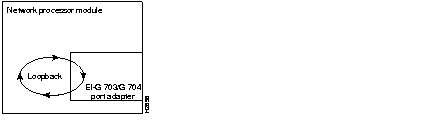
Table 22 lists the signal pinouts for each type of E1-G.703/G.704 interface cable. All cables use a DB-15 connector at the G.703/G.704 network processor module end.
| E1-G.703/G.704 Network Processor Module End | Network End | |||||
|---|---|---|---|---|---|---|
| DB-151 | DB-15 | Null Modem DB-15 | BNC | Twinax | ||
| Pin | Signal2 | Pin | Pin | Signal | Pin | Signal |
| 9 | Tx Tip | 1 | 3 | Tx tip | Tip | Signal |
| 2 | Tx Ring | 9 | 11 | Tx shield | Ring | Signal |
| 10 | Tx Shield | 2 | 4 | - | Shield | Shield |
| 8 | Rx Tip | 3 | 1 | Rx tip | Tip | Signal |
| 15 | Rx Ring | 11 | 9 | Rx shield | Ring | Signal |
| 7 | Rx Shield | 4 | 2 | - | Shield | Shield |
When you have configured the serial interfaces, use the show interface command to check the network interface statistics. Options to the show interface command include the type of interface (for example, serial), and its unit number. The following example shows the output of show interface serial 0:
router> show interface serial 0
Serial 0 is up, line protocol is up
  Hardware is HD64570
  Internet address is 193.195.74.236, subnet mask is 255.255.255.248
 MTU 1500 bytes, BW 1544 Kbit, DLY 20000 usec, rely 255/255, load 1/255
  Encapsulation HDLC, loopback not set, keepalive not set
  Last input 0:00:01, output 0:00:10, output hang never
  Last clearing of "show interface" counters never
  Output queue 0/40, 0 drops; input queue 0/75, 0 drops
  Five minute input rate 0 bits/sec, 0 packets/sec
  Five minute output rate 0 bits/sec, 0 packets/sec
     2922 packets input, 5844 bytes, 0 no buffer
     Received 0 broadcasts, 0 runts, 0 giants
     0 input errors, 0 CRC, 0 frame, 0 overrun, 0 ignored, 0 abort
     145 packets output, 185562 bytes, 0 underruns
     0 output errors, 0 collisions, 1 interface resets, 0 restarts
     880 carrier transitions
To display the current internal status of an interface module, use the show controller command with the interface type and unit number options. (Note in the example that universal serial means the four-port serial module.) The following example shows the output of the show controller serial 2 command:
router# show controller s 2
HD unit 2, idb 0x246AAC, ds 0x248240
buffer size 2108  Universal Serial: No cable
DCD=0  DSR=0  DTR=0  RTS=0  CTS=0
cpb = 0x4, eda = 0xDA18, cda = 0xD798
RX ring with 32 entries at 0x604D798
00 bd_ptr=0xD798 pak=0x604E728 ds=0x604E87C status=80 pak_size=0
01 bd_ptr=0xD7AC pak=0x604EEAC ds=0x604F000 status=80 pak_size=0
02 bd_ptr=0xD7C0 pak=0x604F630 ds=0x604F784 status=80 pak_size=0
(some screen output deleted)
32 bd_ptr=0xDA18 pak=0x605D7A8 ds=0x605D8FC status=80 pak_size=0
cpb = 0x4, eda = 0xE1E0, cda = 0xE1E0
TX ring with 8 entries at 0x604E1E0
00 bd_ptr=0xE1E0 pak=0x000000 ds=0x000000 status=80 pak_size=0
01 bd_ptr=0xE1F4 pak=0x000000 ds=0x000000 status=80 pak_size=0
02 bd_ptr=0xE208 pak=0x000000 ds=0x000000 status=80 pak_size=0
03 bd_ptr=0xE21C pak=0x000000 ds=0x000000 status=80 pak_size=0
04 bd_ptr=0xE230 pak=0x000000 ds=0x000000 status=80 pak_size=0
05 bd_ptr=0xE244 pak=0x000000 ds=0x000000 status=80 pak_size=0
06 bd_ptr=0xE258 pak=0x000000 ds=0x000000 status=80 pak_size=0
07 bd_ptr=0xE26C pak=0x000000 ds=0x000000 status=80 pak_size=0
08 bd_ptr=0xE280 pak=0x000000 ds=0x000000 status=80 pak_size=0
0 missed datagrams, 0 overruns, 0 bad frame addresses
0 bad datagram encapsulations, 0 memory errors
0 transmitter underruns
Note that in the previous example, the cable type is shown as no cable. If a cable is attached to the port, the cable type would be shown, as in the following example:
buffer size 2108 Universal Serial: DTE V.24 (RS-232) cable
If the cable is DCE, the output of the show controller command displays the clock rate.
Use the information in this section to help isolate problems. The key to problem solving in this system is to isolate the problem to a specific subsystem. By comparing what the system is doing to what it should be doing, the task of isolating a problem is greatly simplified.
Whether or not you locate the source of your problem, you can contact a service representative for information on how to proceed. Before you call, have the following information ready:
When problem solving, consider the following subsystems of the router:
Check the following items to help isolate the problem:
Check for the following symptoms to help isolate the problem:
Cisco Connection Online (CCO) is Cisco Systems' primary, real-time support channel. Maintenance customers and partners can self-register on CCO to obtain additional information and services.
Available 24 hours a day, 7 days a week, CCO provides a wealth of standard and value-added services to Cisco's customers and business partners. CCO services include product information, product documentation, software updates, release notes, technical tips, the Bug Navigator, configuration notes, brochures, descriptions of service offerings, and download access to public and authorized files.
CCO serves a wide variety of users through two interfaces that are updated and enhanced simultaneously: a character-based version and a multimedia version that resides on the World Wide Web (WWW). The character-based CCO supports Zmodem, Kermit, Xmodem, FTP, and Internet e-mail, and it is excellent for quick access to information over lower bandwidths. The WWW version of CCO provides richly formatted documents with photographs, figures, graphics, and video, as well as hyperlinks to related information.
You can access CCO in the following ways:
For a copy of CCO's Frequently Asked Questions (FAQ), contact cco-help@cisco.com. For additional information, contact cco-team@cisco.com.
78-1000-18
|
|