


|
|
This appendix contains information about maintenance procedures that you might need to perform on the access server as your internetworking needs change.
This appendix contains the following sections:
 | Caution Before opening the chassis, ensure that you have discharged all static electricity from your body and be sure that the power is OFF. Before performing any procedures described in this appendix, review the section "Safety Recommendations" in the chapter "Preparing to Install the Universal Access Server." |
 | Warning Before working on a chassis or working near power supplies, unplug the power cord on AC units; disconnect the power at the circuit breaker on DC units. |
| Warning The access server is to be installed and maintained by service personnel only as defined by AS/NZS 3260 Clause 1.2.14.3 Service Personnel. Incorrect connection of this or connected equipment to the General Purpose Outlet could result in a hazardous situation. |
This section describes how to replace features cards, which include:
You need the following tools and equipment:
Note the following safety recommendations:
| Caution Unlike some other Cisco access servers, the feature cards are not hot-swappable (that is, you cannot remove or install them when the power to the access server is ON). Be sure to turn OFF the power to the access server before installing or removing feature cards. Failure to do so can damage the access server. |
| Warning Before performing any of the following procedures, ensure that power is removed from the DC circuit. To ensure that all power is OFF, locate the circuit breaker on the panel board that services the DC circuit, switch the circuit breaker to the OFF position, and tape the switch handle of the circuit breaker in the OFF position. |
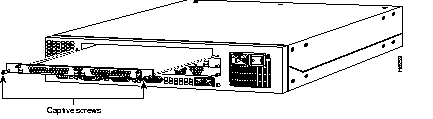
Refer to Figure A-1 and take these steps:
Step 1 Attach an ESD-preventive wrist strap.
Step 2 Power OFF the access server.
Step 3 Remove all interface cables from the rear panel of the access server.
Step 4 Loosen the two captive screws that secure the feature card or blank slot cover to the chassis until each screw is free of the chassis.
Step 5 Hold each captive screw between two fingers, and pull the feature card toward you until it slides free of the chassis.
Step 6 Set the feature card aside on an ESD-preventive mat.
If you have a dual E1/PRI card, you might want to change the jumper settings before installing the feature card. Refer to the section, "Setting E1 Port Jumpers" for more information.
Refer to Figure A-1 and take these steps:
Step 1 Remove the feature card from the ESD-preventive shipping material.
Step 2 Slide the feature card into the card slot until it is seated completely.
Step 3 Tighten the two captive screws on the feature card to secure it to the chassis.
Step 4 If the access server is configured with fewer than three cards, make sure that a blank slot cover is installed over each open slot to ensure proper airflow inside the chassis.
There are six 3-pin jumpers that configure the E1 termination for each port. The jumper settings are labeled on the printed circuit board for either 120-ohm balanced or 75-ohm unbalanced termination.
Take these steps:
Step 1 Place the dual T1/PRI card on an ESD-preventive mat as shown in Figure A-2.
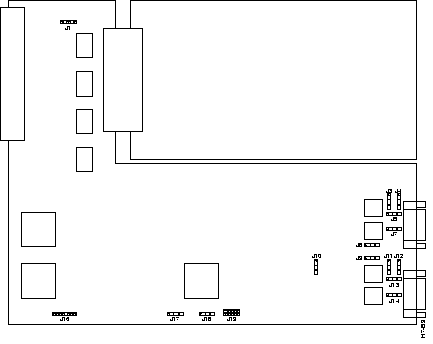
Step 2 Refer to Table A-1 and set the six jumpers to configure E1 Port 0 for 75-ohm unbalanced or 120-ohm balanced termination. The jumper numbers and jumper settings are labeled on the printed circuit board shown in Figure A-3.
| Jumper Number | 75-Ohm Termination | 120-Ohm Termination | Jumper Description |
|---|---|---|---|
| J9 | 75 | 120 | Receiver impedance |
| J11 | 75 | 120 | Ground ring for 75 ohm |
| J12 | GND | 120 | Ground ring for 75 ohm, or ground shield for 120 ohm |
| J13 | 75 | 120 | Transmit impedance |
| J14 | 75 | 120 | Shield to connect to pin 7 for 120 ohm, or ground ring for 75 ohm |
| J17 | 75 | 120 | Software readable bit |
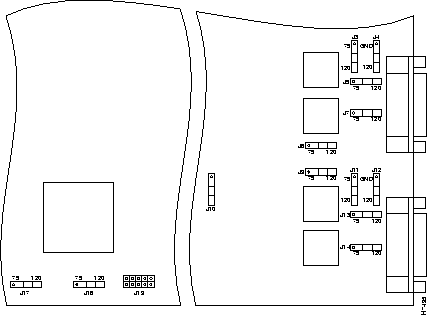
Step 3 Refer to Table A-2 and set the six jumpers to configure E1 Port 1 for 75-ohm unbalanced or 120-ohm balanced termination. (See Figure A-3).
| Jumper Number | 75-Ohm Termination | 120-Ohm Termination | Jumper Description |
|---|---|---|---|
| J3 | 75 | 120 | Ground ring for 75 ohm |
| J4 | GND | 120 | GND ring for 75 ohm |
| J5 | 75 | 120 | Transmit impedance |
| J7 | 75 | 120 | Shield connect to pin 7 for 120 ohm |
| J8 | 75 | 120 | Receiver impedance |
| J18 | 75 | 120 | Software readable bit |
You can install 12-port modules in carrier or dual E1/PRI feature cards. Each carrier card includes two slots (shown in Figure A-4), in which you can install up to two modules. The dual E1/PRI card includes only one slot (shown in Figure A-5). You can install any combination of modules in carrier or dual E1/PRI feature cards without removing them from the chassis.
| Caution Unlike some other Cisco access servers, the modules are not hot-swappable (that is, you cannot remove or install them when the power to the access server is ON). Be sure to turn OFF the power to the access server before installing or removing modules. Failure to do so can damage the access server. |


You need the following tools and equipment:
Refer to Figure A-6 and take these steps:
Step 1 Attach an ESD-preventive wrist strap.
Step 2 Power OFF the access server.
Step 3 Remove all interface cables from the rear panel of the access server.
Step 4 Loosen the two captive screws that secure the module or blank slot cover to the feature card until each screw is free of the feature card.
Step 5 Hold each captive screw between two fingers, and pull the module toward you until it slides free of the feature card.
Step 6 Set the module aside on as ESD-preventive mat.
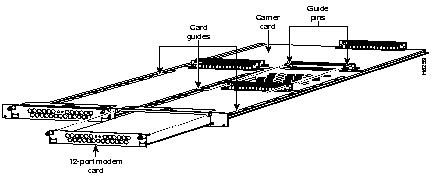
Refer to Figure A-6 and take these steps:
Step 1 Remove the module from the ESD-preventive shipping material.
Step 2 Slide the module into the carrier card or dual E1/PRI card until it is seated completely.
Step 3 Tighten the two captive screws on the module to secure it to the carrier card or dual E1/PRI card.
Step 4 If the carrier card is configured with fewer than one card, make sure that a blank slot cover is installed over the open slot to ensure proper airflow inside the chassis.
This section describes how to open the chassis by removing the chassis cover.
You need the following tool:
Note the following safety recommendations:
| Warning There is the danger of explosion if the battery is replaced incorrectly. Replace the battery only with the same or equivalent type recommended by the manufacturer. Dispose of used batteries according to the manufacturer's instructions. |
| Warning Do not touch the power supply when the power cord is connected. For systems with a power switch, line voltages are present within the power supply even when the power switch is OFF and the power cord is connected. For systems without a power switch, line voltages are present within the power supply when the power cord is connected. |
| Warning Before opening the chassis, disconnect the telephone-network cables to avoid contact with telephone-network voltages. |
You must open the access server chassis to gain access to its interior components: boot read-only memory (ROM) software, dynamic random access memory (DRAM) SIMMs, and system-code SIMMs. When you replace the boot ROMs, you must also remove all feature cards in the chassis.
Take these steps:
Step 1 Power OFF the access server.
Step 2 Remove all interface cables from the rear panel of the access server.
Step 3 Place the access server so that the front panel is facing to you.
Step 4 Remove the three screws on the top cover of the chassis, as shown in Figure A-7.
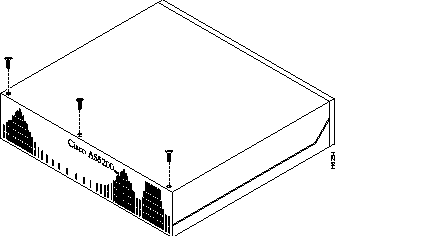
Step 5 Place one hand on each of the front corners of the top cover.
Step 6 Lift the front edge of the top cover slightly upward, as shown in Figure A-8.
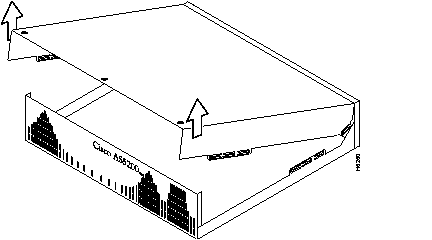
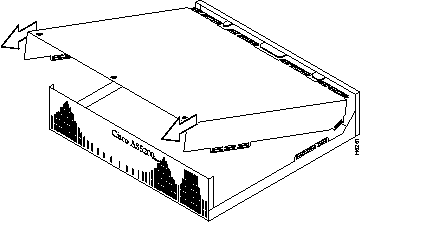
Step 7 Pull the top cover toward you until the metal tabs on the top cover separate from the chassis bottom, as shown in Figure A-9.
Step 8 Lift the top cover until it separates from the chassis bottom and set it aside.
To upgrade the boot ROM software to a new software image, the existing boot ROMs must be replaced.
You will need the following tools and equipment:
Take these steps:
Step 1 Power OFF the access server.
| Warning Before performing any of the following procedures, ensure that power is removed from the DC circuit. To ensure that all power is OFF, locate the circuit breaker on the panel board that services the DC circuit, switch the circuit breaker to the OFF position, and tape the switch handle of the circuit breaker in the OFF position. |
Step 2 Attach an ESD-preventive wrist strap.
Step 3 Open the cover. (See the instructions in the section "Opening the Chassis" earlier in this appendix.)
Step 4 Remove all feature cards to access the system card. (See the instructions in the section "Removing Feature Cards" earlier in this appendix.)
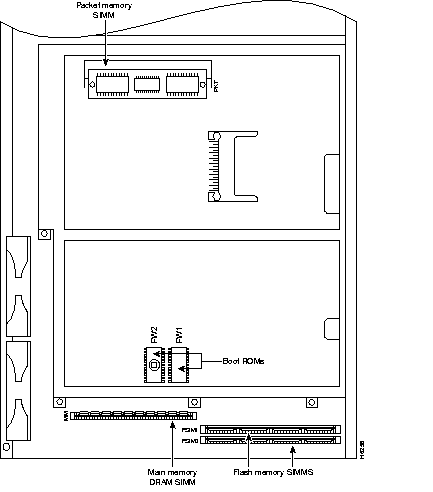
Step 5 Locate the boot ROMs, labeled FW1 and FW2, on the system card. (See Figure A-10.)
Step 6 Gently extract the old ROM with a ROM extraction tool or a small flat-blade screwdriver, and set the old boot ROM on a nonconductive surface.
Step 7 Insert the new boot ROMs in their respective sockets as shown in Figure A-10. Be careful not to bend or crush any of the bottom pins. If necessary, use needlenose pliers to straighten out any bent pins.
| Caution The notch in the ROM must align with the notch in the socket on the system card. If the ROM is installed backwards, it will be damaged when the access server is powered ON. |
This section describes how to upgrade the DRAM SIMM on the system card. You might need to upgrade the DRAM SIMM for the following reasons:
There are two areas of removable DRAM SIMMs in the access server (see Figure A-10). This first area is the main memory DRAM SIMMs (labeled MM). Main memory is used by the CPU to store the operating configuration, routing tables, caches, and queues.
The second area is the packet memory DRAM SIMM (labeled PKT). Packet memory is used to store incoming and outgoing packets.
You need the following tools and equipment:
Take these steps:
Step 1 Power OFF the access server.
| Warning Before performing any of the following procedures, ensure that power is removed from the DC circuit. To ensure that all power is OFF, locate the circuit breaker on the panel board that services the DC circuit, switch the circuit breaker to the OFF position, and tape the switch handle of the circuit breaker in the OFF position. |
Step 2 Attach an ESD-preventive wrist strap.
Step 3 Open the chassis cover. (See the instructions in the section "Opening the Chassis" earlier in this appendix.)
Step 4 Place the chassis with the main memory DRAM SIMM socket (labeled MM) toward you, as shown in Figure A-10.
Step 5 Remove all feature cards to access the system card. (See the instructions in the section "Removing Feature Cards" earlier in this appendix.)
Step 6 Remove the existing DRAM SIMM by pulling outward on the connector holders to unlatch them, as shown in Figure A-11. The connector holds the SIMM tightly, so be careful not to break the holders on the SIMM connector.
| Caution To prevent damage, do not press on the center of the SIMM. Handle the SIMM carefully. |
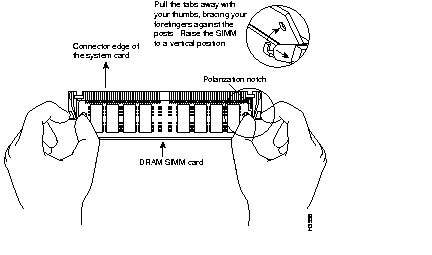
Step 7 Position the new SIMM so that the polarization notch is located at the right end of the SIMM socket.
Step 8 Insert the new DRAM SIMM by sliding the end with the metal fingers into the SIMM connector socket at approximately a 45-degree angle to the system card. Gently rotate the SIMM toward you until the latch on either side snaps into place. Do not use excessive force because the connector might break.
Step 9 Replace the access server chassis cover. (See the instructions in the section "Closing the Chassis" later in this appendix.)
Step 10 Connect the access server to a console terminal.
Step 11 Power ON the access server. If error messages relating to memory are displayed, remove the DRAM SIMM and reinstall it, taking care to seat the SIMM firmly in its socket.
| Warning After wiring the DC power supply, remove the tape from the circuit breaker switch handle and reinstate power by moving the handle of the circuit breaker to the ON position. |
The system code (software) is stored in Flash memory SIMMs. The 80-pin Flash memory SIMMs must be purchased from Cisco Systems, Inc. For ordering information, refer to the section "Getting Help" in the appendix "Troubleshooting the Universal Access Server."
The system code for the access server resides on two 80-pin Flash memory SIMMs. Flash memory must be installed in both system-code SIMMs (labeled FSIM0 and FSIM1).
You need the following tools and equipment:
Take these steps:
Step 1 Power OFF the access server.
| Warning Before performing any of the following procedures, ensure that power is removed from the DC circuit. To ensure that all power is OFF, locate the circuit breaker on the panel board that services the DC circuit, switch the circuit breaker to the OFF position, and tape the switch handle of the circuit breaker in the OFF position. |
Step 2 Attach an ESD-preventive wrist strap.
Step 3 Open the chassis cover. (See the previous procedure in the section "Opening the Chassis" earlier in this appendix.)
Step 4 Place the chassis so that the system card is shown in Figure A-10, with the system-code SIMMs toward you. The SIMM sockets are labeled FSIM0 and FSIM1. See Figure A-10.
Step 5 Remove the existing system-code SIMM by pulling outward on the connector holders to unlatch them. The connector holds the SIMM tightly, so be careful not to break the holders on the SIMM connector. See Figure A-12.
| Caution To prevent damage, do not press on the center of the SIMMs. Handle each SIMM carefully. |
Step 6 Repeat these steps for all the system-code SIMMs that you need to replace.
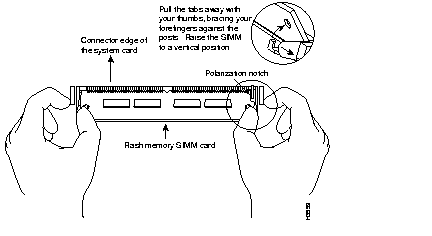
Step 7 Insert the new SIMM by sliding the end with the metal fingers into the appropriate SIMM connector socket (labeled FSIM0 or FSIM1 in Figure A-10) at approximately a 45-degree angle to the system card. Gently rotate the SIMM toward you until the latch on either side snaps into place. Do not use excessive force because the connector might break. When inserting the new SIMM, make sure that the polarization notch is located at the right end of the SIMM socket. (See Figure A-12.)
Step 8 Replace the access server chassis cover. (See the instructions in the following section, "Closing the Chassis.")
Step 9 Connect the access server to a console terminal.
Step 10 Power ON the access server. If any memory-related error messages appear, remove the system-code SIMM and reinstall it, taking care to seat the SIMM firmly in its socket.
This section describes the procedure for closing the chassis.
You need the following tool:
Take these steps:
Step 1 Place the chassis bottom so that the front panel is facing you.
Step 2 Hold the top cover over the chassis bottom, and align the chassis and top cover tabs at the top rear of the chassis, as shown in Figure A-13.
Step 3 Push the top cover toward the chassis rear panel, and ensure the following:
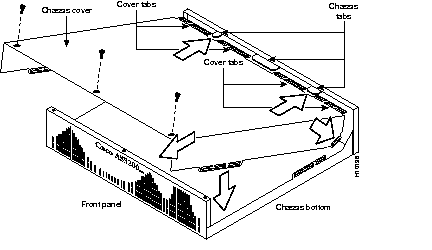
Step 4 Lower the front of the top cover to close the chassis, and ensure the following:
Step 5 Secure the chassis cover with three screws.
Step 6 Reinstall the chassis on a rack, desktop, or table.
Step 7 Reinstall all interface cables.
|
|