|
|

This chapter describes AccessPath system configurations needed to enable IP clients to access network resources. The configurations described in this chapter require that users dialing in are running a PPP application from a PC.
Topics in this chapter include:
To enable clients to dial in, you configure ISDN interfaces, dialer interfaces, asynchronous interfaces, and group asynchronous interfaces. Asynchronous interfaces correspond to physical terminal (TTY) lines. For example, asynchronous interface 1 corresponds to TTY line 1.
Generally, commands entered in asynchronous interface mode enable you to configure protocol-specific parameters for asynchronous interfaces, whereas commands entered in line configuration mode permit you to configure the physical aspects for the same port. In Figure 4-1, which displays the show line output on an Access Server Shelf, the TTY line corresponds with the asynchronous interface of the same number. For example, TTY line 1 corresponds with asynchronous interface 1 and TTY line 16 corresponds with asynchronous interface 16.
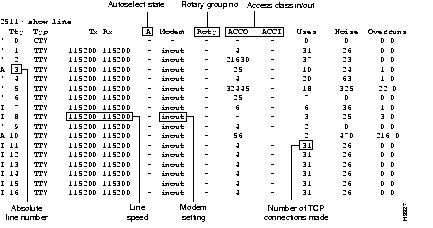
Asynchronous line configuration commands configure ports for physical layer options (such as modem configuration), security for EXEC mode, and autoselect to detect incoming protocols (such as PPP).
To enter line configuration mode, connect to the console port of the Access Server Shelf and enter privileged EXEC mode. Next, enter global configuration mode and then line configuration mode for the asynchronous lines that you want to configure.
Generally, interfaces enable the Cisco IOS software to use routing functions. Specifically, you configure asynchronous interfaces to support PPP connections. You configure interfaces on an Access Server Shelf for network protocol support, encapsulation support, IP client addressing options (default and/or dynamic), and PPP authentication.
In all configuration examples in this chapter, dialin users are assumed to belong to one subnet. In this way, all the remote clients appear to belong to one Ethernet segment from the perspective of the AccessPath system.
This section describes how to configure interfaces on the AccessPath system Access Server Shelves and includes the following sections:
This section describes how to configure the Access Server Shelf interfaces to enable dialin clients to make remote asynchronous and ISDN connections to the Access Server Shelves.
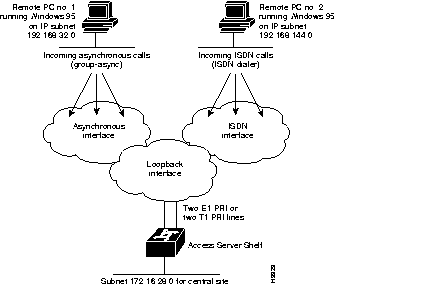
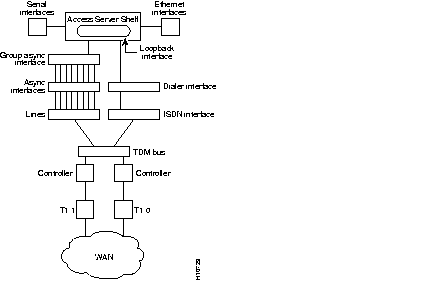
To configure remote services, you must configure three interrelated interfaces on the Access Server Shelves. The loopback interface essentially makes the network appear as if the dialin users exist on one Ethernet segment. The loopback interface has four types of neighboring interfaces used for dialin operations. These include the ISDN interface, dialer interface, group asynchronous interface, and asynchronous interface.
Figure 4-2 shows an internal view of the components used to process incoming ISDN and analog calls on Access Server Shelf.
All dialin users exist on one dialin subnet. Remote asynchronous users dial in through the group asynchronous interface to the Access Server Shelves. Remote ISDN users dial in through the ISDN dialer interface to the Access Server Shelves. Figure 4-3 shows an external view of how remote users dial in to the Access Server Shelves.
The Access Server Shelf uses two loopback interfaces. You assign an IP network number to the loopback interfaces, then let each asynchronous interface borrow this network number.
To configure the loopback interfaces, perform the following steps:
Step 1 Create interface loopback 0, which is the logical IP subnet containing all the dialin users' addresses.
interface loopback 0
Step 2 Give the loopback 0 interface an IP addresses using an existing subnet reserved for asynchronous dialin users (such as subnet 172.16.1.0).
ip address 172.16.1.41 255.255.255.255
exit
Step 3 Create interface loopback 1, which is the logical IP subnet used for configuration and management.
interface loopback 1
Step 4 Give the loopback 1 interface an IP addresses using an existing subnet reserved for configuration and management (such as subnet 192.168.1.0).
ip address 192.168.1.235 255.255.255.255
exit
To configure multiple asynchronous interfaces at the same time (with the same parameters), you can assign each asynchronous interface to a group and then configure the group.
To configure a group asynchronous interface, specify the group async number (an arbitrary number) and the group range (beginning and ending asynchronous interface number). The following example shows the process of creating a group asynchronous interface for asynchronous interfaces 1 through 24 on an Access Server Shelf with a Dual T1 PRI card.
Group-async 1 is the parent interface that applies specific protocol characteristics to specified asynchronous ports.The asynchronous group interface is configured with the following commands:
Step 1 Place all asynchronous interfaces in a single group, so that you configure the same parameters quickly on all interfaces at one time. This example assigns asynchronous interfaces 1 through 24 to group asynchronous interface 1. The fact that you have entered interface configuration mode, is reflected in the prompt nas01(config-if)#.
The number you use with the group-range command depends on the number of asynchronous interfaces you have on your Access Server Shelf. That is, if your Access Server Shelf has 48 asynchronous interfaces, you can specify group-range 1 48. If 60, specify group-range 1 60.
(config)# interface group-async 1
Step 2 To conserve IP addresses, configure the asynchronous interfaces as unnumbered and assign the IP address of the Ethernet interface to them.
(config-if)# ip unnumbered ethernet 0
Step 3 Enable the Point-to-Point Protocol (PPP) to run on the set of interfaces in the group.
Step 4 Configure interactive mode on the asynchronous interface.
Step 5 Assign a common IP address pool. PPP packets coming through an asynchronous line and ISDN line share this common IP pool.
Step 6 Enable CHAP and PAP authentication on the interface.
Step 7 Define the group range of the interface.
(config-if)# group-range 1 24
Step 8 Exit the interface configuration mode.
(config-if)# exit
When you configure the T1 controller, two corresponding D-channel serial interfaces are instantly created. Serial interface 0:23 is the D channel for the T0 controller, and serial interface 1:23 is the D channel for the T1 controller. You must configure each serial interface to receive incoming and send outgoing modem signaling.
To configure the ISDN D-channel serial interfaces, follow these steps:
Step 1 Specify the D channel of the first primary rate interface (PRI).
interface Serial 0:23
Step 2 Assign an IP address and subnet mask to the interface.
ip address 172.16.254.253
Step 3 Configure all incoming voice calls to go to the modems.
isdn incoming-voice modem
Because some telcos charge more for ISDN data calls, you might want to configure the isdn incoming-voice data command to process ISDN calls as voice calls, which provides you with data service at a voice billing rate. However, incoming modem calls will not be passed to the modems with this command enabled.
Native ISDN calls are directed like a protocol.
Step 4 Enable CHAP and PAP authentication on the serial interface.
ppp authentication chap pap
Step 5 Enable the Point-to-Point Protocol (PPP) to run on the set of interfaces in the group.
encapsulation ppp
Step 6 Combine these configurations under the umbrella of a dialer interface, which modularizes the configuration. The dialer interface serves as the parent interface that contains additional protocol characteristics.
dialer rotary-group 1
This command also creates one interface with one address, which is helpful for the hunt group provided by the phone company.
Step 7 Specify the D channel for the second PRI and give it the same channel configurations you set for the first PRI interface.
interface Serial 1:23
isdn incoming-voice modem
dialer rotary-group 1
exit
The ISDN dialer interface is the parent interface that holds the central protocol characteristics for the two ISDN D-channels that are part of dialer rotary-group 1.
To configure the ISDN dialer interface, perform the following steps:
Step 1 Enable both D channels to access their core protocol intelligence from interface dialer 1.
interface Dialer 1
Step 2 Associate all ISDN users with the IP address configured on loopback interface 0, the user data loopback interface:
ip unnumbered Loopback 0
Step 3 Configure PPP on the dialer interface.
encapsulation ppp
Step 4 Assign a common IP address pool. PPP packets coming through an asynchronous line and an ISDN line share this common IP pool. The default address pool is specified in the "Configuring Group Asynchronous Interfaces" section.
peer default ip address pool default
Step 5 Enable the router to build dynamic mapping of IP addresses to the ISDN B channels.
dialer in-band
Step 6 Define which packets reset the idle timer. The idle timer default is 300 seconds (5 minutes).
dialer-group 1
Step 7 Define the number of seconds a line can idle before it hangs up. The default is 300 seconds (5 minutes).
dialer idle-timeout 3600
The dialer list command defines the interesting traffic, that is, traffic that resets the idle-timeout or triggers a dial if the line is down and you have a number to send.
Step 8 Enable PPP multilink, which uses multiple bundled B channels from the remote user who is likely to be running PRI with several available B channels.
ppp multilink
Step 9 Enable CHAP and PAP authentication on dialer interface 1.
ppp authentication chap pap
exit
Step 10 Specify which packets reset the idle timer. In this example, any IP packet resets the timer. Ping packets cannot reset the idle timer with this configuration.
dialer-list 1 protocol ip permit
This section describes how to configure the T1 and E1 controllers and includes the following sections:
To configure the T1 controllers (T1/0 and T1/1), which accept and send incoming and outgoing calls through ISDN PRI interfaces, follow these steps:
Step 1 Enable the T0 controller.
controller T1 0
Step 2 Set the framing and line code type. The framing and line code you configure must match your telco's offering, which in most cases is esf and b8zs.
framing esf
linecode b8zs
Step 3 Configure one T1 line to serve as the primary or most stable clock source line. (The other T1 line is configured as the secondary clock source line, described later in this procedure.)
clock source line primary
Most T1 lines provide stable clocking, so choosing the correct primary and secondary clock source is not a vital part of the configuration. However, do not configure the clock source as internal unless you are performing back-to-back advanced testing between two routers in a network simulated environment such as in a router lab.
Step 4 Specify how you want to configure all 24 channels. To configure all channels for ISDN, enter the following command.
pri-group timeslots 1-24
exit
If you are not running ISDN but want to configure a channelized T1 to accept voice calls, substitute the pri-group timeslots 1-24 command with the cas-group 1 timeslots 1-24 command on both T1 controllers. This command configures the E&M (ear and mouth) analog signal on each timeslot.
cas-group 1 timeslots 1-24
exit
Alternatively you can configure a channelized T1 that is not running ISDN with the channel-group 1 timeslots 1-24 command on both T1 controllers.
channel-group 1 timeslots 1-24
exit
Step 5 Set the facilities data link exchange standard for the CSU (channel service unit) on the Access Server Shelf's T1 controllers by entering the fdl controller interface command.You must configure this command on both T1 controllers if you want to support the CSU functionality. However, you must use the same facilities data link exchange standard as your service provider.
fdl ansi
Step 6 Configure the T1 controller. This controller's configuration is identical to the one you entered on the T0 controller except that it is used as the secondary clock source line.
controller T1 1
framing esf
linecode b8zs
clock source line secondary
pri-group timeslots 1-24
fdl ansi
exit
To configure the E1 controllers, which accept and send incoming and outgoing calls through ISDN PRI interfaces, perform the following steps:
Step 1 Enter global configuration mode and accept configuration commands from the console.
# configure terminal
Enter configuration commands, one per line. End with CNTL/Z.
(config)#
Step 2 Enter the European Telco switch type.
Step 3 Enter controller configuration mode to configure a E1 controller port. The E1 controller ports are 0 and 1. The ports are labeled on the Dual E1 PRI card.
or
(config)# controller E1 1
(config-controller)#
Step 4 Enter the framing type for the E1 line. The framing type must match your Telco's offering.
(config-controller)# framing crc4
nas01(config-controller)#
Step 5 Enter the line code type for the E1 line. The line code must match your Telco's offering.
(config-controller)# linecode hdb3
(config-controller)#
Step 6 Enter the clock source for the E1 line. Configure one E1 line to serve as the primary or most stable clock source line. The other E1 line is configured as the secondary clock source line.
(config-controller)# clock source line primary
or
(config-controller)# clock source line secondary
Step 7 Enter how you want to configure all 24 channels.
(config-controller)# pri-group timeslots 1-31
(config-controller)#
Step 8 Exits controller configuration mode.
exit
The resulting configuration configures E1 controllers to function with E1 PRI lines.
This section offers some guidelines for configuring routing and includes the following sections:
To define a routing protocol and a domain name, issue the following commands:
nas01(config)#router eigrp 202nas01(config-router)#network 172.16.0.0nas01(config-router)#exit
Dialin clients using PPP applications such as CiscoRemote and Windows 95 need domain name service (DNS) and NetBIOS Name Service (NBNS) address information as described in RFC 1877. Enter the following parameters to enable Telnet users to gather this information transparently as part of the PPP negotiation.
Step 1 Specify the list of available DNS servers, as shown in the following example.
async-bootp dns-server 172.16.10.100 172.16.39.67
Step 2 Specify the list of available NBNS servers, as shown in the following example.
async-bootp nbns-server 172.16.200.200 172.16.201.200
Step 3 Save the running configuration to startup configuration.
copy running-config startup-config
Before you can allow users to dial in to the network, you must configure a modem for an out-of-band connection to the AccessPath system. For more information on modem configuration, refer to Chapter 6.
This section describes three methods you can use to assign IP addresses to dialin clients. The methods include the following:
This is the simplest mechanism for assigning IP addresses to dialin clients in AccessPath system administration. A set of IP addresses is defined in a database that exists inside each of the Access Server Shelves.
To configure the address pool locally on the AccessPath system, perform the following steps on each Access Server Shelf:
Step 1 Create a local IP address pooling mechanism in the Access Server Shelf:
ip address-pool local
Step 2 Assign a pool of specific IP addresses in a pool (addresses 172.16.80.0 through 172.16.80.16 in pool1):
ip local pool pool1 172.16.80.1 172.16.80.16
The address pool named pool1 is applied automatically to each asynchronous interface configured for Point-to-Point access, so you do not have to apply it manually. If you need to apply this pool manually to asynchronous interfaces, issue the peer default ip-address pool pool1 interface configuration command.
This is the second most convenient method of obtaining addresses. It is especially useful for a medium to large-size pool of dialin clients. In order to use DHCP, however, you must be sure that all of your dialin clients can negotiate DHCP.
A pool of IP addresses is defined inside of a centralized IP address server, called a Dynamic Host Configuration Protocol (DHCP) server. This central database can serve addresses to several different Access Server Shelves at the same time. Although this method provides long-term flexibility, it requires that you configure a third-party host (such as a UNIX computer) as a DHCP server.
To configure the Access Server Shelf to obtain IP addresses from a DHCP server, perform the following steps:
Step 1 Configure asynchronous interfaces on an Access Server Shelf to assign IP addresses to dialin clients from a DHCP server (in this example, a group async interface is configured):
interface group-async 1
peer default ip-address dhcp
Step 2 Configure the Cisco IOS software to query a DHCP server for IP addresses that can be supplied to IP clients as they dial in.
ip address-pool dhcp-proxy-client
You also must configure the client software on client PCs to obtain IP addresses from a DHCP server. Refer to the documentation that accompanied the PC client software for more information about configuring IP addressing options.
This is the least efficient most time-consuming method of assigning IP addresses to clients. As clients are added, removed, and moved in the network, IP addresses must be reassigned.
To configure the Access Server Shelf to statically assign IP addresses to each client dialing in to the network, enter interface configuration mode and issue the peer default ip address address command, as shown in the following example:
nas01(config)#interface async 1nas01(config-if)#peer default ip-address 172.16.42.26
The IP address you assign must be the same as the address specified on the remote dialin client. Refer to the documentation that accompanied the PC client software for more information about configuring IP addressing options.
Although optional, you generally identify the IP domain name and IP name server on the LAN segment, as shown in the following example:
nas01(config)#ip domain-name eapp.comnas01(config)#ip name-server 172.22.5.253
Table 4-1 lists other parameters that are often useful for administrators configuring IP dialin using PPP.
| Command | Purpose |
|---|---|
| ip tcp header-compression passive (interface configuration command) | Instructs the Access Server Shelf port to perform compression of TCP headers if requested by the client. |
| asynchronous dynamic address (interface configuration command) | (IP only.) Enables the client to select an IP address dynamically when dialing in. |
 | Caution If you have configured network protocol support, PPP encapsulation, and an IP addressing method, IP clients can dial in to your network. Ensure that you configure security, as described in Chapter 7. |
To enable clients running NetBIOS over TCP to dial in to IP network resources, perform the following tasks on the Access Server Shelves:
Step 1 Specify a host name or IP address of your WINS server on the network:
async-bootp nbns-server 172.18.42.8
Step 2 If you have one or more domain name servers on the network, specify a host name or IP address of that domain name server:
async-bootp dns-server 172.18.42.12 172.18.42.10
Also, make sure you have a Microsoft Windows domainized environment, a WINS server, and a primary domain controller (logon controller) in your NetBIOS network.
For more information about configuring your Windows NT environment, refer to your Microsoft documentation or online resource, such as the World Wide Web page "Microsoft TechNet" at the following URL: http://www.microsoft.com/TechNet/.
|
|