


|
|

This document gives detailed instructions for installing Oracle Enterprise Server software version 7.3.3 on Solaris 2.5.x to be used as the relational database management system (RDBMS) component of the Cisco AccessPath Manager (APM). APM will run with either Oracle Enterprise Server software version 7.3.2.2 or 7.3.3. We recommend using version 7.3.3, and the installation procedure for 7.3.3 is the one described in this document.
Installing the Oracle Server consists of the following steps:
Cisco documentation and additional literature are available in a CD-ROM package, which ships with your product. The Documentation CD-ROM, a member of the Cisco Connection Family, is updated monthly. Therefore, it might be more up to date than printed documentation. To order additional copies of the Documentation CD-ROM, contact your local sales representative or call customer service. The CD-ROM package is available as a single package or as an annual subscription. You can also access Cisco documentation on the World Wide Web at http://www.cisco.com, http://www-china.cisco.com, or http://www-europe.cisco.com.
If you are reading Cisco product documentation on the World Wide Web, you can submit comments electronically. Click Feedback in the toolbar, select Documentation, and click Enter the feedback form. After you complete the form, click Submit to send it to Cisco. We appreciate your comments.
Before you can install Oracle 7.3.3, you must perform the following steps.
To prepare for Oracle installation, you must tune the kernel so that it can use shared memory.
Step 1 Log in as the root user.
Step 2 Use a text editor such as vi to edit the /etc/system file, adding the following statements to the end of it:
Save the /etc/system file.
Step 3 Reboot the system.
If you are following along with the Oracle installation guide, it may tell you to install patches at this point. Do not install any patches. Solaris 2.5 does not require them.
In order to install Oracle 7.3.3, the following Solaris 2.x packages must already be installed on the server:
To install these packages, use the following steps.
Step 1 Determine if the above listed Solaris 2.x packages are installed. As the root user, enter the following command:
Solaris will list a description of each of the installed packages.
Step 2 Use /usr/sbin/pkgadd to install any of the above packages that are not already installed. Refer to your Solaris installation documentation for full instructions.
For example, to add the SUNWarc package from the Solaris 2.5.x CD-ROM, type the following commands:
As the root user, create a group called dba. We recommend that you do this by editing the /etc/group file using the Solaris Admintool, but you can also edit the /etc/group file manually.
If you are running the X Window System (OpenWindows or CDE), you can also use the Admintool GUI to create the dba group as follows:
Step 1 Start the Admintool. Enter the following command:
Step 2 Choose Browse > Groups, then Edit > Add.
Step 3 Under Group Name, enter dba. (The Group ID field will be automatically filled with a valid Group ID value.)
Step 4 Click OK.
To manually add the group dba:
Step 1 Check to make sure the 101 group ID (GID) is unassigned by using the grep command on the /etc/group file:
If you do not receive any output, you may use 101. If you receive output, 101 is in use. In the later case, repeat this step using other group IDs until you find an available one.
Step 2 To manually edit the file, append the following command to the /etc/group file:
Alternatively, this can be done by executing the following command:
where GID is the group ID (GID) that is assigned to the group. If 101 is already assigned to another group, use a different, unassigned number.
As the root user, create a user account named oracle. Although this user account could be named something other than oracle, we recommend that you name the account oracle for consistency with other Oracle installations. You can create the oracle account using the Admintool or manually.
To create the oracle account, you must have the following information:
To decide this, you will need to know which partition has enough available space for the Oracle installation. Use the command df -k for information on free disk space. The partition you install Oracle onto should have 2.1 GB of available disk space.
Open the /etc/passwd file. The third field of each line is the UID. The UID you assign to the oracle user must be unique. We recommend that you increment the highest of all of the UIDs by one.
If you are running the X Window System (OpenWindows or CDE), you should use the Admintool to create the oracle account as follows:
Step 1 If the Admintool is not already running, start the Admintool by entering the following command:
Step 2 If you are not in the Admintool: Users screen, select Browse > Users.
Step 3 Select Edit > Add. (See Figure 1.)
Fill out the form as follows:
Step 4 Click OK.
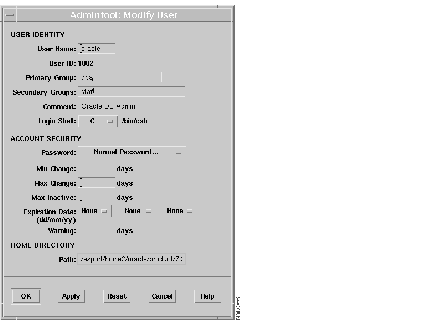
To create the oracle user manually:
Step 1 Use vi or another text editor to editing the /etc/passwd file. Append the following line to it.
where:
Step 2 Edit the /etc/shadow file. Append the following line:
Step 3 Create the oracle user's home directory. Your home directory would be /mntpoint/oracle/product/7.3.3, where mntpoint is the Oracle installation mount point.
This is the same directory that you will be installing the Oracle software into, which will also be known as ORACLE_HOME. Your home directory should be the same as ORACLE_HOME so that when you log in as the oracle user, you will be placed into the directory structure that you will need access to.
To create ORACLE_HOME, execute the following commands:
where mntpoint is the mount point for the Oracle installation.
The chown command changes the owner of oracle directory to oracle user. The chgrp command changes the group of oracle directory to dba.
Step 4 Set the oracle user password. As the root user, execute the following command:
You will be prompted for the new password and then asked to re-enter it to verify you have entered it correctly. Do not forget the oracle user password.
As the root user, create the /opt/bin directory. Execute the following command:
mkdir /opt/bin
To set environment variables for the oracle user, follow these steps:
Step 1 Log in as the oracle user.
Step 2 Copy .cshrc to .cshrc.save.
Step 3 Using vi or another text editor, add the following statements to the .cshrc file.
where mntpoint is the mount point for the Oracle installation.
Step 4 Use the source command to add the environment variables to your current environment:
You may receive an error message that says the /opt/bin/coraenv file is not found. This error will be resolved when you have finished installing Oracle and run the root.sh script.
As the root user, add the following line to the /etc/services file:
listener 1521/tcp # Oracle Listener process
This completes the pre-installation procedures. Continue with the next section, "Installing the Oracle Server Software."
To install the Oracle Server software, follow these steps.
Step 1 Insert the Oracle 7.3.3 CD-ROM into the system's local CD-ROM drive.
Step 2 Optionally, as the oracle user, you may check the environment settings using the env command:
Step 3 Change directories to the Oracle installation directory on the CD-ROM:
Step 4 Issue the orainst command:

Step 5 Select Default Install and press Return. (See Figure 3.)
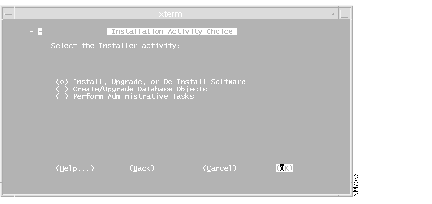
Step 6 Select the default option, Install, Upgrade, or De-Install Software. (See Figure 4.)
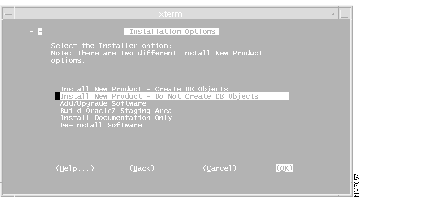
Step 7 Select the second option, Install New Product - Do Not Create DB Objects. (See Figure 5.)
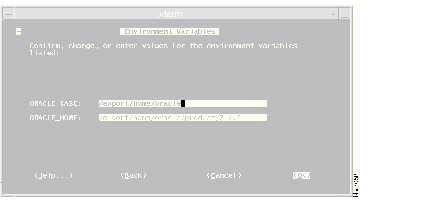
Step 8 Make sure that:
Press Return. (See Figure 6.)
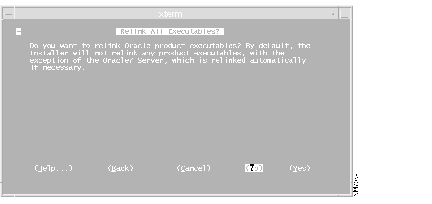
Step 9 Select No and press Return. It is not necessary to re-link the executables. (See Figure 7.)
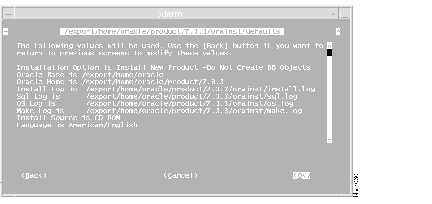
Step 10 Check to make sure that all of the Oracle file locations are correct. If they are, select OK and press Return. (See Figure 8.)
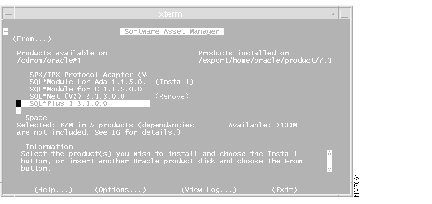
Step 11 Select the components listed below:
Once all of the items listed above are marked for installation, press Return or click Install. (See Figure 9.)
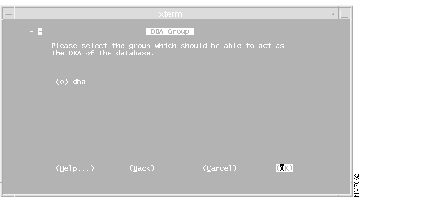
Step 12 Select dba and press Return. (See Figure 10.)
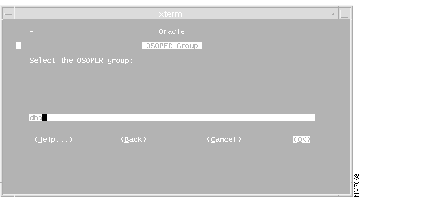
Step 13 With dba selected as the OSOPER group, press Return.
Step 14 Select OK and press Return. After between 25 and 40 minutes, the Installer Actions Completed screen will appear. (See Figure 11.)

Step 15 Press Return. The Software Asset Manager screen will appear. Press Tab until Exit is highlighted, then press Return twice.
This completes the Oracle Server software installation. Continue with the next section, "Post-Installation Procedure."
As root user, run the root.sh script. Enter the following commands:
# setenv ORACLE_HOME mntpoint/oracle/product/7.3.3
# setenv ORACLE_SID APMDB
# cd $ORACLE_HOME/orainst
# /usr/bin/sh ./root.sh
where mntpoint is the mount point for the Oracle installation that you have determined has at least 2.1 GB of available disk space.
This completes the post-installation procedure. To resolve an issue with the Oracle dbstart and dbshut scripts, continue with "Perform a Workaround for Oracle dbstart and dbshut."
For additional documentation, refer to the Oracle Corporation web site at http://www.oracle.com or see the section "Cisco Connection Online" at the end of this document.
The dbstart and dbshut scripts provided with Oracle Server Software version 7.3.2 and 7.3.3 reference SQL*DBA, which has been replaced by Server Manager. To correct for this, perform the following steps (Oracle reference number 307228).
Step 1 Use vi or another text editor to create a script that will replace SQL*DBA:
Step 2 Save this script as $ORACLE_HOME/bin/sqldba.
Step 3 Use the chmod command to add execute permission:
This completes the fix of the Oracle dbstart and dbshut commands. Additional information on this and other Oracle issues is available on the web at http://www.oracle.com/support/.
Two other procedures are provided in this document:
For additional documentation, refer to the Oracle Corporation web site at http://www.oracle.com or see the section "Cisco Connection Online" at the end of this document.
To set up Oracle to start automatically under Sun Solaris:
Step 1 Make sure the /var/opt/oracle/oratab entry for APMDB in the Oracle oratab file ends with a capital Y. This tells the dbstart script that to automatically start the Oracle APM database at system boot time.
Step 2 As the root user, use vi or another text editor to create a script in the /etc/rc2.d directory called S80CSCOapm_oracle. This file should contain the following text:
where mntpoint is the mount point for the Oracle installation.
Step 3 If you want to use SQL*Net to make your database available for use as a remote database, add the following line to your S89CSCOapm_oracle file:
where mntpoint is the mount point for the Oracle installation.
Step 4 Ensure that the oracle user's .cshrc file does not have the ORAENV_ASK variable set to YES.
If this variable is set to YES, Oracle will be required to interactively confirm environment variable settings; interactive confirmations are not possible at boot time. Your machine will not start Oracle automatically at boot time if the ORAENV_ASK variable is set to YES.
This completes the procedure for starting Oracle automatically at boot time.
For additional documentation, refer to the Oracle Corporation web site at http://www.oracle.com or see the section "Cisco Connection Online" at the end of this document.
To set up Oracle and the Netscape FastTrack Server to be shut down automatically when the APM server shuts down, follow these steps:
Step 1 As the root user, use vi or another text editor to create a script named K80CSCOapm in the /etc/rc0.d directory. This file should contain the following text:
where apm_server_name is the name you have assigned to your APM server.
Step 2 If you want the Netscape FastTrack Admin program and the FastTrack Server to shut down automatically when the APM server shuts down, add the following lines to your K80CSCOapm file.
Step 3 If you want Oracle to shut down automatically when the APM server shuts down, add the following lines to your K80CSCOapm file.
where apm_server_name is the name you have assigned to your APM server.
Step 4 End the K80CSCOapm file with exit 0.
The K80CSCOapm file should look like this example when you are done. (This example assumes you will want to shut down both the Oracle and the Netscape processes at system shutdown.)
where apm_server_name is the name you have assigned to your APM server.
This completes the procedure for shutting down Oracle and Netscape automatically at system shutdown.
For additional documentation, refer to the Oracle Corporation web site at http://www.oracle.com or see the section "Cisco Connection Online" at the end of this document.
Cisco Connection Online (CCO) is Cisco Systems' primary, real-time support channel. Maintenance customers and partners can self-register on CCO to obtain additional information and services.
Available 24 hours a day, 7 days a week, CCO provides a wealth of standard and value-added services to Cisco's customers and business partners. CCO services include product information, product documentation, software updates, release notes, technical tips, the Bug Navigator, configuration notes, brochures, descriptions of service offerings, and download access to public and authorized files.
CCO serves a wide variety of users through two interfaces that are updated and enhanced simultaneously: a character-based version and a multimedia version that resides on the World Wide Web (WWW). The character-based CCO supports Zmodem, Kermit, Xmodem, FTP, and Internet e-mail, and it is excellent for quick access to information over lower bandwidths. The WWW version of CCO provides richly formatted documents with photographs, figures, graphics, and video, as well as hyperlinks to related information.
You can access CCO in the following ways:
For a copy of CCO's Frequently Asked Questions (FAQ), contact cco-help@cisco.com. For additional information, contact cco-team@cisco.com.
|
|