


|
|

This publication describes how to install and troubleshoot the Cisco 600-Watt Redundant AC Power System (RPS) (PWR600-AC-RPS).
Figure 1 shows the front panel of the Cisco RPS and Figure 2 shows the rear panel.
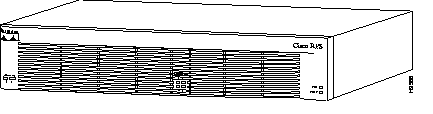
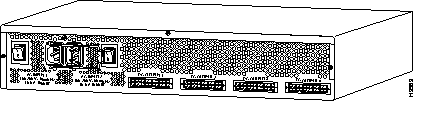
The Cisco RPS provides power system redundancy to external devices (such as routers, switches, or hubs). The system includes two fully redundant AC input power modules and four DC output power modules for connection to external devices. The Cisco RPS supports quasi-redundant and fully redundant configurations.
The Cisco RPS supports the external devices and power configurations listed in Table 1.
| External Device | Quasi- Redundant | Fully Redundant |
|---|---|---|
| FastHub 116T 100BaseT hub | Yes | No |
| FastHub 200 Series 100BaseT hubs | Yes | No |
| FastHub 300 Series 100BaseT hubs | Yes | No |
| HP 10Base-T Hub-16M hub | Yes | No |
| Catalyst 1900 Series Ethernet switches | Yes | No |
| Catalyst 2820 Ethernet switches | Yes | No |
| Cisco 2500 Series routers | Yes | Yes |
| Cisco 3600 Series routers | Yes | Yes |
| Cisco 4000 Series routers | Yes | Yes |
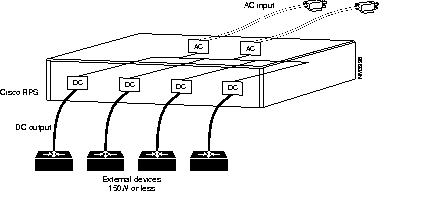
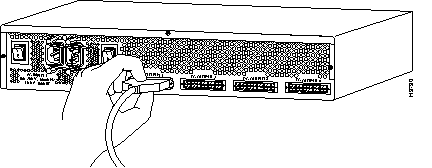
The Cisco RPS can provide a quasi-redundant power source for up to four external devices that use 150W or less each. You can use a one-to-one cable (one connector at each end of the cable) to connect up to four external devices to the four DC output power modules, as shown in Figure 3. When using one-to-one cables, the power source is quasi-redundant because there are two AC input power modules for the Cisco RPS and one DC output power module for each external device. The AC input to the Cisco RPS is fully redundant, but the DC output to the external devices is not.
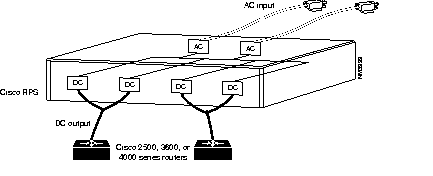
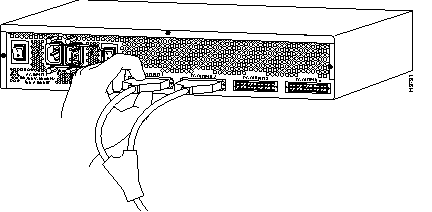
The Cisco RPS can provide a fully redundant power source for up to two Cisco 2500, 3600, or 4000 series routers. You can use a two-to-one cable to connect up to two external devices to the four DC output power modules on the rear panel of the Cisco RPS, as shown in Figure 4. The two-to-one cable is a Y-shaped cable with two connectors at one end of the cable and one connector at the other end. Two connectors at one end of the Y-shaped cable connect to two DC output power modules. The other end of the cable connects to one external device. When using two-to-one cables, the power source is fully redundant because there are two AC input modules and two DC output power modules connected to each external device. If any power module fails, there is a full backup.
You can mix quasi-redundant and fully redundant configurations. For example, two devices can be in quasi-redundant mode while one is in fully redundant mode.
The following features are standard:
The specifications for the Cisco RPS are listed in Table 2.
| Description | Specification |
|---|---|
| Dimensions (H x W x D) | 3.44 x 17.5 x 16 in. (8.73 x 44.45 x 40.64 cm) |
| Weight | 27.25 lb (12.36 kg) |
| Nominal input voltage Current Frequency Absolute maximum input | 100 to 240 VAC autoranging 10A maximum 50 to 60 Hz 1000W |
| Output voltage/maximum current Output power | +5@24ADC, +12@5ADC, -12@3ADC 150W per module (maximum) |
| Operating temperature | 32 to 104×F (0 to 40×C) |
| Operating humidity | 10 to 85%, noncondensing |
| Operating altitude | 0 to 10,000 ft |
| Nonoperating temperature | -4 to 149×F (-20 to 65×C) |
| Nonoperating humidity | 5 to 95% noncondensing |
| Nonoperating altitude | 0 to 30,000 ft |
| Normal operating noise level | 48 dBa |
| Regulatory compliance | FCC Class B. For additional compliance information, refer to the Regulatory Compliance and Safety Information document that accompanied the Cisco RPS. |
Follow these guidelines to ensure general safety:
Safety warnings appear throughout this publication in procedures that, if performed incorrectly, may harm you. A warning symbol precedes each warning statement.

Warning This warning symbol means danger. You are in a situation that could cause bodily injury. Before you work on any equipment, be aware of the hazards involved with electrical circuitry and be familiar with standard practices for preventing accidents. To see translations of the warnings that appear in this publication, refer to the Regulatory Compliance and Safety Information document that accompanied this device.
Waarschuwing Dit waarschuwingssymbool betekent gevaar. U verkeert in een situatie die lichamelijk letsel kan veroorzaken. Voordat u aan enige apparatuur gaat werken, dient u zich bewust te zijn van de bij elektrische schakelingen betrokken risico's en dient u op de hoogte te zijn van standaard maatregelen om ongelukken te voorkomen. Voor vertalingen van de waarschuwingen die in deze publicatie verschijnen, kunt u het document Regulatory Compliance and Safety Information (Informatie over naleving van veiligheids- en andere voorschriften) raadplegen dat bij dit toestel is ingesloten.
Varoitus Tämä varoitusmerkki merkitsee vaaraa. Olet tilanteessa, joka voi johtaa ruumiinvammaan. Ennen kuin työskentelet minkään laitteiston parissa, ota selvää sähkökytkentöihin liittyvistä vaaroista ja tavanomaisista onnettomuuksien ehkäisykeinoista. Tässä julkaisussa esiintyvien varoitusten käännökset löydät laitteen mukana olevasta Regulatory Compliance and Safety Information -kirjasesta (määräysten noudattaminen ja tietoa turvallisuudesta).
Attention Ce symbole d'avertissement indique un danger. Vous vous trouvez dans une situation pouvant causer des blessures ou des dommages corporels. Avant de travailler sur un équipement, soyez conscient des dangers posés par les circuits électriques et familiarisez-vous avec les procédures couramment utilisées pour éviter les accidents. Pour prendre connaissance des traductions d'avertissements figurant dans cette publication, consultez le document Regulatory Compliance and Safety Information (Conformité aux règlements et consignes de sécurité) qui accompagne cet appareil.
Warnung Dieses Warnsymbol bedeutet Gefahr. Sie befinden sich in einer Situation, die zu einer Körperverletzung führen könnte. Bevor Sie mit der Arbeit an irgendeinem Gerät beginnen, seien Sie sich der mit elektrischen Stromkreisen verbundenen Gefahren und der Standardpraktiken zur Vermeidung von Unfällen bewußt. Übersetzungen der in dieser Veröffentlichung enthaltenen Warnhinweise finden Sie im Dokument Regulatory Compliance and Safety Information (Informationen zu behördlichen Vorschriften und Sicherheit), das zusammen mit diesem Gerät geliefert wurde.
Avvertenza Questo simbolo di avvertenza indica un pericolo. La situazione potrebbe causare infortuni alle persone. Prima di lavorare su qualsiasi apparecchiatura, occorre conoscere i pericoli relativi ai circuiti elettrici ed essere al corrente delle pratiche standard per la prevenzione di incidenti. La traduzione delle avvertenze riportate in questa pubblicazione si trova nel documento Regulatory Compliance and Safety Information (Conformità alle norme e informazioni sulla sicurezza) che accompagna questo dispositivo.
Advarsel Dette varselsymbolet betyr fare. Du befinner deg i en situasjon som kan føre til personskade. Før du utfører arbeid på utstyr, må du vare oppmerksom på de faremomentene som elektriske kretser innebærer, samt gjøre deg kjent med vanlig praksis når det gjelder å unngå ulykker. Hvis du vil se oversettelser av de advarslene som finnes i denne publikasjonen, kan du se i dokumentet Regulatory Compliance and Safety Information (Overholdelse av forskrifter og sikkerhetsinformasjon) som ble levert med denne enheten.
Aviso Este símbolo de aviso indica perigo. Encontra-se numa situação que lhe poderá causar danos físicos. Antes de começar a trabalhar com qualquer equipamento, familiarize-se com os perigos relacionados com circuitos eléctricos, e com quaisquer práticas comuns que possam prevenir possíveis acidentes. Para ver as traduções dos avisos que constam desta publicação, consulte o documento Regulatory Compliance and Safety Information (Informação de Segurança e Disposições Reguladoras) que acompanha este dispositivo.
¡Advertencia! Este símbolo de aviso significa peligro. Existe riesgo para su integridad física. Antes de manipular cualquier equipo, considerar los riesgos que entraña la corriente eléctrica y familiarizarse con los procedimientos estándar de prevención de accidentes. Para ver una traducción de las advertencias que aparecen en esta publicación, consultar el documento titulado Regulatory Compliance and Safety Information (Información sobre seguridad y conformidad con las disposiciones reglamentarias) que se acompaña con este dispositivo.
Varning! Denna varningssymbol signalerar fara. Du befinner dig i en situation som kan leda till personskada. Innan du utför arbete på någon utrustning måste du vara medveten om farorna med elkretsar och känna till vanligt förfarande för att förebygga skador. Se förklaringar av de varningar som förkommer i denna publikation i dokumentet Regulatory Compliance and Safety Information (Efterrättelse av föreskrifter och säkerhetsinformation), vilket medföljer denna anordning.
Follow these guidelines when working on equipment powered by electricity:
| Warning Read the installation instructions before you connect the system to its power source. |
| Warning The device is designed to work with TN power systems. |
| Warning This equipment is intended to be grounded. Ensure that the host is connected to earth ground during normal use. |
| Warning Ultimate disposal of this product should be handled according to all national laws and regulations. |
You can set the chassis on a desktop or install it in a rack. Proceed to the procedure in this section that best meets the needs of your network. The sections are as follows:
| Warning When installing the unit, the ground connection must always be made first and disconnected last. |
The location of the Cisco RPS is extremely important for proper operation. Equipment placed too close together, inadequate ventilation, and inaccessible panels can cause malfunctions and shutdowns, and can make maintenance difficult. The following information will help you to plan the location of the chassis:
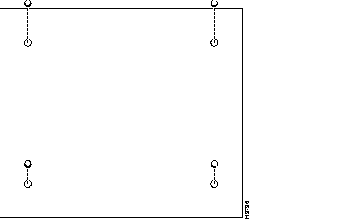
Attach the rubber feet as shown in Figure 5. Rubber feet are included in the accessory kit that shipped with your Cisco RPS.
You can mount the Cisco RPS in a 19-, 23-, or 24-inch equipment rack. The following information will help you plan your equipment rack configuration:
You need the following tools and equipment to rack-mount the Cisco RPS:
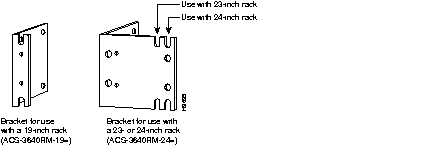
The Cisco RPS ships with one set of 19-inch brackets (product number ACS-3640RM-19=). Or you can order 23- or 24-inch brackets separately (product number ACS-3640RM-24=). Figure 6 shows the rack-mount brackets.
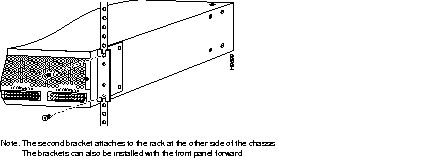
To install the Cisco RPS in a rack, attach the brackets in one of the following ways:
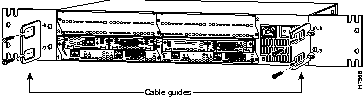
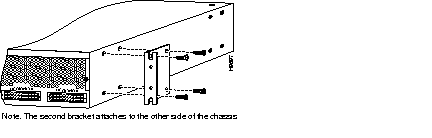
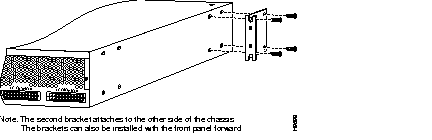
After the brackets are secured to the chassis, you can rack-mount it. Using your own screws, attach the chassis to the rack as shown in Figure 10.
This section describes how to connect the Cisco RPS to external devices. The Cisco RPS includes two fully redundant AC input power modules and four DC output power modules for connection to external devices. The Cisco RPS supports quasi-redundant and fully redundant configurations. Refer to the section "Overview" earlier in this publication for an explanation of the power source configurations.
You may need the following tools and equipment:
The Cisco RPS ships in two configurations: one with four one-to-one (22-pin to 18-pin) cables (PWR600-AC-RPS-CAB) for quasi-redundancy, and one without any cables (PWR600-AC-RPS-NCAB) for users that want full redundancy. When one-to-one cables are used to connect to four external devices, the Cisco RPS provides a quasi-redundant power source.
If you want a fully redundant power source, you will need to order Y-shaped two-to-one cables separately.
Table 3 describes the cables you can order and lists the corresponding product order numbers. Contact Cisco Customer Service (800 553-6387) for ordering information. (See also the sections "Customer Service" and "Cisco Connection Online," later in this publication.)
| Configuration | For Use With | Description | Product Order Number |
|---|---|---|---|
| Quasi-redundant | All supported external devices except Cisco 2500 series routers | One-to-one cable, 22-pin to 18-pin, 4 ft (1.22 m)1 | CAB-RPS-2218=2 |
| Cisco 2500 series routers only | One-to-one cable, 22-pin to 8-pin, 4 ft (1.22 m)1 | CAB-RPS-2208= | |
| Fully redundant | Cisco 3600 and 4000 series routers only | Two-to-one cable, 22-pin to 18-pin, 4 ft (1.22 m)1 | CAB-RPSY-2218= |
| Cisco 2500 series routers only | Two-to-one cable, 22-pin to 8-pin, 4 ft (1.22 m)1 | CAB-RPSY-2208= |
If you already have a Cisco 2500, 3600, or 4000 Series router with an internal AC or DC power supply, or a Cisco 2500 Series, you can order an upgrade kit to support the Cisco RPS. The upgrade kit includes an adapter plate with a connector for the Cisco RPS. The upgrade procedure involves removing the existing power supply and replacing it with the adapter plate. You can order Cisco 3600 and 4000 Series routers already configured for use with the Cisco RPS.
External DeviceThe FastHub 116T 100BaseT hub, FastHub 200 Series 100BaseT hubs, FastHub 300 Series 100BaseT hubs, and HP 10Base-T Hub-16M; and Catalyst 1900 Series Ethernet switches and Catalyst 2820 Series Ethernet switches do not require an adapter plate. These devices ship by default with a connector for the Cisco RPS.
Table 4 describes the adapter plates you can order and lists the corresponding product order numbers. Contact Cisco Customer Service (800 553-6387) for ordering information. (See also the sections "Customer Service" and "Cisco Connection Online," later in this publication.)
| Description | Product Order Number |
|---|---|
| Cisco 2500 Series adapter plate | ACS-2500RPS= |
| Cisco 3620 adapter plate | ACS-3620RPS= |
| Cisco 3640 adapter plate | ACS-3640RPS= |
| Cisco 4000 Series adapter plate | ACS-4000RPS= |
Take these steps to connect the Cisco RPS to external devices (such as routers, switches, or hubs):
Step 1 Power OFF the external device to which you will connect the Cisco RPS. On Cisco 2500, 3600, and 4000 series routers, make sure the power switch is in the OFF (0) position.
Step 2 Connect a one-to-one or two-to-one cable to the Cisco RPS.
(a) For a quasi-redundant power source, connect up to four one-to-one cables as shown in Figure 11.
(b) For a fully redundant power source, connect up to two, two-to-one cables as shown in Figure 12. Two-to-one cables can be ordered separately. (See Table 3 for ordering information.)
(c) You can mix quasi-redundant and fully redundant. For example, two quasi-redundant and one fully redundant.
Step 3 Connect the other end of the one-to-one or two-to-one cable to the rear panel of your external device. Make sure that the thumbscrews are securely tightened. Locate your external device in the following list and refer to the appropriate illustration for the location of the connector:
Then proceed to Step 4 on page 25.
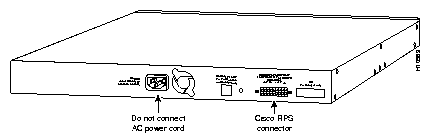
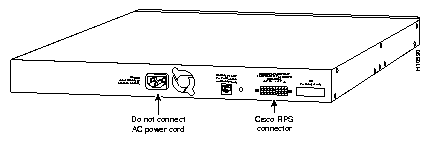
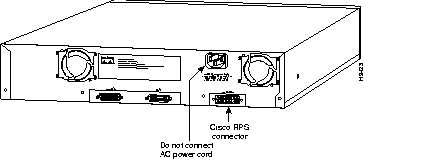
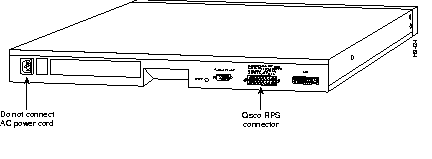
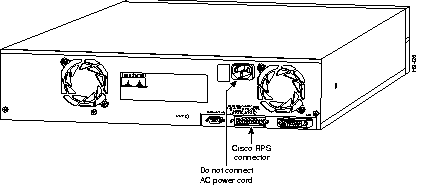
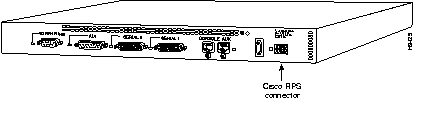
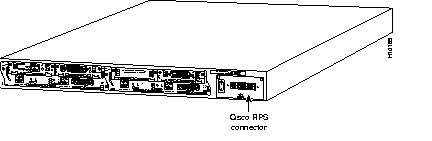
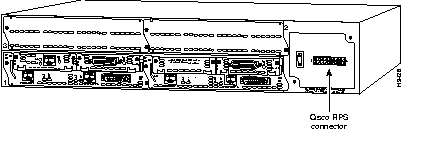
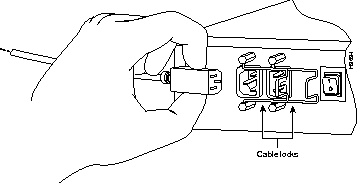
Step 4 Connect a power cable to each of the two power connectors at the left side of the rear panel of the Cisco RPS. Then lock the cables in place with the cable locks. (See Figure 22.)
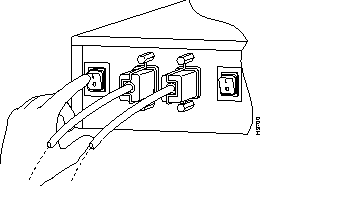
Step 5 Power ON the Cisco RPS. There one power switch for each of the AC input power modules. Make sure both power switches are in the ON (|) position. (See Figure 23.)
 Use the Cisco RPS (model PWR600-AC-RPS) only to power the external device. Use the Cisco RPS (model PWR600-AC-RPS) only to power the external device.Seul le système d'alimentation redondant Cisco (RPS modèle PWR600-AC-RPS) doit servir à alimenter le dispositif externe. Das externe Gerät darf nur mit einer redundanten Stromversorgung von Cisco, Modell PWR600-AC-RPS, betrieben werden. Para alimentar el dispositivo externo, usar exclusivamente el sistema de alimentación redundante (redundant power system = RPS) Cisco, modelo PWR600-AC-RPS. |
Step 6 If you are connecting a Cisco RPS to a Cisco 2500, 3600, or 4000 series router, power ON the router using the power switch located on the rear panel of the router. The Cisco RPS will be ON and providing power in 10 to 15 seconds. The Cisco RPS is working properly when there are no amber LEDs lit. If the system does not power ON, refer to the section, "Troubleshooting."
Step 7 If you want to connect an additional external device to a Cisco RPS that is already powered ON, you can do so without interrupting power to the Cisco RPS or any other external devices that are already connected. But be sure to connect your cable to the Cisco RPS first, and then to the external device.
Step 8 Secure the thumbscrews.
This concludes the procedure for installing the Cisco RPS.
If an external device that is receiving power from the Cisco RPS fails, you can replace it without powering OFF the Cisco RPS and interrupting power to any other external devices.
Take these steps to replace a failed external device that is connected to the Cisco RPS:
Step 1 If the external device is a Cisco 2500, 3600, or 4000 series router, turn the power switch on the rear panel of the router to the OFF (0) position. For all other external devices, skip this step and proceed to Step 2.
Step 2 Disconnect the end of the power cable that is connected to the external device. Do not disconnect the end of the power cable that is connected to the Cisco RPS.
Step 3 Replace the failed external device.
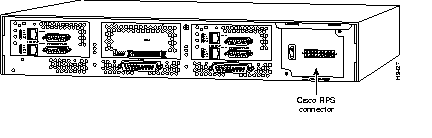
Step 4 Reconnect the power cable to the new external device. (The location of the Cisco RPS connector is shown in Figure 15 to Figure 21.)
Step 5 If the new external device is a Cisco 2500, 3600, or 4000 series router, turn the power switch on the rear panel of the router to the ON (|) position.
Step 6 Secure the thumbscrews.
The new external device will power ON in 10 to 15 seconds.
The key to troubleshooting is to isolate the problem to a specific subsystem. Start by reading the LEDs on the front panel of the Cisco RPS and any error messages displayed on the router console. If you are unable to resolve the problem, refer to the sections "Customer Service" and "Cisco Connection Online" later in this publication for more help.
The LEDs on the front panel of the Cisco RPS enable you to determine the current operating condition of the system. There are two LEDs, labeled AC STATUS, at the left side of the front panel. There are four LEDs, labeled DC STATUS, at the center of the front panel. And there are two LEDs, labeled FAN and TEMP, at the right side of the front panel.
Figure 24 shows the LEDs on the front panel of the Cisco RPS.
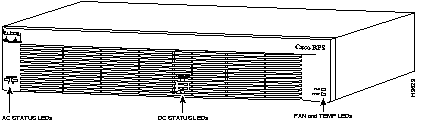
Table 5 describes the LEDs. When the Cisco RPS is working properly, all LEDs are green.
| LED Name | Color/State | Description |
|---|---|---|
| AC status | Off | AC power is not being supplied to the Cisco RPS or it is switched off. |
| Amber | AC power is being supplied to the Cisco RPS, but the designated AC input power module has failed. | |
| Green | The AC input power module is on and operating correctly. | |
| DC status | Off | The DC output section is powered OFF at the external device, AC power is not being supplied to the Cisco RPS, or there is no output cable attached to the DC output module. |
| Amber | The DC output power module has failed.
Note: The amber DC status LED will light up for 10 to 15 seconds after the DC output power module has been connected and the external device has been powered ON. | |
| Green | The DC output power module is on and operating correctly. | |
| Fan | Off | AC power is not being supplied to the Cisco RPS. |
| Amber | One or more cooling fans have failed. | |
| Green | All cooling fans are functioning correctly. | |
| Temp | Off | AC power is not being supplied to the Cisco RPS. |
| Amber | The Cisco RPS internal temperature is exceeding the operating range. | |
| Green | The Cisco RPS internal temperature is within the operating range. |
Cisco IOS Release 11.2(7)P and later releases provide software support of status messages for Cisco 3600 series routers using the Cisco RPS. At this time, software support of status messages is available for Cisco 3600 series routers only.
The show env command (available in Cisco IOS Release 11.2 (7) and later releases) provides an environmental status of the Cisco RPS. An example display follows:
Router#show env
Power Supply:
Redundant Power supply is present.
Thermal status is normal.
AC status is normal.
DC status is normal.
Board Temperature:
Warning: Board overtemperature condition detected.
On Cisco 3600 series routers, when any Cisco RPS status failure is detected, the ROM monitor receives an interrupt and displays the error messages on the router console. Software support of status messages is available for Cisco 3600 series routers only with Cisco IOS software 11.2 (7) and later releases.
The following tables describe the error messages. These tables contain information describing the:
Console error message | When an external device is at the Cisco IOS software prompt (Routername > or Routername #) "System detected Redundant Power Supply DC FAIL condition."
The Cisco IOS software checks the condition once every 30 seconds. If the condition still exists, the error message redisplays. |
| When an external device is at the ROMMON prompt (rommon #>)
| |
| RPS LED status | DC FAIL 1, 2, 3, or 4 LED is Amber.
Note: The DC FAIL LED will be amber for 10 to 15 seconds after the DC output module has been connected and the external device has been powered on. |
| Description of error | The cable connected to one of the internal DC output modules is loose or one of the internal DC output modules in the Cisco RPS has failed.
Note: The Cisco 3600 series router will report the failure of any of the DC output modules of the RPS including DC output modules to which it is not directly connected. |
| SNMP Trap issued upon error | ciscoEnvMonRedundantSupplyNotification is generated. The varbinds included are ciscoEnvMonSupplyStatusDescr and ciscoEnvMonSupplyState. The value of
ciscoEnvMonSupplyState will be a warning. |
| How to Correct Error | Check the DC FAIL LEDs on the RPS to determine which cable is loose or if the module has failed. [WARNING: The following steps will power down the external device if it is not already down.]
1. Disconnect the corresponding output cable from the external device. The amber light should go off. 2. Check that the other end of the output cable is securely connected to the Cisco RPS and the connector is fully seated. 3. Reconnect the output cable to the external device. 4. Verify that the connector is fully seated and is attached securely to the external device. 5. Wait 15 seconds. The LED should be amber for 15 seconds, then turn green. If the failure persists, one of the DC output modules has failed and the Cisco RPS needs to be replaced. If there is an unused DC output module, try switching to an off output module. |
Console message issued upon correction of error | When an external device is at the Cisco IOS software prompt (Routername > or Routername #) "Redundant Power Supply DC condition is now normal."
|
| When an external device is at the ROMMON prompt (rommon #>) no console message is issued when the error is corrected. | |
| SNMP Trap issued upon correction of error | ciscoEnvMonRedundantSupplyNotification is generated. The varbinds included are ciscoEnvMonSupplyStatusDescr and ciscoEnvMonSupplyState. The value of ciscoEnvMonSupplyState will be normal. |
Console error message | When an external device is at the Cisco IOS software prompt (Routername > or Routername #) "System detected Redundant Power Supply AC FAIL condition."
The Cisco IOS software checks the condition once every 30 seconds. If the condition still exists, the error message redisplays. |
| When an external device is at the ROMMON prompt (rommon #>)
| |
| RPS LED status | AC FAIL 1 or 2 LED is Amber of off |
| Description of error | One of the following has occurred:
- Power to one of the wall outlets, that the RPS AC power cord is plugged into, has been turned off. - One of the power cords has been disconnected at either the RPS or the wall outlet - One of the AC modules has been turned off - One of the AC modules has failed The Cisco IOS software checks the condition once every 30 seconds. If the condition still exists, the error message redisplays. |
| SNMP Trap issued upon error | ciscoEnvMonRedundantSupplyNotification is generated. The varbinds included are ciscoEnvMonSupplyStatusDescr and ciscoEnvMonSupplyState. The value of
ciscoEnvMonSupplyState will be a warning. |
| How to Correct Error | Check the AC FAIL LEDs on the RPS to determine which AC module is reporting the error. Make sure that the AC module is turned on and that its power cord is locked in place on the RPS, securely plugged into a wall outlet and that the wall outlet is receiving power. If the failure persists, one of the AC output modules has failed and the Cisco RPS needs to be replaced. |
Console message issued upon correction of error | When an external device is at the Cisco IOS software prompt (Routername > or Routername #) "Redundant Power Supply AC condition is now normal."
|
| When an external device is at the ROMMON prompt (rommon #>) no console message is issued when the error is corrected. | |
| SNMP Trap issued upon correction of error | ciscoEnvMonRedundantSupplyNotification is generated. The varbinds included are ciscoEnvMonSupplyStatusDescr and ciscoEnvMonSupplyState. The value of ciscoEnvMonSupplyState will be normal. |
Console error message | When an external device is at the Cisco IOS software prompt (Routername > or Routername #) "System detected Redundant Power Supply THERMAL FAIL condition."
The Cisco IOS software checks the condition once every 30 seconds. If the condition still exists, the error message redisplays. |
| When an external device is at the ROMMON prompt (rommon #>)
| |
| RPS LED status | FAN LED is Amber. |
| Description of error | One of the RPS's fans has failed. The remaining fans switch to full speed to keep the RPS cool. |
| SNMP Trap issued upon error | ciscoEnvMonRedundantSupplyNotification is generated. The varbinds included are ciscoEnvMonSupplyStatusDescr and ciscoEnvMonSupplyState. The value of
ciscoEnvMonSupplyState will be a warning. |
| How to Correct Error | The RPS continues to operate with a single fan failure. To correct the failure, the Cisco RPS needs to be replaced. |
Console message issued upon correction of error | When an external device is at the Cisco IOS software prompt (Routername > or Routername #) "Redundant Power Supply THERMAL condition is now normal"
|
| When an external device is at the ROMMON prompt (rommon #>) no console message is issued when the error is corrected. | |
| SNMP Trap issued upon correction of error | ciscoEnvMonRedundantSupplyNotification is generated. The varbinds included are ciscoEnvMonSupplyStatusDescr and ciscoEnvMonSupplyState. The value of ciscoEnvMonSupplyState will be normal. |
Console error message | When an external device is at the Cisco IOS software prompt (Routername > or Routername #) "System detected Redundant Power Supply THERMAL FAIL condition."
The Cisco IOS software checks the condition once every 30 seconds. If the condition still exists, the error message redisplays. |
| When an external device is at the ROMMON prompt (rommon #>)
| |
| RPS LED status | TEMP LED is Amber. |
| Description of error | The temperature inside the RPS is too hot. |
| SNMP Trap issued upon error | ciscoEnvMonRedundantSupplyNotification is generated. The varbinds included are ciscoEnvMonSupplyStatusDescr and ciscoEnvMonSupplyState. The value of
ciscoEnvMonSupplyState will be a warning. |
| How to Correct Error | Check the temperature of the room that the RPS is located in.
Correct the room temperature if it is above 40oC. Check the front bezel and rear of the RPS to make sure they are clear of any obstructions. If the error message persists, the RPS needs to be replaced. |
Console message issued upon correction of error | When an external device is at the Cisco IOS software prompt (Routername > or Routername #) "Redundant Power Supply THERMAL condition is now normal"
|
| When an external device is at the ROMMON prompt (rommon #>) no console message is issued when the error is corrected. | |
| SNMP Trap issued upon correction of error | ciscoEnvMonRedundantSupplyNotification is generated. The varbinds included are ciscoEnvMonSupplyStatusDescr and ciscoEnvMonSupplyState. The value of ciscoEnvMonSupplyState will be normal. |
Console error message | When an external device is at the Cisco IOS software prompt (Routername > or Routername #) "There is more than one failure with the redundant power systems; please resolve problems immediately."
The Cisco IOS software checks the condition once every 30 seconds. If the condition still exists, the error message redisplays. Note: It is not a multiple failure when two or more DC Output Modules have failed. |
| When an external device is at the ROMMON prompt (rommon #>)
| |
| RPS LED status | Two or more of the RPS LEDs are Amber. |
| Description of error | The RPS has two or more failures of any of the previous types. |
| SNMP Trap issued upon error | ciscoEnvMonRedundantSupplyNotification is generated. The varbinds included are ciscoEnvMonSupplyStatusDescr and ciscoEnvMonSupplyState. The value of
ciscoEnvMonSupplyState will be critical. |
| How to Correct Error | Check the LEDs on the front bezel of the RPS to determine the types of failures that have occurred. Go to the section describing each failure type for instruction on how to correct it.
If the error message persists, the RPS needs to be replaced. |
Console message issued upon correction of error | When an external device is at the Cisco IOS software prompt (Routername > or Routername #) "Redundant power system is now normal."
|
| When an external device is at the ROMMON prompt (rommon #>) no console message is issued when the error is corrected. | |
| SNMP Trap issued upon correction of error | ciscoEnvMonRedundantSupplyNotification is generated. The varbinds included are ciscoEnvMonSupplyStatusDescr and ciscoEnvMonSupplyState. The value of
ciscoEnvMonSupplyState will be normal. |
If the temperature of the Cisco RPS gets too hot, it will shutdown to prevent damage to any of its components. If the thermal shutdown is the result of a cooling system failure or the ambient temperature rises above normal operating limits, a thermal warning will display on the router console and an SNMP trap will be sent prior to shutdown.
Cisco documentation and additional literature are available in a CD-ROM package, which ships with your product. The Documentation CD-ROM, a member of the Cisco Connection Family, is updated monthly. Therefore, it might be more up to date than printed documentation. To order additional copies of the Documentation CD-ROM, contact your local sales representative or call customer service. The CD-ROM package is available as a single package or as an annual subscription. You can also access Cisco documentation on the World Wide Web at http://www.cisco.com, http://www-china.cisco.com, or http://www-europe.cisco.com.
If you cannot locate the source of the problem, contact technical support. Refer to the information packet publication that shipped with your Cisco RPS for information about how to contact technical support. Before you call, have the following information ready:
Cisco offers a wide variety of service and support programs, which are described in the information packet that shipped with your Cisco RPS. For service and support for a product purchased directly from Cisco, use Cisco Connection Online (CCO).
Cisco Connection Online (CCO) is Cisco Systems' primary, real-time support channel. Maintenance customers and partners can self-register on CCO to obtain additional information and services.
Available 24 hours a day, 7 days a week, CCO provides a wealth of standard and value-added services to Cisco's customers and business partners. CCO services include product information, product documentation, software updates, release notes, technical tips, the Bug Navigator, configuration notes, brochures, descriptions of service offerings, and download access to public and authorized files.
CCO serves a wide variety of users through two interfaces that are updated and enhanced simultaneously: a character-based version and a multimedia version that resides on the World Wide Web (WWW). The character-based CCO supports Zmodem, Kermit, Xmodem, FTP, and Internet e-mail, and it is excellent for quick access to information over lower bandwidths. The WWW version of CCO provides richly formatted documents with photographs, figures, graphics, and video, as well as hyperlinks to related information.
You can access CCO in the following ways:
For a copy of CCO's Frequently Asked Questions (FAQ), contact cco-help@cisco.com. For additional information, contact cco-team@cisco.com.
|
|
