


|
|

This chapter provides detailed instructions on how to use the Cisco ATM Administrator, a collection of graphical utilities that enables you to test and configure your system after you have completed the installation of the Cisco ATM PCI Adapter hardware and software. In it you will learn how to perform some common tasks, including running tests, configuring virtual LANs (VLANs) for the various workgroups at your site, and setting the adapter transmission mode.
The topics covered in this chapter include:
You can test your system by running diagnostics using the Cisco ATM Administrator.
To start the Cisco ATM Administrator:
Step 1 Enter this command:
C:\CISCO> csadminor click on the CSADMIN icon in the Cisco Group from Windows NT.
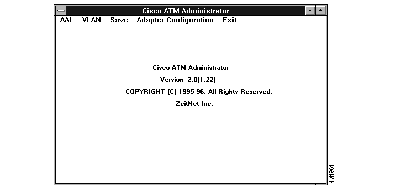
The Cisco ATM Administrator Main Menu appears (see Figure 5-1).
Step 2 Click on one of the menu options displayed at the top of the Main Menu.
When chosen, each option will display nested submenus. Choices include:
ATM Adaptation Layer (AAL) diagnostic tests identify runtime status and record cumulative AAL driver statistics. To run AAL tests:
Select AAL from the Cisco ATM Administrator Main Menu (Figure 5-1).
The AAL submenu appears (shown in Figure 5-2). Choices include:

To run the AAL Diagnostics/Data Activity tests:
Step 1 Select the Diagnostics/Data Activity option from the AAL submenu to choose from available test options (Figure 5-3).
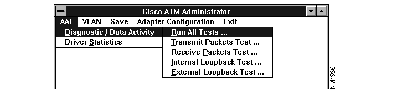
The AAL diagnostic test options you can run are:
Step 2 Select a test option.
The Test Setup window (Figure 5-4) appears.
All tests require you to specify the same parameters. Upon selection of any of the options available from the Diagnostic/Data Activity option, the Test Setup window appears (Figure 5-4).
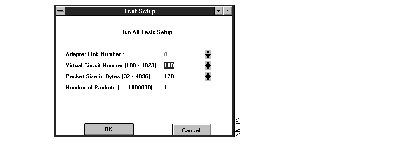
Step 3 Input these fields when setting up any of the Diagnostics/Data Activity tests. Then choose OK.
Table 5-1 shows an example of the kinds of values that will be displayed in the Status column of the Test Results window:
| Status Message | Description |
|---|---|
| RUNNING | The test in this row is currently being performed. |
| PASSED | The test in this row completed successfully. |
| FAILED | The test in this row did not complete successfully. |
| ABORTED | [Run All Tests only] User cancelled the test. |
If a test fails, a message box will identify the error. If this happens:
For a description of reviewing cumulative test results, see "Viewing Driver Statistics" on page 5-15.
To run all of the tests:
Step 1 Select the Run All Tests option from the Diagnostics/Data Activity submenu of AAL (Figure 5-3) to initiate all tests in sequential order.
The Run All Tests Setup window (Figure 5-5) appears.
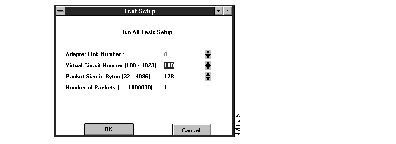
Step 2 Set up the test parameters, using the instructions provided in "Setting Test Parameters" on page 5-5. Then choose OK.
These tests will run automatically:
Individual test requirements are identical when running all tests as when running the tests separately. For example, you must confirm that another system is transmitting information over the same virtual circuit that you specified in the Test Setup window prior to running the Receive Packet test, and you must have a loopback cable connected prior to running the External Loopback test.
After all the tests have run, the results are displayed in the All Tests Display window (Figure 5-6).
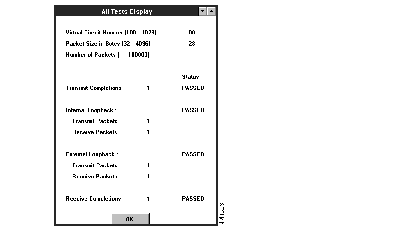
The All Tests Display window shows the test parameters you specified in the Test Setup window, as well as the current test status. If an error occurs or packets are not received, a message box appears.
The Transmit Packets Test transmits ATM packets from the local system. No network connection is required. To run the Transmit Packets Test:
Step 1 Select the Transmit Packets Test option from the Diagnostics/Data Activity submenu of AAL (Figure 5-3).
The Transmit Packets Test Setup window (Figure 5-7) appears.
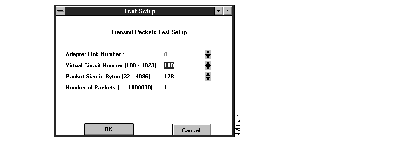
Step 2 Set up the test parameters using the instructions provided in "Setting Test Parameters" on page 5-5. Then choose OK.
After you have set the parameters and the test has run, results are displayed in the Transmit Packets Test Display window (Figure 5-8).
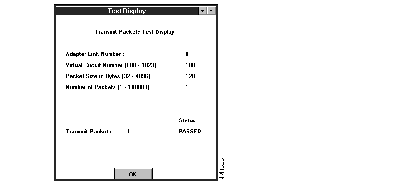
The Receive Packets Test receives ATM packets from another network adapter. An active network connection is required. The receive test requires that another node is transmitting packets over the same VC. If another system is not sending data to the system, the test times out in 20 seconds.
To run a Receive Packets Test:
Step 1 Select the Receive Packets Test option from the Diagnostics/Data Activity submenu of AAL (Figure 5-3).
The Receive Packets Test Setup window appears (Figure 5-9).

Step 2 Set up the test parameters, using the instructions provided in "Setting Test Parameters" on page 5-5. Then choose OK.
The Receive Packets Test Confirmation window appears (Figure 5-10).

Step 3 Verify that another system is transmitting data on the VC chosen. Then select OK.
Results are displayed on the Receive Packets Test Display (Figure 5-11).
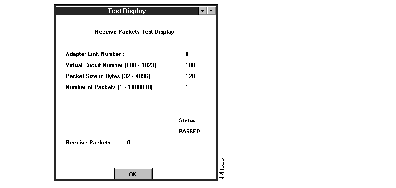
The Internal Loopback Test transmits and receives ATM packets between the local system and the Cisco ATM PCI Adapter. No loopback cable is required.
To run an Internal Loopback Test:
Step 1 Select the Internal Loopback Test option from the Diagnostics/Data Activity submenu of AAL (Figure 5-3).
The Internal Loopback Test Setup window appears (Figure 5-12).
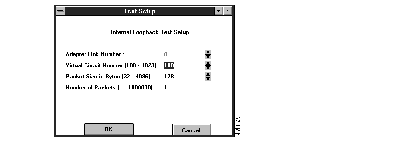
Step 2 Set up the test parameters, using the instructions provided in "Setting Test Parameters" on page 5-5. Then choose OK.
After you have set the parameters and the test has run, the results are displayed on the Internal Loopback Test Display (Figure 5-13).
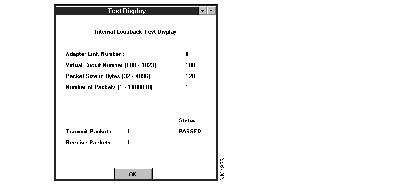
Step 3 Choose OK when you are finished viewing the display.
The External Loopback Test transmits and receives ATM packets through the local ATM interface connector. A loopback cable is required. If an error occurs during a test or a timeout occurs, a message box indicates the problem.
To run an External Loopback Test:
Step 1 Select the External Loopback Test option from the Diagnostics/Data Activity submenu of AAL (Figure 5-3).
The External Loopback Test Setup window appears (Figure 5-14).
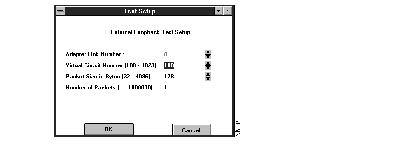
Step 2 Set up the test parameters, using the instructions provided in "Setting Test Parameters" on page 5-5. Then choose OK.
The External Loopback Test Confirmation window (Figure 5-15) appears.

Step 3 Verify that a loopback cable is connected. Then select OK.
After the test has run, results are displayed on the External Loopback Test Display window (Figure 5-16).
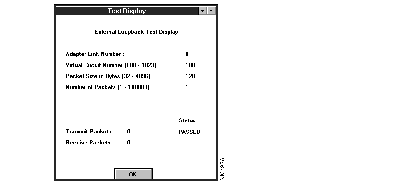
Step 4 Choose OK when you are finished viewing the display.
The Driver Statistics menu provides options for displaying statistical information for the adapter. To display driver statistics:
Select the Driver Statistics option from the AAL submenu (Figure 5-17).
The Driver Statistics options are:
The Display Global Statistics option displays a variety of traffic attributes. Cumulative session statistics from all previous transmit and receive tests (since the last reset) are listed in the display. Any errors that have occurred as a result of transmission are also displayed.
To display global statistics:
Select the Display Global Statistics option from the Driver Statistics submenu of AAL (Figure 5-17).
The Cumulative Statistics window (Figure 5-18) appears.
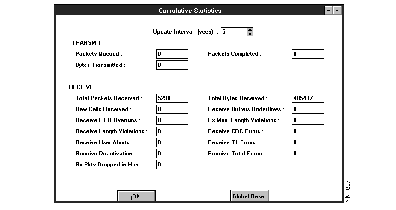
Cumulative Statistics fields and their meanings are:
Select Global Reset to reset all cumulative session statistics to '0'.
The Display Individual VC Statistics option displays the results of all attributes of individual VC statistics. VC statistics from all running tests are listed. To display cumulative statistics:
Step 1 Select the Display Individual VC Statistics option from the Driver Statistics submenu of AAL (Figure 5-17).
Step 2 Enter an update interval identifying how often the test results should update to show previous test results.
After the specified number of seconds, the test results are updated to reflect the previous seconds of test activity. The Individual VC Statistics window (Figure 5-19) appears.
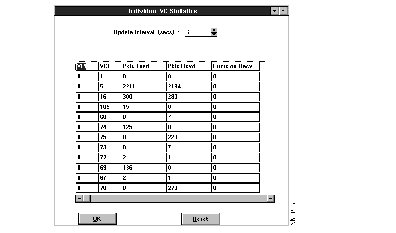
Individual VC Statistics fields and their meanings are:
You can reset all cumulative individual VC statistics that have been compiled for individual VCs. To reset individual VC statistics to 0:
Step 1 Select Reset.
The Reset Individual VC Statistics prompt (Figure 5-20) appears.

Reset Individual VC Statistics fields and their meanings are:
To reset the statistics accumulated for a particular VC to 0:
Step 2 Enter the appropriate values of the channel's corresponding VPI and VCI numbers in the provided fields. Then select OK.
Virtual LANs and VLAN tables are configured using options from Cisco ATM Administrator GUI (csadmin). You can access options from the Cisco ATM Administrator GUI to dynamically configure your system for ATM communications. In general, the tasks to configure VLANs are:
Step 1 Plan your network. Determine the type(s) of VLANs you'll be configuring (IPATM and/or LANE). This chapter contains details for setting up each of these types. For information about VLAN parameters that must be considered when setting up virtual LAN types, see Chapter 4, "Virtual LAN Considerations."
Step 2 For IPATM VLANs, commonly referred to as Logical IP Subnets (LIS), find out the location of one ATM ARP Server for each VLAN. Determine how many VLANs you'll be initializing and the associated VLAN numbers and IP address assignments for each. Refer to "Adding a New VLAN" on page 3-13 and "Quick Install for IPATM" on page 3-7 for detailed information on configuring a new IPATM VLAN.
Step 3 For LANE VLANs, commonly referred to as emulated LANs (ELAN), find out the location of the LAN Emulation Configuration Server for each VLAN. Determine how many VLANs you'll be initializing and the associated VLAN numbers assigned for each. Refer to "Adding a New VLAN" on page 3-13 and "Quick Install for LAN Emulation" on page 3-7 for detailed information on configuring a new LANE VLAN.
Step 4 Initialize each new VLAN that will terminate on the host by adding it to your system. See "Adding a New VLAN" on page 3-13 for details.
Step 5 Configure each new VLAN using the default VLAN parameters. See "Configuring a VLAN" on page 5-22 for details. See Chapter 6, "Understanding VLAN Configuration File Syntax" for details on configuration file syntax.
Step 6 For IPATM (or LIS) VLANs, create the appropriate VLAN tables by making entries into the host's active ARP server table. See "Viewing and Modifying the Server ARP Table" on page 5-47 for details.
Step 7 Set up any permanent virtual circuit (PVC) connections. See "Adding and Removing PVC Entries" on page 5-57 for details on setting up PVCs using the Cisco ATM Administrator.
Step 8 Save the configuration information for each host. See "Saving VLAN Settings" on page 5-60 for details.
Step 9 Repeat the initialize, configure, create, set up, and save processes for each Cisco ATM PCI Adapter host.
You can dynamically configure a virtual LAN by selecting the VLAN menu option from the Cisco ATM Administrator Main Menu (Figure 5-1).
To dynamically configure a virtual LAN:
Step 1 Select the VLAN option from the Cisco ATM Administrator Main Menu (Figure 5-1).
The Virtual LAN Options window appears (Figure 5-21). Each virtual LAN is configured and maintained through this window.
Step 2 Choose a virtual LAN number.
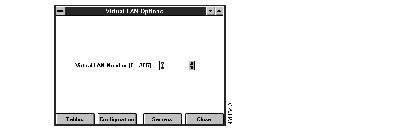
You use the configuration features of the Cisco ATM Administrator to set and modify VLAN parameters. Parameters are used to store information such as the external server for IP over ATM protocol. You can modify VLAN configuration parameters at any time after adding the virtual LAN to the system.
To configure a virtual LAN, or modify an existing VLAN configuration, after it had been initialized:
Step 1 Choose the VLAN option from the Main Menu (Figure 5-1).
The Virtual LAN Options window appears (Figure 5-21).
Step 2 Select the number of an existing VLAN on the Virtual LAN Options window (Figure 5-21). If you do not know your VLAN's identifier number, see "Deleting an Existing VLAN" on page 3-15 for instructions on how to obtain it.
Step 3 Select the Configuration option.
One of theVirtual LAN Configuration windows appears (Figure 5-22 or Figure 5-24).
Depending on the VLAN type you selected when the VLAN was added to the system, the VLAN Configuration window that is presented will be one of the following:
Refer to the appropriate subsection for information about the fields available for the VLAN type you are configuring or modifying. To set configuration parameters for a VLAN:
Step 4 Enter the values into the appropriate VLAN Configuration window fields. Then select Apply.
This section describes how to configure an IP over ATM VLAN. The acronyms IPATM (IP over ATM) and/or LIS (Logical IP Subnet) are used when referring to IP over ATM Logical Subnets. See "Adding a New VLAN" on page 3-13 for instructions on creating and initializing an IPATM VLAN.
To configure an IPATM VLAN, after it has been initialized:
Step 1 Enter a VLAN number that corresponds to an IPATM VLAN in the Virtual LAN Options window (Figure 5-21).
Step 2 Choose Configuration from the Virtual LAN Options window.
The Virtual LAN Configuration - IPATM window appears (Figure 5-22).
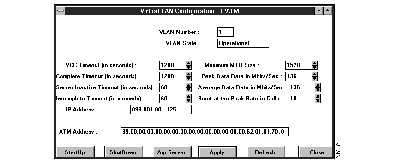
To set configuration parameters for an IPATM VLAN:
Step 3 Enter the values into the appropriate VLAN Configuration window fields and select Apply.
The fields on the Virtual LAN Configuration - IPATM window and their meanings are:
To start up the specified VLAN:
Choose Startup.
The VLAN is launched. If an error occurs, review the values and try Startup again.
To shut down the specified VLAN:
Choose Shutdown.
Operations are terminated for the specified VLAN. To shutdown a VLAN, it must be currently running. An error will occur if shutdown is attempted when the specified VLAN is not running.
A server ARP table is needed for IP over ATM VLANs. To get quick access to ARP server information:
Choose ARP Server.
See "Viewing and Modifying the Server ARP Table" on page 5-47 for details.
To apply the VLAN configuration parameters you specified:
Choose Apply.
The VLAN configuration information is stored. To launch the VLAN, choose Startup. If you do not wish to launch the VLAN now and want to use your configuration values at a later time, choose Save from the Main Menu (Figure 5-1) before exiting the Cisco ATM Administrator.
To update the values on the screen, or to obtain the current VLAN state:
Choose Refresh.
An ATM ARP Server table must be defined to collect and manipulate the information required for IP over ATM virtual LAN operation. The ARP Server Information window controls how the connection to the ARP Server is set up. All other endstations can then connect to the ARP server to identify the ATM addresses for other nodes on the same VLAN. The ATM ARP server is usually located on the Cisco router.
At this time, you are only establishing an initial ARP Server connection, not modifying the ARP Server table. For more connection information, see "Viewing and Modifying VLAN Tables" on page 5-40 and "Viewing and Modifying the Server ARP Table" on page 5-47.
To choose an initial location for the server ARP table, or to move the server ARP table:
Do one of the following:
Choosing either of these options displays the ARP Server Information window (Figure 5-23).
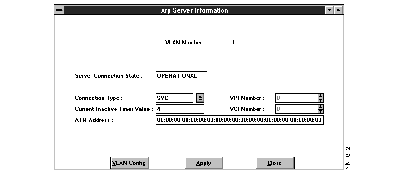
ARP Server Information fields and their meanings are:
To get quick access to the VLAN Configuration window:
Choose VLAN Config.
See "Configuring a VLAN" on page 5-22 for information on this option.
To confirm your ARP server location entries:
Choose Apply.
The ARP Server values are stored.
 | Caution If you wish to save your configuration values, be sure to choose Save from the Main Menu (Figure 5-1) before exiting the Cisco ATM Administrator. |
This section describes how to configure a LAN Emulation VLAN. The acronyms LANE (LAN Emulation) and/or ELAN (Emulated LAN) are used when referring to LAN Emulation. See "Adding a New VLAN" on page 3-13 for instructions on creating and initializing a LAN Emulation VLAN.
To configure a LANE virtual LAN, after it has been initialized:
Step 1 Enter the VLAN number corresponding to a LANE VLAN in the Virtual LAN Options window (Figure 5-21). Then select Configuration.
The Virtual LAN Configuration - LAN Emulation window appears (Figure 5-24).
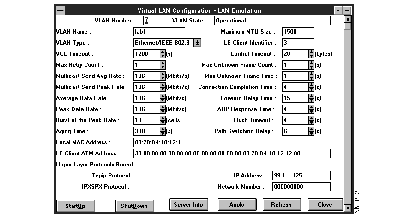
To set configuration parameters for a LANE VLAN:
Enter the values in the appropriate fields of the Virtual LAN Configuration - LAN Emulation window (Table 5-2). Then select Apply.
| Parameter | Description | Range | Default | Units |
|---|---|---|---|---|
| VLAN Number | Displays the specified VLAN number (corresponding to the LANE to be configured). | 0-255 | - | - |
VLAN State | Displays one of these values: (Refer to LAN Emulation sections for details.) Operational - The VLAN is functioning properly. Shutdown - The VLAN has not been configured and/or started. Network Prefix Pending - The local workstation is in the process of getting a fully qualified ATM address from the switch (via the ILMI protocol). idle awaiting connect configure established Awaiting configure response configured control direct proceeding control direct established awaiting control distribute awaiting join response join successful awaiting bus atm address bus atm address resolved awaiting multicast send establishment multicast send established awaiting multicast forward establishment multicast forward established | - | - | - |
| VLAN Name | Displays the unique global name across the networks to denote the particular VLAN. | - | - | - |
VLAN Type | Enter the type of LAN that the LEC is, or wishes to become, a member of (e.g., Ethernet, Token Ring, FDDI). The following values are currently supported: 0 = Undefined 1 = Ethernet/802.3 | 0-1 | 1 | - |
| VCC Timeout | [SVC only] Enter the period of time to wait before removing an inactive VCC. Cisco ATM software will delete a VCC entry from the ARP connection table if the VC has not been used to transmit or receive any data frames in the specified period of time. | 0-· | 1200 | Seconds |
| Maximum Retry Count | Enter the number of times to retry ARP requests. After an LEC has sent an LE_ARP_REQUEST to a particular frame's target LEC, the LEC must not attempt another LE_ARP_REQUEST to the same target. | 0-2 | 1 | #Retries |
| Multicast Send VCC Average Rate | Enter the Forward and Backward Sustained Cell Rate to be requested by the LEC when setting up Multicast Send VCC (if using Variable bit rate codings). | - | - | Mbps |
| Multicast Send VCC Peak Rate | Enter the Forward and Backward Peak Cell Rate to be requested by the LEC when setting up Multicast Send VCC (if using Variable or Constant bit rate codings). | - | - | Mbps |
| Average Data Rate | Enter the average rate at which cells are allowed to transfer over the connection. Traffic on this client shall average this value. This value must be at or below the peak data rate. | 1-136 | 136 | Mbps |
| Peak Data Rate | Enter the maximum rate at which cells are allowed to transfer over the connection. Traffic on this client is not to exceed this value. | 1-136 | 136 | Mbps |
| Maximum Burst | Enter the maximum number of cells that can be sent at the peak rate. | 1-255 | 10 | Cells |
| ARP Entry Aging Time | Enter the maximum time that an LEC will maintain an entry in its ARP connection table before verifying the relationship. | 10-300 | 300 | Seconds |
| Local MAC Address | Enter the MAC address of the local endstation. This value is six bytes expressed in hex nibbles, each byte delimited by colons. | - | - | - |
| IP Client ATM Address | Enter the ATM address of the local endstation. This value is 20 bytes expressed in hex nibbles delimited by colons (a picture mask assures proper entry). | - | - | - |
| Maximum MTU Size | Enter the maximum size of a data packet. The maximum AAL5 SDU size of a data frame that the LEC wishes to send. | 0-9180 | 1500 | Bytes |
| LE Client Identifier | This is a read-only field, with the actual value provided by the LES. Each LEC requires an identifier assigned by the LES for echo suppression on multicast data frames sent by that LEC. | 1-FEFF | - | - |
| Control Timeout | Enter the timeout period. This value is used for timing out most request/response control frame interactions, as specified elsewhere. | 10-300 | 20 | Seconds |
| Maximum Unknown Frame Count | The period of time specified by Maximum Unknown Frame Time. An LEC will send no more than this number of frames to the BUS for a given unicast LAN Destination. | 1-10 | 1 | Frames |
| Maximum Unknown Frame Time | Enter the period of time in which an LEC will send the specified Maximum Unknown Frame Count frames to the BUS for a given unicast LAN Destination. | 1-60 | 1 | Seconds |
| Connection Completion Timeout | Enter the time period (during Connection Establishment) in which data or a READY_IND message is expected from a Calling Party. | 1-10 | 4 | Seconds |
| Forward Delay Time | Enter the maximum time that an LEC will maintain an entry for a non-local MAC address in its ARP connection table before verifying the relationship. | 4-30 | 15 | Seconds |
| ARP Response Time | Enter the maximum time that the LEC expects an LE_ARP_REQUEST and LE_ARP_RESPONSE cycle to take. Used for retries and verifies. | 1-30 | 1 | Seconds |
| Flush Timeout | Enter the time limit to wait to receive an LE_FLUSH_RESPONSE after the LE_FLUSH_REQUEST has been sent before taking recovery action. | 1-4 | 4 | Seconds |
| Path Switching Delay | Enter the time since sending a frame to the BUS after which the LEC may assume that the frame has been either discarded or delivered to the target LEC. May be used to bypass the Flush protocol. | 1-8 | 6 | Seconds |
| Protocol Address | This is a read-only field. This value is required to provide a connection from the local system to the target. The value is expressed either as the explicit dotted decimal notation, or as a hostname (resolved in the hosts file or through a domain name server).
| - | - | - |
To start up the specified VLAN:
Choose Startup.
The VLAN is launched. If an error occurs, review the values and choose Startup again.
To shut down the specified VLAN:
Choose Shutdown.
Operations are terminated for the specified VLAN. To shutdown a VLAN, it must be currently running. An error will occur if shutdown is attempted when the specified VLAN is not running.
To view or modify information related to the LAN Emulation Server and associated server modules:
Choose Server Info.
The LAN Emulation Servers information window appears (Figure 5-25).
Information for these LAN Emulation modules is displayed:
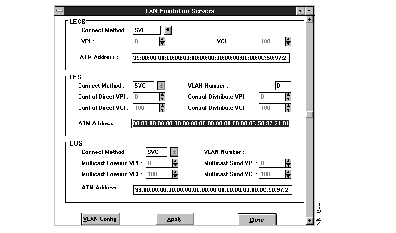
The fields on the LAN Emulation Servers information window and their meanings are:
To apply your specified VLAN configuration parameters:
Choose Apply from the VLAN Configuration - LAN Emulation window (Figure 5-24).
The VLAN configuration information is stored. However, the VLAN is not launched until you select Startup.
| Caution If you wish to save your configuration values, be sure to choose Save from the Main Menu (Figure 5-1) before exiting the Cisco ATM Administrator. |
To update the values on the screen, or to obtain the current VLAN state:
Choose Refresh from the VLAN Configuration - LAN Emulation window (Figure 5-24).
VLAN tables contain connection information needed in ATM configurations. You set up and monitor connection statistics using VLAN tables. Each time a connection is established between ATM endstations on a particular VLAN, an entry is added to the appropriate connection table.
To get access to the various tables needed for your VLAN configuration:
Step 1 Select Tables from the Virtual LAN Options window (Figure 5-21).
The VLAN Tables Menu window appears (Figure 5-26).
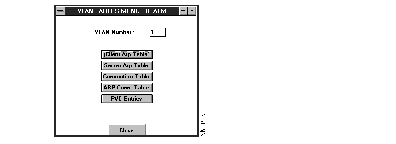
The fields on the VLAN Tables Menu and their meanings are:
Step 2 Click on the field (Figure 5-26) for the appropriate VLAN table.
The corresponding table opens.
See Chapter 4, "Virtual LAN Considerations," for more information related to what tables are necessary for your particular network configuration.
To review the entries in the client ARP table:
Select Client ARP Table from the VLAN Tables Menu (Figure 5-26).
The client ARP table for the specified VLAN appears (Figure 5-27).
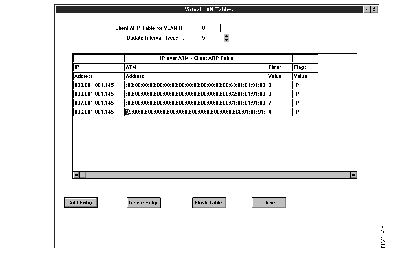
Nearly all the fields on the Client ARP Table window display read-only address information. You can set the update interval only. A description of each of the fields follows:
To manually add an entry to the Client ARP Table:
Step 1 Select Add Entry from the Client ARP Table window (Figure 5-27).
The Add Client ARP Table Entry window appears (Figure 5-28).
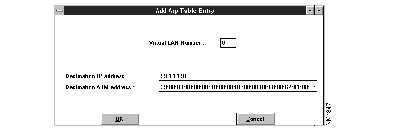
Step 2 Enter these parameters in the fields of the Add ARP Table Entry screen:
To delete an entry from the client ARP table:
Step 1 Select Delete Entry from the Client ARP Table window (Figure 5-27).
The Delete ARP Table Entry window appears (Figure 5-29).
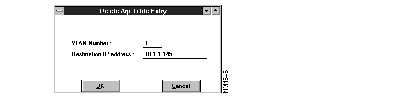
The fields on the Delete ARP Table Entry window are:
Step 2 Enter the IP address of the entry you wish to delete and select OK.
The specified IP entry is removed from the client ARP table for the specified VLAN number.
To delete all entries in the client ARP table:
Step 1 Select Flush Table from the Client ARP Table window (Figure 5-27).
The Flush ARP Table Confirmation Prompt appears (Figure 5-30), showing the VLAN number to be affected.

Step 2 Choose OK to confirm.
All entries are removed from the client ARP table for the specified VLAN number.
A server ARP table is needed for VLANs configured for IPATM only. The server ARP table is located on the ATMARP server on the Cisco router, or on the ARP server you identified when you configured your IP over ATM VLAN (it is on the ATM endstation that you configured as the ARP Server). If you have not done this, see "Locating the IPATM ARP Server" on page 5-27 to designate the location of the server ARP table.
To review the entries in the server ARP table:
Select Server ARP Table from the VLAN Tables Menu (Figure 5-26).
The Server ARP Table for the specified VLAN appears (Figure 5-31).
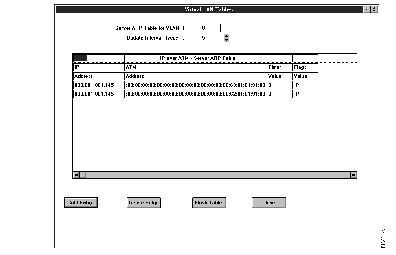
Figure 5-31 shows an example of an IP over ATM VLAN server ARP table. As in the client ARP table, most fields of the server ARP table are read-only. You modify them by explicitly deleting them and adding the new address entries.
The Server ARP Table fields and descriptions are:
To manually add an entry to the server ARP table:
Step 1 Select Add Entry from the Server ARP Table window (Figure 5-31).
The Add ARP Table Entry window appears (Figure 5-32).
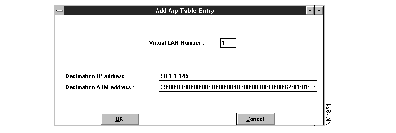
Step 2 Enter values into these fields of the Add Server ARP Table Entry window (Figure 5-32):
To delete an entry from the server ARP table:
Step 1 Select Delete Entry from the Server ARP Table window (Figure 5-31).
The Delete Server ARP Table Entry window appears (Figure 5-33).
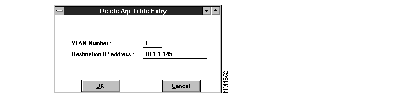
The fields on the Delete Server ARP Table Entry window are:
Step 2 Enter the IP address of the entry you wish to delete and select OK.
The currently selected entry is permanently removed from the server ARP table for the specified VLAN number.
To delete all entries in the server ARP table:
Step 1 Select Flush Table from the Server ARP Table window (Figure 5-31).
The Flush ARP Table Confirmation Prompt appears (Figure 5-34), displaying the VLAN number that will be affected.

Step 2 Choose OK to confirm.
All entries are removed from the server ARP table for the specified VLAN number.
The connection table contains all information related to connections over a particular VLAN. This table is used for monitoring connection status and for accumulating statistics. Both PVC and SVC entries are displayed in the table.
Each time an application program sets up a connection between ATM endstations on a particular VLAN, an entry is added to the connection table.
To review the entries in the connection table:
Select Connection Table from the VLAN Tables Menu (Figure 5-26).
The Connection Table window displays all connections for the specified VLAN number (Figure 5-35 and Figure 5-36).
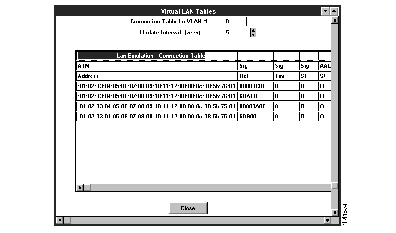
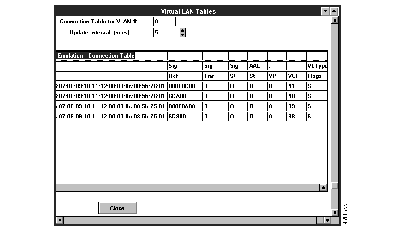
The Connection Table fields and descriptions are:
The ARP connection table contains all the information related to connections over the specified VLAN from both the ARP and connection tables. This table is used to monitor connection status and to accumulate statistics for the VLAN.
To review the values in the connection table:
Select ARP Conn Table from the VLAN Table Menu (Figure 5-26).
The ARP Connection Table window displays all connection data for the specified VLAN number (Figure 5-37).
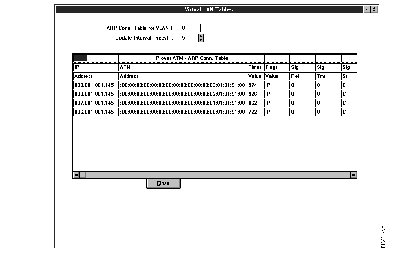
You can set the update interval. The remaining fields on the ARP Connection Table window are used to display address information for the specified VLAN. The fields are:
Permanent Virtual Circuits must be set up and disconnected manually. You need to set up PVC connections between ATM endstations and each PVC VLAN. To set up a PVC:
Step 1 Select PVC Entries from the VLAN Tables Menu (Figure 5-26).
The Configure PVC window appears (Figure 5-38).
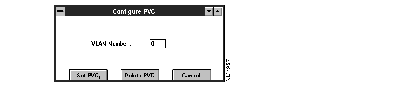
Step 2 Select one of the two available options:
To add a new PVC connection:
Step 1 Select Set PVC from the Configure PVC window (Figure 5-38).
The Add PVC Entry window appears (Figure 5-39).
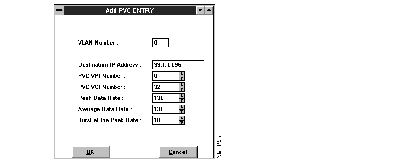
Step 2 Set these fields for the PVC you want to add:
Step 3 Select OK.
The specified PVC entry is added to the connection table.
To delete a PVC connection:
Step 1 Select Delete PVC from the Configure PVC window (Figure 5-38).
The Delete PVC Table Entry window appears (Figure 5-40).
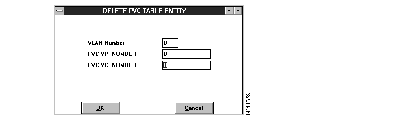
Step 2 Set these entries for the PVC you want to delete:
Step 3 Select OK.
The PVC entry is removed from the table.
The save option allows all configuration settings to be saved to NT registry. Use it to save your VLAN configuration settings periodically.
When the csadmin command is executed, the Cisco ATM Administrator retrieves values from the active Driver. You may find it beneficial to make configuration modifications, then switch to another window to review the operation of the VLAN(s), and then save the configuration settings to NT registry.
| Caution You must save changes you make to your network configuration (including adding and deleting VLANs, and any changes to IP and the other protocols) before exiting the Cisco ATM Administrator. You must also reboot NT for your changes to become effective. When you exit the Cisco ATM Administrator you will be prompted for saving. |
To save previously configured VLAN settings:
Step 1 Select Save from the Cisco ATM Administrator Main Menu (Figure 5-1).
The Save submenu appears displaying all available options for saving previously configured VLAN settings.
Step 2 Choose Complete Configuration from the Save submenu.
A message appears saying that it takes a minute to save VLAN configuration. Then a message prompt confirms that your VLAN configuration has been saved (Figure 5-41).

To display basic configuration information and set the physical mode of the Cisco ATM PCI Adapter:
Step 1 Select Adapter Configuration from the Cisco ATM Administrator Main Menu (Figure 5-1). The Adapter Configuration menu appears (Figure 5-42).
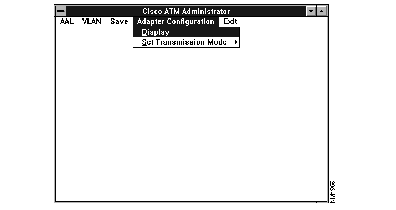
Step 2 Choose one of the Adapter Configuration menu options:
To display the current adapter configuration data:
Step 1 Select the Adapter Configuration option from theCisco ATM Administrator Main Menu (Figure 5-1). Then choose Display... from the Adapter Configuration menu (Figure 5-42).
The Adapter Configuration Information window appears (Figure 5-43).
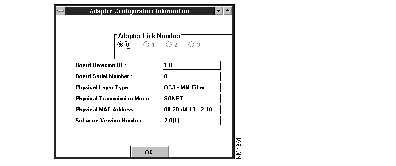
Step 2 Choose the adapter link number. Then choose OK.
The fields on the Adapter Configuration Information window are:
By default, the adapter is set to the SONET physical transmission mode. The Set Transmission Mode submenu facilitates conversion between the U.S. standard SONET and the European standard SDH transmission modes.
To set the adapter to SDH transmission mode:
Step 1 Select the Adapter Configuration option from the Cisco ATM Administrator Main Menu (Figure 5-1).
Step 2 Select Set Transmission Mode from the Adapter Configuration menu (Figure 5-42).
Step 3 Select SDH from the Set Transmission Mode submenu (Figure 5-44).
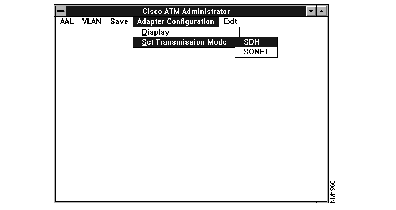
Step 4 Click OK in the SDH Confirmation prompt (Figure 5-45).

The physical transmission mode for the adapter is configured for SDH transmission.
Step 5 Save the configuration for the mode change to become permanent using the Save option in the Cisco ATM Administrator Main Menu (Figure 5-1).
If the adapter was previously set to SDH mode, to return the transmission mode to SONET:
Step 1 Select SONET from the Set Transmission Mode submenu (Figure 5-44) of the Adapter Configuration menu.
Step 2 Click OK in the SONET Confirmation prompt (Figure 5-46).

The physical transmission mode for the adapter is configured for SONET transmission.
Step 3 Save the configuration for the mode change to become permanent using the Save option in the Cisco ATM Administrator Main Menu (Figure 5-1).
When you are finished configuring VLAN(s):
Step 1 Select the Exit option from the Cisco ATM Administrator Main Menu (Figure 5-1).
The Exit Application confirmation prompt appears (Figure 5-47).

Step 2 Select OK to end your Cisco ATM Administrator session.
|
|