


|
|

This chapter explains how to install Cisco ATM PCI Adapter software on a supported PC environment. Follow the step-by-step installation and configuration instructions in this chapter to:
To properly operate the Cisco ATM PCI Adapter software, these system requirements must be met:
First install the MAC Drivers and User Applications (CSATM, CSINIT, CSADMIN, and CSILMI). Then install the Transport MUX Driver (CSMUX). After installation and initial configuration is complete, reboot the system.
 | Caution If you are installing an upgrade of the Cisco ATM PCI Adapter product, you must first remove the old version. Follow the instructions in "Removing the Old Version of the PCI Adapter Software" on page 3-19 before proceeding with installing the Drivers. |
To install the MAC Driver:
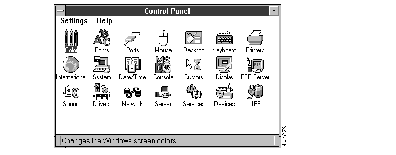
Step 1 Open the Windows NT Main window if it is not already opened. From the Control Panel (Figure 3-1), double click on the Network icon.
The Network Settings dialog appears (Figure 3-2).
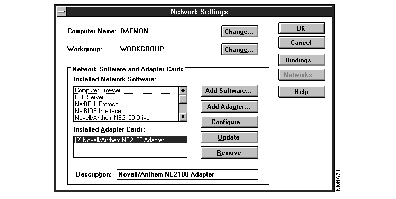
Step 2 In the Network Settings dialog, choose Add Adapter... to install the Cisco ATM PCI Adapter MAC Driver.
The Add Network Adapter dialog appears (Figure 3-3).
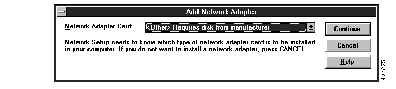
Step 3 In the Add Network Adapter dialog, select the "<Other> Requires disk from manufacturer" entry from the Network Adapter Card scroll list. Click Continue.
The Insert Disk dialog appears (Figure 3-4).
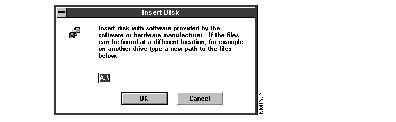
Step 4 Place the "CSATM PCI Adapter Setup Disk #1" disk into the floppy disk drive.
Step 5 In the Insert Disk dialog, specify the source path to the files on the Cisco ATM installation disk. Choose OK.
The Select OEM Option dialog appears (Figure 3-5).
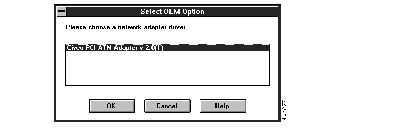
Step 6 Select the "Cisco PCI ATM Adapter v 2.0(1)" entry from the Select OEM Option list box. Choose OK.
The MAC Driver (CSATM) installs.
Next, the PCI Adapter VLAN Initialization dialog appears (Figure 3-6).
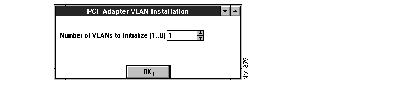
Step 7 Next, use the PCI Adapter VLAN Initialization dialog box to set up the configuration information for the VLANs.
Step 8 Enter the total number of VLANs that you wish to configure. (To quickly install a single VLAN for LAN Emulation or IP/ATM, set the Number of VLANs to Initialize to "1".) Click OK.
The VLAN Configuration dialog (Figure 3-7) appears.
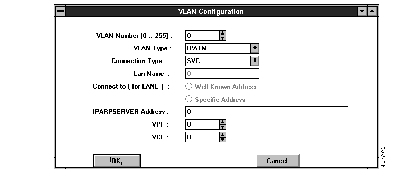
The VLAN Configuration dialog window will appear for each VLAN you wish to create. If necessary, the settings you enter now can be changed at a later time (see Figure 3-15).
Step 9 Use the VLAN Configuration dialog to enter configuration parameters.
To install a basic LAN Emulation VLAN:
Step 1 VLAN Number: Enter a new, unique VLAN number between 0 and 255.
Step 2 VLAN Type: Select "LAN Emulation" from the list provided.
Step 3 Lan Name: Enter the desired name of the new VLAN. (This parameter is optional when installing a single LANE VLAN, mandatory when installing multiple LANE VLANs.)
Step 4 Connection Type: Select "SVC" from the list provided.
Step 5 Click on the Specific Address button.
Step 6 Enter the specific LAN Emulation Configuration Server (LECS) address for this VLAN, in the field provided.
Step 7 Click OK when done.
To install a basic logical IPATM VLAN:
Step 1 VLAN Number: Enter a new, unique VLAN number between 0 and 255.
Step 2 VLAN Type: Select IPATM from the list provided. New fields will be provided in the VLAN Configuration dialog.
Step 3 Connection Type: Select SVC from the list provided.
Step 4 Click on the Specific Address button.
Step 5 Enter the specific IP ARP Server address for this VLAN, in the field provided.
Step 6 Click OK when done.
The VLAN Type can be either LAN Emulation or IPATM. The Connection Type for LANE is SVC. The Connection Type for IPATM is either SVC, PVC or LOCAL.
When connecting using LANE, the connection can be a well-known address or a specific address. If you choose the Specific Address, specify the address of the LECS server. A well known address can be used to connect to a well known server. Lan Name is used only for LANE type VLANs and is optional.
The LECS address can also be a host name, found in the %systemRoot%\system32\drivers\etc\atms configuration file.
When connecting using IPATM, the connection is to a specific ARP Server.
VPI and VCI fields are used only for PVC Connection Type, for IPATM.
If you wish to add additional VLANs, select Add Adapter from the Network Settings dialog (Figure 3-2) and follow the MAC Driver installation Step 2 through Step 9 for each additional VLAN. To add additional VLANs at a later time, refer to "Adding a New VLAN" on page 3-13 for detailed instructions.
Once the VLAN(s) are configured, install the User Applications. These consist of CSINIT (Cisco ATM initialization program), the configuration files atms and csilmi.db, and CSADMIN (a collection of graphical utilities). CSINIT and CSADMIN are used to initialize and modify your ATM network, and are fully documented in Chapters 5 and 6.
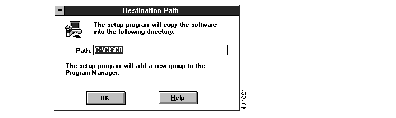
After clicking OK in the VLAN Configuration dialog (Figure 3-7), the Destination Path dialog appears.
Step 1 In the Destination Path dialog (Figure 3-8), enter the destination path where the user software (CSINIT and CSADMIN) should be installed. The default is "C:\CISCO". Then click OK.
You will be prompted for Disk #2 (Figure 3-9).
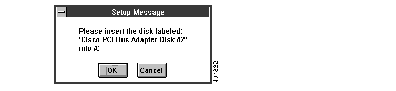
Step 2 Insert Disk #2 and click OK.
The User Applications are installed.
Once the User Applications are installed, you are prompted to install the Transport MUX Driver (Figure 3-10).
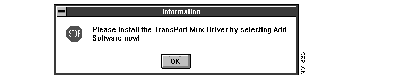
To install the Multiplexing Transport (MUX) Driver:
Step 1 Click OK in the Information prompt.
The Network Settings dialog box appears (Figure 3-11).
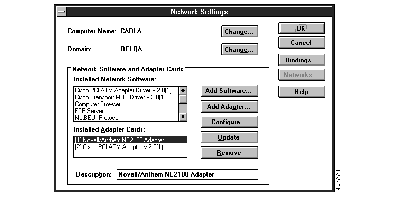
Step 2 Confirm that the "Cisco PCI ATM Adapter" Driver is installed by checking in the Installed Adapter Cards scroll list area of the Network Settings dialog.
Each VLAN appears as a numbered "Cisco PCI ATM Adapter" in the Installed Adapter Cards list.
Step 3 In the Network Settings dialog, choose Add Software... to install the Cisco ATM MUX Driver.
The Add Network Software dialog appears (Figure 3-12).
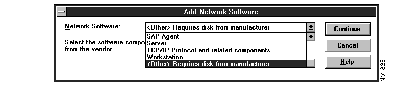
Step 4 In the Add Network Software dialog, select the "<Other> Requires disk from manufacturer" entry from the Network Software scroll list. Click Continue.
The Insert Disk dialog appears (Figure 3-13).
Step 5 If it is not already in place when the Insert Disk prompt appears, place the "Cisco ATM PCI Adapter Setup Disk #2" disk into the floppy drive.
Step 6 In the Insert Disk dialog, specify the complete source path of the Cisco ATM installation disk by entering "A:\CSMUX\". Choose OK.
The Select OEM Option dialog appears (Figure 3-14).
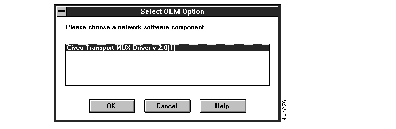
Step 7 Select the "Cisco Multiplexing Transport Driver v 2.0(1)" entry from the Select OEM Option list box. Choose OK.
The Cisco Transport MUX driver installs.
The Network Settings dialog box appears (Figure 3-11).
Step 8 Confirm that the "Cisco Multiplexing Transport" Driver is installed by checking in the Installed Network Software scroll list area of the Network Settings dialog. Then choose OK.
If you need to add a new VLAN configuration, do the following:
Step 1 Open the Windows NT Main window, if it is not already opened. From the Control Panel (Figure 3-1), double click on the Network icon.
The Network Settings dialog appears (Figure 3-2).
Step 2 In the Network Settings dialog, choose Add Adapter... to add a new VLAN.
The Add Network Adapter dialog appears (Figure 3-3).
Step 3 In the Add Network Adapter dialog, select the "Cisco PCI ATM Adapter v 2.0(1)" entry from the Network Adapter Card scroll list. Click Continue.
The PCI Adapter VLAN Initialization dialog appears (Figure 3-6).
Step 4 Use the PCI Adapter VLAN Initialization dialog box to set up the configuration information for the VLANs.
Step 5 Enter the total number of VLANs that you wish to add. (To quickly add a single VLAN for LAN Emulation or IP/ATM, set the Number of VLANs to Initialize to "1".) Click OK.
The VLAN Configuration dialog (Figure 3-7) appears.
The VLAN Configuration dialog window will appear for each VLAN you wish to add. If necessary, the settings you enter now can be changed at a later time (see Figure 3-15).
Step 6 Use the VLAN Configuration dialog to enter configuration parameters.
Refer to "Installing the MAC Driver" on page 3-2 for detailed information on configuring a new VLAN.
If you need to change a VLAN configuration, do the following:
Step 1 Open the Windows NT Main window, if it is not already opened. From the Control Panel (Figure 3-1), double click on the Network icon.
The Network Settings dialog appears (Figure 3-2).
Step 2 From the Network Settings dialog, select the numbered Adapter associated with the VLAN you wish to modify, in the Installed Adapter Cards scroll list. Click Configure.
The Configuration of PCI BUS Adapter dialog (Figure 3-15) appears.
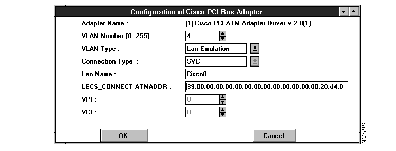
Step 3 Verify the VLAN Number of the VLAN you wish to modify.
For VLAN Type IPATM, Connection Type is SVC, PVC, or LOCAL and address field is IPArpServer Address.
For VLAN Type Lan Emulation, Connection Type is SVC and address field is LECS_CONNECT ATMADDR.
See Figure 3-7 for initial configuration fields.
Step 4 Click OK when done.
To delete an existing VLAN, you first need to identify which instance of the adapter in the Network Settings dialog's Installed Adapter Cards scroll list corresponds to the VLAN you want to delete. Note that there is no guaranteed relationship between the VLAN number and the instance of the adapter that appears in the scroll list. Therefore, you need to verify which VLAN number you are deleting.
Step 1 Select the Cisco PCI ATM adapter in the Installed Adapter Cards scroll list, in the Network Settings dialog (Figure 3-11).
Step 2 To verify that you have selected the correct instance of the adapter, click on Configure to display the Configuration of PCI BUS Adapter dialog (Figure 3-15).
Step 3 Referring to the configuration information displayed, confirm that the selected VLAN number is, in fact, the one you want to delete.
Step 4 If the selected VLAN is not the one you want to delete, click on Cancel to return to the Network Settings dialog. Select a different instance of the Cisco PCI ATM adapter from the Installed Adapter Cards scroll list and check its configuration.
Step 5 Once you know which listed adapter corresponds with the VLAN you want to delete, return to the Network Settings dialog (Figure 3-11), highlight the correct adapter and click on Remove.
You will be prompted to confirm the deletion of the network adapter (Figure 3-20).
Step 6 Click OK in the Network Settings dialog for the changes to take effect.
The Network Settings Change prompt appears (Figure 3-21).
Step 7 Click on Restart Now to reboot the system.
The protocol settings dialogs described in this section are used to set up each new adapter for recognition by your network. You need to configure (or reconfigure) IPX/SPX, TCP/IP, and any other protocols on your network after you install the Cisco ATM PCI Drivers and User Applications.
Use the NWLink IPX/SPX Protocol Configuration screen (Figure 3-16) to configure the network IPX/SPX protocol for your new Cisco ATM PCI Adapter.
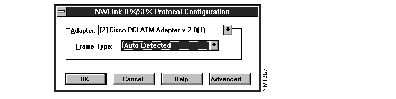
Step 1 In the Adapter field, choose the adapter for which to configure the IPX protocol.
Step 2 Note that the Frame Type is auto-detected for the appropriate environment.
Step 3 If you wish, use the Advanced button to set an internal network number. Obtain this number from your Network Administrator.
Step 4 Click OK when done.
To configure TCP/IP, you need to know:
If you do not know these parameters, obtain them from your Network Administrator.
Use the TCP/IP Configuration dialog (Figure 3-17) to reconfigure the network TCP/IP protocol for your new adapters.
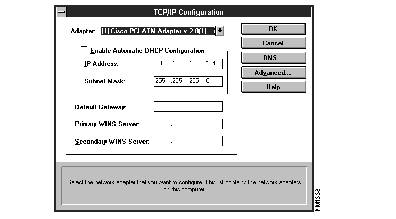
Step 1 In the Adapter field, choose the adapter for which to configure the TCP/IP protocol.
Step 2 Enter appropriate values in the IP Address and Subnet Mask fields.
Step 3 Optionally enter Default Gateway, Primary WINS Server, and Secondary WINS Server.
Step 4 Click OK.
Now that you have installed both Drivers and the User Application software, and have reconfigured your network protocols to recognize the adapters, you are ready to reboot your system to initialize your new ATM configuration. The Network Settings Change dialog (Figure 3-18) appears.
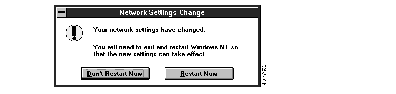
You must reboot your system for the configuration changes to take effect. To restart your computer:
Step 1 Choose Restart Now.
If you are upgrading your software, you must remove the old version of the PCI Adapter software first. The removal process consists of:
To remove the installed Network Software and Network Adapter Drivers:
Step 1 Go to the Control Panel (Figure 3-1). Choose Network.
The Network Settings dialog appears (Figure 3-19).
Step 2 Select the "Cisco Multiplexing Transport Driver" from the Installed Network Software scroll list. Then choose Remove.
The Network Component Removal prompt appears (Figure 3-20).
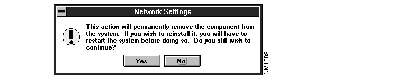
Step 3 Click Yes.
The Transport MUX driver is removed.
Step 4 From the Network Settings dialog, select the "Cisco PCI ATM Adapter" from the Installed Adapter Cards scroll list. Then choose Remove for each VLAN.
The Network Adapter Driver software is removed.
Step 5 Repeat step 4 for each VLAN that was set up.
Step 6 Click OK in the Network Settings dialog for the changes to take effect.
The Network Settings Change prompt appears (Figure 3-21).
Step 7 Click Don't Restart Now.
To remove the User Applications (CSINIT and CSADMIN):
Step 8 From the Windows NT Program Manager, run the "CSREMOVE.EXE" program from the C:\CISCO directory.
The Remove User Applications prompt appears (Figure 3-22).

Step 9 Click OK.
This removes the Cisco ILMI, Cisco Adapter Initialization Service and the Cisco program group.
|
|