


|
|

Product Numbers: ACS-7200-RMK=, CISCO7204=, CISCO7206=
This document explains how to install Cisco 7200 series routers in an equipment rack and how to install the cable-management brackets on Cisco 7200 series routers using the rack-mount and cable-management kit. The kit includes rack-mount brackets and cable-management brackets.
The rack-mount brackets are designed for mounting Cisco 7200 series routers in 19-inch four-post and Telco-type equipment racks. The cable-management brackets are designed to relieve strain on port adapter interface cables that are installed on port adapters in Cisco 7200 series routers.
The cable-management brackets can be installed on Cisco 7200 series routers that are installed on a tabletop or workbench, or in a rack. The rack-mount and cable-management brackets are shipped with Cisco 7200 series routers and are also available as a single field-replaceable unit (FRU).
This configuration note includes the following sections:
The Cisco IOS software running your router contains extensive features and functionality. The effective use of many of these features is easier if you have more information at hand. For additional information on configuring and maintaining the Cisco 7200 series routers, the following documentation resources are available:
The Cisco 7200 series routers consist of the 4-slot Cisco 7204 and the 6-slot Cisco 7206. The Cisco 7200 series routers support multiprotocol, multimedia routing and bridging with a wide variety of protocols and any combination of Ethernet, Fast Ethernet, Token Ring, Fiber Distributed Data Interface (FDDI), Asynchronous Transfer Mode (ATM), Integrated Services Digital Network (ISDN), and serial media. Network interfaces reside on port adapters that provide a connection between the routers' three Peripheral Component Interconnect (PCI) buses and external networks. Port adapters can be placed in any available port adapter slot, in any desired combination.
The front of the Cisco 7200 series routers provides access to an Input/Output (I/O) controller and up to four or six network interface port adapters. The I/O controller has a local console port for connecting a data terminal (or data terminal equipment [DTE]) and an auxiliary port for connecting a modem (or other data communications equipment [DCE]) or other devices for configuring and managing the router; two Personal Computer Memory Card International Association (PCMCIA) slots for Flash memory cards; and an optional Fast Ethernet port. The Fast Ethernet port provides a 100-Mbps connection to the network. Figure 1 shows the Cisco 7204; Figure 2 shows the Cisco 7206.
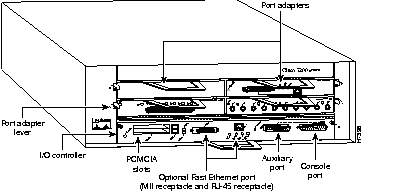
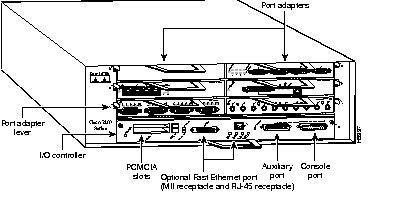
The port adapters installed in the Cisco 7200 series routers are of the same type as those installed on the second-generation Versatile Interface Processors (VIP2s) in the Cisco 7500 series routers, and in Cisco 7000 series routers using the 7000 Series Route Switch Processor (RSP7000) and 7000 series Chassis Interface (RSP7000CI). The port adapters installed in the Cisco 7200 series routers support online insertion and removal (OIR).
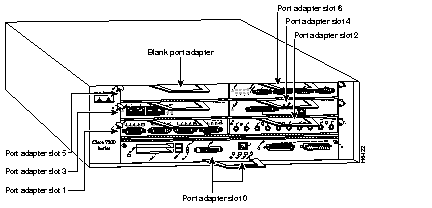
Port adapter slots in the Cisco 7200 series are numbered from the lower left to the upper right, beginning with port adapter slot 1 and continuing through port adapter slot 4 for the Cisco 7204, and slot 6 for the Cisco 7206. Port adapter slot 0 is the optional Fast Ethernet port on the I/O controller. Figure 3 shows the port adapter slot numbering for the Cisco 7206.
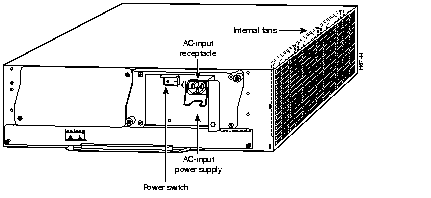
The rear of the Cisco 7200 series routers provides access to a network processing engine and up to two 280W, AC-input or DC-input power supplies (refer to Figure 4).
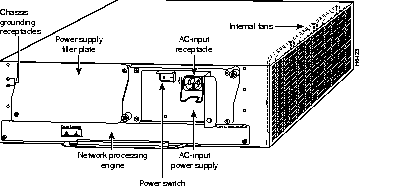
The network processing engine has no external connectors or LEDs. There are two handles for removing and installing the network processing engine and two captive installation screws for securing it to the chassis.
A fully configured Cisco 7200 series router operates with only one installed power supply; however, a second, optional power supply of the same type provides hot-swappable, load-sharing, redundant power. The power supply has the router's main power switch and either an AC-input power receptacle, or three hardwired DC-input power leads (depending on the type of installed power supply). Adjacent to the power supply bays there are two chassis grounding receptacles that provide a chassis ground connection for ESD equipment or a grounding wire (refer to Figure 4).
Three internal fans draw cooling air into the chassis interior and across internal components to maintain an acceptable operating temperature (refer to Figure 4). The three fans are enclosed in a tray that is located in the subchassis.
The I/O controller, port adapters, power supplies, and network processing engine slide into their respective chassis slots and connect directly to the router's midplane; there are no internal cables to connect. The midplane distributes DC power from the power supplies to the I/O controller, port adapters, fan tray, and network processing engine.
This section provides a list of parts and tools you need to install the rack-mount and cable-management brackets on Cisco 7200 series routers. This section also includes safety and ESD-prevention guidelines to help you avoid injury to yourself and damage to the equipment.
You will need the following parts and tools to install the rack-mount and cable-management brackets on your Cisco 7200 series router. If you need additional equipment, contact a service representative for ordering information.
The rack-mount and cable-management kit includes the following parts:
Following are safety guidelines that you should follow when working with any equipment that connects to electrical power or telephone wiring.
Follow these basic guidelines when working with any electrical equipment:
Use the following guidelines when working with any equipment that is connected to telephone wiring or to other network cabling:
A fully configured Cisco 7200 series router weighs approximately 50 pounds. The chassis is not intended to be moved frequently. Before you install the router, ensure that your site is properly prepared, so you can avoid having to move the chassis later to accommodate power sources and network connections.
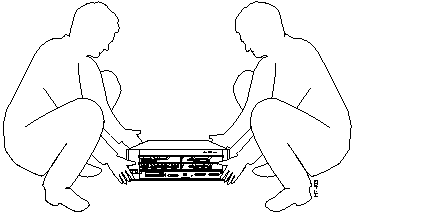
Whenever you lift the chassis or any heavy object, follow these guidelines (see Figure 5):
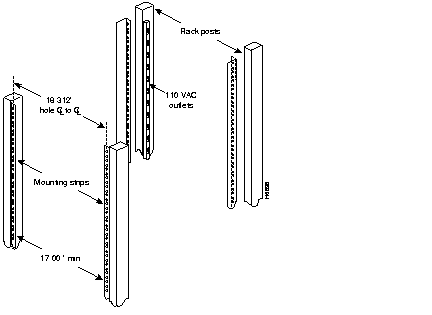
The rack-mounting hardware included with your Cisco 7200 series router is suitable for most 19-inch four-post and Telco-type equipment racks. Some equipment racks provide a power strip along the length of one of the mounting strips. Figure 6 shows a typical 19-inch four-post equipment rack with a power strip along one of the back posts.
If your rack has a power strip, consider the position of the strip when planning fastener points to ensure that you will be able to pull port adapters and other FRUs straight out of their respective slots. If the power strip does impair a rear rack-mount installation, remove the power strip before installing the router in the rack, then replace it after the chassis is installed.
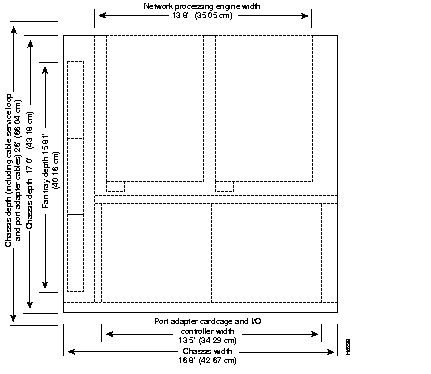
To use the rack-mounting hardware provided with your Cisco 7200 series router, consider the following guidelines:
When planning your rack installation, consider the following guidelines:
 | Caution To prevent chassis overheating, never install your Cisco 7200 series router in an enclosed rack or room that is not properly ventilated or air conditioned. |
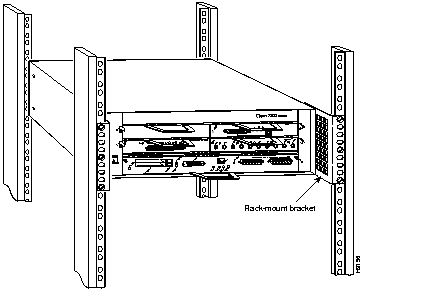
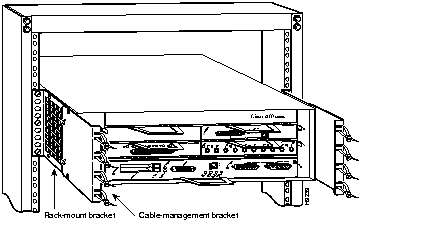
The chassis mounts to two rack posts with two brackets that attach to either the front or the rear sides of the chassis. If you want the port adapter end (the front) of the chassis recessed in the rack, install the rack-mount brackets at the front or rear of the chassis in the orientation shown in Figure 8. If you want the front of the chassis protruding out of the rack, install the rack-mount brackets at the front or rear of the chassis in the orientation shown in Figure 9.
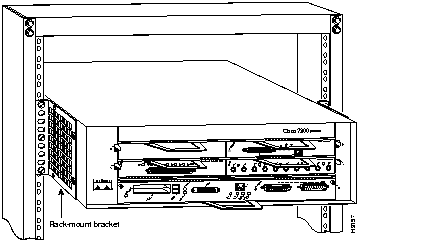
If you plan to install the cable-management brackets on a Cisco 7200 series router that you are rack-mounting, you must install the cable-management brackets and rack-mount brackets on the chassis before you install the chassis in the rack.
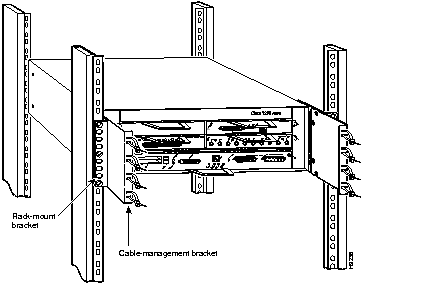
There are two cable-management configurations when rack-mounting a Cisco 7200 series router from the front. In the first configuration, the cable-management brackets are installed over the rack-mount brackets, and four screws secure both sets of brackets to the chassis. (Refer to Figure 10.) In the second configuration, two screws secure each rack-mount bracket to the chassis, and two additional screws secure each cable-management bracket to a rack-mount bracket. (Refer to Figure 11.)
If you are rack-mounting a Cisco 7200 series router from the rear, the rack-mount brackets are installed at the rear of the chassis, and the cable-management brackets are installed at the front of the chassis. You must install both sets of brackets before you install the chassis in the rack.
The following sections explain the procedure for rack-mounting the Cisco 7200 series routers:
These tasks are described in detail in the following subsections.
If your Cisco 7200 series router is already installed on a tabletop or workbench, or in a rack, you must power down the router and disconnect input power before attempting the rack-mount procedure. If your router is already installed in a rack with the original rack-mount brackets (brackets that were shipped before February 1997), you must also remove the original rack-mount brackets from the chassis.
To power down a Cisco 7200 series router, complete the following steps:
Step 1 Facing the rear of the router, place the power switch (on the power supply) in the OFF (0) position. Repeat this action if a second power supply is installed in the router.
Step 2 Observe the following items:
To disconnect AC-input power to a Cisco 7200 series router, complete the following steps:
Step 1 Unplug the input power cable from the power source.
Step 2 Push down on the cable-retention clip that secures the input power cable to the router's power supply.
Step 3 Unplug the other end of the input power cable from the power supply (refer to Figure 12).
Step 4 Repeat Step 1 through Step 3 if a second power supply is installed.
To disconnect DC-input power to a Cisco 7200 series router, complete the following steps:
 | Warning Before completing any of the following steps, and to prevent short-circuit or shock hazards, ensure that power is removed from the DC circuit. To ensure that all power is OFF, locate the circuit breaker on the panel board that services the DC circuit, switch the circuit breaker to the OFF position, and tape the switch handle of the circuit breaker in the OFF position. |
| Warning When installing the unit, the ground connection must always be made first and disconnected last. |
Step 1 Turn off the power source and disconnect the -48V and +48V leads from the power source. You can leave the ground cable connected.
Step 2 Remove the cable tie that secures the -48V, +48V, and ground leads to the power supply faceplate. Save the cable tie.
Step 3 Using a 3/16-inch flat-blade screwdriver, loosen the screw below the +48V lead receptacle and pull the lead from the connector (refer to Figure 13).
Step 4 Using the same screwdriver, loosen the -48V lead receptacle screw and pull the lead from the connector. Repeat Step 4 for the ground lead.
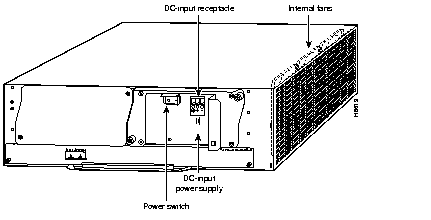
Step 5 Repeat Step 1 through Step 4 if a second power supply is installed.
This completes the procedure for powering down the router and disconnecting input power. Proceed to the following section "Installing the Brackets on the Chassis."
This section explains how to install the rack-mount and cable-management brackets at the front and the rear of a Cisco 7200 series router. Before installing the chassis in the rack, you must install a rack-mount bracket on each side of the front or rear of the chassis. If you are rack-mounting the chassis from the front and you plan to use the cable-management brackets, you must install the cable-management brackets when you install the rack-mount brackets on the chassis.
If you are rack-mounting the chassis from the rear, you may install the rack-mount and cable-management brackets separately; however, both sets of brackets must be installed on the chassis before the chassis is installed in the rack.
The parts and tools required for installing the rack-mount and cable-management brackets are listed in the section "List of Parts and Tools" on page 6 of this document.
| Warning After attaching the brackets, and to avoid injury, we recommend that two people install the chassis in the rack. (One person should support the chassis in the rack while the second person installs the fasteners.) |
To install the rack-mount and cable-management brackets on the chassis for a front rack-mount configuration, complete the following steps:
Step 1 Locate the threaded holes in the front sides of the chassis. If you plan to use the cable-management brackets in your rack-mount configuration, proceed with Step 2. If you do not plan to use the cable-management brackets, skip to Step 3.
Step 2 If you want the front of the chassis protruding out of the rack, align the first rack-mount bracket and the first cable-management bracket to the threaded holes in the right side of the chassis as shown in Figure 14.
If you want the front of the chassis recessed in the rack, align the first rack-mount bracket to the threaded holes in the right side of the chassis as shown in Figure 15.
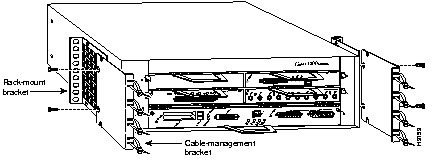
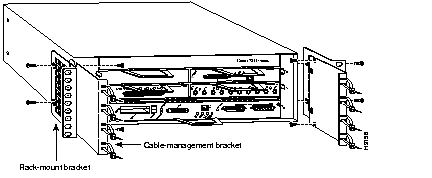
Step 3 If you aligned the first rack-mount bracket and cable-management bracket to the right side of the chassis, thread two M4 x 8-mm Phillips flathead screws through both brackets and into the side of the chassis. Use a number 2 Phillips screwdriver to tighten the screws. (Refer to Figure 14.)
If you aligned only the first rack-mount bracket to the right side of the chassis, thread two M4 x 8-mm Phillips flathead screws through the bracket into the side of the chassis, and use a number 2 Phillips screwdriver to tighten the screws. Then align the first cable-management bracket to the rack-mount bracket, and thread two M4 x 8-mm Phillips flathead screws through the two brackets, and tighten the screws. (Refer to Figure 15.)
Step 4 Repeat Step 1 through Step 3 for the other cable-management bracket (if required) and the rack-mount bracket.
This completes the procedure for installing the rack-mount and cable-management brackets on the chassis for a front rack-mount configuration.
To install the rack-mount and cable-management brackets on the chassis for a rear rack-mount configuration, complete the following steps:
Step 1 Locate the threaded holes in the rear sides of the chassis.
Step 2 Align the first rack-mount bracket to the threaded holes in the right side of the chassis.
If you want the front of the chassis protruding out of the rack, align the rack-mount bracket to the chassis as shown in Figure 16. If you want the front of the chassis recessed in the rack, align the rack-mount bracket to the chassis as shown in Figure 17.
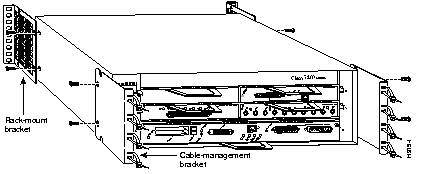
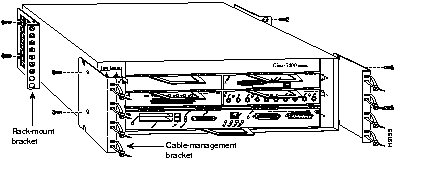
Step 3 Thread two M4 x 8-mm Phillips flathead screws through the rack-mount bracket and into the side of the chassis. Use a number 2 Phillips screwdriver to tighten the screws.
Step 4 Repeat Step 1 through Step 3 for the other rack-mount bracket.
Step 5 If you plan to include the cable-management brackets in your rear rack-mount configuration, align the first rack-mount bracket to the threaded holes in the front sides of the chassis. (Refer to Figure 16 and Figure 17.)
Step 6 Thread two M4 x 8-mm Phillips flathead screws through the bracket and into the chassis, and tighten the screws.
Step 7 Repeat Step 5 and Step 6 for the other cable-management brackets.
This completes the procedure for installing the rack-mount brackets and cable-management brackets on the chassis. Proceed to the section "Installing the Chassis in the Rack.
| Warning To prevent injury, review the safety precautions in the section "Safety Guidelines" before installing the router in a rack. |
After installing the brackets on the chassis, mount the router by securing the rack-mount brackets to two posts or mounting strips in the rack using the six slotted screws provided. Because the brackets support the weight of the entire chassis, be sure to use all six slotted screws to fasten the two rack-mount brackets to the rack posts. Figure 8, Figure 9, Figure 10, and Figure 11 show typical installations in a 19-inch four-post rack and a Telco-type equipment rack.
| Warning To prevent the rack from tipping when installing the router in Telco-type racks, ensure that the rack is bolted to the floor and, if necessary, anchored with appropriate fixtures. |
We recommend that you allow at least one or two inches of vertical clearance between the router and any equipment directly above and below it.
| Warning To maintain a low center of gravity, ensure that heavier equipment is installed near the bottom of the rack. |
To install the chassis in the rack, complete the following steps:
Step 1 On the chassis, ensure that all captive screws on the network processing engine, the I/O controller, and each power supply are tightened and the port adapter levers are in the locked position.
Step 2 Make sure that your path to the rack is unobstructed. If the rack is on wheels, ensure that the brakes are engaged or that the rack is otherwise stabilized.
| Warning To prevent damage to the chassis or personal injury, never attempt to lift or tilt a Cisco 7200 series router using the port adapter handles or the I/O controller handle; they are not designed to support the weight of the router. Always have someone help you when installing your Cisco 7200 series router. |
Step 3 Position the chassis so that the front end is closest to you; then lift the chassis and move it to the rack. To prevent injury, avoid sudden twists or moves.
Step 4 Slide the chassis into the rack, pushing it back until the brackets (installed at the front or rear of the chassis) meet the mounting strips or posts on both sides of the equipment rack.
Step 5 While keeping the brackets flush against the posts or mounting strips, position the router so that the holes in the brackets are aligned to those in the mounting strips.
Step 6 Insert all six 10-32 x 3/8-inch slotted screws (three on each side) through the brackets and into the mounting strip. (Use the top and bottom bracket holes, as shown in Figure 8, Figure 9, Figure 10, and Figure 11.) Using a 1/4-inch, flat-blade screwdriver, tighten all the screws.
This completes the procedure for installing the chassis in the rack. Proceed to the following section "Reconnecting Input Power and Powering Up the Router."
The following procedures explain how to reconnect AC-input and DC-input power to a Cisco 7200 series router, power up the router, and verify a successful system boot.
To reconnect AC-input power to a Cisco 7200 series router, complete the following steps:
Step 1 At the rear of the router, check that the power switch on the power supply is in the OFF (0) position.
Step 2 Slide the cable-retention clip down, away from the AC receptacle, and plug in the power cable.
Step 3 Secure the cable in the power supply AC receptacle by sliding the cable-retention clip up until it snaps around the connector. The cable-retention clip provides strain relief for the AC power cable (refer to Figure 18).
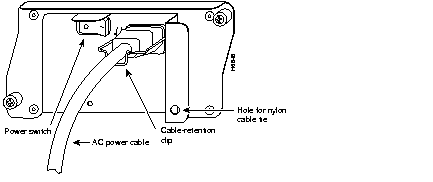
Step 4 Plug the AC power supply cable into the AC power source.
Step 5 Repeat Step 1 through Step 4 if a second power supply is installed.
This completes the steps for reconnecting AC-input power to a Cisco 7200 series router.
To reconnect DC-input power to a Cisco 7200 series router, complete the following steps:
| Warning Before completing any of the following steps, and to prevent short-circuit or shock hazards, ensure that power is removed from the DC circuit. To ensure that all power is OFF, locate the circuit breaker on the panel board that services the DC circuit, switch the circuit breaker to the OFF position, and tape the switch handle of the circuit breaker in the OFF position. |
| Warning When installing the unit, the ground connection must always be made first and disconnected last. |
Step 1 Ensure that the -48V and +48V leads are disconnected from the power source.
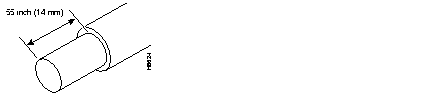
Step 2 If necessary, use a wire stripper to strip approximately .55 inch (14 mm) from the -48V, +48V, and ground leads (refer to Figure 19).
Step 3 At the rear of the router, check that the power switch on the power supply is in the OFF (0) position (refer to Figure 12).
Step 4 Insert the stripped end of the ground lead all the way into the ground lead receptacle on the DC-input power supply and tighten the receptacle screw using a 3/16-inch flat-blade screwdriver (refer to Figure 20).
Step 5 Insert the stripped end of the +48V lead all the way into the +48V lead receptacle and tighten the receptacle screw using the same 3/16-inch flat-blade screwdriver. Repeat Step 5 for the -48V lead.
Step 6 After tightening the receptacle screw for the ground, +48V, and -48V DC-input leads, use the cable tie you saved earlier in this procedure to secure the three leads to the power supply faceplate.
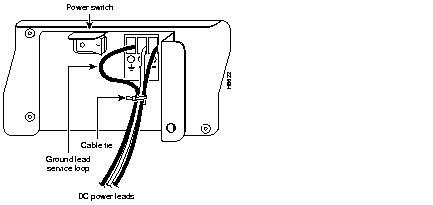
Step 7 Connect the ground, +48V, and -48V leads to the power source.
Step 8 Repeat Step 1 through Step 7 if a second power supply is installed.
This completes the steps for connecting input power to a Cisco 7200 series router.
To power up a Cisco 7200 series router that has an installed AC-input or DC-input power supply, complete the following steps:
Step 1 Check for the following:
Step 2 At the rear of the router, place the power switch on the power supply in the ON (|) position. Repeat this step if a second power supply is installed in the router. The green OK LED on the power supply turns on.
Step 3 Listen for the fans; you should immediately hear them operating.
Step 4 During the boot process, observe the system's LEDs. The LEDs on most of the port adapters go on and off in irregular sequence. Some may go on, go out, and go on again for a short time. On the I/O controller, the IO Power OK LED comes on immediately.
Step 5 Observe the initialization process. When the system boot is complete (a few seconds), the network processing engine begins to initialize the port adapters and the I/O controller. During this initialization, the LEDs on each port adapter behave differently (most flash on and off). The enabled LED on each port adapter goes on when initialization is completed, and the console screen displays a script and system banner similar to the following:
This completes the procedures for connecting input power and powering up the router. This also completes the procedures for rack-mounting Cisco 7200 series routers and attaching cable-management brackets.
This section explains how to install the cable-management brackets on Cisco 7200 series routers in tabletop or workbench installations. Instructions for installing the cable-management brackets on Cisco 7200 series routers in rack-mount installations are in the section "Rack-Mounting Cisco 7200 Series Routers" on page 11 of this document. The list of tools and parts required to install the cable-management brackets are listed in the section "List of Parts and Tools" on page 6 of this document.
To install the cable-management brackets on Cisco 7200 series routers, complete the following steps:
Step 1 Ensure that input power to the router is turned off and disconnected. Refer to the section "Powering Down the Router and Disconnecting Input Power" on page 14 of this document for instructions.
Step 2 Locate the threaded holes in the front sides of the chassis.
Step 3 Align the first cable-management bracket to the threaded holes in the right side of the chassis. (Refer to Figure 16.)
Step 4 Thread two M4 x 8-mm Phillips flathead screws through the bracket and into the chassis. Use a number 2 Phillips screwdriver to tighten the screws.
Step 5 Repeat Step 1 through Step 4 for the other cable-management bracket.
This completes the steps for installing the cable-management brackets on a Cisco 7200 series router in a workbench or tabletop configuration.
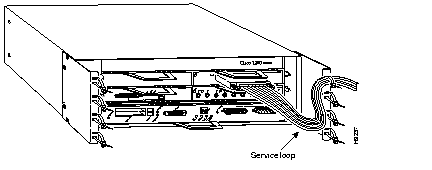
The cable-management brackets are designed to relieve strain on port adapter interface cables that are installed on Cisco 7200 series port adapters. Eight removable tie wraps installed on the cable-management brackets secure port adapter interface cables to the brackets. We recommend that you use the tie wraps that shipped with the cable-management brackets. You can use standard tie wraps; however, you will have to cut and replace them with new tie wraps when you want to release or secure an interface cable to a bracket.
To secure port adapter interface cables to the cable-management brackets, complete the following steps:
Step 1 Ensure that input power to the router is turned off and disconnected.
Step 2 Select a tie wrap and release its locking mechanism.
Step 3 Carefully lace the interface cables from a port adapter installed in the chassis between the two ends of the unlocked tie wrap.
Step 4 With the interface cables between the ends of the tie wrap and the interface cables' service loop in place, tighten the cable tie down around the interface cables until they are secured against the cable-management bracket. (Refer to Figure 21.)
Step 5 Repeat Step 1 through Step 4 for any other port adapter interface cables installed in the router.
Step 6 After securing port adapter interface cables to the cable-management brackets, reconnect input power, power up the router, and verify a successful system boot. Refer to the section "Reconnecting Input Power and Powering Up the Router," on page 21 of this document, for instructions that explain how to reconnect input power and power up a Cisco 7200 series router.
This completes the procedure for securing port adapter interface cables to cable-management brackets on a Cisco 7200 series router.

|
|