


|
|

Designed for use with FastHub 316T and FastHub 316C repeaters, the Bridge Management Module (BMM) provides full- and half-duplex 10BaseT and 100BaseT connectivity between a FastHub stack and a switch, a router, or another hub. The BMM, also known as the FastHub supervisor, provides FastHub stacks with bridging and manageability on a per port, per unit, and per hub-stack basis.
The BMM is available in 100BaseTX and 100BaseFX configurations, using unshielded twisted pair (UTP) and fiber-optic cabling. Without interrupting the network, these hot-swappable modules plug directly into the right-side slot of the FastHub, which can alternatively contain a Network Management Module (NMM). Up to two BMMs are supported in a FastHub stack. A BMM can be combined with an NMM in a FastHub stack. A single BMM in any unit in a FastHub stack can manage all units in the stack.
This chapter provides BMM feature and functionality details. For additional information about FastHub repeaters, refer to the FastHub 300 Series Installation and Configuration Guide.
The BMM provides the following features:
The BMM, in both 100BaseTX and 100BaseFX configurations, supports 10BaseT connectivity. Figure 1-1 and Figure 1-2 show the BMM front panels.
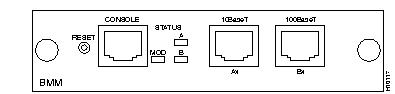
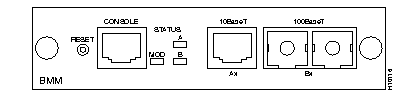
The BMM has four port types:
The 10BaseT, 100BaseT, and console interfaces use RJ-45 connectors. The 100BaseFX port uses an SC-type connector (see Figure 1-2). See the "Connectors and Cables" appendix for connector pinouts.
The console port is an EIA/TIA-232 interface used to connect a PC, terminal, or modem for out-of-band network management and external configuration. See the "Out-of-Band Management" chapter for detailed information on using the BMM management console.
The BMM LEDs on the module front panel (see Figure 1-1 and Figure 1-2) indicate the status of the BMM and network activity.
The MOD (module) status LED shows the module operating status (see Table 1-1).
| Color | Module Status |
|---|---|
| Off | BMM power off. |
| Solid green | BMM running POST or operational and acting as master. No power problems. |
| Solid amber | BMM powered up and in standby mode (appears when more than one BMM is in a FastHub stack). |
| Flashing amber | BMM failed POST. |
The 10BaseT and 100BaseT ports have LEDs that indicate the port operating status (see Table 1-2).
| Color | Port Status |
|---|---|
| Off | Link not operational. |
| Green | Link operational (with no activity). |
| Flashing green | Link operational (with activity). |
| Alternating green/amber | Port receiving some packets with errors.1 |
| Solid amber | Device at other end malfunctioning or port disabled through in-band or out-of-band management. |
The reset button initiates a BMM reset as follows:
The button is recessed within the front panel to prevent an accidental reset. Use a small screwdriver or other pointed object to press the reset button.
Pressing the reset button only resets the BMM module on which the reset button is located. After a reset, a BMM enters primary supervisor or standby mode according to the prioritized attributes described in the "Fault-Tolerant Redundancy" section in this chapter.
This section describes the software features supported by the BMM, including:
Up to two BMMs are supported in a FastHub stack. One BMM acts as the supervisor to provide hardware bridging functions and to handle network-management requests for the entire stack. The other BMM is in standby mode, ready to become the active supervisor if you remove the primary BMM or the primary BMM fails. A BMM in standby mode does not respond to user management requests.
When an NMM and BMM or two BMMs are in a FastHub stack, the primary FastHub stack supervisor is determined by the following prioritized attributes:
The primary supervisor evaluates the nonvolatile memories of the BMM and NMM and notifies the BMMs and NMMs to match the primary supervisor system-configuration information. The primary and standby BMMs and NMMs thus maintain the same level of system-configuration information.
When a BMM is installed in a FastHub, you can view all of the FastHub port status indicators by using in-band or out-of-band management. Spanning-Tree Protocol might also change the status of a port. See Table 1-3.
To change the status of a port, see the "Bridge Port Configuration Menu" section in the "Out-of-Band Management" chapter. If you are using SNMP, see the "Standard MIBs and MIB Extensions" section in the "In-Band Management" chapter.
You can configure a BMM to provide full-duplex operation on 10BaseT and 100BaseT ports for up to 20 Mbps of bandwidth (using 10BaseT ports) and 200 Mbps of bandwidth (using 100BaseT ports). Using fiber-optic cabling, 100BaseFX full-duplex links can span distances of up to 2 kilometers.
You can use the system console or SNMP to set full-duplex mode for the 10BaseT port or 100BaseT port. The 100BaseT port can also use autonegotiation to automatically select half- or full-duplex mode.
See the "Bridge Port Configuration Menu" section in the "Out-of-Band Management" chapter to configure ports for full duplex. If you are using SNMP, see the "Standard MIBs and MIB Extensions" section in the "In-Band Management" chapter for the MIB objects used to configure full-duplex operation.
The BMM provides dynamic addressing by learning the source address of each packet it receives on each port and adding the address and its associated port number to the address table. As stations are added or removed from the network, the BMM updates the address table, adding new entries and aging out those that are currently not in use.
You can manually enter addresses into the address table, including static addresses. Because static addresses do not age, you must manually remove them.
The BMM forwards, filters, and floods packets in accordance with the IEEE 802.1d specification. The BMM forwards each packet according to the source address stored in the BMM address table that matches the destination address of the packet. If a packet is received on a port that has both the packet source and destination addresses, the packet is filtered (not forwarded).
If the BMM cannot match a destination address of a packet with a source address in its address table, the BMM floods the packet with the unknown destination address to all ports. Broadcast packets are always flooded to all ports. The BMM can also flood multicast packets. You can disable flooding; for more information, see the "Flooding Controls" section in this chapter.
The BMM also supports source-port filtering; the BMM only forwards packets to restricted static-address destinations when the packets are received on specified ports. See the "Bridge Port Addressing Menu" section in the "Out-of-Band Management" chapter to set up restricted static addresses. If you are using SNMP, see the "Standard MIBs and MIB Extensions" section in the "In-Band Management" chapter.
The forwarding mode (also known as the bridging mode) determines the amount of latency a packet experiences. Latency is the delay between the time a port begins to receive a packet and the time the port begins to transmit the packet to a destination port. The BMM offers the following two forwarding modes:
When selecting a forwarding mode, consider that Store-and-Forward is the most error-free form of bridging, but the forwarding latency is higher than FragmentFree bridging (see Table 1-4). If you have frame check sequence (FCS) or alignment errors, use Store-and-Forward mode to ensure that packets with errors are filtered and not propagated to the rest of the network.
| Bridging Mode | 10 Mbps to 10 Mbps | 10 Mbps to 100 Mbps | 100 Mbps to 100 Mbps | 100 Mbps to 10 Mbps |
|---|---|---|---|---|
| FragmentFree | 70 microsec | - | 9 microsec | 10 microsec |
| Store-and-Forward1 | 7 microsec | 7 microsec | 3 microsec | 3 microsec |
To define the forwarding mode using the management console, refer to the "Bridge Configuration Menu" section of the "Out-of-Band Management" chapter. You can also define the forwarding mode in-band using any SNMP-compatible management station. The bridging mode is set with the MIB objects listed in the "Enterprise-Specific MIB" section in the "In-Band Management" chapter.
In certain applications, flooding unicast and multicast packets with unknown destination addresses might be unnecessary and undesirable. For example, when a BMM receives a unicast packet with a destination address that it has not learned, the default is to flood it to all ports. On ports with only statically assigned addresses or single stations attached, there are no unknown destinations and flooding would serve no purpose. In this case, you can disable flooding on a per-port basis.
In another example, when a BMM receives a multicast or broadcast packet, you can use the management console or SNMP to register multicast addresses and specify to which ports these packets are to be forwarded. You can also disable the normal flooding of unregistered multicast packets on a per-port basis. Besides reducing unnecessary traffic, these features open up the possibility of using multicast packets for dedicated groupcast applications such as broadcast video.
To disable the flooding of packets or register multicast addresses using the management console, see the "Bridge Port Addressing Menu" and "Multicast Registration Menu" sections in the "Out-of-Band Management" chapter, respectively. If you are using SNMP, the MIB objects for configuring these functions are listed in the "Standard MIBs and MIB Extensions" section of the "In-Band Management" chapter.
Cisco Group Management Protocol (CGMP) reduces the unnecessary flooding of IP multicast packets. CGMP provides the BMM with data from a Cisco router that identifies which clients should receive certain IP multicast packets. The BMM uses this information to limit the transmission of the IP multicast packets to the identified clients. See the "Bridge Configuration Menu" section in the "Out-of-Band Management" chapter to configure CGMP.
A broadcast storm is an increase in the number of broadcast packets coming from a given port. Forwarding these packets can cause the network to slow down or time out. To avoid this, you can use broadcast storm control to set a threshold for the number of broadcast packets that can be received from a port before forwarding is blocked. You set a second threshold to determine when to re-enable the normal forwarding of broadcast packets.
With a BMM installed, all FastHub ports are supported by Spanning-Tree Protocol as a single port. Management of Spanning-Tree Protocol is through the Bridge MIB.
You can create a redundant backbone by connecting any FastHub port and BMM port with the same speed to another device or to two different devices. For example, connecting the 100BaseT port (port 16) on the FastHub and the 100BaseT port on the BMM to another device creates redundant links.
Spanning-Tree Protocol automatically disables one port and re-enables it if the other port is lost. If one link is high-speed and the other low-speed, the low-speed link is always disabled. If the speed of the two links is the same, the port priority and port ID are added together, and the link with the lowest value is disabled.
Dynamic addresses are aged and dropped from the BMM address table after a configurable period of time. The default for aging dynamic addresses is 5 minutes. However, a reconfiguration of the spanning tree can cause many station locations to change. Because this might mean many stations are unreachable for 5 minutes or more, the address-aging time is accelerated so that station addresses can be dropped from the address table and then relearned. Accelerated aging is the same as the forward-delay parameter value when Spanning-Tree Protocol reconfigures.
To configure this parameter, refer to the "Spanning-Tree Protocol Menu" section in the "Out-of-Band Management" chapter. If you are using SNMP, the "Standard MIBs and MIB Extensions" section of the "In-Band Management" chapter lists the MIB objects used to configure this function.
You can use Cisco Discovery Protocol (CDP) to obtain an accurate picture of the network at any time. CDP gathers information about the types of devices in the network, the links between those devices, and the number of interfaces within each device. Network management applications use this information to display a graphical topology map of the network and provide detailed information about the connections between devices. To enable CDP, see the "System Menu" section of the "Out-of-Band Management" chapter.
You can use back pressure to ensure the retransmission of incoming packets when a port using half-duplex mode is temporarily unable to receive incoming frames. When you enable back pressure on a port and the receive buffer of the port is full, the BMM generates collision frames to prevent the port from receiving additional packets. The port can then transmit the packets already in its queue and clear its receive buffer. The collisions also cause the transmitting device to resend the packets.
You can configure back pressure on a port-by-port basis. To configure back pressure for a port, refer to the "Bridge Port Configuration Menu" section in the "Out-of-Band Management" chapter.
Using ACR, you can discard frames early when a port is congested. This limits the number of frames queued on the port. You can configure ACR to use one of the following settings:
To configure ACR, see the "Bridge Port Configuration Menu" section in the "Out-of-Band Management" chapter.
You can use port-monitoring mode and a Remote Monitoring (RMON) probe or sniffer to troubleshoot network problems by examining traffic on some or all ports. Port monitoring mode forwards frames received from and transmitted to ports assigned to a capture list to the port designated as the monitor port.
To enable port-monitoring mode with the management console, see the "Bridge Monitoring Configuration Menu" section in the "Out-of-Band Management" chapter. If you are using SNMP, the MIB objects for configuring port monitoring are listed in the "Standard MIBs and MIB Extensions" section of the "In-Band Management" chapter.
The BMM supports four RMON groups, as defined by RFC 1757. As recommended by the RFC, default statistics and history are created automatically when you start the FastHub. You can obtain information about these four groups by using any SNMP management application. The four supported RMON groups are described in Table 1-5.
| Group Name | Description |
| Statistics | Collects statistics for a specific interface. For example, you could use this group to determine the number of error packets that occur on a given port. |
| History | Collects statistics within a given interval for a specific interface. |
| Alarm | Generates an alarm according to user-defined thresholds. For example, you could set an alarm for a predefined limit on CRC errors. |
| Event | Generates traps and log entries based on the configuration of alarm entries. |
By default, two rows of statistics are established, one for the external 100-Mbps port and one for the internal 100-Mbps port bridged to the repeater. Also by default, two rows of history statistics are established, one for the external 100-Mbps port and one for the internal 100-Mbps port bridged to the repeater; one is a short-term interval (30 seconds), and the other is long-term (30 minutes).
|
|