


|
|

This chapter guides you through the installation of the Director and includes the following sections:
 | Warning Only trained and qualified personnel should be allowed to install or replace this equipment. (To see translated versions of this warning, refer to the appendix "Translated Safety Warnings.") |
The Director installation requires some tools and parts that are not provided as standard equipment with the Director. Following are the tools and parts required to install the Director:
In addition, you might need the following external equipment:
You can set the chassis on a desktop, install it in a rack, or mount it on a wall or other flat surface. Use the procedure in this section that best meets the needs of your network.
Before setting the Director on a desktop, shelf, or other flat, secure surface, perform the following steps to install the rubber feet:
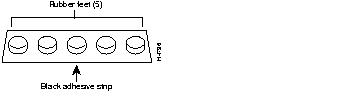
Step 1 Locate the rubber feet on the black adhesive strip that shipped with the chassis. (See Figure 3-1.)
Step 2 Place the Director upside down on a smooth, flat surface.
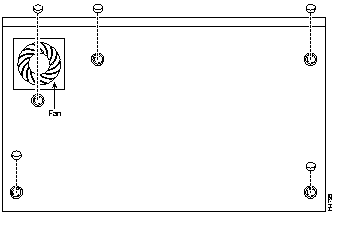
Step 3 Peel off the rubber feet from the black adhesive strip and place them adhesive-side down onto the five round, recessed areas on the bottom of the chassis. (See Figure 3-2.)
Step 4 Place the Director right-side up on a flat, smooth, secure surface.
 | Caution Do not place anything on top of the Director that weighs more than 10 pounds (4.5 kg). Excessive weight on top could damage the chassis. |
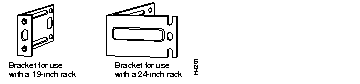
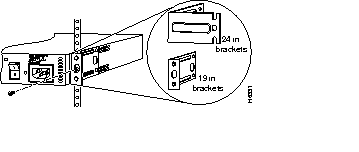
This section describes the procedures for rack-mounting the chassis. The chassis comes with brackets for use with a 19-inch rack or, if specified in your order, optional larger brackets for use with a 24-inch rack. The brackets are shown in Figure 3-3.
To install the chassis in a rack, attach the brackets in one of the following ways:
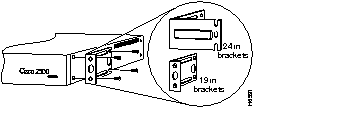
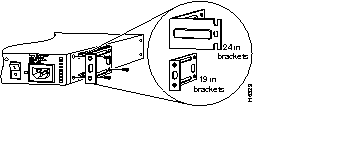
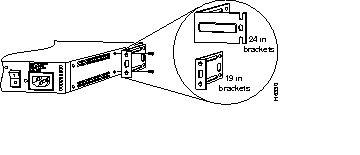
After the brackets are secured to the chassis, you can rack-mount it. Using the screws you provide, attach the chassis to the rack as shown in Figure 3-7.
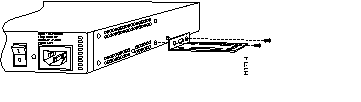
Use the small brackets (for use with a 19-inch rack) to wall-mount the chassis. The smaller brackets provide the most stable position for the chassis.
Take the following steps to wall-mount the chassis:
Step 1 Attach the brackets as shown in Figure 3-8.
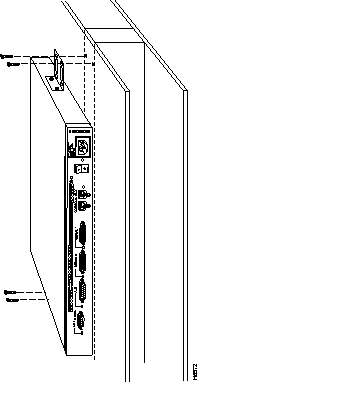
Step 2 Attach the chassis assembly to the wall as shown in Figure 3-9, using screws and anchors that you provide. We recommend the following:
| Caution To prevent the chassis from pulling away from the wall when cables are attached, align the brackets and screws with a vertical wall stud. (See Figure 3-9.) To ensure adequate ventilation, make sure there is clearance between the Director and the wall. |
| Warning This unit is intended for installation in restricted access areas. (To see translated versions of the warning, refer to the appendix "Translated Safety Warnings.") |
The DC power supply is intended for use in DC operating environments. Table 3-1 lists the power supply specifications.
| Description | Design Specification |
|---|---|
| Power (input) | 40W, -40 to -72 VDC |
| Wire gauge for power connections | 14 AWG1 |
If you ordered a Director with a DC power supply, follow the directions in this section to wire the terminal block.
| Warning Before performing any of the following procedures, ensure that power is removed from the DC circuit. To ensure that all power is OFF, locate the circuit breaker on the panel board that services the DC circuit, switch the circuit breaker to the OFF position, and tape the switch handle of the circuit breaker in the OFF position. (To see translated versions of this warning, refer to the appendix "Translated Safety Warnings.") |
Take the following steps to wire the terminal block:
Step 1 Attach the appropriate lugs at the wire end of the power supply cord.
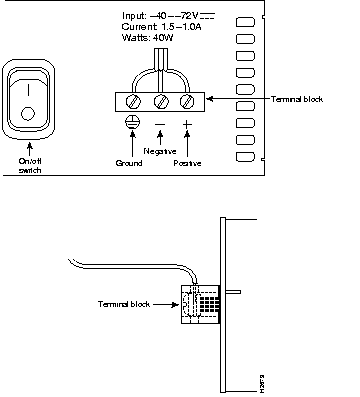
Step 2 Wire the DC power supply to the terminal block, as shown in Figure 3-10.
| Warning The illustration shows the DC power supply terminal block. Wire the DC power supply using the appropriate lugs at the wiring end, as illustrated. The proper wiring sequence is ground to ground, positive to positive (line to L), and negative to negative (neutral to N). Note that the ground wire should always be connected first and disconnected last. (To see translated versions of this warning, refer to the appendix "Translated Safety Warnings.") |
| Warning When stranded wiring is required, use approved wiring terminations, such as closed-loop or spade-type with upturned lugs. These terminations should be the appropriate size for the wires and should clamp both the insulation and conductor. (To see translated versions of this warning, refer to the appendix "Translated Safety Warnings.") |
| Caution Do not overtorque the terminal block captive thumbscrew or terminal block contact screws. The recommended torque is 8.2 ± 0.4 inch-lb. |
| Warning After wiring the DC power supply, remove the tape from the circuit breaker switch handle and reinstate power by moving the handle of the circuit breaker to the ON position. (To see translated versions of this warning, refer to the appendix "Translated Safety Warnings.") |
This section explains how to connect the Director to your network.
The cables required to connect the Director to a network are not provided with the Director. However, cables and transceivers can be ordered from Cisco Systems. For ordering information, refer to the Cisco Product Catalog or contact Cisco customer service. For cable pinouts, refer to the appendix "Cable Specifications."
| Warning Do not work on the system or connect or disconnect cables during periods of lightning activity. (To see translated versions of this warning, refer to the appendix "Translated Safety Warnings.") |
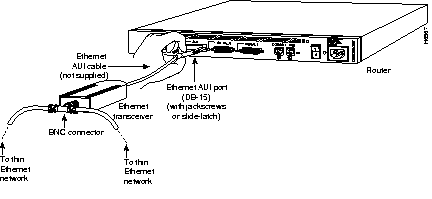
Use an Ethernet AUI cable to connect the Ethernet AUI port (DB-15) to an Ethernet transceiver, or connect an Ethernet transceiver directly to the Ethernet AUI port. (See Figure 3-11.)
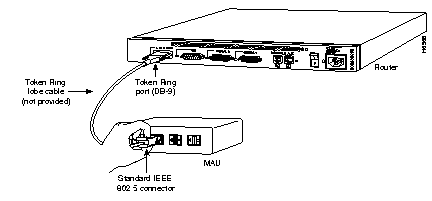
Connect the Token Ring port (DB-9) to a MAU, as shown in Figure 3-12. To ensure agency compliance with electromagnetic emissions requirements (EMI), ensure that the lobe cable is shielded.
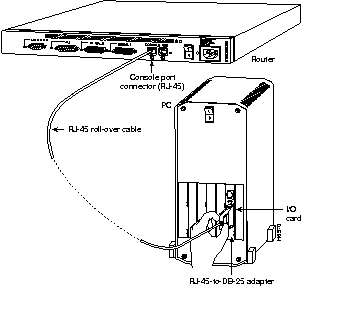
Use a console terminal for local administrative access to the Director. You can connect only a terminal to the console port. Use the auxiliary port with a terminal or a modem for remote access to the Director.
Take the following steps to connect a terminal (an ASCII terminal or a PC running terminal emulation software) to the console port on the Director:
Step 1 Use an RJ-45 roll-over cable and an RJ-45-to-DB-25 or RJ-45-to-DB-9 adapter to connect a console terminal to the auxiliary port. The adapters provided by Cisco Systems are labeled Terminal. (See Figure 3-13.)
Additional information on roll-over cable pinouts is provided in the appendix "Cable Specifications."
Step 2 Configure your terminal or PC terminal emulation software for 9600 baud, 8 data bits, no parity, and 2 stop bits.
Take the following steps to connect a modem to the auxiliary port on the Director:
Step 1 Use an RJ-45 roll-over cable with an RJ-45-to-DB-25 or RJ-45-to-DB-9 adapter to connect a modem to the auxiliary port. (See Figure 3-14.) The adapters provided by Cisco Systems are labeled Modem.
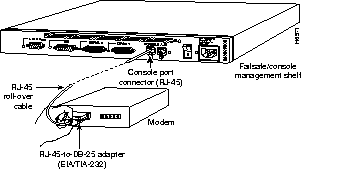
Step 2 Make sure that your modem and the auxiliary port on the Director are configured for the same transmission speed (38400 baud is typical) and hardware flow control with Data Carrier Detect (DCD) and Data Terminal Ready (DTR) operations.
After you have installed the Director, proceed to the next chapter, "Configuring Cisco DistributedDirector Interfaces," for initial software configuration information.
|
|