


|
|

The DistributedDirector 4700-M is extensively tested before leaving the factory. However, if there are problems starting up your system, refer to this appendix to help identify the cause.
This appendix contains the following sections:
Use the information in this appendix to help isolate problems or rule out the Director hardware as the source of the problem. If you cannot locate the source of your problem, contact a service representative for information on how to proceed. Before you call, have the following information ready:
This section explains how to recover the following types of passwords:
The key to recovering a lost enable password is to set the configuration register so that the contents of NVRAM are ignored (0x142), which allows you to see your password. The enable secret password is encrypted and cannot be recovered; it must be replaced. The enable and console passwords might be encrypted or clear text.
The outline of the steps in the password recovery procedure follows:
Take the following steps to recover or replace a lost enable, enable secret, or console login password:
Step 1 Plan for some system downtime. The password recovery procedure requires a system reload.
Step 2 Connect a terminal to the console port on the rear panel of the Director. Make sure the terminal is configured to operate at 9600 baud, 8 data bits, no parity, and 2 stop bits.
Step 3 Enter the show version command to display the existing configuration register value. The configuration register value is on the last line of the display. Note the configuration register value, and whether the configuration register is set to enable or disable Break.
The factory-default configuration register value is 0x2102. Notice that the third digit from the left in 0x2102 is 1, which disables Break. If the third digit is not 1, Break is enabled.
Step 4 If the configuration register is set to disable Break, power cycle the Director. (Turn the Director OFF, wait 5 seconds, and then turn the Director ON again.) If the configuration register is set to enable Break, press the Break key or send a Break signal to the Director and then proceed to Step 6.
Step 5 Within 60 seconds of turning ON the Director, press the Break key or send a Break signal. The ROM monitor prompt (>) appears.
Step 6 To set the configuration register on the Cisco DistributedDirector 4700-M use the configuration register utility by entering the confreg command at the ROM monitor prompt as follows:
rommon 1 > confreg
Configuration Summary
enabled are:
console baud: 9600
boot: image specified by the boot system command
 or default to: cisco2-RSP
do you wish to change the configuration? y/n [n]: y
enable "diagnostic mode"? y/n {n]:
enable "use net in IP bcast address"? y/n [n]:
enable "load rom after netboot fails"? y/n [n]:
enable "use all zero broadcast"? y/n [n]:
enable "break/abort has effect"? y/n [n]:
enable "ignore system config info"? y/n [n]: y
change console baud rate? y/n [n]:
change boot characteristics? y/n [n]:
Configuration Summary
enabled are:
console baud: 9600
ignore system config info
boot: image specified by the boot system command
 or default to: cisco2-RSP
do you wish to change the configuration? y/n [n]:
You must reset or power cycle for the new config to take effect
Step 7 Initialize the Director by entering the initialization command as follows:
rommon 2 > reset
The Director will initialize; the configuration register will be set to 0x142; and the Director will boot the system image from Flash memory and enter the system configuration dialog (setup) as follows:
--- System Configuration Dialog --
Step 8 Enter no in response to the system configuration dialog prompts until the following message is displayed:
Press RETURN to get started!
Step 9 Press Return. The user EXEC prompt appears as follows:
DD>
Step 10 Enter the enable command to enter the privileged EXEC mode. Then enter the show startup-config command to display the passwords in the configuration file as follows:
DD# show startup-config
Step 11 Scan the configuration file display looking for the passwords (the enable passwords are usually near the beginning of the file and the console login or user EXEC password is near the end). The passwords displayed will look something like this:
enable secret 5 $1$ORPP$s9syZt4uKn3SnpuLDrhuei
enable password 23skiddoo
.
.
line con 0
 password onramp
Proceed to Step 12 to replace an enable secret, console, or enable password. If there is no enable secret password, note the enable and console passwords, if they are not encrypted, and proceed to Step 15.
Step 12 Enter the configure memory command to modify or replace passwords in NVRAM.
DD# configure memory
Step 13 Enter the configure terminal command to enter configuration mode:
DD# configure terminal
Step 14 Change only the passwords that are necessary for your configuration. The following example shows how to change all three types of passwords. The first two lines show how to change the enable secret and enable passwords. The last two lines show how to change the console password.
DD (config)# enable secret newpassword1DD (config)# enable password newpassword2DD (config)# line con 0DD (config-line)# password newpassword3
For maximum security, be sure the enable secret and enable passwords are different.
You can remove individual passwords by using the no form of the commands listed. For example, entering the no enable secret command will remove the enable secret password.
Step 15 Configure all interfaces to be administratively up. In the following example, the Ethernet 0 port is configured to be administratively up:
DD(config-line)# interface ethernet 0DD(config)# no shutdown
Enter the equivalent commands for all interfaces that were originally configured.
Step 16 Set the configuration register to the original value you noted in Step 3 or the factory-default value (0x2102). The following example shows how to set the configuration register to the factory-default value:
DD# config-register 0x2102DD#
Step 17 Press Ctrl-Z to exit configuration mode.
 | Caution Do not take the next three steps unless you have changed or replaced a password or you might erase your Director configuration. If there is no enable secret password (or if you omitted Step 12 through Step 14), proceed to Step 22 and log in. |
Step 18 Enter the copy running-config startup-config command to save the new configuration to NVRAM. This command copies the changes you just made to the running configuration to the startup configuration. The following message appears:
DD# copy running-config startup-configBuilding configuration
[OK]
DD#
Step 19 Reboot the Director:
DD# reloadProceed with reload? [confirm]
Step 20 Press Return to confirm. When the Director reboots it will use the new configuration register value you set in Step 16.
Step 21 Log in to the Director with the new or recovered passwords.
The key to problem solving in this system is to try to isolate the problem to a specific subsystem. By comparing what the system is doing to what it should be doing, the task of isolating a problem is greatly simplified.
When problem solving, consider the following subsystems of the Director:
Check the following items to help isolate the problem:
Check for the following symptoms to help isolate the problem:
If the Director is operating at an abnormally high temperature, the following message will be displayed on the console screen:
%SYS-1-OVERTEMP: System detected OVERTEMPERATURE condition. Please resolve cooling problem immediately!
Typical causes of an abnormally high system temperature are as follows:
The LEDs on the front panel of the Director enable you to determine system performance and operation at a glance. This section contains information about the LEDs.
Figure A-1 shows the network activity, health, run, and power LEDs on the front panel of the Director.
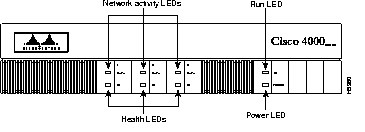
On the front panel, three LEDs labeled OK correspond to the three network processor modules, if present, and show their status. The upper LEDs labeled DATA, when blinking, indicate network activity on the interfaces of each module.
When on, the LED labeled POWER indicates that the system card's power is on, and the OK LED above it indicates that the processor is working.
The network processor module LEDs are all visible through cutouts in the rear of the chassis.
The LEDs on the dual-port Ethernet network processor module are labeled as shown in Figure A-2. (Also see Figure 4-3.)
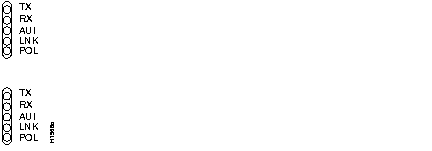
The LEDs on the six-port Ethernet network processor module are labeled as shown in Figure A-3.

When the AUI LED is on, none of the other LEDs on the network processor module will be on. The other LEDs are meaningful only when you use 10BaseT, and you have a link.
The LEDs on Ethernet network processor modules are explained in Table A-1.
| LED | Indication |
|---|---|
| TX (transmit) | System is transmitting data |
| RX (receive) | System is receiving data |
| AUI (attachment unit interface) | AUI connection is selected |
| LNK (link) | 10BaseT is selected and the link is available |
| POL (polarity) | Polarity has been switched to correct for defective polarity |
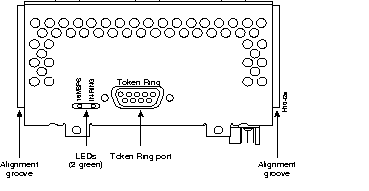
The two LEDs in the Token Ring network processor module are labeled 16MBPS and IN-RING. (See Figure A-4.)
The 16MBPS LED indicates ring speed. When on, it indicates a ring speed of 16 Mbps; when off, it indicates a ring speed of 4 Mbps.
The in-ring LED, when on, indicates that the network processor module is inserted into the ring. If the LED is off, the network processor module is not inserted into the ring.
 | Time Saver When the in-ring LED is off, you can unplug the Token Ring cable without causing a problem on the ring. |
Dual-attachment FDDI network processor modules have one LED per port, which is located adjacent to the corresponding port on the module panel (see Figure A-5 and Figure A-6). Single-attachment modules have one LED, which is adjacent to the single port on the module panel. (See Figure A-7.)
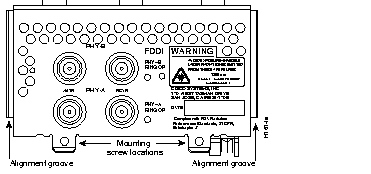
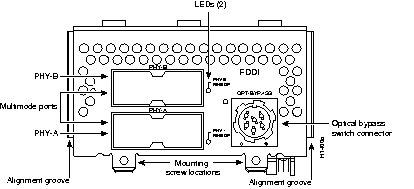
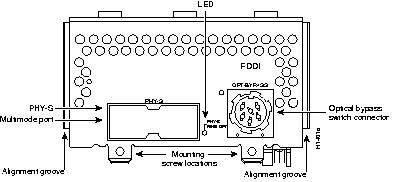
When on, a module LED indicates a ring up condition. Dual-attachment FDDI module LEDs indicate which PHY on the network processor module is inserted into the ring; if a PHY is not actively inserted into the ring, the LED is off. On a single-attachment module, the LED indicates ring up when it is on; when the LED is off, it indicates that the module is not inserted into a ring.
|
|