


|
|
This chapter contains information for you to prepare your site and set up your Micro Webserver 200 quickly and easily. Topics covered in this chapter include:
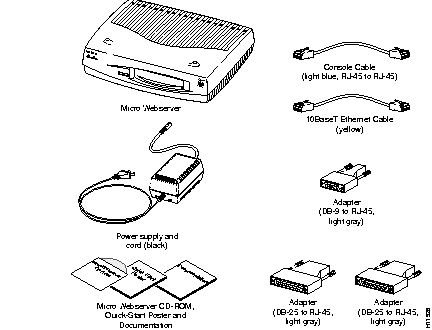
The Micro Webserver 200 package includes the following items:
Figure 2-1 shows most items contained in your Micro Webserver 200 shipping container.
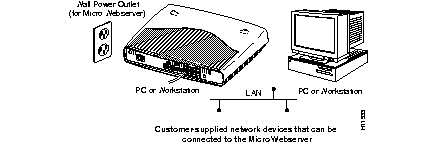
| Configuration Information | For the Micro Webserver 200 |
|---|---|
| Host name | |
| IP address | |
| Subnet mask | |
| Default gateway |
 | Caution Do not power-on the Micro Webserver 200 while connecting the hardware. Turn on the unit after the installation programs are finished. |
The power and network cables terminate at the Input/Output (I/O) panel of the Micro Webserver 200 as shown in Figure 2-3.
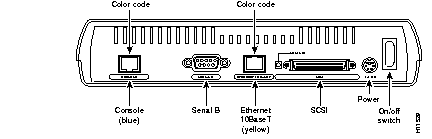
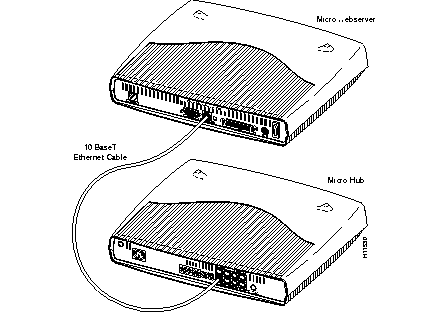
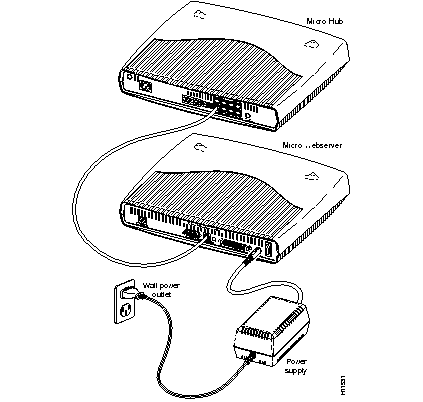
To connect the Micro Webserver 200 to the network with the Ethernet 10BaseT cable as shown in Figure 2-4, complete the following steps:
Step 1 Ensure that the Micro Webserver 200 On/off switch is in the Off position (down).
Step 2 Plug the Ethernet 10BaseT (yellow) cable into the Ethernet 10BaseT port (color-coded yellow) on the I/O panel.
Step 3 Plug the other end of the Ethernet 10BaseT (yellow) cable into your Ethernet 10BaseT network port.
Figure 2-4 shows the Ethernet port on the Micro Hub's I/O panel.
Step 4 Connect the power supply.
Connect the Micro Webserver 200 to the AC outlet with the APS AC adaptor as shown in Figure 2-5.
Step 1 Ensure that the Micro Webserver 200 On/off switch is in the Off position (down).
Step 2 Plug the DC DIN adaptor end into the power outlet on the I/O panel.
Step 3 Plug the power cord into the AC power outlet.
 | Caution Do not power-on the Micro Webserver 200 while connecting the hardware. Turn on the unit after the installation programs are finished. |
You can connect your PC or workstation to the Micro Webserver 200 by plugging one end of a serial console cable into the serial port of the Micro Webserver 200 and plugging the other end of the serial console cable into your PC or workstation serial port.
The Micro Webserver 200 was designed for extensibility. Its Small Computer System Interface (SCSI) simultaneously supports up to six external SCSI peripherals.
To attach and set up SCSI drives:
Step 1 Ensure that the Micro Webserver 200 (and your other device's On/off switch) is in the Off position.
Step 2 Attach SCSI devices to the Micro Webserver 200 using high-quality, 25 shielded twisted-pair (STP) SCSI cable.
Step 3 Set external peripheral SCSI settings to ID-0 or ID-2 through ID-5.
Step 4 Terminate the last device in the SCSI bus. Be sure all other device switch settings are not terminated.
The Micro Webserver 200 must be configured with an IP address before it can make any information available. This is done with the Network Wizard described in the next chapter, "Network Wizard."
|
|