


|
|

This document provides an overview of the failover feature and describes how to install the failover connector assemblies and cable on the Cisco PIX Firewall or the Cisco LocalDirector. For the PIX Firewall, use this document with the Cisco PIX Firewall User Guide (Document Number 78-3728-01). For the LocalDirector, use this document with the Cisco LocalDirector Installation and Configuration Guide (Document Number 78-3456-02).
Failover provides a mechanism for LocalDirector and PIX Firewall to be redundant by allowing two identical units to serve the same functionality. One unit is considered the "active" or "primary" unit while the other is considered the "standby" or "secondary" unit. The active unit performs its normal network functions while the standby unit only monitors the other unit, ready to take control should the active unit fail to perform its functionality.
The two units must be configured exactly the same and appear to the network as a single unit. They share the same IP address and the same MAC address as well as any configuration parameters. Because the secondary unit is using the same IP and MAC address as the primary unit, no ARP entries need to change or timeout anywhere in the network.The MAC address used by the two units is that of the primary unit. The unit that has the end of the failover cable marked "primary" plugged into it becomes the primary unit by default.
Because each unit has the same IP address and the same MAC address they both receive exactly the same network traffic. Failover monitors receive network traffic counts, failover communications, and the power status of the other unit. A failure of any of these parameters on the active unit causes the standby unit to take active control.
Once a unit enters the "failed" state it cannot assume active duty until you cycle the power and configure it to become primary. Whenever a failure or switch occurs, SYSLOG messages indicate the cause of the failure.
After you fix a failed primary unit and bring it back on line, it will not automatically resume as the active unit. Use the failover active command to enable the failover feature. Because the standby unit does not keep state information on each connection, all active connections are dropped and must be re-established by the clients.
This section contains some frequently asked questions about the failover feature. Before contacting a technical support representative, read this section to see if your questions are addressed.

This warning symbol means danger. You are in a situation that could cause bodily injury. Before you work on any equipment, be aware of the hazards involved with electrical circuitry and be familiar with standard practices for preventing accidents.
Warning
Before working on a system that has an on/off switch, turn OFF the power and unplug the power cord.
Warning
Do not work on the system or connect or disconnect cables during periods of lightning activity.
| Warning Do not touch the power supply when the power cord is connected. For systems with a power switch, line voltages are present within the power supply even when the power switch is off and the power cord is connected. For systems without a power switch, line voltages are present within the power supply when the power cord is connected. |
Warning
Before working on equipment that is connected to power lines, remove jewelry (including rings, necklaces, and watches). Metal objects will heat up when connected to power and ground and can cause serious burns or weld the metal object to the terminals.
Refer to the Regulatory Compliance and Safety Information for the Cisco PIX Firewall (Document Number 78-3733-02) and to the Regulatory Compliance and Safety Information for the Cisco LocalDirector (Document Number 78-3879-01) for more information and translated warnings in European languages.
The failover cable kit consists of two connector assemblies and a cable. Each assembly appears as shown in Figure 1:
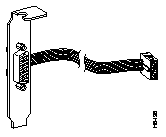
To install a failover connector assembly:
Step 1 Read the Regulatory Compliance and Safety Information documentation supplied with your unit.
Step 2 Power off the PIX Firewall or LocalDirector unit and remove the power cord from the rear of the unit.
Step 3 Remove the screws from the top access panel as shown in Figure 2:
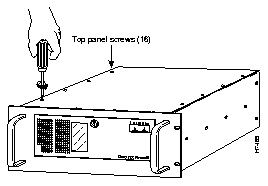
Step 4 Remove the top panel and set it aside.
Step 5 Find the large green circuit board attached to the bottom of the unit. This is the "motherboard." On the right rear corner of the motherboard nearest the circuit board connection slots at the rear of the unit, find the COM2 connector as shown in Figure 3:
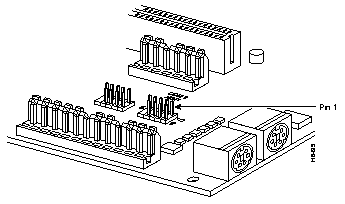
Note that the arrow marks pin 1.
Step 6 Install the pin connector of the cable assembly so that the red stripe on the connector is oriented above pin 1 as shown in Figure 4:
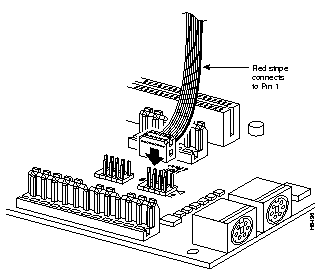
Step 7 Remove the securing screw and plate from the third slot on the rear chassis.
Step 8 Thread the cable around the back of the circuit board nearest the COM2 port.
Step 9 Attach the cable connector to the rear of the unit as shown in Figure 5:
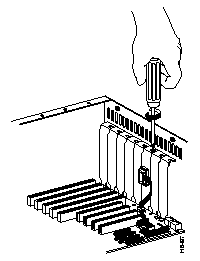
Step 10 Replace the top access panel and attach all of the screws.
Step 11 Follow Steps 2 through 9 to attach the second connector assembly to the second PIX Firewall or LocalDirector unit.
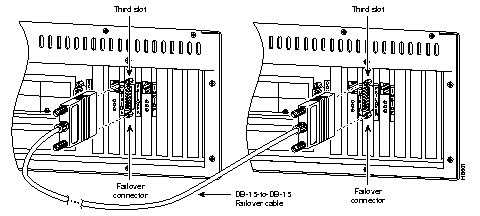
Step 12 Install the cable to the rear of the PIX Firewall as shown in Figure 6:
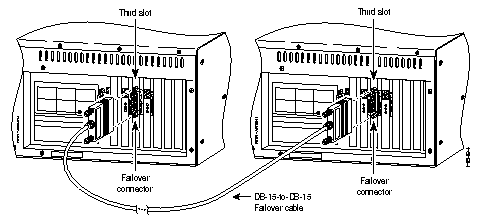
Attach the failover cable to the LocalDirector as shown in Figure 7 for systems shipped before December 1, 1996, and as shown in Figure 8 for systems shipped after December 1, 1996:
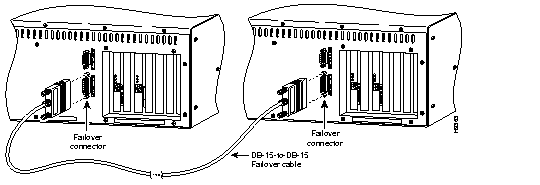
Step 13 Attach the power cords, place the units back in the rack, and power on the units.
Step 14 When the unit reboots, it automatically detects the failover cable.
You can now configure your system for failover.
Enable the failover feature by adding the failover command (without the active parameter) to the configuration files for both the primary and secondary units.
Ensure that the configuration files for both units are identical except for the hostname.
If you want to force a unit to be active or go to standby you can use the failover active or no failover active command. Use this feature to force a unit offline for maintenance or to return a failed unit to service.
Use the show failover command to verify the status of the connection and to determine which unit is active.
For service and support for a product purchased from a reseller, contact the reseller. Resellers offer a wide variety of Cisco service and support programs, which are described in the section "Service and Support" in the information packet that shipped with your chassis.
For service and support for a product purchased directly from Cisco, use CCO.
CCO is Cisco Systems' primary, real-time support channel. SMARTnet customers and partners can self-register on CCO to obtain additional content and services.
Available 24 hours a day, 7 days a week, CCO provides a wealth of standard and value-added services to Cisco's customers and business partners. CCO services include product information, software updates, release notes, technical tips, the Bug Navigator, configuration notes, brochures, descriptions of service offerings, and download access to public and authorized files.
CCO serves a wide variety of users through two interfaces that are updated and enhanced simultaneously--a character-based version and a multimedia version that resides on the World Wide Web (WWW). The character-based CCO supports Zmodem, Kermit, Xmodem, FTP, and Internet e-mail, and is excellent for quick access to information over lower bandwidths. The WWW version of CCO provides richly formatted documents with photographs, figures, graphics, and video, as well as hyperlinks to related information.
You can access CCO in the following ways:
For a copy of CCO's Frequently Asked Questions (FAQ), contact cco-help@cisco.com. For additional information, contact cco-team@cisco.com.
Please use CCO to obtain general information about Cisco Systems, Cisco products, or upgrades. If CCO is not accessible, contact 800 553-6387, 408 526-7208, or cs-rep@cisco.com.
|
|