


|
|

This document describes how to install a PIX Firewall or PIX10000.
The following topics are discussed:
To install and configure PIX Firewall, you need an ASCII terminal or a computer with serial communications software installed. The computer can be a Windows workstation, Macintosh system, or UNIX system. (However, using a Macintosh requires a special cable that you must obtain from an Apple computer vendor.)
Install the PIX Firewall as follows:
Step 1 Completely read the PIX Firewall release notes supplied in your PIX Firewall accessory kit (the title varies by release version).
Step 2 Unpack the PIX Firewall and place it in a convenient location.
Step 3 If you purchased one or more optional PIX Firewall upgrade kits or spares, install each with the instructions provided before continuing.
If you are upgrading from a previous PIX Firewall version, refer to the section, "Upgrading from a Previous Version." If you purchased a connection license upgrade, refer to "Upgrading Your Connection License" for more information.
Before installing a PIX Firewall upgrade kit or spare that requires you to remove the top access cover from the PIX Firewall, remove the power cord from your PIX Firewall unit. When done with the upgrades, reinsert the power cord.
If desired, attach the PIX Firewall to a rack mount using the screws supplied with the unit.
Step 4 If you have the optional failover cable, connect it to the failover connectors on each PIX Firewall unit. If the PIX Firewall that you are connecting to was manufactured prior to November 1, 1996, refer to Installing the Failover Connector Assemblies and Cable on the PIX Firewall (contained in the PIX Firewall accessory kit) for important information about installing failover connectors inside the PIX Firewall.
Step 5 Connect the power cord to the rear of the PIX Firewall and plug it in.
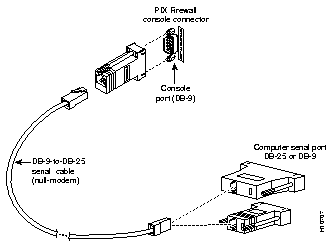
Step 6 As shown in Figure 1, assemble and connect the modular RJ-45 null modem serial cable with a DB-9 connector for the PIX Firewall and either a DB-9 or DB-25 connector to the computer you are using for your console.
Step 7 On the computer or terminal you are using to communicate with the PIX Firewall console, turn it on and configure its terminal emulation program, such as Windows 95 or Windows NT HyperTerminal. Configure the serial port with these settings: 9600 baud, 8 data bits, no parity, and 1 stop bit. For a description about how to configure HyperTerminal to communicate with the firewall, refer to the section "Configuring for HyperTerminal Use."
Step 8 Turn on the PIX Firewall power switch. On the PIX10000, the power switch is at the rear of the unit. On the 133 MHz PIX Firewall, open the front swing-down access door to find the power switch. Because PIX Firewall ships with its software already in flash memory, it boots without requiring you to insert the system diskette.
Step 9 If you successfully started your terminal emulation program, you should be viewing either the PIX Firewall boot messages, listed below, or the pixfirewall> prompt. If the messages or prompt do not appear, first press the Enter key. If no messages are visible in the program window, check the cable between the computer and the PIX Firewall. If the cable is securely fastened, check the terminal settings to be sure your terminal emulation program is still set to 9600 baud, 8 data bits, no parity, and 1 stop bit.
As PIX Firewall boots, messages appear on your computer or terminal, and end with the following:
Step 10 The installation is now complete. At the rear of the PIX Firewall, connect the network cable from the inside and outside hubs to the interface connectors on the PIX Firewall.
If you are installing cables for additional interfaces (only available in 4.1 or later), connect them to the appropriate Ethernet or Token Ring connectors starting with "Ethernet2" or "Token2."
Step 11 At the pixfirewall> prompt, enter the following commands to enter configuration mode and view the PIX Firewall help:
The pixfirewall> prompt is in unprivileged mode. Use the enable command to start privileged mode. Press the Enter key when prompted for a password. Then enter the configure terminal command to start configuration mode. For a list of commands, enter the ? (question mark) command or enter a command followed by a question mark. For more information on each command, refer to the PIX Firewall Series Configuration Guide.
Step 12 If you are installing PIX Firewall version 4.1 or later and have a Windows NT version 4.0 or later server, you can install the PIX Firewall Manager, which lets you monitor one or more local and foreign PIX Firewall units from a single management facility. To install this product, locate the installation diskettes and the PIX Firewall Manager Version 4.1 Release Notes, which are supplied in the PIX Firewall accessory kit.
To download upgrades from CCO:
Step 1 Use a network browser, such as Netscape Navigator to access http://www.cisco.com.
Step 2 If you are a registered CCO user, click LOGIN in the topmost graphic on the page. If you have not registered, click REGISTER and follow the steps to register.
Step 3 After you click LOGIN, a dialog box appears requesting your User Name and Password. Enter these and click OK.
Step 4 When you are ready to continue, choose Service & Support.
Step 5 On the Service & Support page, find Software Library and choose Software Image Library from the choices below the Software Library selection.
Step 6 On the Software Image Library page, scroll down to the Internet Products heading and choose Private Internet Exchange (PIX) Software.
Step 7 On the Cisco Private Internet Exchange (PIX) page, if you will use a MS-DOS or Windows workstation to create the PIX Firewall diskette, click the pix4nn.exe self-extracting archive. If you will use a UNIX system, click the pix4nn.bin file option. Click Execute to continue.
Step 8 The Software Download page appears and lets you specify either a domestic or international site from which to download the file, or to send the file to a remote location via FTP or email.
(a) To copy the file directly to your hard drive, choose either United States (San Jose) or European (Amsterdam) depending on your location. A dialog box appears requesting that you enter your CCO password again. Enter it and click OK. The Save As... dialog box appears and lets you specify the directory and output file name of the file on your hard drive. Choose the directory and file name and click Save. A dialog box appears to show you the progress of the transfer.
(b) If you choose to send the file via FTP, choose that selection and a form appears requesting the remote site name, your login and password, and the remote path location on that host. You can also be notified by email about the success or failure of the FTP file transfer. Click Send File to send the file.
(c) If you choose to send the file by email, enter the destination email address and the file will be encoded with the UNIX uuencode command before being sent to the address you specify.
If you are using UNIX, proceed to the section "If You Are Using UNIX"; if you are using Windows or MS-DOS, continue with the next section.
Step 1 Exit the network browser and start an MS-DOS shell prompt. Choose or create a directory to contain the files from the archive. Enter the name of the self-extracting archive at the DOS command prompt and press the Return key. The archive unloads four files:
A sample archive extraction follows:
C:\pix>pix4nn.exe
PKSFX (R)   FAST!   Self Extract Utility   Version 2.04g  02-01-93
Copr. 1989-1993 PKWARE Inc. All Rights Reserved. Shareware version
PKSFX Reg. U.S. Pat. and Tm. Off.
Searching EXE: C:/PIX/PIX4nn.EXE
  Inflating: README.TXT
  Inflating: PIX4nn.BIN
  Inflating: RELNOTES
               Inflating:         RAWRITE.EXE
C:\pix>
Step 2 Locate a diskette, ensure it is IBM formatted, and does not contain useful files. When the PIX Firewall diskette is created, all the files on the diskette are erased.
Step 3 Enter rawrite at the MS-DOS command prompt and the rawrite utility prompts you for the name of the .bin binary file, the output device (a: or b: for a 3.5-inch diskette), and to insert a formatted diskette. The utility then creates the PIX Firewall diskette.
A sample rawrite session follows:
C:\pix>rawrite
RaWrite 1.2 - Write disk file to raw floppy diskette
Enter source file name: pix4nn.bin
Enter destination drive: a:
Please insert a formatted diskette into drive A: and press -ENTER- :
Number of sectors per track for this disk is 18
Writing image to drive A:.  Press ^C to abort.
Track: 28  Head:  1 Sector: 16
Done.
C:\pix>
Step 4 Remove the diskette from the drive, place it in the PIX Firewall diskette drive and power cycle the unit. Alternately, if your unit has a Reset switch, use it, or you can enter the reload command from the PIX Firewall console. The PIX Firewall then boots from the new diskette.
Step 1 Download the .bin binary file to your local directory.
Step 2 Insert a diskette in your workstation's diskette drive.
Step 3 Enter the following command to copy the binary file to the diskette:
This command copies the binary file to the output device file with a block size of
18 blocks.
Step 4 Eject the diskette, insert it in the PIX Firewall diskette drive, and power cycle the unit. Alternately, if available, use your unit's Reset switch, or enter the reload command from the PIX Firewall console. The PIX Firewall then boots from the new diskette.
To upgrade from a previous version of PIX Firewall, follow these steps:
Step 1 Read the PIX Firewall release notes completely.
Step 2 Save the current contents of flash memory to diskette. If you are upgrading from version 2 or earlier, use the save -f command. If you are upgrading from version 3, use the write floppy command.
Step 3 Remove the configuration diskette from the drive and insert the upgrade diskette in the drive.
Step 4 If you are using version 2 or earlier software, enter the reboot command. If you are using version 3 or later, access configuration mode and enter the reload command. An alternative to either version is to simply power off the unit, wait 10 seconds, and power the unit back on.
Step 5 When the startup messages appear, you will be prompted as follows:
Enter y to read the contents of the diskette. Enter n to use the existing configuration in flash memory.
Step 6 The startup messages display the following prompt:
If you purchased a connection license upgrade, refer to "Upgrading Your Connection License" for more information.
You are now ready to configure your PIX Firewall. Refer to the PIX Firewall Series Configuration Guide in your accessory kit for more information.
If you have purchased additional connection licenses, you will have received an activation key you can enter to activate the new license. The instructions that follow assume that you have already saved the current configuration and rebooted your PIX Firewall so that you are now viewing startup messages on the console.
Step 1 You are prompted to enter the activation key:
Step 2 Enter y if you are upgrading to more connections. If you are not adding additional user licenses, enter n and your unit starts normally.
The following messages appear:
If you make a mistake while entering the activation key, a message appears indicating that the key is incorrect, and you are prompted to enter it again.
The following procedure assumes that you backed up your version 2 or 3 configuration on diskette before installing the new version. If you did not back up your configuration, skip Step 4 and re-enter your configuration from the PIX Firewall console.
To remove the new version and reinstall an older version:
Step 1 Access privileged mode by entering the enable command at the command prompt.
Step 2 If you created a configuration for the new version, store it on diskette with the write floppy command.
Step 3 If you are reinstalling version 2, insert your original serialized version 2 PIX Firewall system diskette in your PIX Firewall. If you are reinstalling version 3, insert any bootable diskette.
Enter the new version reload command or power cycle your unit. If you upgraded the new version to add additional connection licenses, the additional connection licenses will not work in version 2. Version 2 requires a separate upgrade to obtain additional session licenses that you can obtain from Cisco Sales.
Step 4 After you boot your unit with the previous version system diskette, remove the diskette and insert the backup copy you made of your previous version configuration. If you are reinstalling version 2, restore the diskette configuration with the restore -f command. If you are reinstalling version 3, restore the diskette configuration with the configure floppy command.
You can now use your PIX Firewall with the previous version.
If the computer you are connecting to runs either Windows 95 or Windows NT, the HyperTerminal accessory provides easy-to-use software for communicating with the firewall. You can easily cut and paste configuration information from your computer to the firewall console. To configure HyperTerminal:
Step 1 Locate HyperTerminal by opening the Windows 95 or Windows NT Start menu and choosing Programs, then Accessories, and then the HyperTerminal folder.
Step 2 Double-click the Hypertrm accessory. The New Connection window opens with the smaller Connection Description dialog box in the center.
Step 3 Enter the name of the connection. You can use any name such as PIX Console. Click OK when you are ready to continue.
Step 4 At the Phone Number dialog box, ignore all the fields except "Connect using." In this field, click the arrow at the right to view the choices. Choose "Direct to Com 1," unless you are using another serial port. Click OK to continue.
Step 5 At the COM1 Properties dialog box, set the following fields:
Step 6 Click OK to continue.
Step 7 The HyperTerminal window is now ready to receive information from the PIX Firewall console. If the serial cable is connected to the firewall, power on the firewall and you should be able to view the console startup display.
If nothing happens, wait 60 seconds first. The firewall does not send information for about 30 seconds. If messages do not appear after 60 seconds, press the Enter key. If still nothing appears, ensure that the serial cable is attached to COM1 and not to COM2 if your computer is so equipped. If garbage characters appear, ensure that the bits per second setting is 9600.
Step 8 To save your settings, choose Save from the File menu.
Step 9 To exit, choose Exit from the File menu. HyperTerminal prompts you to be sure you want to disconnect. Click Yes.
HyperTerminal saves a log of your console session that you can access the next time you use it.
To restart HyperTerminal, double-click the connection name you chose in the HyperTerminal folder. When HyperTerminal starts, drag the scroll bar up to view the previous session.
Cisco Connection Online (CCO) is Cisco Systems' primary, real-time support channel. Maintenance customers and partners can self-register on CCO to obtain additional information and services.
Available 24 hours a day, 7 days a week, CCO provides a wealth of standard and value-added services to Cisco's customers and business partners. CCO services include product information, product documentation, software updates, release notes, technical tips, the Bug Navigator, configuration notes, brochures, descriptions of service offerings, and download access to public and authorized files.
CCO serves a wide variety of users through two interfaces that are updated and enhanced simultaneously: a character-based version and a multimedia version that resides on the World Wide Web (WWW). The character-based CCO supports Zmodem, Kermit, Xmodem, FTP, and Internet e-mail, and it is excellent for quick access to information over lower bandwidths. The WWW version of CCO provides richly formatted documents with photographs, figures, graphics, and video, as well as hyperlinks to related information.
You can access CCO in the following ways:
For a copy of CCO's Frequently Asked Questions (FAQ), contact cco-help@cisco.com. For additional information, contact cco-team@cisco.com.
Cisco documentation and additional literature are available in a CD-ROM package, which ships with your product. The Documentation CD-ROM, a member of the Cisco Connection Family, is updated monthly. Therefore, it might be more up to date than printed documentation. To order additional copies of the Documentation CD-ROM, contact your local sales representative or call customer service. The CD-ROM package is available as a single package or as an annual subscription. You can also access Cisco documentation on the World Wide Web at http://www.cisco.com, http://www-china.cisco.com, or http://www-europe.cisco.com.
If you are reading Cisco product documentation on the World Wide Web, you can submit comments electronically. Click Feedback in the toolbar, select Documentation, and click Enter the feedback form. After you complete the form, click Submit to send it to Cisco. We appreciate your comments.
|
|