


|
|

This chapter describes virtual LAN (VLAN) features and functionality, the Virtual LAN Menu of the Catalyst 2820 and Catalyst 1900 switches, procedures for creating VLANs, and the assignment of ports to VLANs.
A VLAN is a switched network that is logically segmented by functions, project teams, or applications without regard to the physical location of users. For example, several end stations might be grouped as a department, such as engineering or accounting. When the end stations are located close to one another, you can group them into a LAN segment. But if any of the end stations are in different buildings, you can then group them into a VLAN with the same attributes as a LAN, even though the end stations are not all on the same physical LAN segment.
You can assign each switch port to a VLAN. Ports in a VLAN share broadcast traffic. Ports that do not belong to that VLAN do not share the broadcast traffic. This segmentation improves the overall performance of the network. Figure 2-1 shows an example of VLANs segmented into logically defined networks.

VLANs provide the following features:
The Catalyst 2820 and Catalyst 1900 VLAN features might differ from the VLAN capability of other Catalyst series switches. Table 2-1 shows the capability and defaults for the Catalyst 2820 and Catalyst 1900 VLAN features.
VLANs are composed of the following components:
Use the Virtual LAN Menu to perform the following tasks, which are described in this chapter:
To access the Virtual LAN Menu, enter V at the selection prompt on the Main Menu. After you enter V, the following display appears:
Catalyst 1900 - Virtual LAN Configuration --------------------Information---------------- VTP version: 1 Configuration revision: 1 Maximum VLANs supported locally: 1005 Number of existing VLANs: 6 Configuration last modified by: 0.0.0.0 at 01-03-2000 18:35:56 --------------------Settings------------------ [N] Domain name [V] VTP mode control Server [F] VTP pruning mode Disabled [O] VTP traps Enabled --------------------Actions------------------- [L] List VLANs [A] Add VLAN [M] Modify VLAN [D] Delete VLAN [E] VLAN Membership [S] VLAN Membership Servers [T] Trunk Configuration [W] VTP password [P] VTP Statistics [X] Exit to Main Menu Enter Selection:When configuring the functions displayed on the menu, you might not use the options in the order in which they appear in the menu. Many of the menu entries prompt you for an additional selection and then return you to the Virtual LAN Menu for the next step.
A management domain is a group of VLANs that is under the same administrative responsibility. You need to assign a management domain to the switch before you create a VLAN.
By default, a Catalyst 2820 or Catalyst 1900 switch resides in the no-management domain state until it is configured with a management domain or receives an advertisement for a management domain. To assign a management domain, do the following:
| Step | Action | ||
|---|---|---|---|
| Select [V] Virtual LAN Menu from the Main Menu. | ||
| a. Select [N] Domain Name Menu from the Virtual LAN Menu.
b. Enter the management domain name at the selection prompt. c. Press Return. The Virtual LAN Menu reappears. |
To verify that you have assigned the management domain, view the domain name on the Virtual LAN Configuration Menu.
When creating a VLAN, you must first determine and configure the management domain on the switch. Management domains group VLANs into zones of different administrative responsibilities. Catalyst 2820 and Catalyst 1900 switches support only one management domain for each switch.
Catalyst 2820 and Catalyst 1900 switches operate in one of three modes: server, client, or transparent mode. By default, a Catalyst 2820 or Catalyst 1900 switch in the no-management domain state is a VTP server; that is, it learns from received advertisements on a configured trunk port. If trunks are configured on the switch, VTP receives and transmits VLAN advertisements. In server mode, you can add or delete VLANs by using either the VTP Management Information Base (MIB) Simple Network Management Protocol (SNMP) management station or the console.
A switch configured in VTP server mode advertises VLAN configuration to neighboring switches through its trunks and learns new VLAN configurations from those neighbors. Use the server mode to add or delete VLANs and to modify VLAN information by using either the VTP MIB or the console. For example, when you add a VLAN, VTP advertises the new VLAN to other switches, and both servers and clients prepare to receive traffic on their trunk ports.
A switch automatically changes from VTP server mode to VTP client mode when it receives an advertisement with more than 128 VLANs. You cannot configure a switch for VTP client mode. As in VTP server mode, a switch in VTP client mode also transmits advertisements and learns new information from advertisements. However, you cannot add, delete, or modify a VLAN through the MIB or the console. The VTP client does not maintain VLAN information in nonvolatile storage; when it starts, it learns the configuration by receiving advertisements from the trunk ports.
In VTP transparent mode, the switch does not advertise or learn VLAN configurations from the network. When a switch is in VTP transparent mode, you can modify, add, or delete VLANs through the console or the MIB.
When a switch is in the no-management domain state and running in either server or client mode, it inherits a management domain name and configuration revision number upon receiving an advertisement from a configured trunk port. The configuration revision number reflects the latest revision of the VTP configuration. If a management domain for the switch is defined, the switch ignores advertisements with a different management domain or a lower configuration revision number and checks all received advertisements with the same management domain for consistency. If the information contained in the received advertisement is consistent, the switch propagates the advertisements to other trunk ports and adds the newly learned information locally. Because all devices in the same management domain learn about any new VLANs configured in the transmitting device, you need to configure a new VLAN on only one device in the management domain.
To define a VLAN, you need to specify its attributes. Complete the following steps to set the VLAN number, name, IEEE 802.10 SAID value, and MTU size.
| Step | Action | ||
|---|---|---|---|
| Select [V] Virtual LAN Menu from the Main Menu. | ||
| Select [A] Add VLAN from the Virtual LAN Menu. | ||
| Enter the type of VLAN at the selection prompt. For Ethernet, enter [1]. Press Return. | ||
| At the next menu, select [N] VLAN Number, and enter the number of the VLAN to be added. Press Return. | ||
| At the next menu, select [V] VLAN Name, and enter the name of the VLAN to be added. Press Return. | ||
| At the next menu, select [I] 802.10 SAID, and enter the appropriate value. The value must be within the range shown on the screen, and the value cannot be the same as the value of another IEEE 802.10 value. After you enter the value, press Return. | ||
| At the next menu, select [M] MTU Size, and enter the appropriate value. Press Return. | ||
| At the next menu, select [T] VLAN State, and select Enabled. Press Return. | ||
| Select [S] Save. |
To verify that you have configured the VLAN, view the VLAN settings on the Virtual LAN Configuration Menu. To do this, select [L] from the Virtual LAN Menu to access the list of defined VLANs. Verify that the defined VLAN was added to the list. To get a complete list of parameters for a particular VLAN, select [M] Modify VLANs.
To create a new VLAN, you need to define the VLAN characteristics. The Enterprise Edition software prompts you to define these characteristics:
A VLAN created in a management domain remains unused until it is mapped to switch ports. The VLAN Membership menu maps the VLANs to ports. The default configuration has all switched Ethernet ports statically assigned to VLAN 1. If a port is assigned to a VLAN that is not created or to a VLAN in a suspended state, that port acquires the disabled-no-VLAN status. The port cannot forward or receive traffic until the VLAN assigned to that port is enabled.
To group the switch ports to VLANs, do the following:
| Step | Action | ||
|---|---|---|---|
| Select [V] from the Main Menu. | ||
| Select [E] VLAN Membership. | ||
| Select [V] VLAN Assignment. | ||
| Enter the appropriate port numbers at the selection prompt, and select the VLAN to group the ports at the next selection prompt. Press Return.
|
A Fast Ethernet port can function as an ISL trunk, a static VLAN member port, or a dynamic VLAN port. An ATM module can function as a LANE trunk or a static VLAN member port. You can group a Fast Ethernet port into different VLANs (that is, if it is not a trunk) by following the steps listed in this section. For ATM, you must configure a LANE client in addition to performing the steps listed in this section. For more information on configuring LANE clients, refer to the Catalyst 2820 ATM Modules Installation and Configuration Guide.
To verify that you have grouped switch ports to VLANs, view the contents of the VLAN Membership Configuration Menu.
Before configuring a VLAN, you need to determine its structure and consider how to group users into VLANs. Based on access, security, and bandwidth requirements, decide which users need to be part of the same VLAN according to these considerations:
Figure 2-2 shows a local VLAN configuration that groups switch ports into VLAN 10 and VLAN 20.

A VLAN trunk physically links two VLAN-capable switches or a VLAN-capable switch and a VLAN-capable router. VLAN trunks carry the traffic of multiple VLANs and allow you to extend VLANs from one Catalyst series switch to another.
To establish a trunk, you must configure a Fast Ethernet port or an ATM module on each Catalyst 2820 or Catalyst 1900 switch as a trunk port. The Enterprise Edition software for Catalyst 2820 or Catalyst 1900 switches supports a maximum of 27 switched ports. A maximum of 2 of these ports can be configured as trunk ports. On the Catalyst 2820 switch, you can configure only the single-port Fast Ethernet TX or FX and ATM modules as trunks. (Refer to the Catalyst 2820 ATM Modules Installation and Configuration Guide to determine the firmware version that supports trunking.) On the Catalyst 1900 switch, you can configure the 100BaseTX or 100BaseFX ports as trunks.
If you are using VTP to propagate VLAN information, you must enable a trunk to receive and propagate VLAN information through network advertisements. The switch automatically learns the management domain and the VLANs within it that are defined on all other switches.
The remainder of this section describes how to configure VLAN trunks and establish load sharing by assigning port priorities.
To configure a trunk, do the following:
| Step | Action | ||
|---|---|---|---|
| Select [V] from the Main Menu. | ||
| Enter [T] Trunk Configuration. | ||
| At the next menu, enter [A] or [B] at the selection prompt, and press Return. | ||
| Enter [T] Trunking. | ||
| At the next menu, select [1] On, and press Return. |
To verify that you have configured the selected port as a trunk port, check the trunking status and encapsulation type at the top of the Trunk Configuration screen. (A Fast Ethernet trunk shows ISL encapsulation. An ATM module shows LANE as the encapsulation type.) From the Main Menu, access the Port Configuration Menu to see the status of each active VLAN.
Each trunk has a list of VLANs called allowed VLANs that have been enabled to receive and transmit all types of traffic on that trunk. For a VLAN to receive traffic on a trunk, you must configure the VLAN and add it to the allowed list for the trunk. By default, all configured VLANs are allowed on a trunk. To add a VLAN to the allowed list, do the following:
| Step | Action | ||
|---|---|---|---|
| Select [V] from the Main Menu. | ||
| Enter [T] Trunk Configuration. | ||
| At the next menu, enter [A] or [B] at the selection prompt, and press Return. | ||
| a. Enter [A] Add Allowed VLANs at the selection prompt.
b. Enter the appropriate VLAN number at the selection prompt in the next menu. The Trunk Configuration Menu reappears. |
To verify that you have added a VLAN to the allowed list, select [V] List Allowed VLANs from the Trunk Configuration Menu, and examine the contents of the display.
To delete a VLAN from the allowed list for a trunk, do the following:
| Step | Action | ||
|---|---|---|---|
| Select [V] from the Main Menu. | ||
| Enter [T] Trunk Configuration. | ||
| a. Select [D] Delete Allowed VLAN(s).
b. Enter the appropriate VLAN number at the selection prompt in the next menu, and press Return. |
Traffic will not be forwarded to or from a VLAN that is not included in the allowed VLAN list.
To view the list of allowed VLANs, select [V] List Allowed VLANs from the Trunk Configuration Menu.
The flood traffic of a VLAN is typically sent to all switches in the same management domain that are connected by trunks. Pruning VLANs enables you to restrict the flood traffic of a VLAN to just those switches that have member ports. When you prune eligible VLANs, you restrict the flood traffic of those VLANs. VTP pruning does not affect the flow of nonflooded traffic, such as known unicast and multicast traffic. Each trunk is configured with its own pruning eligible list of VLANs. This list is only relevant if VTP pruning is enabled. To add a pruning eligible VLAN, do the following:
| Step | Action | ||
|---|---|---|---|
| Select [V] from the Main Menu. | ||
| Enter [T] Trunk Configuration. | ||
| At the next menu, enter [A] or [B] at the selection prompt, and press Return. | ||
| a. Enter [E] Pruning Eligible VLANs at the selection prompt.
b. Enter the appropriate VLAN number at the selection prompt in the next menu. The Trunk Configuration Menu reappears. |
To verify that you have added a pruning eligible VLAN, select [T] Trunk Configuration, and view the contents of the display. To view additional VLAN information, select [F] List Pruning Eligible VLANs.
To delete a pruning eligible VLAN, do the following:
| Step | Action | ||
|---|---|---|---|
| Select [V] from the Main Menu. | ||
| Enter [T] Trunk Configuration. | ||
| a. Select [C] Delete Pruning Eligible VLAN(s).
b. Enter the appropriate VLAN number at the selection prompt in the next menu, and press Return. |
To view the list of pruning eligible VLANs, select [F] List Pruning Eligible VLANs from the Trunk Configuration Menu.
For more information about pruning, refer to the "Configuring VTP Pruning" section in this chapter.
You can use the Trunk Configuration Menu to display the following lists:
Catalyst 2820 and Catalyst 1900 switches use load sharing on parallel trunks. You can define which VLANs have priority access to a trunk and which VLANs use the trunk as a backup when another trunk fails by setting STP parameters on a VLAN basis.
When two ports on the same bridge form a loop, port priority determines which port is enabled and which port is in standby mode. A trunk port supports two port priorities. These priorities are designated as option 1 and option 2 in the Port Configuration Menu. You can enter a port priority value from 0 to 255, with the lowest value having the highest priority. To assign a priority to a port, do the following:
| Step | Action | ||
|---|---|---|---|
| Enter [P] Port Configuration at the selection prompt in the Main Menu. | ||
| Enter the port number at the selection prompt, and press Return. | ||
| a. Select [I] Port Priority (spanning tree) - option 1.
b. Enter the port priority at the selection prompt. Press Return. c. Select [J] Port Priority (spanning tree) - option 2. d. Enter the port priority at the selection prompt. Press Return. | ||
| a. Select [M] Assign VLANs to option 1 port priority.
b. Enter the VLAN numbers to which the port is assigned at the selection prompt. Press Return. c. Select [O] Assign VLANs to option 2 port priority. d. Enter the VLAN numbers to which the port is assigned at the selection prompt. Press Return. |
To verify there is an STP port for load sharing, access the Port Configuration Menu, and view the contents of this display.
A VLAN trunk can connect two Catalyst 2820 or Catalyst 1900 switches; it can also connect a Catalyst 2820 or Catalyst 1900 switch to a Catalyst 5000 series switch or a router to a Catalyst 2820 or Catalyst 1900 switch. For concepts about VLAN with load sharing, refer to "VLAN Trunking With Load Sharing" later in this section.
A Catalyst 1900 switch supports up to two Fast Ethernet ISL trunks. A Catalyst 2820 switch supports up to two trunks. A trunk can be a one-port Fast Ethernet TX, a one-port Fast Ethernet FX, or an ATM module. Refer to the Catalyst 2820 ATM Modules Installation and Configuration Guide to determine the firmware version that supports trunking.
For each enabled VLAN that is known to the VTP and included in the allowed list for the trunk port, a Fast Ethernet ISL trunk automatically carries traffic for the VLAN and allows you to extend VLANs from one Catalyst switch to another.
For an ATM trunk to carry traffic for a VLAN, all of the following conditions must be met:
The ATM trunk module does not forward frames from the switch for a VLAN until you define a LANE client. Each VLAN must be associated with either a LANE client or a PVC before the ATM trunk module forwards traffic to and from a VLAN. When creating a LANE client or PVC on the module, a VLAN number is needed to map the ATM connection to a VLAN. For more information on configuring LANE clients, refer to the Catalyst 2820 ATM Modules Installation and Configuration Guide.
To configure support for RFC 1483, you must bind PVCs to the VLAN, and the VLAN ID must match the VLAN ID used on the switch. Each ATM trunk module supports a maximum of 64 active VLANs at one time.
To use load sharing, you must use STP parameters on a VLAN basis. These parameters define which VLANs have priority access to a trunk and which VLANs use the trunk as a backup.
Each trunk port supports two STP port priorities. You can assign one of the two priorities to each VLAN. As a result, the trunk port with the higher priority (lower integer values) for a VLAN remains in the forwarding state. The trunk port with the lower priority (higher integer values) for the same VLAN remains in the blocking state. All traffic for the VLAN is transmitted or received on only one trunk port.
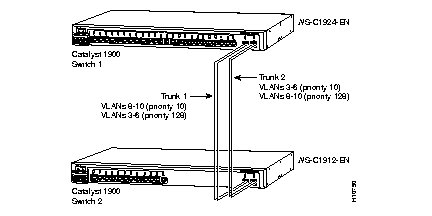
Figure 2-3 illustrates two trunks that are connected to the switched 100BaseTX ports on two Catalyst 1900 switches. The port cost of carrying VLAN traffic across these trunks is equal.
Trunk 1 carries traffic for VLANs 8 through 10, and Trunk 2 carries traffic for VLANs 3 through 6. If the active trunk fails, the trunk with lower priority takes over and carries the traffic for all of the VLANs.
VLAN Trunk Protocol (VTP) maintains VLAN consistency throughout the network and manages the modification of VLANs at the system level. With VTP, VLAN changes are automatically communicated to all other switches in the network.
To configure VTP, do the following:
| Step | Action | ||
|---|---|---|---|
| Select [V] from the Main Menu. | ||
| Access [N] Domain Name on the Virtual LAN Menu. Verify that the server has a VTP management domain so that VTP information can be sent to other VTP switches in the management domain.
Press Return to view the Virtual Lan Menu. | ||
| Select [V] VTP Mode Control from the VLAN Configuration Menu. | ||
| Enter [S] Server at the selection prompt. The VLAN Configuration Menu reappears on the screen. |
To verify that VTP is enabled and the switch is transmitting and receiving advertisements, do the following:
| Step | Action | ||
|---|---|---|---|
| Select [V] from the Main Menu. | ||
| Select [L] from the Virtual LAN Menu. | ||
| Select [P] VTP Statistics at the selection prompt of the Virtual LAN Menu, and view the contents on the display. |
By default, the management domain is set to nonsecure mode and has no assigned password. Adding a password sets the management domain to secure mode. To configure a password, do the following:
| Step | Action | ||
|---|---|---|---|
| Select [V] from the Main Menu. | ||
| a. Select [W] VTP Password from the Virtual LAN Menu.
b. Enter a password at the selection prompt. |
The same password must be set on all VTP devices in a management domain.
VTP maintains VLAN configuration consistency throughout the network. VTP manages the addition, deletion, and renaming of VLANs at the system level, automatically communicating this information to all the other switches in the network. In addition, VTP minimizes these possible configuration inconsistencies that can result in security violations:
You can configure VLANs on Catalyst 2820 and Catalyst 1900 switches when the switch is in VTP server or transparent mode. You can use the console or the MIB (when using a Simple Network Management Protocol (SNMP) management station) to modify a VLAN configuration when the switch is in either server or transparent modes.
A switch configured in VTP server mode advertises VLAN configuration to neighboring switches through its trunks and learns new VLAN configurations from those neighbors. Use the server mode to add or delete VLANs and to modify VLAN information by using either the VTP MIB or the console. For example, when you add a VLAN, VTP advertises the new VLAN, and both servers and clients prepare to receive traffic on their trunk ports.
After the switch automatically transitions to VTP client mode, it transmits advertisements and learns new information from advertisements. However, you cannot add, delete, or modify a VLAN through the MIB or the console. The VTP client does not maintain VLAN information in nonvolatile storage; when it starts, it learns the configuration by receiving advertisements from the trunk ports.
In VTP transparent mode, the switch does not advertise or learn VLAN configurations from the network. When a switch is in VTP transparent mode, you can modify, add, or delete VLANs through the console or the MIB.
Table 2-2 shows the maximum number of VLANs stored in NVRAM, the console or MIB configuration options, the advertisement options, and the maximum number of active VLANs for Catalyst 2820 and Catalyst 1900 switches.
| Mode | Maximum Number of VLANs in NVRAM | MIB or Console Configuration | Switch Receives Advertisements | Maximum Number of VLANs |
|---|---|---|---|---|
| VTP server | 128 | Configure using MIB or console for up to 128 VLANs. | Yes | 128 |
| VTP client | 0 | Cannot configure using MIB or console. | Yes | 1005 |
| VTP transparent | 128 | Configure using console for up to 128 VLANs. | No | 128 |
Using VTP, each Catalyst 2820 and Catalyst 1900 switch advertises on its trunk ports its management domain, which defines the boundary of a specified VLAN, its configuration revision number, and its known VLANs and their specific parameters. A switch can reside in only one VTP management domain.
Through trunks, VTP servers transmit information to other switches and receive updates. VTP servers also maintain information, such as the list of VLANs in the VTP management domain in nonvolatile RAM (NVRAM).
VTP also dynamically maps VLANs across multiple LAN types with unique names and internal index associations. VTP is transmitted on all trunk connections, including ISL, IEEE 802.10, and LANE. The VTP MIB provides the SNMP instrumentation for the VTP, allowing the reading and setting of specific VTP parameters.
VTP establishes global configuration values and distributes the following global configuration information:
VTP pruning increases network bandwidth use by restricting flooded traffic to only those trunk links necessary for accessing the appropriate network devices. By default, VTP pruning is disabled in a management domain.
To enable VTP pruning, do the following:
| Step | Action | ||
|---|---|---|---|
| Select [V] from the Main Menu. | ||
| Select [F] VTP Pruning Mode. | ||
| Enter Enable at the selection prompt. The VLAN Configuration Menu reappears. |
To verify that you have enabled VTP pruning, select [F] VTP Pruning Mode, and view the VTP pruning state.
VTP pruning is a method of traffic control that reduces unnecessary broadcast, multicast, and flooded unicast packets. This feature restricts flood traffic to only those trunk links that access the appropriate network devices. By default, VLANs 2 through 1001 are pruning eligible. You cannot prune default VLANs (VLANs 1, 1002, 1003, 1004, or 1005). In a switching fabric, if certain parts of the network do not require the forwarding of flooded traffic on specific VLANs and VTP pruning is enabled, the switch prevents the forwarding of flooded traffic to pruning eligible VLANs. VTP pruning blocks flood traffic to VLANs on trunk ports that are included in the pruning eligible list. If the VLANs are configured as pruning ineligible, the flooding continues.
Refer to Figure 2-4 and Figure 2-5. The Catalyst 2820 and Catalyst 1900 switches are connected by trunks that also are spanning-tree forwarding paths.

In Figure 2-4, VTP pruning is not configured. The switch fabric consists of six
Catalyst 2820 and Catalyst 1900 switches, shown as switches 1 through 6. Port 1 on
switch 1 and port 2 on switch 4 are associated with the Red VLAN. The broadcast traffic from port 1 on switch 1 to port 2 on switch 4 is forwarded to all switches, even though switches 3, 5, and 6 have no ports on the Red VLAN.
Refer to Figure 2-5, in which VTP pruning is enabled.

In Figure 2-5, the broadcast traffic from port 1 on switch 1 to port 2 on switch 4 is not forwarded to switches 3, 5, and 6 because the traffic is pruned on the specified ports. Switches 3, 5, and 6 have no ports on the Red VLAN, and VTP pruning has reduced the flooding storm to switches not associated with the Red VLAN.
With dynamic ports, you can move a connection from a port on one switch to a port on another switch in the network without reconfiguring the port. When you configure dynamic ports, the switch automatically assigns VLAN membership to a dynamic VLAN port based on the source MAC address of the received packets.
To configure dynamic port VLAN membership, you must configure the VMPS addresses and dynamic ports as described in the following sections.
To configure dynamic port VLAN membership, you must first configure the addresses of the VMPSs by doing the following:
| Step | Action | ||
|---|---|---|---|
| Select [V] from the Main Menu. | ||
| a. Select [S] VLAN Membership Servers.
b. Select [1] 1st VMPS IP Address. c. Enter the IP address of the server to be queried, and press Return. | ||
| a. Select [S] VLAN Membership Servers
b. Select [2], [3], or [4], enter the appropriate IP addresses, and press Return. | ||
| a. Select [S] VLAN Membership Servers.
b. Select [P] Primary Server. c. Select the number of the server to be used as the primary VMPS. | ||
| Select [R] Number of retries before changing server, enter the appropriate number, and press Return. |
To verify that you have configured the VMPS addresses, access the VLAN Membership Servers Menu, and view the contents of this display.
After configuring the addresses of the VMPS, configure the ports as dynamic.
| Step | Action | ||
|---|---|---|---|
| Select [V] from the Main Menu. | ||
| Select [E] from the VLAN Configuration Menu. | ||
| Select [M] Membership Type from the VLAN Membership Menu. | ||
| Enter the port number at the selection prompt. | ||
| Select [D] ynamic at the selection prompt. |
To verify that you have configured the port as a dynamic port, select [E] VLAN Membership to see the VLAN membership configuration display for all ports. The display indicates a port status change from static to dynamic.
You can move a connection from a port on one switch to a port on another switch in the network (without reconfiguring the port) by assigning dynamic ports to a VLAN.
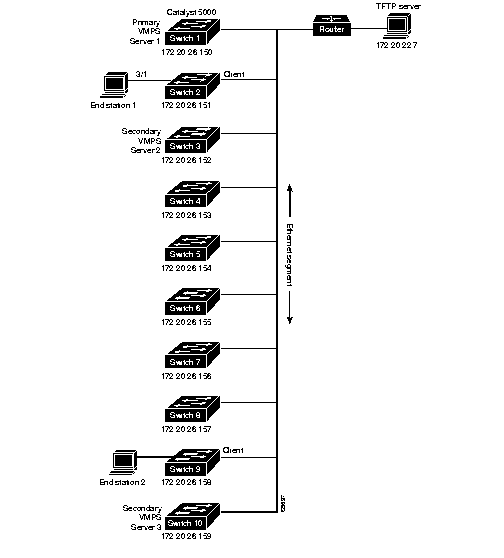
To configure dynamic port VLAN membership, you must configure the VMPS and assign ports on each switch with dynamic VLAN membership. Dynamic ports work in conjunction with the VMPS, which holds a database of MAC addresses-to-VLAN mappings. Catalyst 2820 and Catalyst 1900 switches do not function as VMPSs. The VMPS must be running on another device in the network, such as a Catalyst 5000 series switch.
The VMPS has a database of MAC-address-to-VLAN mappings that enables your endstation to be placed into the correct VLAN. You must configure the VMPS before configuring a port as dynamic. After you configure the VMPS, the configuration information is downloaded from a TFTP server, and the VMPS begins to accept requests from clients.
The Catalyst 2820 or Catalyst 1900 switch queries the VMPS by using the source MAC addresses on incoming packets for the appropriate VLAN assignment. Once the switch receives a response from the VMPS, the switch then assigns the port into a VLAN.
Upon receiving a valid request from a Catalyst 2820 or Catalyst 1900 switch, the VMPS searches its database for a MAC address-to-VLAN mapping. If the assigned VLAN is restricted to a group of ports, the VMPS verifies the requesting port against this group. If the VLAN is legal on this port, the VLAN name is passed in the response. If the VLAN is illegal on that port and the VMPS is not in secure mode, it sends an access-denied response. If the VMPS is in secure mode, it sends a port-shutdown response.
If the VLAN from the table does not match the current VLAN on the port and there are active hosts on the port, the VMPS sends an access-denied or a port-shutdown response based on the secure mode of the VMPS.
You can configure a fallback VLAN name into the VMPS. If the requested MAC address is not in the table, the VMPS sends the fallback VLAN name in response. If you do not configure a fallback VLAN and the MAC address does not exist in the table, the VMPS sends an access-denied response. If the VMPS is in secure mode, it sends a port-shutdown response.
You can also make an explicit entry in the configuration table to deny access to specific MAC addresses for security reasons by specifying a none keyword for the VLAN name. In this case, the VMPS sends an access-denied or port-shutdown response.
Before configuring dynamic ports, you must configure the VMPS. The VMPS must be active and accessible to the Catalyst 2820 and Catalyst 1900 switches.
On the current Catalyst 2820 or Catalyst 1900 hardware platform, a dynamic port can belong to only one VLAN at a time. Upon link-up, a dynamic port is isolated from its static VLAN. The switch does not forward traffic to or from this port until a VLAN is identified for the port. Until a valid VLAN is assigned to a dynamic port, no connectivity is allowed, and the port belongs to VLAN 0. The source MAC address from the first packet of a new host on the dynamic port is sent to the VMPS. The VMPS provides the VLAN number to which this port must be assigned. For example, suppose the switch sends a query to the VMPS, and the VMPS response is "Place port in VLAN X." The port is then placed in VLAN X if the request is valid. At this point, the host is connected to VLAN X through the switch fabric.
Multiple hosts (MAC addresses) can be active on a dynamic port if they are all in the same VLAN. Upon link-down, a dynamic port is returned to its initial state and is isolated from other VLANs. The switch detects only the first host that comes online through this port.
If the Catalyst 2820 or the Catalyst 1900 switch receives an access-denied response from the VMPS, it continues to disallow the forwarding of traffic to or from the port. The switch continues to monitor the packets directed to the port and sends a query to the VMPS when it identifies a new address. If the Catalyst 2820 or the Catalyst 1900 switch receives a port-shutdown response from the VMPS, it changes the port status to disabled-management. Traffic is not forwarded to or from the port. You must use SNMP or the console to enable the port.
Dynamic port VLAN membership interacts with the following features:
When creating fault-tolerant internetworks, a loop-free path must exist between all nodes in a network. The spanning-tree algorithm calculates the best loop-free path throughout the switched network.
Because each VLAN is a logical LAN segment, one instance of STP maintains a loop-free topology in each VLAN. Although the Catalyst 2820 and Catalyst 1900 switches support a maximum of 1005 VLANs, you can enable STP on a maximum of 64 VLANs at one time. If you configure more than 64 VLANs, you can still operate the remainder of the VLANs with STP disabled. By default, STP is enabled on VLANs 1 through 64.
To access the Spanning Tree Configuration Menu, do the following:
| Step | Action | ||
|---|---|---|---|
| Select [N] from the Main Menu. | ||
| Enter [B] from the Network Management Menu. |
You can use the Spanning-Tree Configuration Menu to do the following tasks:
To enable or disable STP, do the following:
| Step | Action | ||
|---|---|---|---|
| Enter N at the selection prompt in the Main Menu. | ||
| Select [B] Bridge Configuration. | ||
| Enter [E] at the selection prompt. Press Return. | ||
| Enter [D] at the selection prompt. Press Return. |
The Enterprise Edition software contains four STP configuration options. These options are relevant only for VLANs enabled with STP. For each option, you can configure a unique bridge priority, max age, hello time, and forward delay. After configuring an option, you can assign that option to one STP instance or to several STP instances. By default,
option 1 is assigned to all STP instances.
For more information about the bridge priority, max age, hello time, and forward delay options, refer to the Catalyst 1900 Series Installation and Configuration Guide or the Catalyst 2820 Series Installation and Configuration Guide.
To configure bridge priority, max age, hello time, and forward delay, do the following:
| Step | Action | ||
|---|---|---|---|
| Enter N at the selection prompt in the Main Menu. | ||
| Select [B] Bridge Configuration. | ||
| At the selection prompt, enter [1], [2], [3], or [4] to access the option screen. | ||
| Enter [B] at the selection prompt, and enter the appropriate modifications. | ||
| Enter [M] at the selection prompt, and enter the appropriate modifications. | ||
| Enter [H] at the selection prompt, and enter the appropriate modifications. | ||
| Enter [F] at the selection prompt, and enter the appropriate modifications. | ||
| Enter [N] at the selection prompt to access another option. |
To assign an STP instance to parameters defined by a specific option, do the following:
| Step | Action | ||
|---|---|---|---|
| Enter N at the selection prompt in the Main Menu. | ||
| Select [B] Bridge Configuration. | ||
| a. Enter option 1, 2, 3, or 4 at the selection prompt.
b. Select [A] Assign VLANs to option. c. Enter the VLAN number at the selection prompt, and press Return. You see the spanning-tree option menu. d. Select [X] Exit to Main Menu to return to the Main Menu. |
To check the STP status of a VLAN, do the following:
| Step | Action | ||
|---|---|---|---|
| Enter N at the selection prompt in the Main Menu | ||
| Select [B] Bridge Configuration. | ||
| Select [0] VLAN Bridge Operating Parameters. | ||
| Enter the VLAN number at the selection prompt. Press Return. |
STP provides path redundancy while preventing undesirable loops that are caused by multiple active paths. For an Ethernet network to function properly, only one active path must exist between two stations.
Loops result in some switches seeing stations appear on both sides of the switch. This condition confuses the forwarding algorithm and allows forwarding of duplicate frames.
To provide path redundancy, STP defines a tree that spans all switches in an extended network. STP forces certain redundant data paths into a standby (blocked) state. If one of the network segments in the spanning tree becomes unreachable, or if STP costs change, the spanning-tree algorithm reconfigures the spanning-tree topology and reestablishes the link by activating the standby path.
The STP operation is transparent to end stations, which do not recognize whether they are connected to a single LAN segment or a switched LAN of multiple segments.
This section contains an example of a VLAN configuration for ISLs on Fast Ethernet ports and multiple Catalyst 2820 and Catalyst 1900 switches using STP.
Any Fast Ethernet port can be configured as a trunk. Trunks use the ISL Protocol to support multiple VLANs. An ISL trunk is like a continuation of the switching backplane. It allows the Catalyst switch to multiplex up to 1005 VLANs between switches and routers.
Figure 2-6 and Figure 2-7 show examples of Fast Ethernet ISL configurations.

|
|