


|
|

This chapter describes how to install your Catalyst 2900 series switch. The following topics follow the order in which they are to be performed:
Check the contents of the box. It should contain the following:
These warnings are translated into several languages in the "Translated Safety Warnings" appendix.
 | Warning Only trained and qualified personnel should be allowed to install or replace this equipment. |
| Warning Read the installation instructions before you connect the system to its power source. |
| Warning Do not stack the chassis on any other equipment. If the chassis falls, it can cause severe bodily injury and equipment damage. |
| Warning To prevent the switch from overheating, do not operate it in an area that exceeds the maximum recommended ambient temperature of 113×F (45×C). To prevent airflow restriction, allow at least 3 inches (7.6 cm) of clearance around the ventilation openings. |
| Warning The device is designed to work with TN power systems. |
| Warning When installing the unit, the ground connection must always be made first and disconnected last. |
| Warning This product relies on the building's installation for short-circuit (overcurrent) protection. Ensure that a fuse or circuit breaker no larger than 120 VAC, 15A U.S. (240 VAC, 10A international) is used on the phase conductors (all current-carrying conductors). |
| Warning This equipment is intended to be grounded. Ensure that the host is connected to earth ground during normal use. |
| Warning Care must be given to connecting units to the supply circuit so that wiring is not overloaded. |
| Warning A voltage mismatch can cause equipment damage and may pose a fire hazard. If the voltage indicated on the label is different from the power outlet voltage, do not connect the chassis to that receptacle. |
| Warning Do not touch the power supply when the power cord is connected. For systems with a power switch, line voltages are present within the power supply even when the power switch is off and the power cord is connected. For systems without a power switch, line voltages are present within the power supply when the power cord is connected. |
| Warning Do not work on the system or connect or disconnect cables during periods of lightning activity. |
| Warning Ultimate disposal of this product should be handled according to all national laws and regulations. |
| Warning Attach only the Cisco RPS (model PWR600-AC-RPS) to the RPS receptacle. |
When determining where to place the switch, ensure that the following conditions are met:
This section describes the following choices you have for installing the switch:
This section describes the following steps to install the switch in 19- and 24-inch standard and telco racks:
Step 1 Attaching the brackets to the switch
Step 2 Attaching the switch to the rack
Step 3 Attaching the cable guide
The bracket orientation and the screws you use depend on whether you are attaching the brackets for a 19-inch or 24-inch rack. Use two of the supplied screws to attach each bracket, according to the following guidelines:
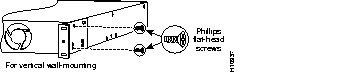
Figure 3-1, Figure 3-2, and Figure 3-3 show how to attach a bracket to one side of the switch. Follow the same steps to attach the second bracket to the opposite side of the switch.
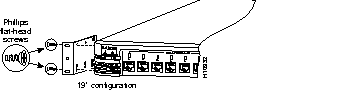
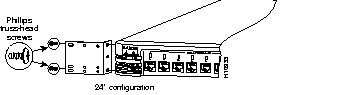




After the brackets are attached to the switch, use the four supplied Phillips machine screws to securely attach the brackets to the rack, as shown in Figure 3-4.
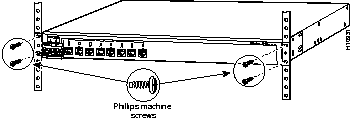
After the switch is mounted in the rack, attach the power cord to the switch. If you are using the redundant power system (RPS), see the RPS documentation.
After the power is connected, the System LED turns green, and the switch starts a series of self-tests described in the "Reading POST Results" section of this chapter.
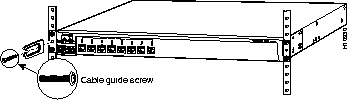
Attaching cable guides is recommended to prevent the cables from obscuring the front panel of the switch and the components of other devices installed in the rack. If the switch is attached to a 19-inch or 24-inch rack, you can attach the optional cable guide to the left or right bracket using the supplied black screw, as shown in Figure 3-5. The Catalyst 2916M XL cable guide takes two screws.
This section describes the following steps to attach the switch parallel and vertically to a wall:
Step 1 Attaching the brackets to the switch
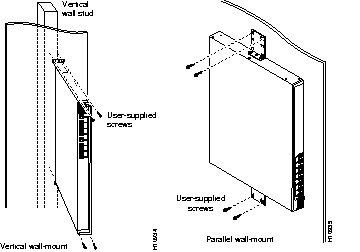
Step 2 Attaching the switch to the wall
The bracket orientation and the screws you use depend on whether you are attaching the brackets for parallel or vertical wall-mounting. Use two of the supplied screws to attach each bracket, according to the following guidelines:
Figure 3-6 shows how to attach only one side of the switch. Follow the same steps to attach the second bracket to the opposite side of the switch.

For best support of the switch and cables, make sure the switch is attached securely to a wall stud or to a firmly attached plywood mounting backboard, as shown in Figure 3-7.
After the switch is mounted in the rack, attach the power cord to the switch. If you are using the redundant power system (RPS), see the RPS documentation.
After the power is connected, the System LED turns green, and the switch starts a series of self-tests described in the "Reading POST Results" section of this chapter.
Follow these steps to install the switch on a table or shelf:
Step 1 Locate the adhesive strip with the rubber feet in the mounting-kit envelope. Attach the four rubber feet to the recessed areas on the bottom of the unit.
Step 2 Place the switch on the table or shelf near an AC power source.
Step 3 Connect the power cord to the switch rear panel and to the power outlet. If you are using the RPS, see the RPS documentation.
After the power is connected, the system LED turns green, and the switch starts a series of self-tests described in the "Reading POST Results" section of this chapter.
The eight tests that make up the power-on self-test (POST) ensure that the switch is functioning properly each time it is powered on. When the switch is first turned on and begins its POST, the port status LEDs are all green. As each of the eight tests is run, the port status LEDs, starting with number 1x, turn off. The port status LEDs for ports 2x to 8x each turn off in turn as the system completes a test.
When the POST completes successfully, the port status LEDs blink once and go off, indicating that the switch is operational. If a test fails, the port status LED associated with the test turns amber, and the system LED turns amber.
POST failures are almost always fatal. Call Cisco Systems immediately if the switch does not pass POST. See the "Understanding POST Results" section of the "Troubleshooting" chapter for a test-by-test description of the POST.
This section provides procedures for connecting to the 10/100 ports and the console port.
The Catalyst 2900 10/100 ports configure themselves to operate at the speed of the device to which they are attached. If the attached ports do not support autonegotiation, you can explicitly set the speed and duplex parameters.
Connecting to devices that do not autonegotiate or that have their speed and duplex parameters manually set can reduce performance or result in no link. To maximize performance, follow these guidelines for configuring the 10/100 ports:
Follow these steps to connect to 10BaseT or 100BaseTX devices:
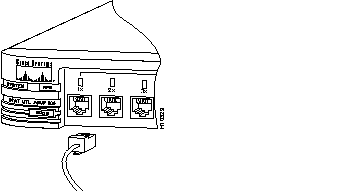
Step 1 When connecting to servers and workstations, insert a straight-through
Category 5 cable into an RJ-45 connector, as shown in Figure 3-8.
Step 2 Insert the other end of the cable into the RJ-45 connector of the target device. The port status LED comes on when both the unit and the connected device are turned on.
The port status LED is amber while Spanning-Tree Protocol discovers the topology and searches for loops. This takes about 30 seconds, and then the port status LED turns green.
If the port status LED does not come on, the device at the other end might not be turned on, or there can be a cable problem or a problem with the adapter installed in the attached device. See the "Troubleshooting" chapter for more information.
Step 3 Reconfigure and reboot the connected device as needed.
Step 4 Repeat steps 1 through 3 for each device to be connected.
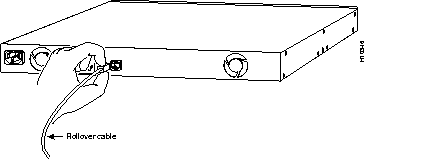
Use the rollover cable shipped with the switch to connect a terminal or PC to the console port. The terminal or PC to be connected must support VT100 terminal emulation.
Follow these steps to connect the terminal or PC to the switch:
Step 1 Configure the baud rate and character format of the terminal or PC to match the following default characteristics of the console port:
After you have gained access to the switch, you can change the baud rate of the port from the System Management page of the switch web interface (see the "System Management" section of the "Web-Based Management" chapter).
Step 1 Using the supplied rollover cable, insert the RJ-45 connector into the console port, as shown in Figure 3-9. See the "Console Port" section in the "Connectors and Cables" appendix for a description of the pinout.
Step 2 Attach one of these supplied adapters to a PC or terminal:
Step 3 Insert the other end of the supplied rollover cable into the attached adapter.
Step 4 Boot the terminal-emulation program if you are using a PC or workstation.
You can assign IP information to the switch after you have attached a terminal or PC with emulation software. Once the switch has an IP address, you can continue the configuration through the web-based Switch Manager.
The first time you connect to the switch, it prompts you for an IP address, subnet mask, and default gateway. Have your information ready before you connect to the switch. Contact your system administrator for these numbers and record them here:
| Switch IP address | ________.________.________.________ |
| Subnet mask (netmask) | ________.________.________.________ |
| Default gateway (router) | ________.________.________.________ |
After you have written down the IP addresses you need, follow these steps to assign them to the switch:
Step 1 Attach a terminal or PC with emulation software to the console port. Ensure that the emulation software is set to receive the default data characteristics of the port (9600, 8, 1, no parity).
Step 2 Enter Y at the first prompt:
Continue with configuration dialog? [yes/no]: y
If this prompt does not appear, enter setup at the command line, and press Return.
Step 3 Enter the switch IP address at the prompt, and press Return:
Enter IP address: IP_address
Step 4 Enter the subnet mask (IP netmask), and press Return:
Enter IP netmask: 255.255.255.0
Step 5 Enter Y at the next prompt to enter a default gateway (router) address:
Would you like to enter a default gateway address? [yes]: y
Step 6 Enter the IP address of the default gateway (router) at the prompt, and press Return:
Enter router IP address: IP_address
The initial configuration displays:
The following configuration command script was created:
interface VLAN1
ip address IP_address 255.255.255.0
ip default-gateway IP_address
snmp community private rw
snmp community public ro
end
Use this configuration? [yes/no]:
Verify that the addresses are correct, enter Y, and press Return. If the addresses are not correct, enter N, and press Return. Then enter setup, and press Return to repeat the procedure.
After you have assigned an IP address, you have the following options for continuing your configuration:
|
|