


|
|

The Catalyst 2900 series XL switches are workgroup Ethernet switches that supply autosensing 10BaseT or 100BaseT connections on all ports. These switches-also referred to as Catalyst 2900 switches-can be deployed as backbone switches aggregating 100BaseT traffic from other switches and hubs or in mixed configurations connecting hubs, switches, servers, and desktops.
This chapter is a functional overview of the Catalyst 2900 series. The following topics briefly describe the components and features that are shared by all switches in the series:
The Catalyst 2900 switches are members of an extended network system of stackable, modular LAN and WAN products that increase LAN performance, connect remote offices and users, and provide secure access.
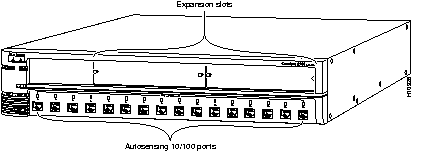
Table 1-1 lists the key features of the Catalyst 2900 series XL, Figure 1-1 shows the Catalyst 2908 XL, and Figure 1-2 shows the Catalyst 2916M XL.
This section describes the fixed 10/100 ports, the expansion slots and their associated modules, and the LEDs. All Ethernet ports and all LEDs are on the switch front panel.
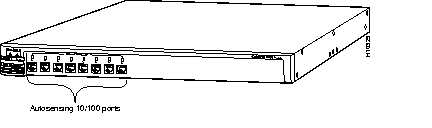
Fixed Catalyst 2900 ports (see Figure 1-1 and Figure 1-2) are internally switched to all other switch ports and use RJ-45 connectors and Category 5 cabling. They can operate at either 10 Mbps or 100 Mbps in full or half duplex. For autonegotiation with other devices, the ports are IEEE 802.3u-compliant.
When connected to another device, a port senses the speed and duplex settings of the attached device and advertises its own capabilities. If the connected device also supports autonegotiation, the Catalyst 2900 port negotiates the best connection it can and configures itself accordingly. Ports can also be explicitly set to operate in any combination of half duplex, full duplex, 10 Mbps, or 100 Mbps. In all cases, the attached device must be within 100 meters of the switch.
The Catalyst 2916M XL (see Figure 1-2) has two high-speed expansion slots for the
Catalyst 2916M XL hot-swappable modules. These modules, a 4-port 10BaseT/100BaseTX module and a 2-port 100BaseFX module, provide further possibilities for connecting backbones, servers, and other high-performance devices. Each module port is internally switched to all other Catalyst 2916M XL ports.
The Catalyst 2916M XL modules automatically configure themselves when you insert them in an expansion slot and tighten the thumb screws. The switch does not need to be reset, and a power-on self-test (POST) verifies that the module is working properly before it starts forwarding packets.
Catalyst 2900 LEDs are indicators of switch activity and performance. Figure 1-3 and Figure 1-4 show the location of the LEDs and the Mode button. You can use the Mode button to select one of the port mode LEDs.
The switch LEDs are also displayed on the image of the switch available through the web-based Switch Manager. All of the LEDs described in this section, with the exception of the utilization meter (UTL), are visible on the Basic System Configuration page of Switch Manager. See the "Using Switch Manager" section in the "Web-Based Management" chapter for more information.
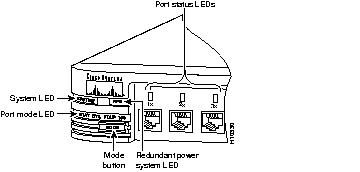
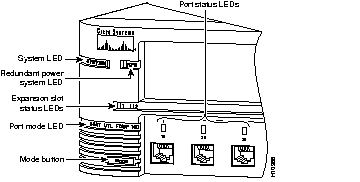
The system LED indicates whether the system is receiving power and functioning properly. Table 1-2 lists the LED colors and their meanings.
| Color | System Status |
|---|---|
| Off | System is not powered up. |
| Green | System is operating normally. |
| Amber | System is receiving power but is not functioning properly. |
The redundant power system (RPS) LED shows the RPS status. Table 1-3 lists the LED colors and their meanings. When the RPS is in use, turn off the internal power supply by unplugging the AC power cord. Redundancy is provided within the RPS, not between the internal power supply and the RPS.
| Color | RPS Status |
|---|---|
| Off | Off or not installed. |
| Green | RPS operational. |
| Flashing green | The RPS and the AC power supply are both powered up. Only one power source can be supplying power to a unit. If you are using the RPS, the AC power cord of the switch must not be plugged in. If you are using AC power, the RPS can be connected but must be powered down. |
| Amber | RPS is connected but not operational. |
The port mode LED indicates the mode you selected using the Mode button. There are four possible modes:
See Table 1-4 for a description of the LED colors and their meanings for the different modes.
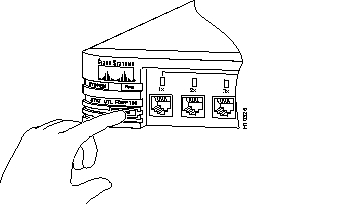
To change the port mode, press the Mode button (see Figure 1-5) to highlight in sequence each of the possibilities. Release the button to enable the lit function.
The expansion slot LEDs indicate the status of installed modules. The LEDs are numbered 1 (left slot) and 2 (right slot) and indicate the following states:
| Color | Expansion Slot Status |
|---|---|
| Off | No module installed. |
| Green | Module is operating normally. |
| Amber | Module failed power-on self-test and should be replaced. |
The rear panels of the Catalyst 2900 switches (see Figure 1-6 and Figure 1-7) contain an AC power receptacle, a redundant power system (RPS) receptacle, an RJ-45 console port, and fans.
You can provide power to the switch either by using the internal power supply or by connecting the Cisco RPS to the RPS receptacle on the switch. Only one power source can be supplying power to the switch at a time.
If you want to use the internal power supply, an autoranging unit supporting input voltages between 100 and 240 VAC, use the supplied AC power cord to connect the AC power receptacle to an AC power outlet.
If you want to use the RPS, the switch AC power cord must not be plugged in. See the Cisco RPS documentation for detailed information on connecting to the RPS.
 | Warning Attach only the Cisco RPS (model PWR600-AC-RPS) to the RPS receptacle. |
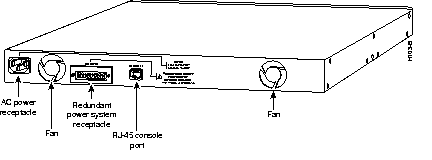
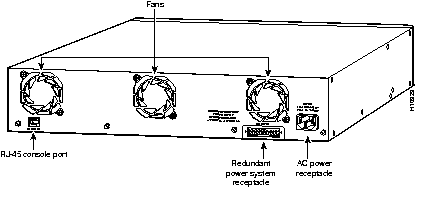
You can connect a Catalyst 2900 to a PC or terminal via the console port and the supplied rollover cable. For the data characteristics of the console port, see the "Connecting a Terminal or PC to the Console Port" section in the "Installation" chapter.
You can use the following techniques to manage Catalyst 2900 series switches:
This section describes two examples of how you could deploy the Catalyst 2900 in your network.
Figure 1-8 shows a Catalyst 2908 XL connecting workstations, 100BaseTX hubs, and servers in a topology suited to client/server applications. The links to the 100BaseTX servers and workstations can be full duplex. A repeater does not support full-duplex transmission, so the links to the 100BaseTX repeaters are always half duplex.
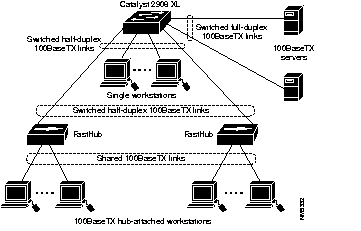
Figure 1-9 shows a Catalyst 2916M XL connecting 100BaseTX and 10BaseT devices. In this topology, the switch is in the middle of the network and can provide connectivity to any mixture of hubs, switches, and servers.
|
|