


|
|

Optimized for client-server LANS, the Catalyst 1700 workgroup switch affordably provides 10 Mbps Ethernet for each user and 100 Mbps Fast Ethernet for servers.
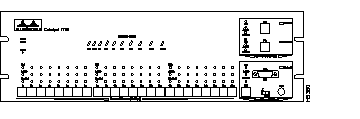
The hub's 100 percent Ethernet switch design offers a high performance alternative to 10Base-T hubs, while preserving investments in Ethernet technology and training. This chapter describes the Catalyst 1700 features and associated benefits.
The Catalyst 1700 provides the following key features:
The Catalyst 1700 front panel contains all of the network connectors and LEDs for easy access.
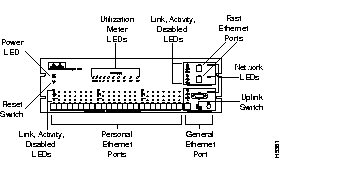
These features are described in the following sections.
The Catalyst 1700 hub has a total of 27 ports including the following:
Each Personal Ethernet port provides a dedicated or private 10 Mbps of bandwidth to a single workstation. The 24 Personal Ethernet ports are 10Base-T connections, as shown in Figure 1-3.
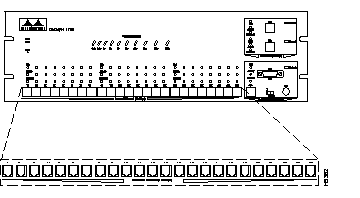
These ports do not support connection to multi-node segments (networks) or multi-address devices such as hubs and repeaters.
The attached workstations use standard 10Base-T adapters and wiring.
The two Fast Ethernet ports each provide 100 Mbps of bandwidth for connection to a single server or workstation, another Catalyst 1700, or other 100Base-X compatible hub via an RJ-45 connector. The two Fast Ethernet ports are shown in Figure 1-4.
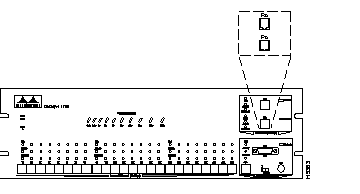
These ports support direct connection to a multi-address device such as another hub or to a single address server or workstation using Unshielded Twisted Pair (UTP) Category 5 cabling.
The attached server or workstation must have a 100Base-X compatible adapter installed. Contact Cisco or your authorized reseller for more information on 100Base-X compatible adapters.
The Catalyst 1700 contains one General Ethernet port with three connectors: AUI, BNC, and RJ-45, as shown in Figure 1-5.
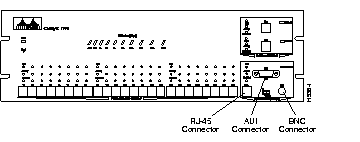
The General Ethernet port supports direct connection to a multi-node segment (network) or multi-address device such as a hub or repeater. Alternatively, it can be used as a twenty-fifth Personal Ethernet port to attach to a single workstation.
The BNC and RJ-45 connectors are provided for direct attachment to a thin coax or twisted-pair network. In addition, an AUI port is provided as a universal connection to all Ethernet media.
Only one Catalyst 1700 network connection is supported. If the General Ethernet port is connected to a network or multi-address device, each Fast Ethernet port can only be connected to a single server or workstation.
The Uplink switch is used when attaching to a multi-address device via the RJ-45 connector of the General Ethernet port. Setting the switch to the Uplink position eliminates the crossover cable usually required when connecting a hub to another hub or repeater. To connect to an adapter or bridge, leave the Uplink switch in the X position and use a straight-through cable.
The Catalyst 1700 has an extensive range of LEDs that allow easy and fast troubleshooting. The Catalyst 1700 has a Power LED, Utilization Meter LEDs, Status LEDs, and Network LEDs. These LEDs are shown in Figure 1-6 and described in the following sections.
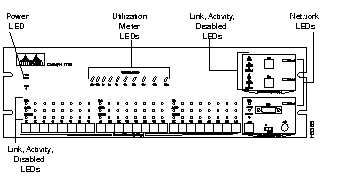
The Power LED lights if the Catalyst 1700 is turned on. If the LED does not light when powered up, refer to the chapter "Troubleshooting."
The Utilization Meter LEDs help you measure the bandwidth utilization of the Catalyst 1700 at a glance. The meter displays current and peak bandwidth utilization.
The LEDs are updated based on the bandwidth usage as measured in Mbps. The current bandwidth is shown with a series of lit LEDs topped by a rapidly blinking LED.
The peak utilization seen in a 24-hour period (measured beginning at midnight each day) is indicated by the rightmost LED that is solidly lit.
Table 1-1 shows the associated bandwidth for each of the 10 LEDs.
| LED Number | Mbps Usage |
|---|---|
| LED 1 | 0.1+ |
| LED 2 | 0.5+ |
| LED 3 | 1+ |
| LED 4 | 2+ |
| LED 5 | 5+ |
| LED 6 | 10+ |
| LED 7 | 20+ |
| LED 8 | 50+ |
| LED 9 | 100+ |
| LED 10 | 200+ |
Three status LEDs are included for each Personal Ethernet port, Fast Ethernet port and General Ethernet port. These LEDs are link integrity, network activity, and disabled, as shown in Figure 1-7.
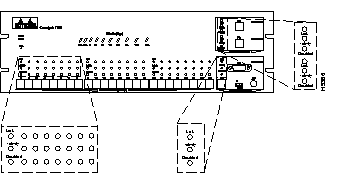
The Link LED is not active on the General Ethernet port when the AUI or BNC connector is used.
The Link LED indicates that the port is properly connected to a powered-on device. This LED is on when the link integrity test passes and off when the link integrity test fails.
The Activity LED blinks when the port is transmitting or receiving data. If the traffic level is high, this LED will be on continuously. This LED is off when there is no activity.
The Disabled LED is on when the port is disabled or suspended, either by a network connection error or secure address violation, or manually disabled or suspended using the in-band or out-of-band management. The Disabled LED is off when the port is fully operational. For more information, see the chapter "Catalyst 1700 Concepts Overview."
There are 3 Network LEDs, one for each Fast Ethernet port and one for the General Ethernet port, as shown in Figure 1-8. The Network LED indicates that the port is connected to a network or multi-address device.
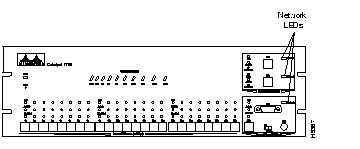
This LED will also be on if the port has been manually assigned via in-band or out-of-band management as the network port.
The reset switch restarts the Catalyst 1700. The reset switch has the same effect as powering the Catalyst 1700 off and on and can be activated by pushing a thin implement into the hole. All configuration values are saved. The reset switch should only be used if the Catalyst 1700 does not respond to network management or packet forwarding has stopped.
The power switch, power receptacle, and the RS-232 port are located on the rear panel as shown in Figure 1-9.
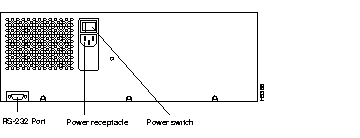
The power switch depicted in Figure 1-9 turns the Catalyst 1700 on and off without removing the power cord.
The Catalyst 1700 power supply is an auto-ranging unit supporting input voltages between 100-220 VAC. The power cord should be plugged into the power receptacle located on the rear panel of the Catalyst 1700 hub as shown in Figure 1-9.
The RS-232 port, shown in Figure 1-9, allows a terminal or modem to be attached to the Catalyst 1700 for configuration and management operations. For more information about out-of-band management, see the chapter "Out-of-Band Management."
You can configure and manage the Catalyst 1700 in-band using an SNMP management station and out-of-band using a local or modem-attached terminal.
The Catalyst 1700 is fully manageable by any standard SNMP-based management system. The product supports all pertinent MIB II variables as well as an extensive private MIB designed for maximum manageability of Catalyst 1700's hub and switching capabilities.
To facilitate this management, Catalyst 1700 MIBs are supplied in ASCII text format for compilation into SNMP network management systems for use with general MIB Browser functions. In addition, Schemas and installation procedures for SunNet Manager and Profiles and installation procedures for Novell NetWare Management System (NMS) are supplied. See the chapter "In-Band Management" for more information.
The Catalyst 1700 is equipped with an integrated RS-232 port for out-of-band configuration and management via a directly-attached terminal or over serial lines using a modem and remote terminal. This menu-driven tool is useful for basic monitoring and control and can be used locally or remotely by a Service Bureau or centralized MIS group.
The out-of-band management is password protected and a "lock-out" will occur upon entry of a user-defined number of invalid passwords and an alert sent to the administrator via in-band management.
The out-of-band function allows configuration and management of the Catalyst 1700 even if the network is down. You can get most of the same statistics and information that you can access via in-band management. See the chapter "Out-of-Band Management" for more detailed information.
|
|