


|
|

Product Numbers: WS-X5153(=), WS-X5154(=), WS-X5155(=), WS-X5156(=), WS-X5157(=), WS-X5158(=)
This configuration note contains instructions on how to install and configure the Catalyst 5000 series Asynchronous Transfer Mode (ATM) switching modules.
For a complete description of commands used to configure and maintain Catalyst 5000 series switches, refer to the Catalyst 5000 Series Software Configuration Guide and the Catalyst 5000 Series Command Reference publication. For complete switch hardware configuration and maintenance procedures, refer to the Catalyst 5000 Series Installation Guide. For information on Catalyst 5000 series switching modules, refer to the Catalyst 5000 Series Module Installation Guide. These documents are available on the Cisco Connection Documentation, Enterprise Series CD, or in print.
Cisco documentation and additional literature are available in a CD-ROM package, which ships with your product. The Documentation CD-ROM, a member of the Cisco Connection Family, is updated monthly. Therefore, it might be more up to date than printed documentation. To order additional copies of the Documentation CD-ROM, contact your local sales representative or call customer service. The CD-ROM package is available as a single package or as an annual subscription. You can also access Cisco documentation on the World Wide Web at http://www.cisco.com, http://www-china.cisco.com, or http://www-europe.cisco.com.
If you are reading Cisco product documentation on the World Wide Web, you can submit comments electronically. Click Feedback in the toolbar, select Documentation, and click Enter the feedback form. After you complete the form, click Submit to send it to Cisco. We appreciate your comments.
This document is divided into the following sections:
Catalyst 5000 series switches include the Catalyst 5002, the Catalyst 5000, the Catalyst 5505, and the Catalyst 5500. Throughout this configuration note, and all Catalyst 5000 series documents, Catalyst 5000 series switches refers to all of the Catalyst 5000 series switches, unless otherwise noted.
Table 1 lists and describes the Catalyst 5000 series switches. The Ethernet and Fast Ethernet, Copper Distributed Data Interface (CDDI), Fiber Distributed Data Interface (FDDI), and ATM modules are described in the Catalyst 5000 Series Module Installation Guide.
| Switch | Description | Features |
|---|---|---|
| Catalyst 5002 | 2-slot switch |
|
|
Catalyst 5000 | 5-slot switch |
|
|
Catalyst 5505 | 5-slot switch |
|
|
Catalyst 5500 | 13-slot switch |
|
Table 2 lists and describes the ATM switching modules.
| Model Number | Module Name | Description |
| WS-X5153 | ATM LANE Single PHY Module (UTP) | Direct connection between the 155-Mbps ATM network and the Catalyst 5000 series switch, Category 5 UTP cables, one RJ-45 connector |
| WS-X5155 | ATM LANE Single PHY Module (MMF) | Direct connection between the 155-Mbps ATM network and the Catalyst 5000 series switch, one multimode, SC fiber-optic connector |
| WS-X5154 | ATM LANE Single PHY Module (SMF) | Direct connection between the 155-Mbps ATM network and the Catalyst 5000 series switch, one single-mode, SC fiber-optic connector |
| WS-X5156 | ATM LANE Dual PHY Module (UTP) | Two direct connections between the ATM network and the switch, Category 5 UTP cables, two RJ-45 connectors |
| WS-X5158 | ATM LANE Dual PHY Module (MMF) | Two direct connections between the ATM network and the switch, multimode fiber-optic cable, two multimode, SC fiber-optic connectors |
| WS-X5157 | ATM LANE Dual PHY Module (SMF) | Two direct connections between the ATM network and the switch, single-mode fiber-optic cable, two single-mode (SC) fiber-optic connectors |
Table 3 lists and describes the ATM LANE module LEDs.
| LED | Description |
|---|---|
| STATUS | The switch performs a series of self-tests and diagnostic tests. If all the tests pass, the LED is green. If a test other than an individual port test fails, the LED is red. During system boot or if the module is disabled, the LED is orange. During self-test diagnostics, the LED is orange. If the module is disabled, the LED is orange. |
| TX (Transmit) | When a port is transmitting a packet, the LED is green for approximately 50 ms1; otherwise, it is off. |
| RX (Receive) | When a port is receiving a packet, the LED is green for approximately 50 ms; otherwise, it is off. |
| ACTIVE2 | When green, the port is active. If the LED is off, the port is the standby port. |
| LINK | Displays the link integrity status of an ATM port. If the integrity is good, the LED is green. |
This section lists the specifications for the Catalyst 5000 series ATM LANE modules.
Catalyst 5000 series ATM modules, when installed in a system, comply with the standards listed in Table 4.
| Specification | Description |
|---|---|
| Compliance: | CE Marking |
|
UL1 1950, CSA2-C22.2 No. 950, EN3 60950, IEC4 950, TS5 001, AS/NZS6 3260 |
|
FCC8 Class A (47 CFR, Part 15), ICES9-003 Class A, EN 55022 Class A , CISPR22 Class A, AS/NZS 3548 Class A, and VCCI10 Class A with UTP11 cables EN 55022 Class B; CISPR22 Class B, AS/NZS 3590 Class B, and VCCI Class B with STP12 cables |
Table 5 lists the specifications for the following ATM modules:
| Specification | Description | |
|---|---|---|
| Dimensions (H x W x D) | 1.2 x 14.4 x 16 in. (3 x 35.6 x 40.6 cm) | |
Weight | Minimum: 3 lb (1.36 kg) | |
| Maximum: 5 lb (2.27 kg) | ||
| Environmental Conditions: |
| |
|
32 to 104°F (0 to 40°C) | |
|
-40 to 167°F (-40 to 75°C) | |
|
10 to 90%, noncondensing | |
| Connectors | Multimode fiber-optic: SC | |
| Single-mode fiber-optic: SC | ||
| Category 5 UTP: RJ-45 | ||
| Memory: |
| |
|
192 KB per interface | |
|
4 MB | |
|
16 MB | |
|
512 KB | |
|
128 KB | |
Maximum station-to-station cabling distance | Multimode fiber: 1.2 miles (2 km) | |
| Single-mode fiber: 6.2 miles (10 km) | ||
| Category 5 UTP: 328 ft (100 m) | ||
| Frame-to-cell conversion | AAL15, 4096 virtual circuits, 255 concurrent reassembly | |
| Indicators: |
| |
|
Green (operational) | |
|
Green (operational) | |
|
Green flashing (receive activity) | |
|
Green flashing (transmit activity) | |
| ATM standards | RFC 1483 LLC2 SNAP3 Bridging Encapsulation (PVC4); ATM Forum LANE v1.0 LEC, LECS, LES, BUS; UNI 3.0/3.1, Q.2931 signaling protocols; ILMI | |
| Network management | Cisco Discovery Protocol; SNMP MIB II (RFC 1213); AToM MIB (RFC 1695); LEC MIB (ATM Forum LANE v1.0); Cisco Workgroup Stack MIB; Cisco VLAN Trunk Protocol (VTP) MIB; Cisco LECS; LES/BUS MIB; ILMI MIB | |
Safety warnings appear throughout this configuration note in procedures that, if performed incorrectly, may harm you. A warning symbol precedes each warning statement.
This section describes the warning symbol used in this note.

| Warning This warning symbol means danger. You are in a situation that could cause bodily injury. Before you work on any equipment, be aware of the hazards involved with electrical circuitry and be familiar with standard practices for preventing accidents. To see translations of the warnings that appear in this publication, refer to the appendix "Translated Safety Warnings" in the Catalyst 5000 Series Module Installation Guide. |
Waarschuwing Dit waarschuwingssymbool betekent gevaar. U verkeert in een situatie die lichamelijk letsel kan veroorzaken. Voordat u aan enige apparatuur gaat werken, dient u zich bewust te zijn van de bij elektrische schakelingen betrokken risico's en dient u op de hoogte te zijn van standaard maatregelen om ongelukken te voorkomen. (Voor vertalingen van de waarschuwingen die in deze publicatie verschijnen, kunt u het aanhangsel "Translated Safety Warnings" (Vertalingen van veiligheidsvoorschriften) in de installatiegids die bij dit toestel is ingesloten, raadplegen.
Varoitus Tämä varoitusmerkki merkitsee vaaraa. Olet tilanteessa, joka voi johtaa ruumiinvammaan. Ennen kuin työskentelet minkään laitteiston parissa, ota selvää sähkökytkentöihin liittyvistä vaaroista ja tavanomaisista onnettomuuksien ehkäisykeinoista. (Tässä julkaisussa esiintyvien varoitusten käännökset löydät tämän laitteen mukana olevan asennusoppaan liitteestä "Translated Safety Warnings" (käännetyt turvallisuutta koskevat varoitukset).)
Attention Ce symbole d'avertissement indique un danger. Vous vous trouvez dans une situation pouvant entraîner des blessures. Avant d'accéder à cet équipement, soyez conscient des dangers posés par les circuits électriques et familiarisez-vous avec les procédures courantes de prévention des accidents. Pour obtenir les traductions des mises en garde figurant dans cette publication, veuillez consulter l'annexe intitulée « Translated Safety Warnings » (Traduction des avis de sécurité) dans le guide d'installation qui accompagne cet appareil.
Warnung Dieses Warnsymbol bedeutet Gefahr. Sie befinden sich in einer Situation, die zu einer Körperverletzung führen könnte. Bevor Sie mit der Arbeit an irgendeinem Gerät beginnen, seien Sie sich der mit elektrischen Stromkreisen verbundenen Gefahren und der Standardpraktiken zur Vermeidung von Unfällen bewußt. (Übersetzungen der in dieser Veröffentlichung enthaltenen Warnhinweise finden Sie im Anhang mit dem Titel "Translated Safety Warnings" (Übersetzung der Warnhinweise) in der diesem Gerät beiliegenden Installationsanleitung.)
Avvertenza Questo simbolo di avvertenza indica un pericolo. Si è in una situazione che può causare infortuni. Prima di lavorare su qualsiasi apparecchiatura, occorre conoscere i pericoli relativi ai circuiti elettrici ed essere al corrente delle pratiche standard per la prevenzione di incidenti. La traduzione delle avvertenze riportate in questa pubblicazione si trova nell'appendice, "Translated Safety Warnings" (Traduzione delle avvertenze di sicurezza), del manuale d'installazione che accompagna questo dispositivo.
Advarsel Dette varselsymbolet betyr fare. Du befinner deg i en situasjon som kan føre til personskade. Før du utfører arbeid på utstyr, må du være oppmerksom på de faremomentene som elektriske kretser innebærer, samt gjøre deg kjent med vanlig praksis når det gjelder å unngå ulykker. (Hvis du vil se oversettelser av de advarslene som finnes i denne publikasjonen, kan du se i vedlegget "Translated Safety Warnings" [Oversatte sikkerhetsadvarsler] i installasjonsveiledningen som ble levert med denne enheten.)
Aviso Este símbolo de aviso indica perigo. Encontra-se numa situação que lhe poderá causar danos fisicos. Antes de começar a trabalhar com qualquer equipamento, familiarize-se com os perigos relacionados com circuitos eléctricos, e com quaisquer práticas comuns que possam prevenir possíveis acidentes. (Para ver as traduções dos avisos que constam desta publicação, consulte o apêndice "Translated Safety Warnings" - "Traduções dos Avisos de Segurança", no guia de instalação que acompanha este dispositivo).
Advertencia Este símbolo de aviso significa peligro. Existe riesgo para su integridad física. Antes de manipular cualquier equipo, considerar los riesgos que entraña la corriente eléctrica y familiarizarse con los procedimientos estándar de prevención de accidentes. (Para ver traducciones de las advertencias que aparecen en esta publicación, consultar el apéndice titulado "Translated Safety Warnings," en la guía de instalación que se acompaña con este dispositivo.)
Varning! Denna varningssymbol signalerar fara. Du befinner dig i en situation som kan leda till personskada. Innan du utför arbete på någon utrustning måste du vara medveten om farorna med elkretsar och känna till vanligt förfarande för att förebygga skador. (Se förklaringar av de varningar som förekommer i denna publikation i appendix "Translated Safety Warnings" [Översatta säkerhetsvarningar] i den installationshandbok som medföljer denna anordning.)
Use the following guidelines to ensure your safety and protect the equipment. This list does not include all potentially hazardous situations during installation, so be alert.

| Warning Only trained and qualified personnel should install or replace this equipment. |
 | Warning Before working on equipment that is connected to power lines, remove jewelry (including rings, necklaces, and watches). Metal objects will heat up when connected to power and ground and can cause serious burns or weld the metal object to the terminals. |
 | Warning Ultimate disposal of this product should be handled according to all national laws and regulations. |
When working with electrical equipment, exercise these basic safety guidelines:
 | Warning Do not work on the system or connect or disconnect cables during periods of lightning activity. |
Use the following safety rules when working with any equipment that is disconnected from a power source but still connected to telephone wiring or other network cabling:
Electrostatic discharge (ESD) damage occurs when electronic boards or components are improperly handled. ESD can result in complete or intermittent failures of electronic components. Guidelines for preventing ESD damage are as follows:
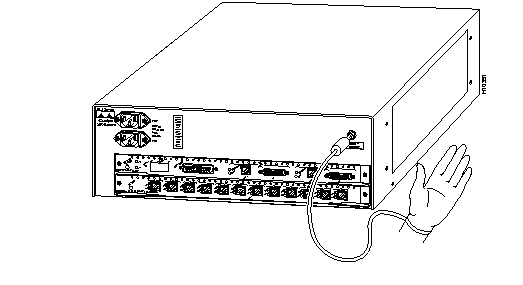
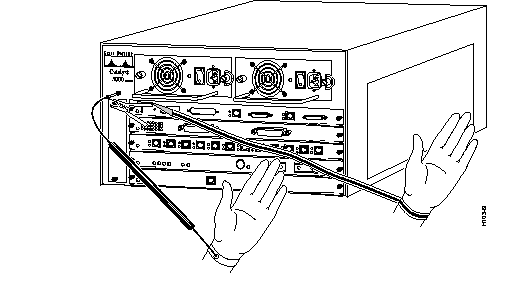
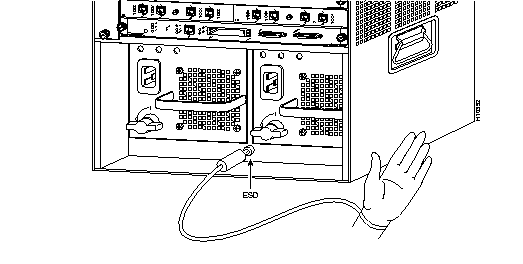
 | Caution For safety, periodically check the resistance value of the antistatic strap. The measurement should be between 1 and 10 megohms (Mohms). |
All Catalyst 5000 series switches support hot swapping, which lets you install, remove, replace, and rearrange switching modules without turning off the system power. When the system detects that a switching module has been installed or removed, it automatically runs diagnostic and discovery routines, acknowledges the presence or absence of the module, and resumes system operation with no operator intervention.

| Warning Only trained and qualified personnel should install or replace this equipment. |

| Warning Invisible laser radiation can be emitted from the aperture ports of the single-mode ATM products when no fiber-optic cable is connected. Avoid exposure and do not stare into open apertures. This product meets the Class 1 Laser Emission Requirement. |
You need a flat-blade screwdriver to remove any filler (blank) switching modules and to tighten the captive installation screws that secure the modules in their slots. Whenever you handle switching modules, you should use a wrist strap or other grounding device to prevent ESD damage. See the section "Preventing Electrostatic Discharge Damage."
To remove a switching module from a Catalyst 5000 series switch, perform the following steps:

| Caution To prevent ESD damage, handle switching modules by the carrier edges only. |
Step 1 If you do not plan to reinstall the switching module immediately after removing it, disconnect any network interface cables attached to the switching module ports.
Step 2 Use a flat-blade screwdriver to loosen the captive installation screws, shown in Figure 4.
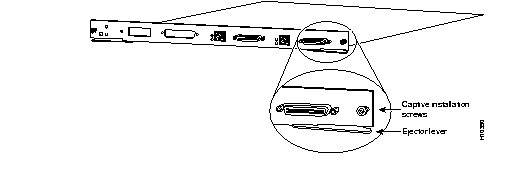
Step 3 Place your thumbs on the left and right ejector levers and simultaneously push the levers outward to release the module from the backplane connector. Figure 4 shows a close-up of the right ejector lever.
Step 4 Grasp the switching-module handle with one hand and place your other hand under the carrier to support and guide it out of the slot. Avoid touching the module.
Step 5 Carefully pull the switching module straight out of the slot, keeping your other hand under the carrier to guide it. Keep the switching module oriented horizontally.
Step 6 Place the switching module on an antistatic mat or antistatic foam or immediately install it in another slot.
If the slot is to remain empty, install a switching-module filler plate (part number 800-00292-01) to keep dust out of the chassis and to maintain proper airflow through the switching-module compartment.

| Caution Always install the switching-module filler plate in empty switching module slots to maintain the proper flow of cooling air across the modules. |
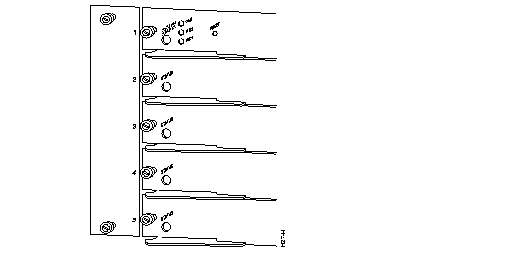
All Catalyst 5000 series switching modules are installed in horizontal slots that are numbered from top to bottom. Figure 5 shows an example of how slots are numbered on the chassis; in this case using the Catalyst 5000 switch. The slot numbering for the Catalyst 5002 switch and the Catalyst 5500 switch is similar to that shown in Figure 5.
To install a switching module in a Catalyst 5000 series switch, perform the following steps:

| Caution To prevent ESD damage, handle switching modules by the carrier edges only. |
Step 1 Make sure you have taken the necessary precautions to prevent ESD damage, as described in the section "Preventing Electrostatic Discharge Damage."
Step 2 Choose a slot for the new switching module. Ensure that there is enough clearance to accommodate any interface equipment that you will connect directly to the switching module ports. If possible, place switching modules between empty slots that contain only switching module filler plates.
Step 3 Use a flat-blade screwdriver to loosen the captive installation screws securing the switching-module filler plate (or the existing switching module) from the desired slot.
Step 4 Remove the switching-module filler plate (or the existing switching module).
Step 5 Hold the switching-module handle with one hand and place your other hand under the carrier to support the switching module and guide it into the slot. Avoid touching the printed circuit boards or connector pins.
Step 6 Place the switching module in the slot. Align the notch on the sides of the switching-module carrier with the groove in the slot, as shown in Figure 6 for the Catalyst 5000 switch. Use the same procedure for the Catalyst 5002 and Catalyst 5500 switches.
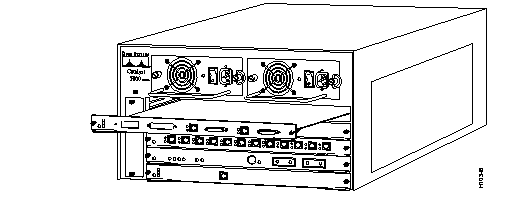
Step 7 Maintain the switching module at a 90-degree orientation to the backplane and carefully slide the switching module into the slot until the switching-module faceplate contacts the ejector levers.
Use the thumb and forefinger of each hand and simultaneously push in the left and the right levers to seat the switching module in the backplane connector.

| Caution Always use the ejector levers when installing or removing switching modules. A module that is partially seated in the backplane will cause the system to halt and subsequently crash. |
Step 9 Use a flat-blade screwdriver to tighten the captive installation screws on the left and right ends of the switching module.
Step 10 Attach network interface cables or other devices to the interface ports.
Step 11 Check the status of the interfaces as follows:
The following example shows the output of the show module command, with the ATM LANE Single PHY Module (MMF) (WS-X5155) in slot 4:
The following example shows the output of the show port command, with the ATM LANE Single PHY Module (MMF) (WS-X5155) in slot 4:
This section lists the default configurations of the ATM switching modules and provides a basic summary of the commands used to customize the configuration.
The ATM module configuration default settings are listed in Table 6.
| Feature | Default Setting |
|---|---|
| PVCs1 | ILMI2 and signaling PVCs are set up |
| LANE3 | LANE is not configured |
| Configuration in NVRAM4 | NVRAM contains no configuration information |
This section describes the major features available on the ATM modules and the commands needed to configure them.
The following sections describe how to customize the ATM module configuration:
Table 7 shows the basic commands used to customize the ATM module.
| Task | Commands |
|---|---|
| Configuring from the Terminal | |
| Step 1 Enter global configuration mode. | configure terminal |
| Step 2 Enter the necessary configuration commands. | |
| Step 3 Quit configuration mode. | Ctrl-Z |
| Step 4 Save the configuration file modifications to NVRAM. | write memory |
| Configuring from Nonvolatile Memory | |
| Configure the ATM module from NVRAM. | configure memory |
Table 8 shows how to implement LANE on the ATM module.
| Task | Commands |
|---|---|
| Displaying ATM Addresses | |
| Display dual PHYs connected to the same switch. | show lane default-atm-addresses |
| Displaying Dual PHYs Connected to Different Switches | |
| Step 1 Change the preferred PHY to the one not currently in use. | atm preferred phy {A | B} |
| Step 2 Display the default ATM addresses. | show lane default-atm-addresses |
| Step 3 Determine the active PHY. | show interface |
| Configuring the LECS ATM Address on a LightStream 1010 | |
| Step 1 Enter the configuration mode. | configure terminal |
| Step 2 Enter the address of the LECS.1 | atm lecs-address atm-address |
| Step 3 Verify the address entered. | show atm ilmi-configuration |
| Setting Up the LES/BUS | |
| Step 1 Enter the configuration mode. | configure terminal |
| Step 2 Specify the subinterface for the first ELAN.2 | interface atm0.subinterface_num |
| Step 3 Enable the LES/BUS3 on the ELAN. | lane server-bus ethernet elan_name |
| Step 4 Repeat Steps 2 and 3 for all other ELANs on this card. | |
| Setting Up the LECS Database for the Default ELAN | |
| Step 1 Enter the configuration mode. | configure terminal |
| Step 2 Create a named database for the LECS. | lane database database-name |
| Step 3 In the configuration database, bind the ELAN to the ATM address of the LES. | name elan_name server-atm-address atm-address |
| Step 4 In the configuration database, provide a default name for the ELAN. | default-name elan_name |
| Step 5 Exit from database configuration mode and return to global configuration mode. | exit |
| Setting Up the LECS Database for Unrestricted-Membership ELANs | |
| Step 1 Enter the configuration mode. | configure terminal |
| Step 2 Create a named database for the LECS. | lane database database_name |
| Step 3 In the configuration database, bind the name of the first ELAN to the ATM address of the LES for that ELAN. | name elan_name_1 server-atm-address atm_address |
| Step 4 In the configuration database, bind the name of the second ELAN to the ATM address of the LES. | name elan_name_2 server-atm-address atm_address |
| Step 5 Repeat Steps 3 and 4, providing a different ELAN name and ATM address for each additional ELAN in this switch cloud. | |
| Step 6 (Optional) Specify a default ELAN for LECs4 not explicitly bound to an ELAN. | default-name elan_name |
| Step 7 Exit from database configuration mode and return to global configuration mode. | exit |
| Setting Up the LECS Database for Restricted-Membership ELANs | |
| Step 1 Enter the configuration mode. | configure terminal |
| Step 2 Create a named database for the LECS. | lane database database_name |
| Step 3 In the configuration database, bind the name of the first ELAN to the ATM address of the LES for that ELAN. | name elan_name_1 server-atm-address atm_address restricted |
| Step 4 Repeat Steps 3 and 4, providing a different name and a different ATM address for each additional ELAN. | |
| Step 5 (Optional) Specify a default ELAN for LECs not explicitly bound to an ELAN. | name elan_name_2 server-atm-address atm_address restricted |
| Step 6 Add a database entry associating a specific LEC ATM address with a specific restricted-membership ELAN. | default-name elan_name |
| Step 7 Repeat Step 7 for every LEC in each restricted-membership ELAN on this switch cloud, in each case specifying the ATM address of the LEC and the name of the ELAN with which it is linked. | client-atm-address atm-address-template name elan-name |
| Step 8 Exit from database configuration mode and return to global configuration mode. | exit |
| Starting and Binding the LECS | |
| Step 1 Enter configuration mode. | configure terminal |
| Step 2 Select the ATM interface. | interface atm0 |
| Step 3 Specify the name of the LECS. | lane config database |
| Step 4 Specify the address of the LECS. | lane config-atm-address atm-address-template |
| Step 5 Bind the interface. | lane config database database-name |
| Step 6 Exit the configuration mode. | end |
| Setting up the LECs | |
| Step 1 Specify the subinterface for a VLAN5 on this switch. | interface atm0.subinterface_num |
| Step 2 Enable a LANE client for the first ELAN. | lane client ethernet vlan_num elan-name |
| Monitoring and Maintaining LANE Components | |
|
show lane [interface atm0[.subinterface] | name elan-name] [brief] |
|
show lane bus [interface atm0[.subinterface] | name elan-name] [brief] |
|
show lane client [interface atm0[.subinterface] | name elan-name] [brief] |
|
show lane config [interface atm0] [brief] |
|
show lane database [database_name] [brief] |
|
show lane le-arp [interface atm0[.subinterface] | name elan-name] |
|
show lane server [interface atm0[.subinterface] | name elan-name] [brief] |
Table 9 shows how to configure specialized LANE features on the ATM module.
| Task | Commands |
|---|---|
| Configuring LES/BUS/LECS Redundancy | |
| Step 1 On the ATM switch, enter all the multiple LECS addresses. | set configserver index_address_mask (for the LightStream 1010)
atm lecs-address address (for the LightStream 1010) |
| Step 2 On the ATM module, specify redundant LES/BUSs. Enter the command for each LES address on the ELAN. | name elan_name server-atm-address atm-address |
| Configuring VTP | |
| Step 1 Enable VTP.1 | vtp enable |
| Step 2 From the supervisor module, create an LEC on each ATM module of all Catalyst 5000 series switches on a specified VTP domain. | set vlan vlan_num default |
| Step 1 Enable VTP. | vtp enable |
| Step 2 Exit the configuration mode. | Ctrl-Z |
| Step 3 Write the current configuration to NVRAM. | write memory |
| Step 4 Return to the supervisor console. | exit |
| Setting Up a VLAN over PVCs | |
| Step 1 Assign an Ethernet port to the specified VLAN. | set vlan vlan_num |
| Step 2 Session to the ATM module. | session mod_num |
| Step 3 Activate the privileged mode on the ATM module. | enable |
| Step 4 Enter the configuration mode. | configure terminal |
| Step 5 Select the ATM interface. | interface atm0 |
| Step 6 Set up the PVCs.2 | atm pvc vcd vpi vci aal5snap |
| Step 7 Bind the PVCs to the VLAN. | atm bind pvc vlan vcd vlan_num |
| Step 8 Set up other PVCs for the same VLAN if needed by repeating Steps 6 and 7. | |
| Step 9 Exit configuration mode. | Ctrl-Z |
| Step 10 Verify the setup. | show atm vlan show atm vc |
| Step 11 Write the configuration to NVRAM. | write memory |
| Removing Previously Assigned PVCs from a VLAN | |
To remove a previously assigned PVC from a VLAN: | |
| Step 1 Enter the configuration mode. | configure terminal |
| Step 2 Select the ATM interface. | interface atm0 |
| Step 3 Remove the PVC from the VLAN. | no atm pvc vcd |
| Step 4 End the session. | Ctrl-Z |
To unbind a previously assigned PVC from a VLAN without removing the PVC itself: | |
| Step 1 Enter the configuration mode. | configure terminal
|
| Step 2 Select the ATM interface. | interface atm0 |
| Step 3 Unbind the PVC from the VLAN. | no atm bind pvc vlan vcd vlan_num |
| Step 4 End the session. | Ctrl-Z |
| Configuring Output Throttling | |
To throttle the output of the entire interface: | |
| Step 1 Enter the configuration mode. | configure terminal |
| Step 2 Select the ATM interface. | interface atm0 |
| Step 3 Apply output throttling. | atm traffic-shape rate rate |
| Step 4 End the session. | Ctrl-Z |
To place the output-rate to the default of 155 Mbps: | |
| Step 1 Enter the configuration mode. | configure terminal |
| Step 2 Select the ATM interface. | interface atm0 |
| Step 3 Disable output throttling. | no atm traffic-shape rate |
| Step 4 End the session. | Ctrl-Z |
| Using UNI 3.1 Signaling Support | |
| Specify the UNI3 Version | atm uni-version version_number |
This equipment has been tested and found to comply with the limits for a Class A digital device, pursuant to part 15 of the FCC rules. These limits are designed to provide reasonable protection against harmful interference when the equipment is operated in a commercial environment. This equipment generates, uses, and can radiate radio-frequency energy and, if not installed and used in accordance with the instruction manual, may cause harmful interference to radio communications. Operation of this equipment in a residential area is likely to cause harmful interference, in which case users will be required to correct the interference at their own expense.
You can determine whether your equipment is causing interference by turning it off. If the interference stops, it was probably caused by the Cisco equipment or one of its peripheral devices. If the equipment causes interference to radio or television reception, try to correct the interference by using one or more of the following measures:
Modifications to this product not authorized by Cisco Systems could void the FCC approval and negate your authority to operate the product.
Cisco Connection Online (CCO) is Cisco Systems' primary, real-time support channel. Maintenance customers and partners can self-register on CCO to obtain additional information and services.
Available 24 hours a day, 7 days a week, CCO provides a wealth of standard and value-added services to Cisco's customers and business partners. CCO services include product information, product documentation, software updates, release notes, technical tips, the Bug Navigator, configuration notes, brochures, descriptions of service offerings, and download access to public and authorized files.
CCO serves a wide variety of users through two interfaces that are updated and enhanced simultaneously: a character-based version and a multimedia version that resides on the World Wide Web (WWW). The character-based CCO supports Zmodem, Kermit, Xmodem, FTP, and Internet e-mail, and it is excellent for quick access to information over lower bandwidths. The WWW version of CCO provides richly formatted documents with photographs, figures, graphics, and video, as well as hyperlinks to related information.
You can access CCO in the following ways:
For a copy of CCO's Frequently Asked Questions (FAQ), contact cco-help@cisco.com. For additional information, contact cco-team@cisco.com.
|
|