


|
|

Product Numbers:
WS-X5530-E1(=) Supervisor Engine III without Uplink Module
WS-U5531-FETX(=) Supervisor Engine III Dual Port 100BaseTX
WS-U5533-FEFX-MMF(=) Supervisor Engine III Dual Port 100BaseFX-MMF
WS-U5535-FEFX-SMF(=) Supervisor Engine III Dual Port 100BaseFX-SMF
This configuration note contains procedures for installing and verifying the operation of the
Catalyst 5000 series Supervisor Engine III.
The procedures in this note apply to all supervisor engine media types, multimode fiber (MMF) and single-mode fiber (SMF) cabling for 100BaseFX applications, and Category 5 unshielded twisted-pair (UTP) cabling for 100BaseTX applications. For more detailed installation and configuration information, refer to the following:
Cisco documentation and additional literature are available in a CD-ROM package, which ships with your product. The Documentation CD-ROM, a member of the Cisco Connection Family, is updated monthly. Therefore, it might be more up to date than printed documentation. To order additional copies of the Documentation CD-ROM, contact your local sales representative or call customer service. The CD-ROM package is available as a single package or as an annual subscription. You can also access Cisco documentation on the World Wide Web at http://www.cisco.com, http://www-china.cisco.com, or http://www-europe.cisco.com.
If you are reading Cisco product documentation on the World Wide Web, you can submit comments electronically. Click Feedback on the toolbar, and then select Documentation. After you complete the form, click Submit to send it to Cisco. We appreciate your comments.
This document contains the following sections:
The Catalyst 5000 series consists of four modular LAN switches:
All switches share the same set of line cards and software features--providing scalability while maintaining interoperability across all platforms.
All switches can use Category 5 UTP cabling and multimode and single-mode fiber-optic cable.
Table 1 lists and describes the Catalyst 5000 series switches.
| Switch | Description | Features |
|---|---|---|
| Catalyst 5002 | 2-slot switch |
|
|
Catalyst 5000 | 5-slot switch |
|
|
Catalyst 5505 | 5-slot switch |
|
|
Catalyst 5500 | 13-slot switch |
|
The Supervisor Engine III hardware enables all three 1.2-Gbps Catalyst 5505 and Catalyst 5500 backplanes to operate independently providing 3.6 Gbps throughput (when traffic does not have to cross the backplane bus segments).
The Supervisor Engine III boots differently from the earlier supervisor engines. The Supervisor Engine III boot process has two images: read-only memory (ROM) monitor (a new image for Cisco supervisor engines) and Catalyst 5000 series supervisor engine software. The ROM monitor is the first software to run when the switch is powered up or reset. Then, based on how the ROM monitor has been configured, the switch either stays in ROM monitor mode or loads the supervisor engine software (refer to Chapter 5, "Configuring the Switch" in the Catalyst 5000 Series Installation Guide for detailed information about using ROM monitor mode).
A configuration register allows you to configure the ROM monitor and a boot environment variable enables you to specify the location and filename of images to boot. Refer to "Modifying the Startup Configuration," page 14, for details.
This section describes Supervisor Engine III physical components.
Supervisor Engine III is available in four models:


This section describes the front panel features of the Supervisor Engine III, as shown in Figure 3.
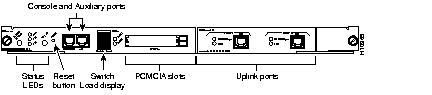
The LEDs on the supervisor engine front panel indicate the status of the system, which includes the supervisor engine, the power supplies, and the fan assembly. Table 2 describes LED operation.
| LED | Description |
|---|---|
| SYSTEM STATUS | The switch performs a series of self-tests and diagnostic tests. If all the tests pass, the LED is green. If any test fails, the LED is red. During system boot or if the module is disabled, the LED is red. If the redundant power supply is installed but not turned on or receiving input, the LED is orange. If the fan module fails, the LED is orange. |
| FAN | Indicates whether or not the fan is operational. If the fan is operational, the LED is green. If the fan is not operational, the LED is red. |
| PS1 | Catalyst 5000, Catalyst 5505, and Catalyst 5500:
If the power supply in the left bay is operational, the LED is green. Catalyst 5002: If the power supply associated with the bottom AC receptacle is operational, the LED is green. |
| PS2 | Catalyst 5000, Catalyst 5505, and Catalyst 5500:
If the power supply in the right bay is operational, the LED is green. Catalyst 5002: If the power supply associated with the upper AC receptacle is operational, the LED is green. |
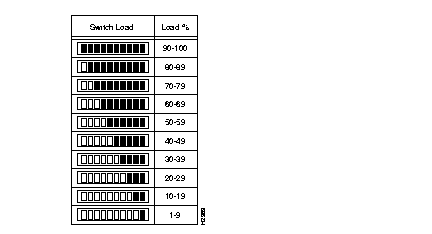
| SWITCH LOAD | If the switch is operational, the switch load display indicates (as an approximate percentage) the current traffic load over the backplane (see Figure 4). |
| ACTIVE | If the supervisor engine is operational and active, the LED is green. If the supervisor engine module is in standby mode, the LED is orange. |
| SLOT 1 and SLOT 0 | The PCMCIA SLOT 1 and SLOT 0 LEDs light when their respective slot 1 and slot 0 PCMCIA devices are accessed by the switch. |
| 100 MBPS | If the port is operating at 100 Mbps, the LED is green. |
| LINK | If the port is operational, the LED is green. If the link has been disabled by software, the LED is orange. If the link is bad and has been disabled due to a hardware failure, the LED flashes orange. If no signal is detected, the LED is off. |
The RESET button allows you to restart the switch.
The SWITCH LOAD display (see Figure 4) provides you with a visual approximation of the current traffic load across the backplane.
The CONSOLE port enables you to perform the following functions:
The CONSOLE port is an EIA/TIA-232 asynchronous, serial, full-featured data terminal equipment (DTE) connection with hardware flow control and an RJ-45 connector.
Refer to "Connecting a Terminal to the Console Port," page 11, for terminal connection and configuration information.
The AUX port is currently not supported.
The Flash memory (PCMCIA) card slots are for additional system PCMCIA-based Flash memory. You can use this Flash memory to store and run Cisco IOS images or to serve as an I/O device.
Supervisor Engine III has two PCMCIA slots: slot 0 (bottom) and slot 1 (top). The Flash memory cards are available in two sizes: 16 and 20 MB.
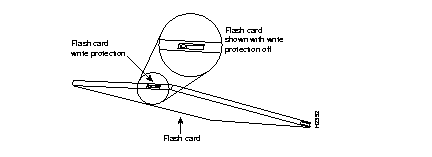
Before you install a card, verify that the Flash memory card's write protection is off. The write protect switch is located on the front edge of the card when oriented with the printing right side up and the edge connector end away from you. (See Figure 5.)
Use the following procedure for installing and removing a Flash memory card:
Step 1 Face the front panel of the switch and hold the Flash memory card with the connector end of the card toward the slot. The connector end of the card is opposite the end with the write protection switch, which is shown in Figure 5.
Step 2 Insert the card into the appropriate slot until the card completely seats in the connector at the back of the slot and the eject button pops out toward you. Note that the card does not insert all the way inside the slot; a portion of the card remains outside the slot. Do not attempt to force the card past this point.
Step 3 To eject a card, press the appropriate ejector button until the card is free of the connector at the back of the slot.
Step 4 Remove the card from the slot and place it in an antistatic bag.
This section describes Supervisor Engine III memory components. Table 3 lists the minimum memory requirements.
| DRAM | Flash (onboard) | PCMCIA Flash | NVRAM1 |
|---|---|---|---|
| 32 MB | 4 MB | 16 MB or 20 MB | 512 KB |
Flash memory allows you to load and store system software images. You can download a new software image over the network or from a local Trivial File Transfer Protocol (TFTP) server and add the new image to Flash memory or replace an existing file in Flash memory. The Supervisor Engine III Flash memory contains a file system. You can use a variety of commands to manage the file system (such as cd, pwd, dir, delete, and copy). The file system includes the following devices:
For information on using the PCMCIA Flash memory cards, refer to "PCMCIA Slots," page 7. For information on configuring Supervisor Engine III to boot from PCMCIA Flash memory devices, refer to "Modifying the Startup Configuration," page 14.
An electronically erasable programmable read-only memory (EEPROM) component on the supervisor engine stores module-specific information, such as the module serial number, part number, controller type, hardware revision, configuration information, and other details unique to each module. The supervisor engine EEPROM also contains an address allocator, which is a bank of 4096 hardware or MAC-level addresses, one for each possible VLAN in the system.
The configuration file is stored in NVRAM.
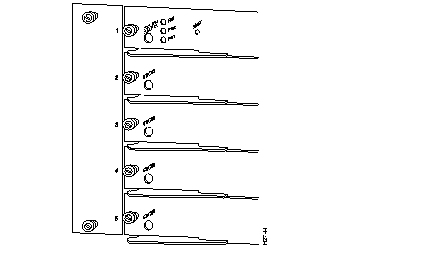
The ejector levers on the supervisor engine and switching modules align and seat the module connectors in the backplane (see Figure 6). If you fail to use the ejector levers to insert the module, you can disrupt the order in which the pins make contact with the backplane. When removing a module, use the ejector levers to ensure that the module connector pins disconnect from the backplane properly. Any supervisor engine or switching module that is only partially connected to the backplane can disrupt the system.
Before you remove a supervisor engine, you should first upload the current configuration to a server. This saves time when bringing the supervisor engine back online. Enter the write network command to upload the configuration file to the network. Refer to the write, show config, and write config commands in the Catalyst 5000 Series Command Reference publication for examples. Use the copy command to download the current configuration to a Flash device on the new supervisor engine.
To remove a supervisor engine, perform the following steps:
Step 1 If you do not plan to immediately reinstall the supervisor engine you are removing, disconnect any network interface cables attached to the module ports.
Step 2 Use a screwdriver to loosen the captive installation screws at the left and right sides of the module.
Step 3 Grasp the left and right ejector levers and simultaneously pull the left lever to the left and the right lever to the right to release the module from the backplane connector.
Step 4 Grasp the handle of the module with one hand and place your other hand under the carrier to support and guide the module out of the slot. Avoid touching the module itself.
Step 5 Carefully pull the module straight out of the slot, keeping your other hand under the carrier to guide it. Keep the module at a 90-degree orientation to the backplane.
Step 6 Place the removed module on an antistatic mat or antistatic foam.
Step 7 If the slot is to remain empty, install a module filler plate to keep dust out of the chassis and to maintain proper airflow through the module compartment.
 | Caution Always install a switching module filler plate in empty switching module slots to maintain the proper flow of cooling air across the modules. |
To replace the supervisor engine, follow Steps 1 through 7 in the section "Removing the Supervisor Engine," in reverse order. Note that the supervisor engine must go in a specific slot:
The CONSOLE port can be connected to an ASCII terminal or PC running terminal emulation software. Table 4 lists the pinouts for the CONSOLE port. In addition to an RJ-45-to-RJ-45 cable, you will need either an RJ-45-to-DB-9 or RJ-45-to-DB-25 female DTE adapter.
| CONSOLE Port | Console Device |
|---|---|
| Pin (signal) | Connect to: |
| 1 is looped to pin 8 | |
| 2 (DTR) | DSR |
| 3 (RxD) | TxD |
| 4 (GND) | GND |
| 5 (GND) | GND |
| 6 (TxD) | RxD |
| 7 (DSR) | DTR |
| 8 is looped to pin 1 |
Before connecting the CONSOLE port, check the terminal documentation to determine the baud rate. The baud rate of the terminal must match the default baud rate (9600 baud) of the CONSOLE port. Set up the terminal as follows:
The Supervisor Engine III has the following interface ports:
The interface ports operate in full- or half-duplex mode.
For information on interface cables and equipment, such as Ethernet transceivers, refer to the Catalyst 5000 Series Installation Guide.
The 100BaseTX RJ-45 port cable connector is shown in Figure 7. The 100BaseTX MII cable connector is shown in Figure 8.


Use SC fiber-optic connectors (see Figure 9) to connect to the 100BaseFX ports. Always keep caps and plugs on the fiber-optic connectors on the cable and the switch when they are not in use.

 | Warning Invisible laser radiation may be emitted from the aperture ports of the 100BaseFX single-mode supervisor engine module. Avoid exposure and do not stare into the open aperture. |
When all interfaces are connected, check all connections, and then perform the following steps to verify that the switch is operational:
Step 1 Check the console terminal and make sure it is on.
Step 2 Verify that the appropriate PS1 and PS2 LEDs on the supervisor engine front panel are green.
Step 3 While the system initializes, check that the SYSTEM STATUS LED on the supervisor engine is orange until the boot is complete.
Step 4 Some interface LEDs might go on or blink for a short time. Some LEDs, such as the LINK LED, stay on during the entire boot process. If an interface is already configured, the LEDs might be on steadily as they detect traffic on the line. Wait until the system boot is complete before attempting to verify the switching module LED indications.
Step 5 When the system boot is complete (it takes a few seconds), the supervisor engine begins to initialize the switching modules.
During this initialization, the LEDs on each switching module behave differently (most flash on and off). The STATUS LED on each switching module goes on when initialization is complete, and the console screen displays a script and system banner.
Step 6 Your hardware installation is now complete. Refer to the Catalyst 5000 Series Software Configuration Guide and the Catalyst 5000 Series Command Reference publication for complete software configuration instructions.
You can modify the configuration register boot field to specify the method that the switch uses to load a system image upon startup. Instead of using the default system image to start up, you can specify a particular system image for the switch to use. The configuration register is a 16-bit value that specifies how the Supervisor Engine III module boots the next time the switch is restarted. The default value is 0x10F, which causes the switch to boot from what is specified by the BOOT environment variable. The show boot command displays the BOOT environment variable settings. After you have installed the supervisor engine, refer to "Modifying the Startup Configuration," page 14, for information on modifying the startup configuration.
This section provides the following procedures for managing the Supervisor Engine III module:
To set the BOOT environment variable, perform this task:
| Task | Command |
|---|---|
| Set the BOOT environment variable. | set boot system flash device:[filename] [prepend] [mod_num] |
After issuing these commands, you see the following display:
Console> (enable) set boot system flash slot0:cat5k_r47_1.cbi
BOOT variable = slot0:cat5k_r47_1.cbi;
Console> (enable)
This command appends the filename as cat5k_r47_2.cbi on device slot0 to the BOOT environment variable:
Console> (enable) set boot system flash slot0:cat5k_r47_2.cbi
BOOT variable = slot0:cat5k_r47_1.cbi;slot0:cat5k_r47_2.cbi;
Console> (enable)
This command prepends bootflash:c to the beginning of the boot string:
Console> (enable) set boot system flash bootflash:c prepend
Console> (enable)
To display the contents of the BOOT environment settings, perform this task:
| Task | Command |
|---|---|
| Display the contents of the BOOT environment variable. | show boot [mod_num] |
After issuing these commands, you see the following display:
Console> show boot
BOOT variable = slot0:cat5k_r47_1.cbi;slot0:cat5k_r47_2.cbi;
Configuration register is 0x10f
ignore-config: disabled
console baud: 9600
boot: image specified by the boot system commands
Console>
To set the default Flash device for the system, perform the following tasks:
| Task | Command |
|---|---|
| Step 1 Identify the supported Flash devices on the system. | show flash devices |
| Step 2 Set the default Flash device for the system. | cd [[m/][bootflash: | slot0: | slot1:]] |
| Step 3 Verify the default Flash device for the system. | pwd [mod_num] |
After issuing these commands, you see the following display:
Console> show flash
-#- ED --type-- --crc--- -seek-- nlen -length- -----date/time------ name
1   .. 2        43B312DF 100fc0  15   1052608  Nov 27 1996 10:23:30 cat5k_r47_1.cbi
7336000 bytes available (1052608 bytes used)
Console>
Console> cd bootflash:
Default flash device set to bootflash.
Console>
Console> pwd
bootflash
Console>
To delete or restore files on a Flash device, enter the following commands:
| Task | Command |
|---|---|
| Delete a file on a Flash device. | delete [[m/]device:]filename |
| Undelete a file on a Flash device. | undelete index [[m/]device:] |
| Permanently delete a file on a Flash device. | squeeze [m/]device: |
After issuing these commands, you see the following display:
Console> (enable) delete slot1:some-other-image
slot1:some-other-image has been deleted.
Console> (enable)
Console> (enable) undelete 1 slot1
slot1:some-other-image has been recovered.
Console> (enable)
Console> (enable) squeeze slot0:
All deleted files will be removed, proceed (y/n) [n]?y
Squeeze operation may take a while, proceed (y/n) [n]?y
Erasing squeeze log
Console> (enable)
To copy files on a Flash device, enter the following commands:
| Task | Command |
|---|---|
| Copy a Flash file to a TFTP server, Flash memory, or another Flash device. | copy m/device:filename {tftp | flash | m/device:filename} |
| Copy a file from a TFTP server to Flash memory or to a Flash device. | copy tftp {flash | m/device:filename} |
| Copy a file from Flash memory to a TFTP server or to a Flash device. | copy flash {tftp | m/device:filename} |
The following examples include the show flash command, which you can use to display the contents of the Flash device after each copy command is entered:
Console> (enable) copy cat5k_r47_1.cbi slot1:
7995264 bytes available on device 1/slot1, proceed (y/n) [n]?y
CCCCCCCCCCCCCCCCCCCCCCCCCCCCCCCCCCCCCCccccccccccccccccccccccccccccccccccccccccccccccccccccccccccccccccccccCCCCCCCCCCCCCCCCCCCCCCCCCCCCCCCCCCC
File has been copied successfully.
Console> (enable)
Console> (enable) show flash slot1:
-#- ED --type-- --crc--- -seek-- nlen -length- -----date/time------ name
1   .. 2        43B312DF 201ed8  15   1052608  Nov 30 1996 11:12:30 cat5k_r47_1.cbi
6942656 bytes available (1052736 bytes used)
Console> (enable)
Console> (enable) copy cat5k_r47_1.cbi slot1:
6942528 bytes available on device 1/slot1, proceed (y/n) [n]?y
CCCCCCCCCCCCCCCCCCCCCCCCCCCCCCCCCCCCCCccccccccccccccccccccccccccccccccccccccccccccccccccccccccccccccccccccCCCCCCCCCCCCCCCCCCCCCCCCCCCCCCCCCCC
File has been copied successfully.
Console> (enable)
Console> (enable) show flash slot1:
-#- ED --type-- --crc--- -seek-- nlen -length- -----date/time------ name
1   .D 2        43B312DF 201ed8  15   1052608  Nov 30 1996 11:12:30 cat5k_r47_1.cbi
1   .. 2        43B312DF 201ed8  15   1052608  Nov 30 1996 11:18:25 cat5k_r47_1.cbi
5889920 bytes available (2105472 bytes used)
Console> (enable)
To display information on Flash memory and the Flash files, enter the following commands:
| Task | Command |
|---|---|
| Verify the checksum of a file on a Flash device. | verify [[m/]device:] filename |
| Display a list of files on a Flash device. | dir [[m/]device:][filename] [all | deleted | long] |
| Display information about the Flash memory. | show flash [[m/]device:] [all | chips | filesys] |
After entering these commands, you see the following display:
Console> (enable) verify cat5k_r47_1.cbi
CCCCCCCCCCCCCCCCCCCCCCCCCCCCCCCCCCCCCCCCCCCCCCCCCCCCCCCC
File cat5k_r47_1.cbi verified OK.
Console> (enable)
Console> dir
-#- -length- -----date/time------ name
2   1052608  Jun 26 1995 15:43:50 cat5k_r47_1.cbi
Console>
Console> show flash
-#- ED --type-- --crc--- -seek-- nlen -length- -----date/time------ name
1   .D 2        2D6B310A 100fc0  15   1052123  Nov 26 1996 15:43:50 cat5k_r47_1.cbi
2   .. 2        43B312DF 201ed8  15   1052608  Nov 27 1996 10:23:30 cat5k_r47_1.cbi
6283877 bytes available (2104731 bytes used)
Console>
To format a Flash memory device, perform the following task:
| Task | Command |
|---|---|
| Format a Flash memory device | format [spare spare-number] [m/]device1: [[device2:] [monlib-filename]] |
After entering this command, you see the following display:
Console> (enable) format slot1:
All sectors will be erased, proceed (y/n) [n]?y
Enter volume id (up to 31 characters):
Formatting sector 1
Format device slot1 completed.
Console> (enable)
To set the configuration register, perform the following task:
| Task | Command |
|---|---|
| Set the configuration register. | set boot config-register 0xvalue [mod_num] |
The following command sets the configuration register value to 0x10f (the default):
Console> (enable) set boot config-register 0x10f
Configuration register is 0x10f
ignore-config: disabled
console baud: 9600
boot: image specified by the boot system commands
To change the ROM monitor's baud rate in the configuration register, perform this task:
| Task | Command |
|---|---|
| Change the ROM monitor's baud rate in the configuration register. | set boot config-register baud {1200 | 2400 | 4800 | 9600} [mod_num] |
The following command changes the ROM monitor baud rate in the configuration register to 4800:
Console> (enable) set boot config-register baud 4800
Configuration register is 0x90f
ignore-config: disabled
console baud: 4800
boot: image specified by the boot system commands
To enable the ignore-config option in the configuration register, perform this task:
| Task | Command |
|---|---|
| Enable the ignore-config option in the configuration register. | set boot config-register ignore-config enable |
After entering this command, you see the following display:
Console> (enable) set boot config-register ignore-config enable
Configuration register is 0x94f
ignore-config: enabled
console baud: 4800
boot: image specified by the boot system commands
Console> (enable)
To specify the boot image to use on the next restart in the configuration register, perform this task:
| Task | Command |
|---|---|
| Specify the boot image to use on the next restart in the configuration register. | set boot config-register boot {rommon | bootflash | system} [mod_num] |
The following command specifies rommon as the boot image to use on the next restart:
Console> (enable) set boot config-register boot rommon
Configuration register is 0x100
ignore-config: disabled
console baud: 9600
boot: the ROM monitor
Console> (enable)
Cisco Connection Online (CCO) is Cisco Systems' primary, real-time support channel. Maintenance customers and partners can self-register on CCO to obtain additional information and services.
Available 24 hours a day, 7 days a week, CCO provides a wealth of standard and value-added services to Cisco's customers and business partners. CCO services include product information, product documentation, software updates, release notes, technical tips, the Bug Navigator, configuration notes, brochures, descriptions of service offerings, and download access to public and authorized files.
CCO serves a wide variety of users through two interfaces that are updated and enhanced simultaneously: a character-based version and a multimedia version that resides on the World Wide Web (WWW). The character-based CCO supports Zmodem, Kermit, Xmodem, FTP, and Internet e-mail, and it is excellent for quick access to information over lower bandwidths. The WWW version of CCO provides richly formatted documents with photographs, figures, graphics, and video, as well as hyperlinks to related information.
You can access CCO in the following ways:
For a copy of CCO's Frequently Asked Questions (FAQ), contact cco-help@cisco.com. For additional information, contact cco-team@cisco.com.
|
|