


|
|

The following Resource Manager tools are available :
You access these tools by clicking Tools on the button bar.
For your convenience, Resource Manager provides links to frequently used CCO features. You will need a CCO user name and password to use these tools. The following links are available:
Connectivity tools enable you to check device connectivity, run traceroutes, and ping devices on the network. The following sections describe the tasks you can perform with the connectivity tools.
Scenario: You want to verify that Resource Manager is connected to a particular device on your network.
To check device connectivity, perform the following steps:
Step 1 
Click Tools on the button bar, then select Connectivity Tools > Management Station to Device.
The Check Connectivity dialog box appears. (See Figure 10-1.)
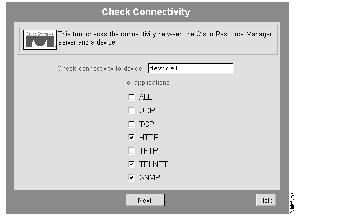
Step 2 Enter the name of the device, select the connectivity types you want to check, then click Next.
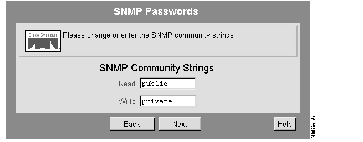
If you selected SNMP, the SNMP Passwords dialog box appears. (See Figure 10-2.)
If necessary, change the default Read and Write Community strings, then click Next.
The Connectivity Results dialog box appears. (See Figure 10-3.)
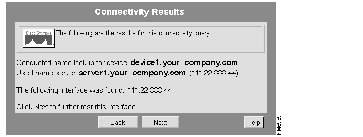
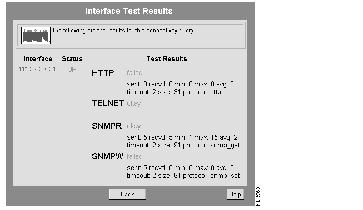
Step 3 Click Next to see the interface test results.
The Interface Test Results window appears. (See Figure 10-4.)
Scenario: You want to check the traceroute of a specific device.
To check a device traceroute, perform the following steps:
Step 1
Click Tools on the button bar, then select Connectivity Tools > Traceroute.
The Traceroute dialog box appears. (See Figure 10-5.)
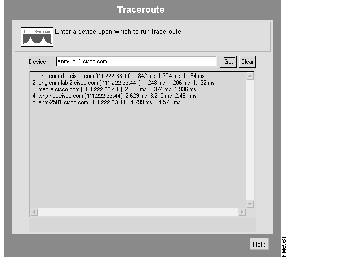
Step 2 Enter the name of the device, then click Get.
The traceroute appears in the box below the device field. The devices in the traceroute are listed sequentially from the origin of the connection to the specified device.
Scenario: You want to ping a device to ensure that it is connected to the network.
To ping a device, perform the following steps:
Step 1
Click Tools on the button bar, then select Connectivity Tools > Ping.
The Ping dialog box appears. (See Figure 10-6.)
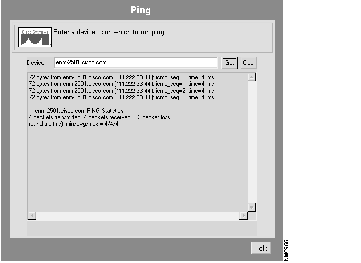
Step 2 Enter the name of the device, then click Get.
The ping statistics for the specified device appear in the box below the device field.
|
|