


|
|

Cisco Resource Manager is a suite of web-based network management tools integrated into a network desktop. Resource Manager includes a web-server component, web-based tools, and web-browser capability. Resource Manager is based on a client/network architecture that connects multiple web-based clients to a network server. Resource Manager enables the deployment, monitoring, and troubleshooting of devices across your network.
This chapter consists of the following sections:
Before you install Resource Manager, make sure your server and client environments meet the hardware and software requirements described in the following sections:
Make sure your server meets the following hardware and software requirements and software compatibility recommendations.
The requirements for the Resource Manager server are:
| Package | Size |
|---|---|
| Base Package (including Inventory) | < 26 MB |
| Availability | < 7 MB |
| Syslog Analysis | < 2 MB |
| Software Management | < 2 MB |
Before installing Resource Manager, verify that you have enough storage capacity on your disk.
The software required for the Resource Manager server is
The following software is recommended:
 | Caution The order in which you installed the recommended software is crucial to the successful installation of Resource Manager. If you did not install the software in the following order, you can possibly disable your system: |
Follow this chart to ensure that you have installed the Microsoft software in the order required by Resource Manager. If you fail to follow these instructions, you could disable your NT system. Read the following questions carefully and follow all instructions.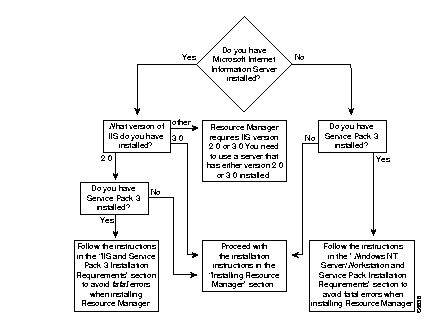
If you installed IIS 2.0 after Service Pack 3, your ODBC DLLs are broken if you had the ODBC Drivers and Administration option turned on during the IIS 2.0 setup. To determine if you have this problem, reboot your machine, then check the versions of the odbc32.dll and odbcint.dll files in C:\winnt\system32. If the two files have different versions, you have installed IIS 2.0 and Service Pack 3.0 in an incompatible order for Resource Manager.

| Caution If you do not follow these instructions, you might disable your system, requiring a complete reinstallation of the Windows NT operating system software. |
You can solve this problem in one of two ways:
Step 1 Reinstall Microsoft Windows NT Server/Workstation 4.0.
Step 2 Install IIS 2.0.
Step 3 Install Service Pack 3.
Step 4 Upgrade to IIS 3.0.
You can now install Resource Manager as explained in the "Installing Resource Manager" section.
If you installed Microsoft Windows NT Server/Workstation 4.0 and Service Pack 3, and you are about to install IIS 2.0 as required by Resource Manager, you must be very careful that you do not select the ODBC Drivers and Administration option.

| Caution If the ODBC Drivers and Administration option is selected at any time during the installation of IIS 2.0, you might disable your system, requiring a complete reinstallation of the Windows NT operating system software. |
If you have already installed IIS 2.0 with the ODBC Drivers and Administration option, you will encounter catastrophic errors when running Resource Manager. You need to follow the steps in the "IIS and Service Pack 3 Installation Requirements" section.
During the Resource Manager installation, the installation tool determines whether IIS is installed on your machine. Based on the whether IIS or Service Pack 3.0 is installed, the following scenarios occur:
Clients can use a workstation or PC to access the Resource Manager server. The hardware and software requirements for the client workstations or PCs are
If you experience browser problems, increase your disk cache settings. You should never set your disk cache to zero.
Once the web browser is installed on the client machine, there are no additional disk space requirements. However, because the browser uses the local machine's disk to store cached information, make sure you have enough disk space for the amount of cached information you want to store. All Resource Manager information is stored on the Resource Manager server.
Resource Manager is supported on the browsers shown in Table 1-2.
| Browser | Version |
|---|---|
| Netscape Navigator | 3.031 on Solaris 2.5.1 or 2.6 4.032 on Solaris 2.5.1 or 2.6, Windows NT 4.0, Windows 95, AIX 4.2 and HPUX 10.2 |
| Microsoft Internet Explorer3 | 3.02 and 4.0 with Windows NT 4.0 and Windows 95 |
Make sure your cache is set correctly by following these steps:
Table 1-3 lists the Resource Manager supported software for local and remote device import. You can import remote devices from a UNIX workstation running the supported versions of CiscoWorks, HP OpenView Network Node Manager, or CiscoWorks for Switched Internetworks (CWSI).
| Local Import | |
|---|---|
| Software | Version |
| HP OpenView Network Node Manager | 5.01 |
| CastleRock SNMPc | 4.1n, 4.2.04 |
| CiscoWorks for Switched Internetworks (CWSI) | 1.3, 2.1 |
| Remote Import1 | |
| Software | Version |
| CiscoWorks | 3.2, 4.0 |
| HP OpenView Network Node Manager | 4.1.1, 5.0, 5.01 |
| CWSI | 1.3, 2.1 |
Resource Manager uses the following Transmission Control Protocol (TCP) ports:
Resource Manager uses the default port 80. If an existing web server is already running on port 80 on the same machine on which Resource Manager runs, you receive a warning that port 80 is in use, and port 1741 is used for Resource Manager. If Resource Manager uses port 1741, make sure you append :1741 to the end of your server name when accessing the Resource Manager server through your browser, for example:
http://server_name:1741
See the "Troubleshooting" appendix if you encounter problems accessing the Resource Manager server.
This section describes how to install Resource Manager. The installation takes approximately 5 minutes to complete.
During installation, you might get warnings from the Windows NT system indicating that it has found a read-only file. You are then given a choice of Yes to overwrite the file, No not to overwrite the file, or Cancel to cancel the installation. If you cannot continue the installation, call your technical support representative for assistance.
You might also get warnings indicating the target system is running out of disk space. You are then given a choice to free space on the system and click Yes to continue, or click No to exit the installation.
Follow these steps to install Resource Manager:
Step 1 Insert the Resource Manager CD-ROM into a CD-ROM drive.
Step 2 Select Start > Run. The Run dialog box appears.
Step 3 In the Open field, enter the following command:
drive:\setup.exe
where drive is the CD-ROM drive.
Step 4 Click OK. The Installing Cisco Resource Manager Welcome screen appears.
Step 5 Click Next to continue with the setup program. The Registration dialog box appears.
Step 6 Enter your name and your company's name, then click Next. The Setup Type dialog box appears.
You now have two options to continue with the Resource Manager installation:
If you selected Typical when asked which type of installation you want, and Microsoft Internet Information Server (IIS) is not installed, you are asked if you want to install it now. If the installation tool detects that IIS and Service Pack 3 are already installed, an information dialog box appears advising you to make sure you have installed the products in the correct order. See the "Checks Made During Installation" section for more information.
You might be alerted that some World Wide Web Publishing Service settings will be changed.
Step 1 Click Yes to continue the installation. After the installation script verifies your available disk space, the Select Program Folder dialog box appears.
Step 2 Click Next to accept the default name (Cisco Resource Manager Group). If you do not want the default name, enter a new one or select a name from the Existing Folders list. The SMTP Server Name dialog box appears.
Step 3 Enter the name of your SMTP server, which is the server that handles your e-mail, then click OK.
The Start Copying Files dialog box appears, listing all Resource Manager components that will be installed.
Step 4 Click Next to install Resource Manager. The Setup screen appears, displaying the progress of the installation.
When the installation is complete, the Setup Complete dialog box appears, containing the URL of the Resource Manager server.
Step 5 Click Finish. A dialog box appears asking if you want to restart your system.
Step 6 Select Yes to restart your system, then click OK.
If you encountered any errors during the installation, check the installation log located in the root directory on the drive where the operating system is installed. The default location is C:\crmin001.log. Each installation creates a new installation log which is saved as a different file. For example, the second time you install Resource Manager, the installation log is saved as C:\crmin002.log. For troubleshooting information or to verify the directories installed on your system, see the "Troubleshooting" appendix.
Now that you have installed Resource Manager, you can continue with "Setting Up Resource Manager."
If you selected Custom when asked which type of installation you want, and Microsoft Internet Information Server (IIS) is not installed, you are asked if you want to install it now. If the installation tool detects that IIS and Service Pack 3 are already installed, an information dialog box appears advising you to make sure you have installed the products in the correct order. See the "Checks Made During Installation" section for more information.
You might be alerted that some World Wide Web Publishing Service settings will be changed.
Step 1 Click Yes to continue the installation. The Select Components dialog box appears.
Step 2 Click Install All. You must install all components to access all Resource Manager features. After the installation script verifies your available disk space, the Select Program Folder screen appears.
Step 3 Click Next to accept the default name (Cisco Resource Manager Group). If you do not want the default name, enter a new one or select a name from the Existing Folders list. The SMTP Server Name dialog box appears.
Step 4 Enter the name of your SMTP server, which is the server that handles your e-mail, then click OK.
The Start Copying Files dialog box appears, listing all Resource Manager components that will be installed.
Step 5 Click Next to install Resource Manager. The Setup screen appears, displaying the progress of the installation.
When the installation is complete, the Setup Complete dialog box appears, containing the URL of the Resource Manager server.
Step 6 Click Finish. A dialog box appears asking if you want to restart your system.
Step 7 Select Yes to restart your system, then click OK.
If you encountered any errors during the installation, check the installation log located in the root directory on the drive where the operating system is installed. The default location is C:\crmin001.log. Each installation creates a new installation log which is saved as a different file. For example, the second time you install Resource Manager, the installation log is saved as C:\crmin002.log. For troubleshooting information or to verify the directories installed on your system, see the "Troubleshooting" appendix.
Now that you have installed Resource Manager, you can continue with "Setting Up Resource Manager."
If you have CCO access, you can consult the Resource Manager web page at the following URL to download any available software enhancements:
http://www.cisco.com/kobayashi/sw-center/netmgmt/rm-planner.shtml
Consult the readme files and Cisco Resource Manager Release Notes for Windows NT for additional information on installing new features and enhancements.
The Uninstall option removes the Resource Manager files and settings. Follow these steps to uninstall Resource Manager:
Step 1 Select Start > Programs > Cisco Resource Manager Group > Uninstall. The Uninstalling Cisco Resource Manager Welcome dialog box appears.
Step 2 Click Next. The Uninstallation dialog box appears.
Step 3 Click Uninstall All to remove all Resource Manager components. The Start Copying Files dialog box appears.
Step 4 Click Next to begin uninstalling Cisco Resource Manager. The Uninstallation screen appears and the uninstallation begins. A popup window appears asking if you want to remove the database.
Step 5 Click Yes if you want to remove the database. If you click No and reinstall the same version of Resource Manager later, you can replace your existing database with a new, empty database.
When the uninstallation is complete, a popup window appears recommending that you restart your system.
Step 6 Select Yes to restart your system, then click OK.
To reinstall Resource Manager, follow the instructions in the "Installing Resource Manager" section.
|
|