


|
|

Now that you have installed Resource Manager, you need to perform setup and administrator tasks. This chapter includes the following sections:
To access Resource Manager, enter the following URL in your web browser:
http://server_name
where server_name is the name of the server on which you installed Resource Manager.
If you used the alternate port, point your browser to
http://server_name:1741
where :1741 is the alternate port on which Resource Manager was installed.
The main Resource Manager screen appears. (See Figure 2-1.)
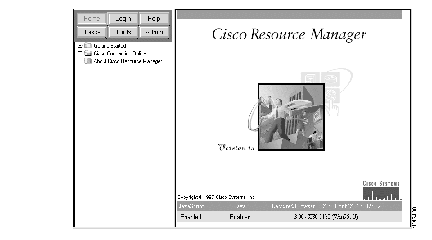
The Resource Manager desktop is composed of a series of pages consisting of two frames:
Now that you have accessed the Resource Manager server, you need to log in as the administrator and set up the server for other users. The following sections explain how to log in to obtain administrator privileges and add device information.
Although most Resource Manager applications are available to anyone that can connect to the Resource Manager server, some tasks are restricted to users who have a valid administrator login and password.
To access all components of Resource Manager, you need to log in as the administrator by following these steps:
Step 1 From the Resource Manager button bar, click Login and enter the following information in the Username and Password dialog box. (See Figure 2-2.)
User Name: admin
Password: admin
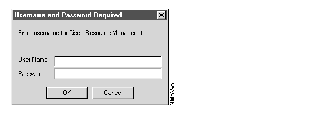
The web browser appears to refresh, and the Login button changes to Logout. You will not see any other obvious changes to the interface. The administrator tasks are transparent until you access the administrator options as described in the following sections.
If you enter an invalid password or press Cancel when prompted for a password, the browser displays an Authorization Required message.
Step 2 Click Admin in the button bar. The administrator folders appear. (See Figure 2-3.)
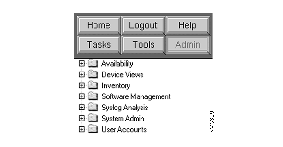
These folders contain the administrator tools and tasks you will need to perform, as explained in the following sections.
Security for Resource Manager is provided by the Solaris operating system on which you installed Resource Manager. There are two levels of users within Resource Manager:
Resource Manager does not distinguish between different users with administrator privileges.
Passwords are contained within the Resource Manager filesystem in the .htpasswd file in the /opt/CSCOpx/cgi-bin/desktop/authenticate directory. To prevent all users from accessing privileged applications, you need to change the administrator password.
Follow these steps to change the administrator password:
Step 1 Click Admin.
Step 2 Click the User Accounts folder in the navigation tree to open it.
Step 3 Click Change Passwords. The Change Passwords dialog box appears. (See Figure 2-4.)
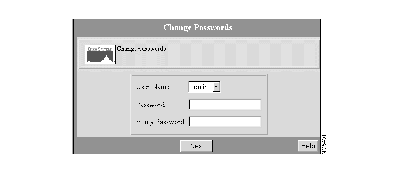
Step 4 Select the username admin.
Step 5 Enter the new password in the Password field.
Step 6 Verify the new password by entering it in the Verify Password field. This field is required.
Step 7 Click Next. You are notified that your password has been successfully changed.
Step 8 Click Add Another. The initial Change Password screen is displayed.
All users with administrator privileges have access to all privileged administrator tasks and applications, such as System Administration and Software Management. Therefore, make sure you monitor closely which users are given administrator privileges.
Now that you have logged in as an administrator, you can add device information to verify that Resource Manager was installed and configured correctly. You need a manageable device in order to verify the correct installation of Resource Manager.
Follow these steps to add device information:
Step 1 To add a device, open the Inventory folder, then select Add Devices. The Add a Single Device dialog box appears.
Step 2 Specify the access information and annotations for one device in the Add a Single Device dialog box. For more information about these fields, refer to Resource Manager online help. Sample entries are provided in italic.
my_device
my_domain (For example, at Cisco, the domain name is cisco.com.)
other_info
A123456
Step 3 Click Next. The Add Passwords dialog box appears. Specify and verify the passwords:
public
private
telnet_psswd
enable_psswd
Step 4 To submit the basic device information to the device integration process, click Next. The Add TACACS and RCP Information dialog box appears.
Step 5 Enter the following information in the Add TACACS and RCP Information dialog box:
Step 6 Click Finish. The Single Device Add dialog box appears.
Step 7 Click View Status. The Add/Import Status Summary dialog box appears.
Use the Add/Import Status Summary dialog box to check the integration status of the device you specified. You should see the following device status:
| Device Status | Number of Devices |
|---|---|
| Managed | 0 |
| Pending | 1 |
| Conflicting | 0 |
| Suspended | 0 |
| Not Responding | 0 |
You see the message "DIServer processing my_device.my_domain" at the bottom of the screen. (If the device is managed very quickly, the Managed column might already contain 1 device when the Add/Import Status Summary dialog box is displayed.)
Step 9 To update the device status, click Update on the Add/Import Status Summary dialog box.
If the pending count goes from 1 to 0 after you click Update, and the Managed field has 1 device, Resource Manager was installed and configured correctly.
You might need to wait a couple minutes for the device to become managed. Click Update on the Resource Manager Import Status dialog box every minute or so to check the current status of the device.
For more information on adding devices, refer to the Learning to Use Cisco Resource Manager manual.
The webadmin utility is a non web-based interface for configuring and maintaining the Resource Manager web server. You should use the webadmin utility to check the web server's performance and configuration only.
The webadmin utility
The following steps explain how to start the webadmin utility and what steps you need to complete with this utility:
Step 1 To start the webadmin program, enter the following command:
# /opt/CSCOpx/bin/webadmin
The Apache Configuration dialog box appears.
Step 2 To view the server access log, select View > Access Log. The access log reports when the server was accessed and by which users.
Step 3 To view the server error log, select View > Error Log. The error log lists all server error messages.
Step 4 To view server performance, select View > Performance. The webadmin tool displays CPU utilization, SWAP availability, and disk availability in the form of gauges.
You need to specify which administrators receive error messages from the server with the webadmin utility, as explained in the following section.
In addition to viewing access logs, error logs, and performance, the webadmin utility also lets you change the following web server parameters:
To specify which administrators receive error messages from the server, follow these steps:
Step 1 From the Apache Configuration dialog box, select Configure > Server Parameters. The Update Server Parameters dialog box appears.
Step 2 Enter the login of those administrators that you want to receive error messages from the server in the Admin e-mail field.
Step 3 Press Return. The Submit button is now active.
Step 4 Click Submit. A dialog box appears asking if you are sure you want to update the /opt/CSCOpx/ objects/web/conf/httpd.conf file.
Step 5 Click OK in the dialog box. If you make a mistake and want to restore the default values, click Undo on the Update Server Parameters dialog box.
Step 6 Click Cancel on the Update Server Parameters dialog box and return to the Apache Configuration dialog box.
Step 7 To see the updated values you just entered, from the Apache Configuration dialog box, select View > Server Parameters. The new values you entered are shown on the dialog box.
Step 8 To exit the webadmin utility, select File > Exit.
To end your administrator tasks, you must log out of Resource Manager and quit the web browser. Follow these steps to log out of Resource Manager:
Step 1 Close all secondary browser windows that you have open. You should have only one browser window opened displaying the Resource Manager interface.
Step 1 From the Resource Manager button bar, click Logout. The Cisco Resource Manager Logout dialog box appears.
Step 2 To log out of Resource Manager and quit the web browser, click Confirm Logout. A dialog box appears asking you to confirm whether you want the web browser window to be closed.
Step 3 Click OK.
The web browser quits and you are logged out of Resource Manager.
Now that you have performed the necessary administrator tasks, you can continue with Chapter 3, "Preparing to Use Resource Manager Packages," to set up the Resource Manager applications.
|
|