


|
|

To validate the CiscoWorks installation and configuration, you must edit the .cshrc file on your system. Follow the procedures in this chapter to complete the validation of CiscoWorks installation.
This section briefly summarizes the steps you should follow to complete the CiscoWorks installation and configuration and validate the installation. Each of the following steps are explained in detail in this chapter.
To use SNM, CiscoWorks, and Sybase, the appropriate environment variables and paths should be defined in your .cshrc file.
Environment variables define a value that is generally a text string and directory paths specify the location of files (either man pages or software). Each environment variable and path is explained in detail in Table 4-1.
The addition of environment variables and path names to your .cshrc file will be applicable only to your login account. If you have other system administrators or network managers that need to access and use CiscoWorks, edit their .cshrc files and add the information specified in the following procedure.
The following steps describe how you can add the appropriate environment variables and path names to the .cshrc file or the .login file. Make sure you substitute the correct directory paths, if you installed SNM, CiscoWorks and Sybase software in directories other than the default directories.
Step 1: Log in as a super user.
Step 2: Using a text editor such as vi, access the .cshrc script on your system.
This script resides in your home directory.
Step 3: Add the following lines to the .cshrc script, making sure you enter the uppercase and lowercase characters as shown. Substitute the appropriate directory path for each environment variable, if necessary. Note that the set path line should follow any existing set path definitions in the file.
# Set environment variables for SNM, CiscoWorks, and Sybase
setenv SNMHOME /usr/snm
setenv NMSROOT /usr/nms
setenv SYBASE $NMSROOT/sybase
#Set path for SNM
set path = ($path $SNMHOME/bin)
#Set path for CiscoWorks and Sybase executables
set path = ($path $NMSROOT/bin $NMSROOT/etc $SYBASE/bin)
#Set path for CiscoWorks man pages
if (!($?MANPATH)) setenv MANPATH /usr/man
setenv MANPATH "$MANPATH:"$NMSROOT"/man
Step 4: Save the changes to the .cshrc file by entering the following command:
hostname# source .cshrc
You are returned to the UNIX prompt.
Step 5: At the UNIX prompt, enter the following command to ensure that the changes made to the .cshrc file become a part of your system's environment.
hostname% source .cshrc
The changes made to the .cshrc file will now become a part of your active environment.
After you have edited the .cshrc file, verify that the changes you have made are active. Type the following command at the UNIX prompt:
hostname% printenv | more
You will see a display that is similar to the following.
TERM=vt100
HOME=/home/centari/rpoling
SHELL=/usr/local/bin/tcsh
USER=blytton
PATH=.:/usr/local/bin:/usr/openwin/bin:/usr/ucb:/bin:/home/centari/blytton/bin:/usr/bin:/usr/local:/etc:/usr/snm/sun4/snm/bin:/usr/nms/bin: /usr/nms/etc:/usr/nms/sybase/bin
MANPATH=/usr/man:/usr/nms/man
LOGNAME=rpoling
PWD=/usr/export/home/centari/rpoling
HOST=zen
HOSTTYPE=sun4
DISPLAY=:0
SNMHOME=/usr/snm
NMSROOT=/usr/nms
SYBASE=/usr/nms/sybase
EDITOR=/usr/local/bin/emacs
PRINTER=lp
Note that the environment variables for SNMHOME, NMSROOT, and SYBASE are displayed. In addition, the paths are defined for SNM executables, CiscoWorks and Sybase executables, and the CiscoWorks manual pages.
To verify the CiscoWorks installation and configuration, access SNM and view the CiscoWorks applications.
For detailed information on how to start the SNM Console, refer to the SunNet Manager 2.0 User's Guide.
To access SNM, type the following command at the UNIX prompt:
% hostname snm -i
When the SNM Console window appears, click on the Tools button to reveal the Tools options.
Figure 4-1 shows the Tools menu with both SNM tools and CiscoWorks applications. Except for Browser, Discover, Grapher, and Snapshot, all others are CiscoWorks applications.
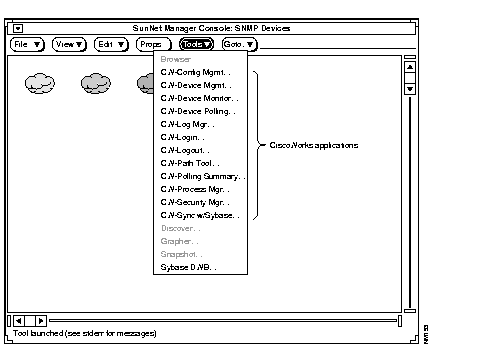
If the Tools menu does not contain the CiscoWorks applications, perform the getagents procedure for SNM as explained in the SNM documentation. Then restart SNM and check the Tools menu again. At this time, you may not be able to use all applications unless you complete the rest of the steps required to validate CiscoWorks installation.
Use the Process Manager, which is a CiscoWorks application, to choose different types of CiscoWorks processes, or daemons. A daemon is a process that performs a specific function for the system. Each CiscoWorks process performs specific functions. For example, the nmdevmond is a device monitor daemon that polls for information about devices on your network and forwards this information to SNM.
There are six CiscoWorks processes. They are nmlogd, nmpolld, nmeventd, nmdevmond, syslogd, and dataserver. Figure 4-2 shows the Process Manager window with the processes.
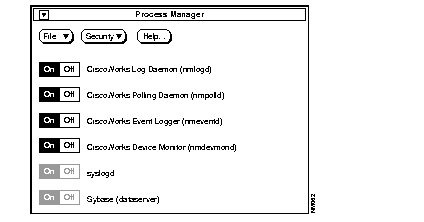
By default, the first four CiscoWorks processes in the window are turned on whenever you reboot your system. These processes run continuously, even if SunNet Manager is not running on your system. To check that the appropriate CiscoWorks processes are turned on, you need to access the Process Manager window.
To invoke the Process Manager, perform the following steps:
Step 1: From the Tools menu, pull down to Process Mgr.
The Process Manager window appears.
Step 2: To start any process, click on the On button next to it.
If the process was started successfully, the On button will appear dark. If you receive an error message indicating that the process could not be started, check your console window for an error message.
Step 3: To exit the Proces Manager select Quit from the File menu to exit the Process Manager application.
After validating the CiscoWorks installation as described in this chapter, proceed to Chapter 5, "Learning to Use CiscoWorks," to learn some simple tasks associated with CiscoWorks.
|
|