


|
|

This chapter contains an overview of how CiscoWorks functions with SunNet Manager (SNM), one of the supported platforms for the CiscoWorks network management system.
The following topics are discussed:
CiscoWorks is integrated with the SunNet Manager (SNM) network management platform.
During installation and configuration, CiscoWorks adds customized schema files with Cisco-specific device types, such as the Cisco AGS+, to the SNM schema files directory. CiscoWorks also adds its applications to the SNM Tools and Glyph menus.
It is important that you understand the SNM environment and how you can use SNM in conjunction with CiscoWorks. To answer your SNM network management questions, refer to the SNM documentation.
Some processes in SNM affect how CiscoWorks runs, depending on their configuration in SNM. As you continue to work with SNM processes and CiscoWorks, consider the following conditions in which the two environments coexist:
To use SNM and CiscoWorks, you must set the following environment variables:
Normally, you should set these variables before installing CiscoWorks. For information on setting environment variables, refer to Chapter 4, "Validating CiscoWorks Installation."
This section briefly discusses how to start the SNM Console in order to access CiscoWorks. For a more detailed description and options, refer to the SunNet Manager 2.0 User's Guide.
You can use several different commands to start the SNM Console. However, you must be running Open Windows.
Step 1 To start the SNM Console initially (when there is no database present) or when you want to bring up the last map file, enter the following:
snm
If problems occur, your PATH environment variable might not include a path to SNM executables. You can enter a fully qualified path. In the following example, /usr/snm/bin is the path to the executables:
/usr/snm/bin/snm
Step 2 To load a database map file (in ASCII format) into the SNM Console, from the SNM File menu, select the Load command.
 | Caution Using the snm -i command, described next, will cause the existing SNM database to be lost if you have not saved it. |
Step 3 To start the SNM Console enter one of the the following:
% snm -i
% snm <map_name>
For more information on starting the SNM Console or troubleshooting problems with startup, refer to the SunNet Manager 2.0 User's Guide.
This section briefly outlines the steps you must complete in SNM before continuing with CiscoWorks tasks. For instructions on using specific CiscoWorks applications, refer to the CiscoWorks User Guide.
Follow these steps to learn about CiscoWorks tools that use the Sybase database:
Step 1 Start SNM (if not started already).
Refer to the section "Starting CiscoWorks" earlier in this chapter to learn how to start SNM.
Step 2 Access the Security Manager application to turn on authentication checking and provide users and groups access privileges to CiscoWorks applications.
For more information, refer to Chapter 6, "Setting Up Domains and Securing Applications" in the CiscoWorks User Guide.
Step 3 Set up your SNM run-time database using SNM Discover or manually create devices using the SNM Create command.
For SNM Discover information, refer to Chapter 5, "Learning to Use CiscoWorks" or to the SNM documentation.
Step 4 Use Sync w/Sybase to synchronize SNM database devices with the CiscoWorks Sybase database.
If you are adding individual devices, use the CiscoWorks Device Management application, the AutoInstall Manager, or the Glyph menu Sync w/Sybase application to add device data to the database. For information on the AutoInstall Manager, refer to Chapter 4, "Managing Cisco Device Configurations, in the CiscoWorks User Guide. For Sync w/Sybase and Device Management application information, refer to Chapter 5, "Device Management," in the CiscoWorks User Guide.
Step 5 Use the CiscoWorks applications and SNM tools to help you monitor and manage your network activity.
Table 6-1 lists some general network management tasks and associates the task with its responsible software application. Use this table to determine which documentation set (CiscoWorks or SNM) to use if you have questions or need information. The X indicates that this information is located in the SNM manual set for the tool or application.
CiscoWorks uses two SNM tools: the Result Browser and Grapher. Following is a brief description of each tool and how it is used by CiscoWorks:
For more detailed information on the Results Browser and Grapher, refer to your SNM documentation.
CiscoWorks supports the OPEN LOOK graphical user interface (GUI) developed by Sun Microsystems. For information on using OPEN LOOK (including using your mouse, opening windows and menus, and manipulating windows and icons), refer to the SunNet Manager 2.0 Reference Guide.
When accessing the network management windows, keep the following in mind:
Most primary windows contain the following common menu options:
Some application windows contain other menu options. These options, along with full-menu descriptions of each application, are discussed in the CiscoWorks User Guide. Refer to the specific application for window descriptions.
All primary windows contain a File menu. Figure 6-1 shows the opened File menu.
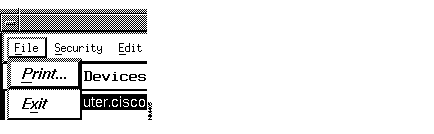
Each CiscoWorks primary window contains a Print command. There are two types of print options available in CiscoWorks applications. One option prints text displayed in a window using the lpr command. The other option prints a screen or window image using the SNM Snapshot utility. The CiscoWorks application you are in will determine the popup window that appears after you select the Print command.
When you use the Snapshot utility, you print the window on which the mouse pointer is resting. For example, when pointing to a menu bar (near the top of the window), Snapshot prints whatever is displayed on your monitor. When pointing to a browser, or text-displaying, window inside a window, Snapshot prints only the Browser window.
For more information on the Snapshot utility, refer to the SunNet Manager 2.0 User's Guide.
Table 6-2 lists CiscoWorks applications that use the Snapshot utility and those that use the lpr print command. In general, all windows that display text use the lpr command.
| CiscoWorks Application | Snapshot Utility | lpr Command |
|---|---|---|
| AutoInstall Manager | X | |
| Configuration Manager | X | |
| Contacts | X | |
| Device Inventory Manager | X | |
| Device Management | X | |
| Device Software Manager | X | |
| Device Monitor | X | |
| Device Polling | X | |
| Environment Monitor | X | |
| Domain Editor | X | |
| Global Command Editor | ||
| Health Monitor | X | |
| Log Manager | X | X |
| Configuration Snap-In Manager | ||
| Path Tool1 | X | X |
| Polling Summary | X | |
| Process Manager | X | |
| Real-Time Graphs | X | |
| Scheduler | X | |
| Security Manager | X | |
| Show Commands | X | |
| Software Library Manager | X | |
| Sybase DWB | Not Applicable | Not Applicable |
| Sync w/Sybase | X |
When you select Print on a window that accesses the lpr command, the Print Command window appears. (See Figure 6-2.)
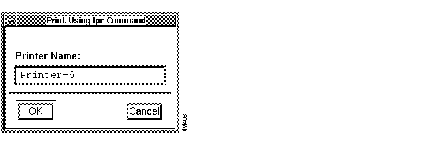
To print, enter the name of your printer, including any path designations, and click on the OK button. To close the window without printing, click on the Cancel button.
You can set up a default printer selection by setting an environmental variable PRINTER before you start SunNet Manager session. For example enter the following:
# setenv PRINTER <printername>
To exit from a primary application window, from the File menu select Exit.
Exit closes the active window. If you exit from a primary window, the SNM Console displays. If you exit from a secondary window, the primary window displays. If multiple primary windows are opened, only the one from which Exit was invoked is closed; other windows remain open and active.
The Security menu appears in the windows of CiscoWorks applications that use authentication-checking, a feature that allows an administrator to grant different levels of access privileges to CiscoWorks applications. Depending on whether the application governs a process or database function, you can use the menu commands to access another domain, to log in as another user, or to learn what user privileges you have to a given CiscoWorks application.
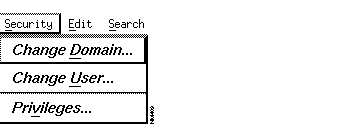
The Change Domain command allows you to display another domain. A domain represents a logical group of devices. A device is any network entity that contains an SNMP agent. (Devices generally include routers, bridges, and communication servers.)
The Change Domain command is used by applications that work with devices listed in the Sybase database. Applications that support the Change Domain command include Device Monitor and Device Polling. Changing domains may alter your privileges to an application because privileges are granted according to your group/domain association. In most cases however, when you access another domain, you can expect reduced privileges to the applications that manage its devices.
The Change User command allows you to log in under another user name. Use this command when you need the privileges of another user in order to access applications that would otherwise be unavailable to you.
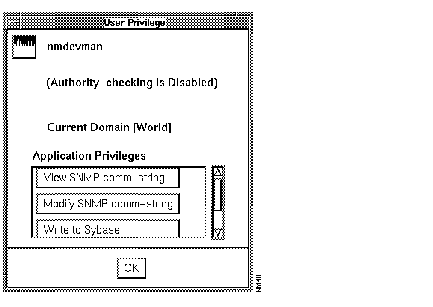
The Privileges command allows you to display your current privileges for the specified CiscoWorks application. When you select the Privileges command, the User Privilege window appears, listing your application-specific privileges. (See Figure 6-4.)
The Help menu provides options for viewing online help for the current application and its current version number. (See Figure 6-5.)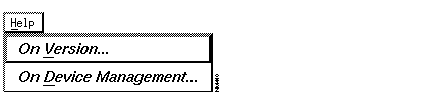
When you select On <application name>, a window similar to Figure 6-6 appears.
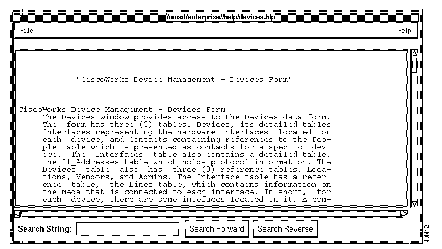
Enter characters in the search string field. Then use the Search Forward and Search Reverse buttons to find your search string in the displayed text.
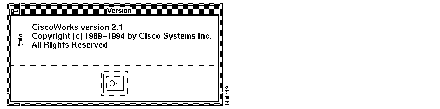
Use the Version command from the Help menu to display the current version of the active CiscoWorks application. (See Figure 6-7.)
The command buttons used in the Device Management application are described in this section. For more information on Device Management, refer Chapter 5, Device Management, in the CiscoWorks User Guide.
From the SNM Tools menu, select CW - Device Mgmt....
The Device Management window appears. (See Figure 6-8.)
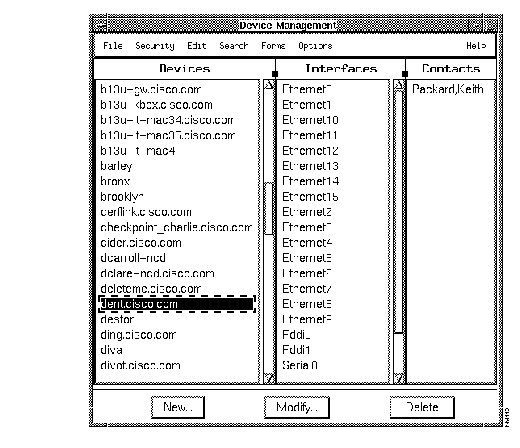
The following command buttons appear along the bottom of the window:
Click on the New button to open the Device Information Window. (See Figure 6-9.) When you click on the New button, you see panes for Device Details and Inventory Details and Administrative Details.
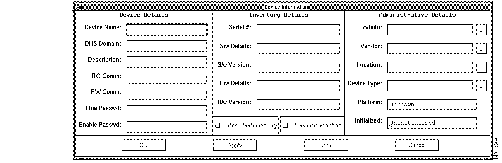
When you finish entering data in the Device Information window, click on the OK button. The data is saved to the database and displayed in the Device Management window.
With the Device Information window open, you can change the data in any field as your needs determine. If you like, you can copy and paste data directly among windows or the fields within windows. When you finish modifying data about a particular device, click on the Apply button to save the changes.
Click on the Delete button to remove a specified Device Information record from the database. This command permanently erases a selected record.
If you use the Security Manager application to protect specified applications, all users must enter a valid username and password to access the protected CiscoWorks applications. For a detailed description of which CiscoWorks applications you can protect, refer to Chapter 6, "Setting Up Domains and Securing Applications," in the CiscoWorks User Guide.
Each CiscoWorks application has varying levels of access privileges. Each user is granted inherent privileges to certain applications (such as the ability to display devices) based solely on the user's group-domain association of the user. The CiscoWorks administrator governing Security Manager can grant further levels of "application-specific" privileges (such as add or change database information) to selected groups.
With security enabled, if you previously used the Login function on the Tools menu to log into CiscoWorks, no user identification window appears. If you have not used the CiscoWorks Login function, each time you access any of the secured CiscoWorks applications, CiscoWorks prompts you for a username and password. This login controls access to the application.
If you used Security Manager to secure your CiscoWorks applications, you can use the Login and Logout function from the Tools menu. For more information on logging in and out, refer to Chapter 6, "Setting up Domains and Securing Applications," in the CiscoWorks User Guide.
 | Time Saver By using the Login function, you need to log in only once. If you do not use Login, CiscoWorks will require user identification information (username and password) each time you attempt to start a secured application. |
Two distinct databases are used in your work with CiscoWorks. The first is the Sybase relational database that is used by CiscoWorks applications to contain information about network devices, polling data, configuration details, and other data needed by each application. The second is the SNM run-time database that is used by the SunNet Manager to store information about the network. By synchronizing the Sybase database of CiscoWorks with the SNM database of the network platform, you build a complete resource of information.
Use the Sync w/Sybase application to synchronize the database information. The Sync w/Sybase application appears in the Tools and Glyph menus. Run Sync w/Sybase from the Tools menu if you just initialized SNM, loaded your network map, and want to fully synchronize both databases. Run Sync w/Sybase from the Glyphs menu if you want to synchronize one or more specific devices. In both cases, the Sync w/Sybase window from which you can select other options displays. (See Figure 6-10.)
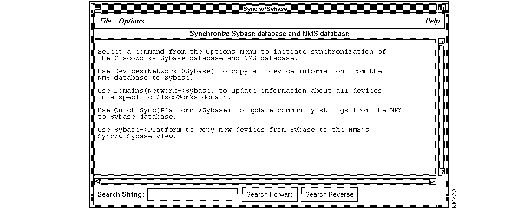
Depending on the number of database records and the information contained in each, database synchronization can be timely. To adjust for synchronization time and to meet special needs, select one of the following four commands from the Options menu of the Sync w/Sybase window:
Figure 6-11 illustrates the relationship between the SNM database and the CiscoWorks database. Although you can directly add device names to either database, you must run the Sync w/Sybase application to confirm that the information about a particular device is correct in both places.
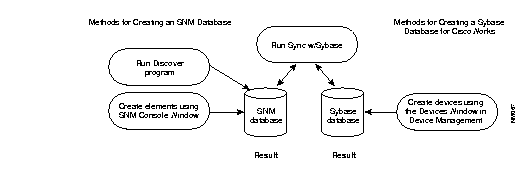
For more detailed information about the database and the Sync w/Sybase and Sync with SNM applications, refer to Chapter 5, "Device Management," in the CiscoWorks User Guide. For more information about the AutoInstall Manager application, refer to Chapter 4, "Managing Cisco Device Configurations."
|
|