


|
|

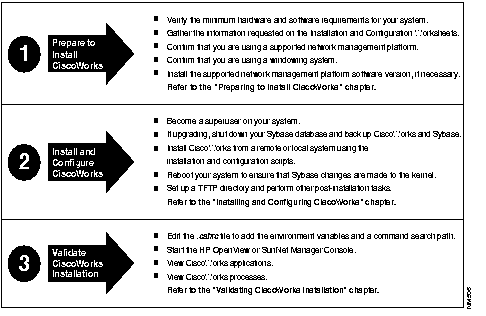
Figure 1-1 provides a visual overview of the tasks necessary for installing CiscoWorks, including preparing to install, installing, configuring, and validating the installation. After reviewing Figure 1-1, you may prefer to perform a quick installation, without completing the installation and configuration worksheets. If so, continue with the next section, "Quick Installation."
If you are installing CiscoWorks for the first time from a local CD-ROM drive, and if you are an experienced network administrator, you may wish to perform a quick installation using the steps described in this section.
If you are installing from a remote CD-ROM drive, if you are unfamiliar with UNIX commands or with your system, or if you want to use values other than the defaults given by the installation and configuration scripts, follow the instructions in Chapter 2, "Preparing to Install CiscoWorks on HP-UX" and Chapter 3, "Installing and Configuring CiscoWorks on HP-UX."
 | Caution Ensure your system has the required software installed and meets the disk and swap space requirements before proceeding with the installation. For detailed information on system requirements, refer to Chapter 2, "Preparing to Install CiscoWorks on HP-UX." |

To install CiscoWorks, perform the following steps:
Step 1 Place the CD-ROM in its caddy and insert the caddy into the CD-ROM drive.
Step 2 Log in as superuser by entering the following command:
root
Password? <rootpassword>For more information on logging in as a superuser, refer to the section "Becoming a Superuser" in Chapter 3.
Step 3 Create a /cdrom directory, if one does not exist, by entering the following command:
mkdir /cdrom
Step 4 Mount the CD-ROM by entering the following command:
/etc/mount -rt cdfs /dev/device_filename /cdrom
For example, you might enter your device_filename as /dev/dsk/c9d0s2 or something similar, instead of /dev/device_filename.
Step 5 Create a directory for CiscoWorks and Sybase by entering the following command:
mkdir /usr/nms
Step 6 Copy the installation and configuration scripts to your system by entering the following command:
/etc/update -s /cdrom/cw.tar -d /usr/nms CWIC
Step 7 Install the CiscoWorks software by entering the following command:
/usr/nms/install/bin/ncsinstall -s /cdrom/cw.tar -d /usr/nms
Answer the questions the installation script displays. You may wish to accept the default values by pressing Return.
| Caution If you are already using Sybase, before installation, refer to the detailed installation instructions on saving your database in the section "Installing CiscoWorks from a Local CD-ROM Drive" or "Installing CiscoWorks from a Remote CD-ROM Drive" in Chapter 3. |
Step 8 Configure the CiscoWorks software by entering the following command:
/usr/nms/install/bin/ncsconfigure
Answer the questions the configuration script displays. You may wish to accept the default values by pressing Return.
Step 9 Unmount the CD-ROM by entering the following commands:
cd /
hostname# umount /cdrom
Step 10 Remove the CD-ROM caddy from the drive and put the CD-ROM away.
Step 11 To execute the commands in the install.cshrc file, enter the following command:
source /usr/nms/etc/install.cshrc
Step 12 To display your environment variables to verify that NMSROOT, SYBASE, and MANPATH have been defined, enter the following command:
printenv | more
If the variables are not assigned, reinstall the CiscoWorks software.
This completes the quick installation process. You are now ready to start using CiscoWorks on HP OpenView according to the instructions in Chapter 4, "Validating CiscoWorks Installation on HP-UX."
|
|