


|
|

To validate the CiscoWorks installation and configuration, you must edit the .cshrc file on your system. Follow the procedures in this chapter to complete the validation of your CiscoWorks installation.
This section briefly summarizes the steps you should follow to validate the CiscoWorks installation. In general, you will follow these overall steps:
To use HP OpenView, CiscoWorks, and Sybase, you must define the appropriate environment variables and paths in your install.cshrc file.
Environment variables define how your particular system is set up, such as directory paths that specify the location of files. The environment variables and paths are explained in Table 4-1.
The installation and configuration scripts have made changes to the install.cshrc file. Specifically, the scripts have:
You should now verify that the correct changes have been made to the install.cshrc file. To verify the changes, perform the following steps:
Step 1 Execute the commands in the new install.cshrc file by entering the following command:
source /usr/nms/etc/install.cshrc
Substitute your CiscoWorks destination directory if it is not /usr/nms.
Step 2 Display the new values of the environment variables defined for your login account by entering the following command:
printenv | more
The values of the environment variables display on the screen. Check that values similar to the following have been set:
The values displayed on your screen will be different from those displayed above if you specified path names other than the defaults during the installation and configuration process.
This completes the process of verifying the install.cshrc file.
Once you have installed and configured CiscoWorks and verified the install.cshrc file, you can access HP OpenView and display the CiscoWorks applications. After you start CiscoWorks, you can verify that the appropriate CiscoWorks processes are running by accessing the Process Manager window.
The Process Manager window maps several different types of CiscoWorks processes or daemons. A daemon is a process that performs a specific function for the system.
To access HP OpenView and CiscoWorks, perform the following steps:
Step 1 Start HP OpenView by entering the following command:
ovw
The HP OpenView default network map appears, displaying all the IP (Internet Protocol) devices on your network (Figure 4-1).
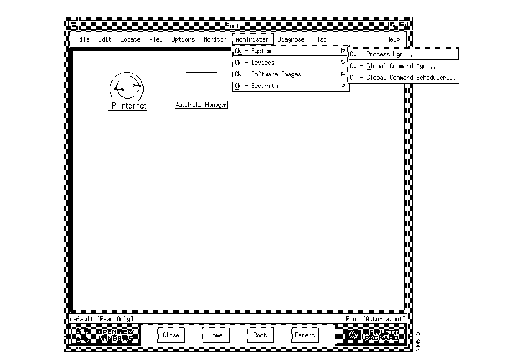
The CiscoWorks applications are distributed among the HP OpenView menus. Some of the CiscoWorks menu items begin with CiscoWorks or CW.
Step 2 Select Administer>CiscoWorks System>Process Mgr.
The Process Manager window opens (Figure 4-2).
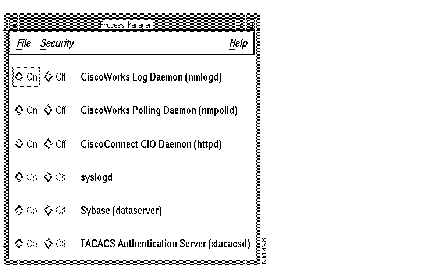
Step 3 To start a process, click the On button next to it.
If the process starts successfully, the On button is enabled.
Step 4 To exit the Process Manager application, select File>Exit.
This completes the process of starting HP OpenView and CiscoWorks and accessing the Process Manager window.
|
|