


|
|

This chapter provides detailed information on the CiscoWorks processes in the Process Manager application. Sections in this chapter include:
The Process Manager controls the CiscoWorks application daemon processes. A process is a UNIX-system execution of a program. A daemon is a process that runs in the background, independent of a terminal, and performs a function.You can use the Process Manager to start, stop, and show changes in status (on or off) for the CiscoWorks daemons.
The Process Manager on HP OpenView is very similar to the Process Manager on SunNet Manager (SNM). The primary difference is that on HP OpenView there is no device monitoring daemon (nmdevmond). On both platforms, the Process Manager manages the log, polling, event, syslog, Sybase dataserver daemons, and TACACS authentication server processes. In addition, on SNM, the Process Manager manages the device monitoring daemon.
Figure 9-1 illustrates the Process Manager window on SNM. On HP OpenView platforms, the window may look slightly different.
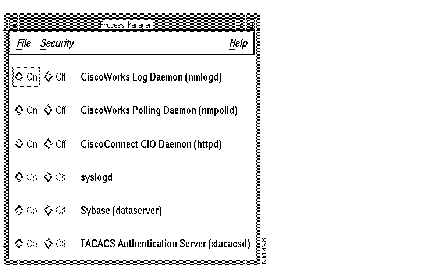
Table 9-1 describes the components of the Process Manager window. Note that the CiscoWorks Device Monitor option (nmdevmond) is only available on SNM.
| Component | Subcomponent | Description |
|---|---|---|
| File | Print
Exit | Prints a snapshot of the current window.
Exits the current window. |
| Security | Privileges
Change User | Displays the security privileges for the current user.
Enables you to change your username in order to access this application. |
| Help | On Version
On Process Manager | Displays the CiscoWorks version information for this application.
Provides help text on the current window. |
| Log daemon (nmlogd) | Reads the Log Manager file, formats the messages into fields, and forwards them to the Sybase server daemon. | |
| Polling daemon (nmpolld) | Performs the database polling created with the Device Polling and Polling Summary applications. | |
| Event Logger daemon (nmeventd) | Receives event s and traps and forwards these messages to syslog, so they can be stored in Sybase. | |
| Device Monitor daemon (nmdevmond)1 | Polls for device information and forwards this information to SNM. | |
| syslog daemon (syslogd) | Logs system messages into a set of files described by the /etc/syslog.conf configuration file. The messages can then be queried using the Log Manager. Cannot stop or start syslogd from the Process Manager window. | |
| Sybase daemon (dataserver) | Stores the formatted log messages in the CiscoWorks database. The messages can then be queried using the Log Manager. Cannot stop or start the dataserver from the Process Manager window. | |
| TACACS authentication server (xtacacsd) | Reads the TACACS password file of the UNIX host that is acting as a TACACS security server. |
A description of the processes managed by the Process Manager and how to use them appears later in the chapter.
For more information on Sybase server administration, refer to the section "Shutting Down the Server" in Chapter 8.

The active CiscoWorks daemons can be started or stopped from the Process Manager window, except for syslogd, the Sybase dataserver, and the TACACS authentication server.
To use the Process Manager to change the status of the daemons, perform the following steps:
Step 1 Select Process Mgr.
On SNM, select Tools>Process Mgr from the menu.
On HP OpenView, select Administer>CiscoWorks System>Process Mgr.
The Process Manager window appears. (See Figure 9-1.)
Step 2 To start a process, click on the On button next to the process you want to start.
For example, to start the Log daemon process, click on the On button next to that field.
Step 3 Click on OK to start the process.
If the start is successful, the On button will be filled in. If you receive an error message indicating that the process could not be started, check your console window or the centralized log file for messages that describe the error condition.
Step 4 To stop a process, click on the Off button next to the process you want to stop.
If you are unable to shut down any of the CiscoWorks daemons, refer to the following section, "Forcing a Shut down of the CiscoWorks Daemons."
Step 5 To check the status of a processes, check to see if the process is turned on or off.
If you are unable to shut down the CiscoWorks daemons (including nmpolld, nmlogd, nmeventd, or nmdevmond) by clicking on the Off button in the Process Manager window, perform the following steps as a superuser.
 | Caution Do not attempt to turn off the Sybase dataserver, because this will result in database corruption. |
Step 1 Log in as a superuser:
root
rootpassword>
Step 2 Enter the ps command to identify the process identification number (PID) for the daemon.
On Sun workstations:
daemon_process
On HP workstations:
ps -ef | grep daemon_process
The PID for the daemon process displays.
Step 3 Enter the following command to remove the process:
process-id-number
You may have to wait several minutes for the daemon to shutdown.
Step 4 Enter the ps command to ensure that the displayed processes do not include the process you just removed.
On Sun workstations:
daemon_process
On HP workstations:
ps -ef | grep daemon_process
Step 5 If the process is still running, enter the following command to remove the daemon:
process-id-number
The following process information includes the status of the CiscoWorks processes at system startup and indicates what consequences exist if the status of the process changes (from up to down).
In addition to reading the CiscoWorks syslog (nmslog), formatting the messages into fields, and forwarding them to the Sybase server daemon, the Log daemon rereads the /etc/syslog.conf file when it receives a SIGHUP signal. A SIGHUP signal is a process signal that you send when you want the Log daemon to reread the /etc/syslog.conf. The Log daemon runs only on the machine on which CiscoWorks is installed. This machine is called the log host. If you want to run applications on another machine, and you want to log events, you must customize your /etc/syslog.conf file.
The Log daemon is on when you reboot your system after installation. If you turn off the Log daemon or it goes down, the records in the nmslog are not placed in the database. When the Log daemon is started again, it will start logging messages to Sybase where it left off. The Log daemon application also changes status in the Process Manager window. The Log daemon buttons are active; therefore, you can start or stop the Log daemon from the Process Manager window.
The Log daemon (nmlogd) establishes a connection with the Sybase server. If the Sybase dataserver dies, nmlogd attempts to reestablish the connection with the Sybase dataserver once every 60 seconds until it succeeds. If nmlogd is unable to connect to the Sybase dataserver after continuous attempts, it displays a Sybase error message that explains the reason for the error.
A typical example of an error message follows:
Nmlogd: Sybase error_handler: General SQL server error: Check messages from SQL error.
For an explanation of the Sybase error, refer to your Sybase documentation and follow the instructions for eliminating the Sybase error. The nmlogd error message will not appear again.
The Polling daemon performs the database queries created with the Device Polling application.
The Polling daemon is on when you reboot your system after installation. If the Polling daemon goes down, any background polling that was in progress stops, and a message is placed in the centralized log.
On SNM, a log message is also sent to the Sun Console (not the SNM Console). The Polling daemon also changes status in the Process Manager window. The Polling daemon buttons are active, so you can start or stop the Polling daemon from the Process Manager window.
The Event Logger daemon reads event and trap reports and forwards these messages to syslog, so they can be stored in Sybase. The Event Logger daemon uses Sybase only to read the device filter list generated using nmdevmon.
The Event Logger daemon is on when you reboot your system after installation. If Sybase causes the Event Logger daemon to go down, the Event Logger daemon automatically attempts to reconnect itself to Sybase. The Event Logger daemon application also changes status in the Process Manager window. The Event Logger daemon buttons are active, so you can start or stop the Event Logger daemon from the Process Manager window.
The Device Monitor daemon polls for device status and environmental information and forwards this information to SNM. On HP OpenView, use the HP OpenView application with device monitoring capabilities.
The Device Monitor daemon is on when you reboot your system after installation. If the Device Monitor daemon goes down, your device monitoring stops, and a message is placed in the centralized log. The Device Monitor daemon also changes status in the Process Manager window.
The Device Monitor daemon buttons are active, so you can start or stop the Device Monitor daemon from the Process Manager window.
The syslog daemon logs system messages into a set of files described by the /etc/syslog.conf configuration file. The messages can be queried in the Log Manager.
The syslog daemon status cannot be changed from the Process Manager window. The syslog daemon buttons are inactive, so you cannot start or stop the syslog daemon from the Process Manager window.
The Sybase server daemon (dataserver) stores the formatted log messages in the CiscoWorks database. The messages can then be queried in the Log Manager. The Sybase dataserver should remain on at all times so CiscoWorks can collect and store data.
If the Sybase dataserver goes down, background CiscoWorks processes (for example, the Polling daemon) will log a message to the Sun Console indicating that they can no longer communicate with the Sybase dataserver.
The Sybase dataserver cannot be changed from the Process Manager window. The Sybase dataserver buttons are inactive, so you cannot start or stop the Sybase dataserver from the Process Manager window.
The TACACS authentication server responds to authentication queries from Cisco routers/communications servers to verify valid username/password entries on those devices.
If the TACACS authentication server goes down, you must bring the server back up. You have two options:
If the TACACS daemon goes down, enter the following command to restart the daemon:
hostname% xtacacsd -s -f/etc/tacpasswd
The TACACS authentication server cannot be changed from the Process Manager window. The TACACS authentication server buttons are inactive, so you cannot start or stop the TACACS authentication server from the Process Manager window.
Normally, the TACACS authentication server is run automatically from your rc.local file at system boot time. The daemon runs in the background and responds to authentication requests. If the daemon job is stopped (via a kill -9 command), you must restart the daemon manually (via the command line syntax).
|
|