


|
|

This chapter briefly describes some CiscoWorks applications and provides instructions on how to use them. It also contains an overview of how CiscoWorks functions with your SunNet Manager network management platforms. The chapter includes the following sections:
For detailed CiscoWorks application information, refer to the CiscoWorks online help system.
CiscoWorks now includes a new form of online help based on help systems supplied with Windows-based platforms.
Once you start the CiscoWorks online help system, you can jump to any topic within the system. For information on how to use the Help viewer, select Help>How to Use Help when the first help window appears.
Online help is available from several parts of CiscoWorks and its network management platforms:
CiscoWorks online help includes a Find button that allows you to do full-text searches within the help system. For information on how to do a search, select Help>How to Use Help when the first Help window appears.
The online system includes help descriptions for all CiscoWorks menus and windows, including windows that do not have help menus. You can view your online help system in the following ways:
CiscoWorks applications appear on your Sun Net Manager menus. To use CiscoWorks features and SunNet Manager software to the fullest, you must understand how to start the applications and complete some basic tasks. This section describes the location of the CiscoWorks applications on the SNM menus and provides an overview of the post-installation tasks to complete before you begin to use CiscoWorks.
Table 4-1 lists the CiscoWorks applications and their menu locations, and explains the tasks they perform. The CiscoWorks applications are listed in alphabetical order.
In SunNet Manager, start the CiscoWorks applications via the Tools and Glyphs menus.
| SunNet Manager Menu Location | Tasks |
|---|---|
| Tools>CW - Application Help | CiscoWorks online help system that allows you to investigate different levels of details within the online help system by selecting highlighted text to open additional windows. The online help system provides overview, related information, procedures, and glossary data on the CiscoWorks applications and features. It allows both keyword and full-text searches to enable users to search for specific text. |
| Tools>CW - AutoInstall Manager | Remotely deploy a new router using a neighbor router. Perform AutoInstall tasks remotely by running CiscoWorks instead of a Telnet session. |
| Tools>CW - Config Management | Access configuration files of local and remote Cisco Systems devices to analyze or edit them as necessary. Compare the contents of two configuration files in the database, or compare the configuration currently running on a device with the configuration that represents the last Database to Device command you performed. |
| Tools>CW - Configuration Snap-In Mgr | Create and execute selected or custom UNIX commands on a device or group of devices at any time with Global Command Scheduler. |
| Glyph Tools>CW - Contacts | Obtain information about the contact for a specific device, including the complete name, phone number, e-mail address, title, location, and address of the person responsible for the operation of the device. |
| Tools>CW - Device Mgmt | Create and maintain a database that holds a complete inventory of your network--hardware, software, release levels of operation components, individuals responsible for maintaining the devices, and associated locations. Enter or change data in the database tables for network devices, networks, interfaces, contacts, vendors, and so on. |
| Tools>CW - Device Monitor | Monitor your network devices for information about environmental and interface statistics. Specify how often CiscoWorks should check this information. |
| Tools>CW - Device Polling | Probe and extract information about the condition of your networks using a polling feature. The information acquired is stored in the database for further evaluation and analysis. Compare the relative performance and status of devices and interfaces on the network. |
| Glyph Tools>CW - Device SW
Mgr | Automate the upgrade of a system software or microcode image on a Cisco device. |
| Tools>CW - Domain Mgr | Create groups of devices (called domains) that CiscoWorks applications can use to accomplish network management tasks such as security, configuration, and device polling. |
| Glyph Tools>CW - Environmental Monitor | View the environmental status of Cisco AGS+ and Cisco 7000 routers including temperature and voltage statistics. This function is available on AGS+ routers running System Software Release 9.0 or later with an environmental monitor card running ENVM Microcode Version 2.0 or later. |
| Tools>CW - Global Command Mgr | Create, store, and execute system commands on a device or group of devices at any time with Global Command Scheduler. |
| Tools>CW - Global Command Scheduler | Schedule commands or other jobs at regularly scheduled times using the crontab utility. |
| Glyph Tools>CW - Health Monitor | View information about the status of a device, including buffers, CPU load, available memory, and protocols and interfaces being used. Enables you to display the Show Commands and Real-Time Graphs windows from the Health Monitor window. |
| Tools>CW - Login | Perform a generic login for all CiscoWorks applications that require user authentication so that you do not have to log in to each application separately. |
| Tools>CW - Logout | Log out of secured CiscoWorks applications to ensure security for those applications with authority checking turned on. |
| Tools>CW - Path Tool
OR Glyph Tools>CW - Path Tool | View and analyze the path between two devices. Perform analysis on the path to collect utilization and error data. Display the devices encountered between the source and the destination device, the link speeds connecting these SNMP devices, and the interface names. |
| Tools>CW - Polling Summary | Summarize the polling setup completed within Device Polling. Browse data, and stop and start polling. |
| Tools>CW - Process Mgr | Start, stop, and view status of CiscoWorks-related processes including Polling (nmpolld), CiscoConnect (httpd), System Log (syslogd), Sybase Server (dataserver), and TACACS (xtacacsd) daemons. |
| Glyph Tools>CW - Real-Time Graphs | View device information such as the router health (buffer space, CPU load, environment, free memory, and security); interface health (bits per second, bytes, errors, packets per second, packets, and queues); and protocol traffic (IP, ICMP, SNMP, TCP, UDP, AppleTalk, DECnet IV, Novell, VINES, and XNS) using a grapher utility. |
| Tools>CW - SA Password | Log in to the Sybase database account so you can perform system administrator tasks. |
| Tools>CW - Security Mgr | Create authority checking procedures to protect selected CiscoWorks applications and network devices from unauthorized individuals by requiring a login to use protected applications. This protection ensures that only users with a valid account and password can perform tasks such as configuring a router, deleting database device information, or defining polling procedures. |
| Glyph Tools>CW - Show Commands | View device data about any SNMP device, including Cisco routers and communication servers. This data includes the software version, buffers, selected device interfaces, traffic mix, IP accounting checkpoint, ARP, and IP route. Emulates the EXEC show commands for Cisco routers. |
| Tools>CW - Software Inventory Mgr | Update the Sybase database to include current device software and hardware status. Sort device information according to platform and software image, and invoke Device Software Manager to update specific devices. |
| Tools>CW - Software Library Mgr | Maintains a master storage area that contains a list of all available Cisco system software. These Cisco IOS software images are retrieved by the user with a variety of methods. |
| Tools>CW - Sync w/Sybase
or Glyph Tools>CW - Sync w/Sybase | Synchronize the NMS and Sybase databases. CiscoWorks maintains data in the Sybase database, whereas each NMS maintains its own database. Sync w/Sybase ensures that device data from the NMS database is in the Sybase database (Sync w/Platform) and vice versa. Generally, synchronize the databases whenever new devices are added to your network. Use Sync Selected to add individual devices. |
| Tools>Sybase ESQR | Use Sybase ESQR utilities to run and print reports on any table created with the Device Polling application. |
| Tools>CW - TACACS Mgr | Maintain the TACACS password file on UNIX hosts that act as TACACS servers. Create and update TACACS accounts and computer-generated passwords. |
| Tools>CW - Toolbox | Allows you to start CiscoWorks applications directly, without using the menus on your network management platform. Click on an application's icon in the Toolbox window to start the application. You can also display help for each application from the Toolbox. |
Perform the following tasks before using the CiscoWorks application on SunNet Manager (SNM):
Before performing any of these tasks, you must become familiar with the SNM Console window and learn how to access its menu items.
CiscoWorks is integrated with SunNet Manager (SNM).
During installation and configuration, CiscoWorks adds customized schema files with Cisco-specific device types (such as the Cisco AGS+) to the platform's schema files directory. CiscoWorks also adds its applications to the SNM menus.
It is important to understand the SNM environment and how to use your platform software in conjunction with CiscoWorks. To answer your SNM network management questions, refer to the SNM platform documentation.
The following sections provide detailed information on SNM post-installation tasks, and an overview of how CiscoWorks functions on the SNM network management platform:
This section briefly explains two ways to start the SNM Console to run CiscoWorks. For a more detailed description and options, refer to the SunNet Manager User's Guide.
You can use several different commands to start the SNM Console. However, you must be running Open Windows.
Perform the following tasks to start CiscoWorks when there is no database present:
Step 1 To start the SNM Console initially or when you want to bring up the last map file, enter the following:
snm
If problems occur, your $PATH environment variable might not include a path to the SNM executables. You can enter a fully qualified path. In the following example, /opt/SUNWconn/snm/bin/snm is the path to the executables:
/opt/SUNWconn/snm/bin/snm
If you don't want to start SNM with a network map, or want to load a specific map with the startup command, skip to the following section, "Starting CiscoWorks with the Database."
Step 2 Select File>Load to load an ASCII-format database map file into the SNM Console.
To start CiscoWorks when the database is present, select one of the following methods:
%snm -i
 The -i option starts the SNM Console and removes the current run-time database. If you have a run-time database and want to preserve it, do not use the -i option, or you will lose this data. The -i option starts the SNM Console and removes the current run-time database. If you have a run-time database and want to preserve it, do not use the -i option, or you will lose this data. |
% snm map_name
For more information on starting the SNM Console or troubleshooting startup problems, refer to the SunNet Manager User's Guide.
On SNM, you run CiscoWorks applications either from the Tools menu or the Glyphs menu. Figure 4-1 shows the CiscoWorks applications that are available on the Tools menu.

SNM also has a menu that becomes available when you click on an icon. To display the menu, select an icon, place the pointer anywhere in the window pane, and press the MENU mouse button. On SNM, icons are called glyphs, and the menu that becomes available is called the Glyph menu (Figure 4-2).

CiscoWorks uses two SNM utilities: the Results Browser and the Grapher. Following is a brief description of each and how it is used by CiscoWorks:
For more detailed information on the Results Browser and Grapher, refer to your SNM documentation.
Some SNM processes affect how CiscoWorks runs, depending on their configuration in SNM. As you continue to work with SNM processes and CiscoWorks, consider the following conditions in which the two environments coexist:
Most CiscoWorks applications require a database of network devices. They also require a network map that contains these network devices.
You can use the Discover command to find the devices in the primary network to which your system is attached. Use the Discover command to create a view (map) of your network and a run-time database for SNM.
To run the Discover command, perform the following steps:
Step 1 Display the SNM Console by entering the following command:
/opt/SUNWconn/snm/bin/snm
The SNM Console window appears.
Step 2 Select Tools>Discover.
The SNM Discover Program window appears, prompting you to enter the superuser password.
Step 3 Enter your superuser password.
The Discover command begins to construct views of the network. When the process is complete, networks appear in the form of cloud glyphs, and devices appear in the form of router glyphs.
Step 4 To save the database of devices that you created, select File>Save.
For detailed information on how to run the Discover command, refer to the SunNet Manager User's Guide. To add devices to your network map after CiscoWorks installation, you can use Device Management, AutoInstall Manager, or Sync w/Sybase applications. For more information on adding devices after a CiscoWorks installation, refer to the CiscoWorks online help sections on "Device Management," "AutoInstall Manager," or "Sync w/Sybase."
To add a device to your SNM network map, perform the following steps:
Step 1 Display your network map.
Step 2 Select Edit>Create
A "Create Object" window appears.
Step 3 Select the correct component and click the "Create" button.
Step 4 In the New Component window that appears, enter the MIB type and other required information.
Step 5 Click the "Apply" button.
Network devices located by the Discover command exist as generic devices. You must identify them as Cisco devices to take advantage of CiscoWorks functionality.
To change a device status from generic to that of a Cisco device, perform the following steps:
Step 1 Use the mouse to point to a Cisco device in the SNM Console window; then press the right mouse button or its equivalent.
The Glyph menu for the device appears, as shown in Figure 4-3.
Step 2 Select Change Type from the Glyph menu. Move the mouse to the right to display the popup menu, which lists device names and types.
Step 3 Select the device type that matches the one selected in your network map.
For example, if the selected device in your network map is an AGS+, select Cisco-AGS+ from the pull-down menu. The device now appears as a Cisco device.
Step 4 Repeat Steps 1 through 3 to identify other devices in the network map.
Step 5 Confirm that the selected devices have the correct Simple Network Management Protocol (SNMP) community strings. Select Tools>Properties to view the SNM Properties Sheet window.
This section briefly outlines the steps you must complete on your SNM before continuing with CiscoWorks tasks. For instructions on using specific CiscoWorks applications, refer to the appropriate sections in this section, or to the CiscoWorks online help system.
Follow these steps to learn about CiscoWorks applications that use the Sybase database:
Step 1 Start SunNet Manager.
Refer to the sections "Starting CiscoWorks on SNM" earlier in this chapter, to learn how to start it.
Step 2 Access Security Manager to turn on authentication checking and provide users and groups access privileges to CiscoWorks applications.
For more information, refer to the CiscoWorks online help section on setting up domains and securing applications in Security Manager.
Step 3 Set up your SNM database using the utilities provided with your NMS software.
For information on the SNM Discover command, refer to the section "Running the SNM Discover Command," or to the SNM documentation.
Step 4 Use Sync w/Sybase to synchronize your SNM database devices with the CiscoWorks Sybase database.
If you are adding individual devices, use the Device Management, AutoInstall Manager, or Sync w/Sybase applications to add device data to the Sybase database. For information on AutoInstall Manager, Sync w/Sybase, and Device Management, refer to the appropriate CiscoWorks online help sections.
Step 5 Use the CiscoWorks applications and SNM utilities to help you monitor and manage your network activity.
Table 4-2 lists the general network management tasks and their responsible software applications. Use this table to determine which documentation set (CiscoWorks or SNM) to use if you have questions or need information. The X indicates that this information is located in the SNM manual set for the utility or application.
CiscoWorks uses two separate databases:
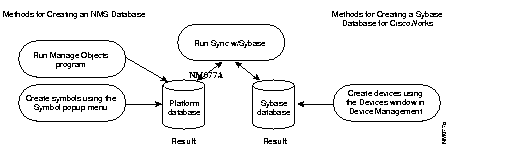
The SNM run-time database is a third database that interacts with the CiscoWorks databases. This platform database stores information about the network. By synchronizing the Sybase database with the SNM database of the network platform, you build a complete resource of information.
Your SNM platform maintains a run-time database of devices that you create using SNM utilities. In order to use CiscoWorks applications, you must list devices in the Sybase database. Sync w/Sybase performs the following functions to enable you to use CiscoWorks applications:
Use Sync w/Sybase to synchronize database information. The Sync w/Sybase application appears in the CiscoWorks menu and device popup menus. Run Sync w/Sybase if you just initialized your SNM and want to fully synchronize both databases. Run Sync w/Sybase from the device menu if you want to synchronize one or more specific devices. In both cases, the Sync w/Sybase window, from which you can select other options, displays. (See Figure 4-4.)
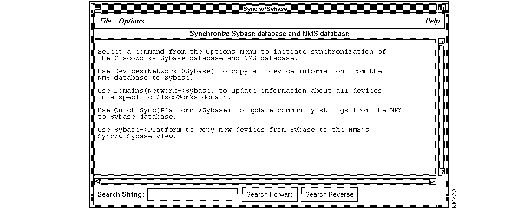
Depending on the number of database records and the information contained in each, database synchronization can be time-consuming.
 | Time Saver First-time CiscoWorks users should run the Device (Network>Sybase) option to synchronize all device information. If you are a first-time user and want the quickest method of synchronizing, use Quick Sync, which synchronizes all the devices, with the warning that device information will not be complete. If you use Quick Sync, you may want to return to Sync w/Sybase when you have more time to use the Device (Network>Sybase) option to fill in the incomplete device information. |
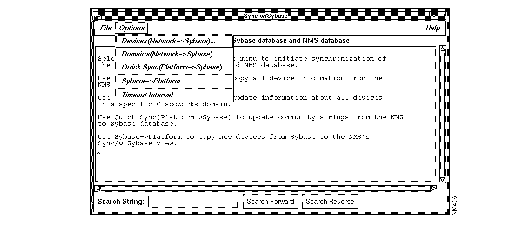
To adjust for synchronization time and to meet special needs, select one of the following commands from the Options menu of the Sync w/Sybase window:
Figure 4-5 illustrates the relationship between your SNM and CiscoWorks databases. Although you can add device names directly to either database, you must run Sync w/Sybase to confirm that the information about a particular device is correct in both places.
For more detailed information about the database and the Sync w/Sybase and Sync with NMS applications, refer to the CiscoWorks online help on "Sync w/Sybase." For more information about the AutoInstall Manager application, refer to the CiscoWorks online help on "AutoInstall Manager."
When you have finished creating a run-time database with network devices, follow these steps to run the Sync w/Sybase application:
Step 1 Select Tools>Sync w/Sybase.
The Sync w/Sybase window appears. (See Figure 4-6.)
Select one of the synchronization options
The synchronization process takes from 3 minutes to over an hour, depending on the size of your network and the number of devices you are synchronizing.
Select File>Exit to stop the synchronization process at any time. The devices synchronized up to this point are saved in the Sybase database.
Step 2 Select File>Exit to exit this window.
To use your NMS and CiscoWorks, you must make sure that the environment variables explained in Table 3-1 are set correctly. Refer to the section "Verifying Changes to the .cshrc File," in the "Validating CiscoWorks Installation" chapter.
Normally, these environment variables are set during the CiscoWorks installation process.
This section provides an overview of how to use a CiscoWorks application. It uses the Path Tool application as an example. For a detailed explanation of all CiscoWorks applications, refer to the CiscoWorks online help.
To use the Path Tool application, you must have at least two network devices in the Sybase database. Use Sync w/Sybase to add network devices to the Sybase database.
The Path Tool application enables you to display the routing path between a source device and a destination device.
To graphically display the path between two devices, perform the following steps:
Step 1 In the SNM Console window, click on an SNMP device and then display the Glyph menu. Next, select Tools>Path Tool from the Glyph menu.
A window similar to that in Figure 4-7 appears. The information about the source device is completed.

Step 2 To select the destination device, click on Select next to the Path Destination field or enter the complete device name in the Path Destination field.
If you click on Select, the Device Selection window appears listing the devices in the SNM database. It is similar to the window shown in Figure 4-8.

Step 3 Click on the device that you want to specify as the destination and click on OK.
After the connection has been established, the device name appears in the Path Destination field in the Path Tool window.
Step 4 Click on OK in the Path Tool window to display the Path Tool Hops window.
A browser window appears (similar to the window shown in Figure 4-9), displaying the progress of the Path Tool as it makes each network hop from the source to the destination device.

After the connection is established, another Path Tool window appears (similar to the window shown in Figure 4-10), graphically displaying the path between the source and destination devices you specified.

Step 5 Select File>Exit to close the window.
For more information on how to use the Path Tool, refer to the online help for Path Tool.
If you use the Security Manager application to protect specific applications, all users must enter a valid username and password to access applications. For a detailed description of which CiscoWorks applications you can protect, refer to the CiscoWorks online help section on setting up domains and securing applications.
Each CiscoWorks application has varying levels of access privileges. Users are granted inherent privileges to certain applications (such as the ability to display devices) based solely on their group-domain associations. The CiscoWorks administrator governing Security Manager can grant further levels of "application-specific" privileges (such as add or change database information) to selected groups.
When security is enabled, if you previously used the Login command to log in to CiscoWorks, a user identification window does not appear. If you do not use the Login command, CiscoWorks prompts you for a username and password each time you run a secured application. This login controls access to the application.
If you use Security Manager to secure your CiscoWorks applications, you can use Login and Logout. For more information on logging in and out, refer to the CiscoWorks online help section on Login and Logout.
|
|