


|
|

CiscoWorks network management software lets you monitor complex internetworks that use Cisco routing devices and helps you plan, troubleshoot, and analyze your network. CiscoWorks uses the Simple Network Management Protocol (SNMP) to monitor and control any SNMP device on the network.
CiscoWorks works directly with your SNMP network management platform, allowing CiscoWorks applications to be integrated with the features and applications of your platform.
CiscoWorks provides a fully integrated relational database that is based on the Sybase relational database.
This chapter contains the following sections:
The following new or changed features have been made to CiscoWorks and are reflected by information in this manual:
The following features have been removed from CiscoWorks:
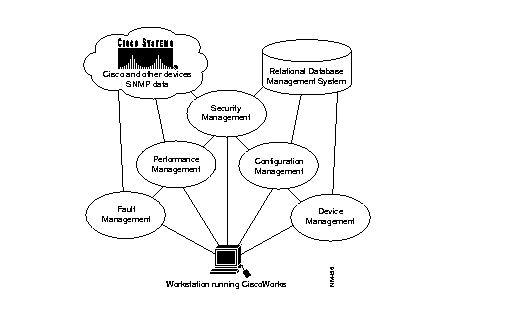
Figure 1-1 illustrates the general relationship of CiscoWorks functions.
CiscoView is a separately bundled graphical network management application that provides a physical view of a Cisco device, its cards, and its ports. Available device data includes SNMP error messages; system status information; hardware type and software version number; and device, card, and port status. With CiscoView you can configure your Cisco devices, monitor network performance, quickly access vital device information, and troubleshoot minor network problems.
Additional networking tools can be started from CiscoView. Additional device support is available on the Cisco Connection Online (CCO) or by ordering the Network Management Support CD.
For more information about CiscoView, see "Using CiscoView" in the online help.
CiscoWorks applications target five network management functional areas: fault management, performance management, configuration management (which includes device management), accounting management (which is included in performance management applications), and security management.
The following sections describe the tasks you can perform in each functional area.
You can use CiscoWorks fault management functions to do the following:
With CiscoWorks, you can retrieve status and administrative information about the network devices and display the information for multiple devices concurrently so that you can act on the changing needs of your internetwork environment.
You can use CiscoWorks performance management functions to do the following:
Accounting management is a subset of the performance management functional area: the applications used to generate accounting management information are located in those areas. The following list describes the functions you can perform for accounting management:
You can use CiscoWorks configuration management functions to do the following:
Device management is a subset of the configuration management function. Following are the major management functions you can perform:
You can use CiscoWorks security management functions to do the following:
On the Site/SunNet/Domain manager platform (Site/sunnet/domain manager), you access CiscoWorks applications either from the Tools menu or the Glyphs menu. Figure 1-2 shows the CiscoWorks applications available on the Tools menu.

Site/SunNet/Domain manager also has a menu that appears when you click on an icon. On Site/SunNet/Domain manager, icons are called glyphs, and the menu that appears is called the Glyph menu (Figure 1-3).

Table 1-1 and Table 1-2 describe how to use each of the CiscoWorks applications in the Tools and Glyph menus.
| Application | Overview of Tasks |
|---|---|
| Application Help | CiscoWorks online help system that allows you to investigate different levels of details within the online help by selecting highlighted text to open additional windows. The online help provides overview, related information, procedures, and glossary data on the CiscoWorks applications and features. It allows both keyword and full-text searches to enable users to search for specific text. |
| AutoInstall Mgr | Remotely deploys a new router using a neighbor router. You can perform AutoInstall tasks remotely via the workstation running CiscoWorks instead of running a Telnet session. |
| CiscoView | This option appears only if you have installed CiscoView separately. View the front and rear panels of Cisco devices. You can display configuration and performance information for the device, its cards, and its ports. You can use this information to monitor network performance, quickly access vital device information, and troubleshoot minor network problems. |
| Config Management | Analyze or edit configuration files of local and remote Cisco Systems devices in your network. Compare the contents of two configuration files in the database or compare the configuration currently running on the device and the configuration that represents the last time you performed a Database to Device command. |
| Configuration Snap-In Mgr | Create and execute system commands on a device or group of devices at any time via the Global Command Scheduler application. |
| Device Mgmt | Create and maintain a database that holds a complete inventory of your network--hardware, software, release levels of operation components, individuals responsible for maintaining the devices, and associated locations. Enter or change data in the database tables for network devices, networks, interfaces, contacts, vendors, and so on. |
| Device Monitor | Monitor your network devices for information about environmental and interface statistics. Specify how often CiscoWorks should check this information and whether or not to log it into the Log Manager application. |
| Device Polling | Probe and extract information about the condition of your networks using a polling feature. Information acquired from polling is stored in the database for further evaluation and analysis. Compare the relative performance and status of devices and interfaces on the network. |
| Domain Mgr | Set up groups of devices, called domains, so CiscoWorks applications can access these device groups to accomplish network management tasks such as security, configuration, and device polling. |
| Global Command Mgr | Create and execute system commands on a device or group of devices at any time via the Global Command Scheduler application. |
| Global Command Scheduler | Schedule commands or other jobs at regularly scheduled times using the crontab utility. Invoked from the Global Command Manager application or the command line. |
| Login | Perform a generic login for all CiscoWorks applications that require user authentication so that you do not have to log in to each application. |
| Logout | Log out of secured CiscoWorks applications to ensure security for those applications with authority checking turned on. |
| Path Tool | View and analyze the path between two devices. Analyze on the path to collect utilization and error data. |
| Polling Summary | Summarize the polling setup completed by the Device Polling application. Browse data, and stop and start polling. |
| Process Mgr | Start or stop CiscoWorks-related processes including the Polling (nmpolld), and device monitor (nmdevmond) daemons. View status for the System Log (syslogd), the Sybase Server (dataserver), and the TACACS (xtacacsd) daemons. |
| SA Password | Log in to the default Sybase database account to perform system administrator tasks. |
| Security Mgr | Set up authority checking procedures to protect selected CiscoWorks applications and your network devices from unauthorized individuals by setting up your CiscoWorks environment to require a login to access applications. |
| Software Inventory Mgr | Update the Sybase database to include current device software and hardware status. Device information is sorted according to platform and software image so that you can invoke Device Software Manager to update specific devices. |
| Software Library Mgr | Maintain the master storage (a list of available Cisco system software and microcode). |
| Sync w/Sybase | Synchronize both the Site/SunNet/Domain manager database and the Sybase database. CiscoWorks maintains data in the Sybase database, whereas the Site/SunNet/Domain manager maintains its own database. Sync w/Sybase ensures that device data from Site/SunNet/Domain manager database is in the Sybase database and vice versa. Generally, synchronize the databases whenever new devices are added to your network. This application includes Sync w/Site/SunNet/Domain manager. |
| Sybase ESQR | Run and print reports on any table created with the Device Polling application. |
| TACACS Mgr | Maintain the TACACS password file on UNIX hosts that act as TACACS security servers. Create and update TACACS accounts and computer-generated passwords. |
| Toolbox | Start CiscoWorks applications directly, without using the menus on your network management platform. Click on an application's icon in the Toolbox window to start the application. You can also display help for each application from the Toolbox. |
CiscoWorks is fully integrated with HP OpenView, so you can access CiscoWorks applications directly from the HP OpenView main window. (See Figure 1-4.)

The CiscoWorks applications are available from the HP OpenView main menu. For example, to open the Device Management application, you would choose Administer, then Cisco Devices, then Device Mgmt (which would be represented as Administer>Cisco Devices>CW - Device Mgmt).
HP OpenView does not use glyphs or a Glyph menu.In HP OpenView, perform the following steps to access device-dependent applications:
Step 1 Select an object in your network map or submap.
Step 2 Select the specified CiscoWorks application from the object menu.
Table 1-3 briefly describes each of the CiscoWorks applications and shows how to select them from the HP OpenView menus.
| Application | Menu Location | Overview of Tasks |
|---|---|---|
| Application Help | Help>CW - Application Help | CiscoWorks online help system that allows you to investigate different levels of details within the online help system by selecting highlighted text to open additional windows. |
| AutoInstall Manager | Administer>CW - Devices>AutoInstall Manager | Remotely deploys a new router using a neighbor router. You can perform AutoInstall tasks remotely via the workstation running CiscoWorks instead of running a Telnet session. |
| Configuration Management | Administer>CW - Devices>ConfigurationManagement
| Access configuration files of local and remote Cisco Systems devices in your network to analyze or edit them as necessary. Compare the contents of two configuration files in the database or compare the configuration currently running on the device with the configuration that represents the last time you performed a Database to Device command. |
| Configuration Snap-In Manager | Administer>CW - Devices>ConfigurationSnap-In Manager | Create and execute system commands on a device or group of devices at any time via the Global Command Scheduler application. |
| Contacts | Monitor>Description>CW - Contacts | Obtain information about the contact person for a specific device, including the complete name, telephone number, e-mail address, title, location, and address of the person responsible for the operation of the device. |
| Device Management | Administer>CW - Devices>Device Management
| Create and maintain a database that holds a complete inventory of your network--hardware, software, release levels of operation components, individuals responsible for maintaining the devices, and associated locations. Enter or change data in the database tables for network devices, networks, interfaces, contacts, vendors, and so on. |
| Device Polling
| Monitor>CW - Device Polling | Probe and extract information about the condition of your networks using a polling feature. Information acquired from polling is stored in the database for further evaluation and analysis. Compare the relative performance and status of devices and interfaces on the network. |
| Device Software Manager | Administer> CW - Software Images>Device Software Manager | Automate the upgrade of system software on a Cisco device. |
| Domain Manager | Administer> Security> CW - Domain Manager | Set up groups of devices called domains so that CiscoWorks applications can access these device groups to accomplish network management tasks such as security, configuration, and device polling. |
| Environmental Monitor | Monitor> CW - Environmental Monitor | View the environmental status of a Cisco AGS+ or Cisco 7000, including temperature and voltage statistics. |
| Global Command Manager | Administer> CW - System> CW - Global Command Manager | Create and execute system commands on a device or group of devices at any time via the Global Command Scheduler application. |
| Global Command Scheduler | Administer> CW - System>CW - Global Command Scheduler | Schedule commands or other jobs at regularly scheduled times using the crontab utility. |
| Health Monitor | Monitor>CW - Health Monitor | View information about the status of a device, including buffers, CPU load, memory available, and protocols and interfaces being used. Access the Show Commands and Real-Time Graphs windows through the Health Monitor window. |
| Login | Misc>CW - Login
| Perform a generic login for all CiscoWorks applications that require user authentication so that you do not have to log into each application. |
| Logout | Misc>CW - Logout | Log out of secured CiscoWorks applications to ensure security for those applications with authority checking turned on. |
| Path Tool | Diagnose>Network Connectivity>CW - Path Tool | View and analyze the path between two devices. Analyze on the path to collect utilization and error data. |
| Polling Summary | Monitor>CW - Polling Summary | Summarize the polling setup completed by the Device Polling application. Browse data and stop and start polling. |
| Process Manager | Administer> CW - System>CW - Process Manager | Start or stop CiscoWorks-related processes including the log (nmlogd), and polling (nmpolld) daemons. View status for the System Log (syslogd), the Sybase Server (dataserver), and the TACACS (xtacacsd) daemons. |
| Real-Time Graphs
| Monitor>CW - Real-Time Graphs | View device information such as router health (buffer space, CPU load, environment, free memory, and security), interface health (bits per second, bytes, errors, packets per second, packets, and queues), and protocol traffic (IP, ICMP, SNMP, TCP, UDP, AppleTalk, DECnet IV, Novell, VINES, and XNS) using the xnmgraph utility. |
| SA Password | Administer>Security>CW - SA Password | Log in to the default Sybase database account to perform system administrator tasks. |
| Security Manager | Administer>Security>CW - Security Manager | Set up authority checking procedures to protect selected CiscoWorks applications and your network devices from unauthorized individuals by setting up your CiscoWorks environment to require a login to access applications. |
| Show Commands | Diagnose>CW - Show Commands | View device data about any SNMP device, including Cisco routers and communication servers. |
| Software Inventory Manager | Administer> CW - Software Images>CW - Software Inventory Manager | Update the Sybase database to include current device software and hardware status. Sort device information according to platform and software image and invoke Device Software Manager to update specific devices. |
| Toolbox | Misc>CW - Toolbox | Start CiscoWorks applications directly, without using the menus on your network management platform. |
| Software Library Manager | Administer> CW - Software Images>CW - Software Library Manager | Maintain the master storage (a list of all available Cisco system software and microcode). |
| Sync w/Sybase | Misc>CW - Sync w/Sybase
| Synchronize both the NMS database and the Sybase database. CiscoWorks maintains data in the Sybase database, whereas HP OpenView maintains its own database. Sync w/Sybase ensures that device data from HP OpenView database is in the Sybase database (Sync w/Platform) and vice versa. Generally, synchronize the databases whenever new devices are added to your network. Use Sync Selected to add individual devices. |
| Sybase ESQR | Misc>Sybase ESQR | Access Sybase ESQR utilities to run and print reports on any table created with the Device Polling application. |
| TACACS Manager | Administer>Security>TACACS Manager | Maintain the TACACS password file on UNIX hosts that act as TACACS security servers. Create and update TACACS accounts and computer-generated passwords. |
CiscoWorks applications appear in NetView menus and begin with "CW-", such as in Figure 4-1 (Similar to HP OpenView Main Window).
For example, to open the Process Manager Application, select Administer>CW-System and CW-Process Manager.
Before performing CiscoWorks tasks, you must complete the following steps. For instructions on using specific CiscoWorks applications, refer to the appropriate sections in this section, or to the CiscoWorks online help.
Step 2 Access Security Manager to turn on authentication checking and provide users and groups access privileges to CiscoWorks applications.
Step 3 Set up your database using the utilities provided with NetView software.
Step 4 Use Sync w/Sybase to synchronize your NetView database devices with the CiscoWorks Sybase database.
If you are adding individual devices, use the Device Management, Autoinstall manager, or Sync w/ Sybase applications to add device data to the Sybase database.
Step 5 Use the CiscoWorks applications and NetView utilities to help you monitor and manage your network activity.
Table 1-4 briefly describes each of the CiscoWorks applications and shows how to select them from the NetView menus.
| Application | Menu Location | Overview of Tasks |
|---|---|---|
| Application Help | Help>CW - Application Help | CiscoWorks online help system that allows you to investigate different levels of details within the online help system by selecting highlighted text to open additional windows. |
| AutoInstall Manager | Administer>CW - Devices>AutoInstall Manager | Remotely deploys a new router using a neighbor router. You can performs AutoInstall tasks remotely via the workstation running CiscoWorks instead of running a Telnet session. |
| Configuration Management | Administer>CW - Devices>ConfigurationManagement
| Access configuration files of local and remote Cisco Systems devices in your network to analyze or edit them as necessary. Compare the contents of two configuration files in the database or compare the configuration currently running on the device with the configuration that represents the last time you performed a Database to Device command. |
| Configuration Snap-In Manager | Administer>CW - Devices>ConfigurationSnap-In Manager | Create and execute system commands on a device or group of devices at any time via the Global Command Scheduler application. |
| Contacts | Monitor>Description>CW - Contacts | Obtain information about the contact person for a specific device, including the complete name, telephone number, e-mail address, title, location, and address of the person responsible for the operation of the device. |
| Device Management | Administer>CW - Devices>Device Management
| Create and maintain a database that holds a complete inventory of your network--hardware, software, release levels of operation components, individuals responsible for maintaining the devices, and associated locations. Enter or change data in the database tables for network devices, networks, interfaces, contacts, vendors, and so on. |
| Device Polling
| Monitor>CW - Device Polling
| Probe and extract information about the condition of your networks using a polling feature. Information acquired from polling is stored in the database for further evaluation and analysis. Compare the relative performance and status of devices and interfaces on the network. |
| Device Software Manager | Administer> CW - Software Images>Device Software Manager | Automate the upgrade of system software on a Cisco device. |
| Domain Manager | Administer> Security> CW - Domain Manager | Set up groups of devices called domains so that CiscoWorks applications can access these device groups to accomplish network management tasks such as security, configuration, and device polling. |
| Environmental Monitor | Monitor> CW - Environmental Monitor | View the environmental status of a Cisco AGS+ or Cisco 7000, including temperature and voltage statistics. |
| Global Command Manager | Administer> CW - System> CW - Global Command Manager | Create and execute system commands on a device or group of devices at any time via the Global Command Scheduler application. |
| Global Command Scheduler | Administer> CW - System>CW - Global Command Scheduler | Schedule commands or other jobs at regularly scheduled times using the crontab utility. |
| Health Monitor | Monitor>CW - Health Monitor | View information about the status of a device, including buffers, CPU load, memory available, and protocols and interfaces being used. Access the Show Commands and Real-Time Graphs windows through the Health Monitor window. |
| Login | Misc>CW - Login
| Perform a generic login for all CiscoWorks applications that require user authentication so that you do not have to log into each application. |
| Logout | Misc>CW - Logout | Log out of secured CiscoWorks applications to ensure security for those applications with authority checking turned on. |
| Path Tool | Diagnose>Network Connectivity>CW - Path Tool | View and analyze the path between two devices. Analyze on the path to collect utilization and error data. |
| Polling Summary | Monitor>CW - Polling Summary | Summarize the polling setup completed by the Device Polling application. Browse data and stop and start polling. |
| Process Manager | Administer> CW - System>CW - Process Manager | Start or stop CiscoWorks-related processes including the log (nmlogd) and Polling (nmpolld) daemons. View status for the System Log (syslogd), Sybase Server (dataserver), and TACACS (xtacacsd) daemons. |
| Real-Time Graphs
| Monitor>CW - Real-Time Graphs | View device information such as router health (buffer space, CPU load, environment, free memory, and security), interface health (bits per second, bytes, errors, packets per second, packets, and queues), and protocol traffic (IP, ICMP, SNMP, TCP, UDP, AppleTalk, DECnet IV, Novell, VINES, and XNS) using the xnmgraph utility. |
| SA Password | Administer>Security>CW - SA Password | Log in to the default Sybase database account to perform system administrator tasks. |
| Security Manager | Administer>Security>CW - Security Manager | Set up authority checking procedures to protect selected CiscoWorks applications and your network devices from unauthorized individuals by setting up your CiscoWorks environment to require a login to access applications. |
| Show Commands | Diagnose>CW - Show Commands | View device data about any SNMP device, including Cisco routers and communication servers. |
| Software Inventory Manager | Administer> CW - Software Images>CW - Software Inventory Manager | Update the Sybase database to include current device software and hardware status. Sort device information according to platform and software image and invoke Device Software Manager to update specific devices. |
| Toolbox | Misc>CW - Toolbox | Start CiscoWorks applications directly, without using the menus on your network management platform. |
| Software Library Manager | Administer> CW - Software Images>CW - Software Library Manager | Maintain the master storage (a list of all available Cisco system software and microcode). |
| Sync w/Sybase | Misc>CW - Sync w/Sybase
| Synchronize both the NMS database and the Sybase database. CiscoWorks maintains data in the Sybase database, whereas IBM NetView maintains its own database. Sync w/Sybase ensures that device data from NetView database is in the Sybase database (Sync w/Platform) and vice versa. Generally, synchronize the databases whenever new devices are added to your network. Use Sync Selected to add individual devices. |
| Sybase ESQR | Misc>Sybase ESQR | Run and print reports on any table created with the Device Polling application. |
| TACACS Manager | Administer>Security>TACACS Manager | Maintain the TACACS password file on UNIX hosts that act as TACACS security servers. Create and update TACACS accounts and computer-generated passwords. |
Toolbox allows you to start the CiscoWorks tool or application directly, without using the menus on your network management platform. Clicking on an application's icon in the Toolbox window starts the application. You can also display the help for each application from Toolbox.
Use the Toolbox application to perform the following tasks:
To start a CiscoWorks application From Toolbox
Step 1 Select CW - Toolbox.
For Site/SunNet/Domain manager, select Tools>CW - Toolbox.
For HP OpenView, select Misc>CW - Toolbox.
For NetView for AIX, select Misc>CW - Toolbox.
Step 2 When the CiscoWorks 4.0 Toolbox window appears, click on the icon for the tool you want to run.
When you place your mouse pointer over a tool icon, a message appears at the bottom of the Toolbox window that indicates which tool you are starting.
The window for the application you select appears, unless you select one of the following applications: Environmental Monitor, Health Monitor, Real-Time Graphs, or Show Commands. If you select one of these applications, the Command Input window appears. You must select a device before you can run these applications.
Step 3 Enter a device name in the Device Name field.
Step 4 Enter the read community string for the device specified in the Device Name field in the Read Community field.
The read community string enables the retrieval of information using the SNMP protocol from the device. Toolbox uses the default read community string value, public, if the field is left blank.
Step 5 Click OK to select a device and close the window.
The window for the application you select appears, showing data for the device you select.
You can leave Toolbox running while you use CiscoWorks so that you can start other CiscoWorks applications easily at any time.
To view help for any CiscoWorks application from Toolbox
Step 1 Select CW - Toolbox.
For Site/SunNet/Domain manager, select Tools>CW - Toolbox.
For HP OpenView, select Misc>CW - Toolbox.
For NetView for AIX, select Misc>CW - Toolbox.
Step 2 When the CiscoWorks 4.0 Toolbox window appears, point to a tool icon and press F1 instead of clicking on the icon.
The Help viewer appears and displays the Help Contents for that application. You can jump to any part of the help system from this viewer.
To quit the application, select File>Exit.
Exiting Toolbox only closes the Toolbox application. Other applications started from Toolbox continue to run.
The Toolbox window consists of the following areas:
The Command Input window consists of the following areas:
|
|