


|
|

This chapter describes two methods for accessing StrataView Plus. You can perform a full start-up which presents the SV+ desktop and NetView features, or you can perform a partial start-up which presents only the SV+ desktop tools. You can also incorporate other functionality into your start-up by using the database, statistics, or SNMP agent options of the SV+ Main Menu.
The StrataView Plus Main Menu appears when you login from the StrataView Plus workstation. You use this menu primarily to initiate the SV+ core processes and, occasionally, access the SV+ desktop window. You can also use this menu to start SNMP Agents, include database details, or present the statistics GUI, and configure INS/DAS.
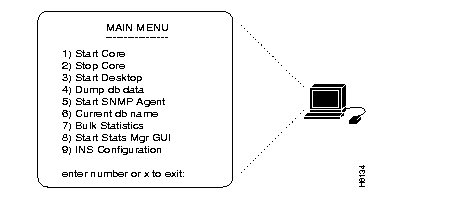
1) Start Core | Use this menu option to initiate StrataView processes. |
| 2) Stop Core | Use this menu option to cease StrataView processes |
| 3) Start Desktop | Use this menu option to present the StrataView Plus desktop window. |
| 4) Start SNMP Agent | Use this menu option if you are authorized to use the StrataView Plus Simple Network Management Protocol (SNMP) Proxy Agent. This agent enables read-access of the local SV+ database to remote network managers. |
| 5) Current db name | Use this selection to see the name of the database currently loaded on SV+.  |
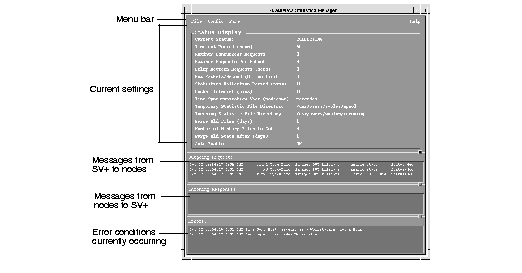
| 6) Start Stats Mgr GUI | Use this menu option to present the SV+ Statistics Manager window. See Chapter 5, "StrataView Statistics Manager" for more information about the Statistics Manager window.
|
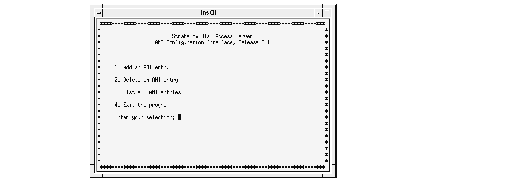
| 7) INS Configuration | Use this menu to present the ANI Configuration Interface selection screen. Guidelines for using INS functions are provided in Chapter 7, "Connection Management." |
This section describes how to execute either a full or partial start-up at the StrataView Plus workstation. If you want the complete toolset, do the full start-up. If you want the SV+ Desktop only, do the partial start-up.
During a full SV+ start-up process, you will need to display two C Shell windows on your workstation screen. You will present the Main Menu to start core processes at one of these windows. At the other C-shell, you will access the NetView environment which leads to the StrataView Plus desktop.
login: svplus
password: svplus
at AIX prompt: SV+
The StrataView Plus Main Menu appears.
at enter number or x to exit prompt: 1
You now see core processing messages scroll over the shell window.
at AIX prompt: cd /usr/OV/bin
at AIX prompt: ovw
The NetView root window appears. From StrataView Plus, you can start the StrataView Statistics Manager, SNMP Agents, INS Configuration, the StrataView Plus Desktop.
From NetView menus, you can launch the StrataView Plus Desktop and Equipment Manager.
.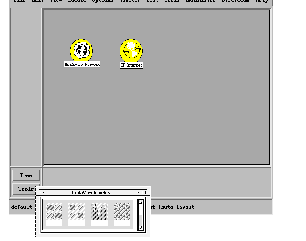
Select the StrataCom desktop menu from the NetView topology window
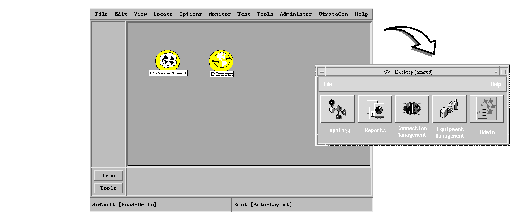
During a partial SV+ start-up, you will present the Main Menu to start core processes, wait for completion, and use the Main Menu to start the SV+ desktop.
login: svplus
password: svplus
at AIX prompt: SV+
The StrataView Plus Main Menu appears.
enter number or x to exit: 1
You now see core processing messages scroll over the shell window. Wait until the main menu reappears.
at the enter number or x to exit prompt: 3
The SV+ Desktop appears.
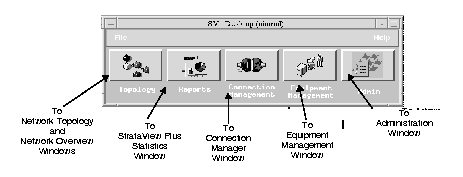
Presentation of the StrataView Plus Desktop dialog window provides access to the principle NMS applications. Buttons on the SV+ Desktop launch the toolsets you need for specific network management, monitoring, and administration tasks. Use the SV+ Desktop menu bar to either exit the window or access help.
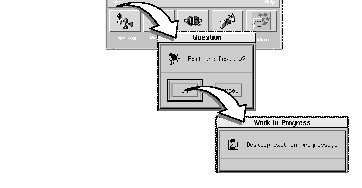
Use this menu to terminate all desktop processes and exit the SV+ desktop window.
Invocation of File Exit presents a confirmation query from which you can either continue or abort the exit request.
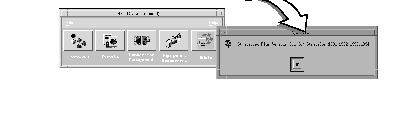
Use this menu to view the version number of the StrataView Plus software currently running on your
workstation.
More than one workstation can run the StrataView Plus GUI. Licensed workstations operating on a common LAN log in to NetView and access the SV+ desktop from the NetView Menu Bar.
|
|