|
|

This appendix describes maintenance procedures you might need to perform as your internetworking needs change. It contains the following sections:
 | Caution Before performing any procedures described in this appendix, ensure that you have discharged all static electricity from your body and be sure the power is OFF. Also, review the sections "Safety Recommendations" and "General Site Requirements" in the chapter "Preparing to Install the Cisco 3800 ERM." |
Before proceeding with maintenance procedures, refer to the section "Safety Recommendations" in the chapter "Preparing to Install the Cisco 3800 ERM" and the section "Removing and Installing the Cisco 3800 ERM" in the chapter "Installing the Cisco 3800 ERM."
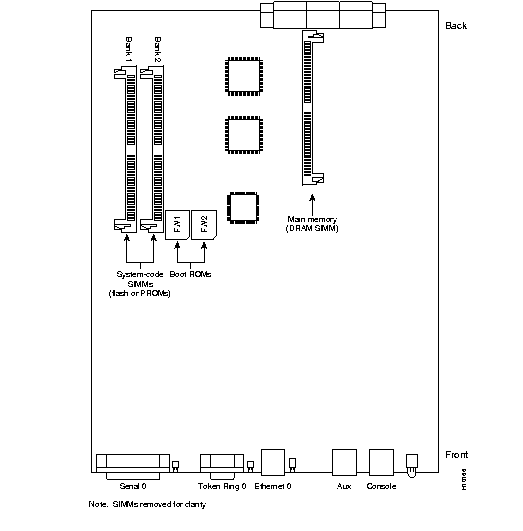
Remove the Cisco 3800 ERM from the Cisco 3800 chassis, referring to Figure A-1, which shows the layout of the ERM.
Your system is equipped with boot PROMs which hold the boot image for the system. To upgrade the boot image, replace the boot PROMs on the system card. This section describes how to upgrade the boot PROMs.
The following tools and equipment are required to replace the boot PROMs:
Take the following steps to replace the boot PROMs:
Step 1 To remove the ERM and expose the boot PROMs, follow the procedures in the section "Removing and Installing the Cisco 3800 ERM" in the chapter "Installing the Cisco 3800 ERM."
| Caution The correct placement of the boot PROMs is crucial. If the PROMs are installed in the wrong sockets they could be damaged when the system is powered on. Note that the PROM sockets are marked FW1 and FW2. |
| Caution Boot ROMs should be installed with the printed label side up. Installing boot ROMs with the label side down will result in damage to the ROM. |
| Caution To prevent damage to the PROMs from ESD (when handling the system and its components), follow the ESD procedures described in the section "Preventing Electrostatic Discharge Damage" in the chapter "Preparing to Install the Cisco 3800 ERM." Also, be careful not to damage or scratch the printed circuit card under the PROMs. |
Step 2 Locate the boot PROMs, FW1 and FW2, on the exposed system card (see Figure A-1).
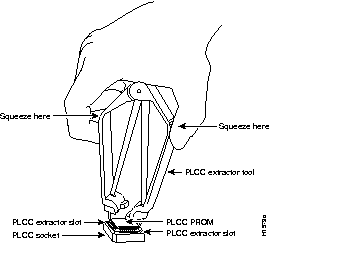
Step 3 Using a PLCC extraction tool or a small flat-blade screwdriver, gently remove the boot PROMs and set them aside (on a nonconductive surface) (see Figure A-2).
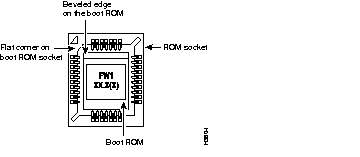
Step 4 Insert the new boot PROMs printed label side up in their respective sockets, labeled FW1 and FW2, so that the beveled edge of the ROM chip is on the same side as the flat corner on the ROM socket, in the orientation shown in Figure A-1. Be careful not to bend or crush any of the bottom pins. If you inadvertently bend a pin, use needle-nose pliers to straighten it. Align the notch in the new PROM with the notch in the PROM socket, ignoring the orientation of the label (see Figure A-3).
Step 5 Reinstall the Cisco 3800 ERM into the chassis following the instructions in the section "Removing and Installing the Cisco 3800 ERM" in the chapter "Installing the Cisco 3800 ERM."
The Cisco 3800 ERM has no fixed DRAM; all the main memory is supplied via a DRAM SIMM, which contains both primary and shared memory. Primary memory stores the running configuration and routing tables. Shared memory is used for packet buffering by the Cisco 3800 ERM network interfaces. (See Figure A-1 for the location of main memory in the Cisco 3800 ERM.)
It might be necessary to expand main memory by installing a DRAM SIMM if you are using very large routing tables or many protocols, or if the Cisco 3800 ERM is set up as a connection device between large external networks and your internal network.
After booting your system, the system banner on the console screen displays only the total amount of main memory, in kilobytes (KB). The following example shows a system with 16,384 KB of main memory:
System Bootstrap, Version 11.0(10c)XB, PLATFORM SPECIFIC RELEASE SOFTWARE (fc1)
Copyright (c) 1986-1997 by cisco Systems
2500 processor with 16384 Kbytes of main memory
The Cisco 3800 ERM has one SIMM socket for upgrading main memory. You can upgrade main memory by installing an 8-MB or 16-MB DRAM SIMM in the DRAM SIMM socket. Table A-1 lists the upgrade amounts and corresponding memory configurations.
| Upgrade DRAM | Memory Configuration |
|---|---|
8 MB | 2 MB x 36 DRAM SIMM |
| 16 MB | 4 MB x 36 DRAM SIMM |
You can order DRAM SIMMs from Cisco Systems or an approved vendor. Table A-2 lists the upgrade amounts and corresponding Cisco Systems product numbers.
| Upgrade DRAM | Cisco Systems Product Number |
|---|---|
| 8 MB (2 MB x 36, 70 ns DRAM SIMM) | MEM-1X8D= |
| 16 MB (4 MB x 36, 70 ns DRAM SIMM) | MEM-1X16D= |
Table A-3 lists approved 70 nanosecond (ns) DRAM SIMM vendors.
| Upgrade DRAM | Vendor | Vendor Part Number |
|---|---|---|
| 8 MB (2 MB x 36, 70 ns DRAM SIMM) | Smart Modules | SM536C2000-7 |
| 16 MB (4 MB x 36, 70 ns DRAM SIMM) | Hitachi | HB56D436SBR-7AGS |
| Hyundai | HYM536410M-70 | |
| Mitsubishi | MH4M36ANXJ-7 | |
| NEC | MC-424000A36BE-70 | |
| Samsung | KMM5364100A-70 |
Table A-4 lists how memory is allocated (as shared or primary memory), and the resulting total memory for different DRAM SIMM configurations.
| DRAM SIMM Memory Installed | Memory Allocated as Shared Memory | Memory Allocated as Primary Memory | Total Memory (Combined Shared and Primary Memory) |
|---|---|---|---|
| 4 MB | 2 MB | 2 MB | 4 MB |
| 8 MB | 2 MB | 6 MB | 8 MB |
| 16 MB | 2 MB | 14 MB | 16 MB |
The following tools and equipment are required:
Take the following steps to install DRAM SIMMs:
Step 1 Turn off the Cisco 3800 system but, to channel ESD voltages to ground, do not unplug the power cord.
Step 2 Attach an ESD-preventive wrist strap.
Step 3 Pull the Cisco 3800 ERM out of the Cisco 3800 chassis (see the section "Removing and Installing the Cisco 3800 ERM" in the chapter "Installing the Cisco 3800 ERM").
Step 4 Turn the ERM so the system card is opposite the position shown in Figure A-1, with the primary memory DRAM SIMM socket toward you.
Step 5 Remove the existing DRAM SIMM by pulling outward on the connectors to unlatch them (see Figure A-4). Be careful not to break the holders on the connector.
| Caution To prevent damage, do not push on the center of the SIMM. Handle the SIMM carefully. |
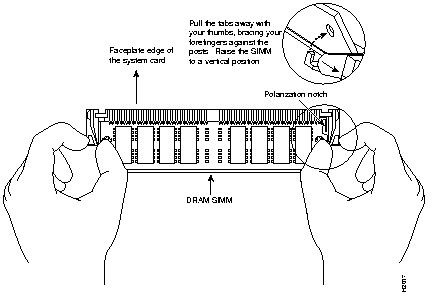
Step 6 Using the system card orientation shown in Figure A-4, position the new SIMM so that the polarization notch is located at the right end of the SIMM socket. Note that the orientation of the system card is the opposite of that shown in Figure A-1.
Step 7 Insert the new DRAM SIMM by sliding the end with the metal fingers into the SIMM connector socket at approximately a 45-degree angle to the system card. Gently rock the SIMM back into place until the latch on either side snaps into place. Do not use excessive force or the connector could break.
Step 8 Reinstall the Cisco 3800 ERM in the Cisco 3800 chassis. (See the section "Removing and Installing the Cisco 3800 ERM" in the chapter "Installing the Cisco 3800 ERM.")
Step 9 Connect the Cisco 3800 ERM to a console terminal.
Step 10 Turn ON the chassis. If error messages relating to memory are displayed, repeat Step 1 through Step 9, taking care to firmly seat the SIMM in its socket.
The system code (software) is stored on Flash or PROM SIMMs. It might be necessary to upgrade the system-code SIMM if you're upgrading to a system code that is too large for the existing system-code SIMM.
The system contains two system-code SIMM slots labeled Bank 1 and Bank 2 (see Figure A-1). You can upgrade the system-code SIMM by replacing the existing SIMM in the Bank 1 slot or installing an additional SIMM in the Bank 2 slot. Table A-5 lists the SIMM slots, Bank 1 and Bank 2, and the proper placement of SIMMs for the desired total SIMM memory.
| SIMM Slot Bank 1 | SIMM Slot Bank 2 | Total SIMM Memory |
|---|---|---|
| 4 MB | 0 MB | 4 MB |
| 4 MB | 4 MB | 8 MB |
| 8 MB | 0 MB | 8 MB |
| 8 MB | 8 MB | 16 MB |
The 80-pin Flash and PROM SIMMs are available only from Cisco Systems. Contact customer service for more information.
Take the following steps to upgrade the system-code Flash SIMMs:
Step 1 Turn OFF the Cisco 3800 system but, to channel ESD voltages to ground, do not unplug the power cord.
Step 2 Attach an ESD-preventive wrist strap.
Step 3 Pull the Cisco 3800 ERM out of the Cisco 3800 chassis (see the section "Removing and Installing the Cisco 3800 ERM" in the chapter "Installing the Cisco 3800 ERM").
Step 4 Turn the ERM so that the system card is opposite the position shown in Figure A-1, with the system-code SIMMs toward you.
Step 5 Locate the system-code SIMMs on the system card. The SIMM sockets are labeled Bank 1 and Bank 2 (see Figure A-1).
Step 6 Remove the existing system-code SIMM by pulling outward on the connectors to unlatch them. The connector holds the SIMM tightly, so be careful not to break the holders on the SIMM connector. (See Figure A-5.)
| Caution To prevent damage, do not push on the center of the SIMMs. Handle each SIMM carefully. |
Step 7 Repeat this procedure for all the system-code SIMMs to be replaced.
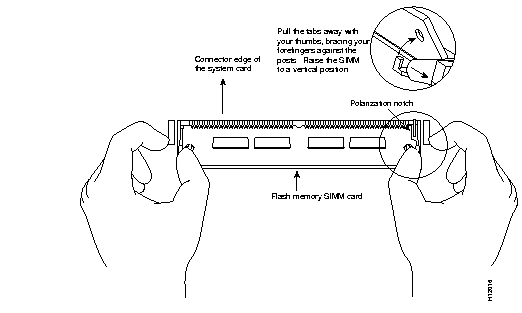
Step 8 Using the system card orientation shown in Figure A-5, position the new SIMM so that the polarization notch is located at the right end of the SIMM socket. Note that the orientation of the system card is the opposite of that shown in Figure A-1.
Step 9 Insert the new SIMM by sliding the end with the metal fingers into the appropriate SIMM connector socket (Bank 1 or Bank 2) at approximately a 45-degree angle to the system card. Gently rock the SIMM back into place until the latch on either side snaps into place. Do not use excessive force because the connector could break.
Step 10 Reinstall the Cisco 3800 ERM in the Cisco 3800 chassis (see the section "Removing and Installing the Cisco 3800 ERM" in the chapter "Installing the Cisco 3800 ERM").
Step 11 Connect the Cisco 3800 ERM to a console terminal.
Step 12 Turn ON the chassis.
If error messages relating to memory display, repeat Step 1 through Step 11, taking care to firmly seat the SIMM in the socket.
The LEDs on the front panel of the Cisco 3800 ERM indicate the current operating condition of the ERM. You can observe the LEDs, note the fault condition the Cisco 3800 ERM is encountering and then contact your system administrator or customer service, if necessary.
Figure A-6 shows the front panel and LEDs of the Cisco 3800 ERM.
The LEDs are labeled and indicate overall status and activity on ports by flickering. When there is heavy activity on a port, the LED might be on constantly. If an LED is not on when the port is active and the cable is connected correctly, there might be a problem with the port.
Take the following steps to recover a lost password:
Step 1 Attach an ASCII terminal to the Cisco 3800 ERM console port on the rear panel of the card.
Step 2 Configure the terminal to operate at 9600 baud, 8 data bits, no parity, 2 stop bits.
Step 3 Enter the command show version to display the existing configuration register value.
Step 4 If Break is disabled, power cycle the Cisco 3800 ERM (turn the Cisco 3800 chassis off, wait five seconds, and then turn it on again). If Break is enabled on the Cisco 3800 ERM, send a Break and then proceed to Step 6.
Step 5 Within 60 seconds of turning on the Cisco 3800 ERM, press the Break key. This action causes the terminal to display the bootstrap program prompt (>).
Step 6 To reset the configuration register to boot from the boot ROMs and ignore NVRAM, enter o/r at the bootstrap prompt as follows:
o/r 0x041
Step 7 Initialize the Cisco 3800 ERM by entering the i command as follows:
i
The Cisco 3800 ERM will power cycle; the configuration register will be set to 0x141 (ignore break; ignore NVRAM; boot from ROM); and the Cisco 3800 ERM will boot the boot ROM system image and prompt you with the system configuration dialog as follows:
Step 8 Enter no in response to the system configuration dialog prompts until the following system message appears:
Step 9 Press Return. The boot ROM prompt appears as follows:
Step 10 Enter the enable command to enter the EXEC mode in the boot ROM image. The prompt changes to the following:
Step 11 Enter the show configuration EXEC command to display the enable password in the configuration file and to display any boot system commands.
Step 12 Exit configuration mode by pressing Ctrl-Z.
Step 13 Reboot the Cisco 3800 ERM using the recovered password.
The Cisco 3800 ERM has a 16-bit virtual configuration register, which is written into NVRAM. You might want to change the virtual configuration register settings for the following reasons:
Table A-6 lists the meaning of each of the virtual configuration memory bits and defines the boot field names.
| Caution To avoid confusion and possibly halting the Cisco 3800 ERM, remember that valid configuration register settings might be combinations of settings and not just the individual settings listed in Table A-6. For example, the factory default value of 0x2102 is a combination of settings. |
| Bit No.1 | Hexadecimal | Meaning |
|---|---|---|
| 00-03 | 0x0000-0x000F | Boot field |
| 06 | 0x0040 | Causes system software to ignore the contents of NVRAM (startup-config) |
| 07 | 0x0080 | OEM bit is enabled |
| 08 | 0x0100 | Break is disabled |
| 10 | 0x0400 | IP broadcast with all zeros |
| 11-12 | 0x0800-0x1000 | Console line speed |
| 13 | 0x2000 | Load the boot ROM software if a Flash boot fails five times |
| 14 | 0x4000 | IP broadcasts do not have network numbers |
| 15 | 0x8000 | Enable diagnostic messages and ignore the contents of NVRAM |
Take the following steps to change the configuration register while running Cisco IOS software:
Step 1 Enter the enable command and your password to enter privileged mode:
enable
enablepassword
Step 2 Enter the configure terminal command at the privileged-level system prompt (#):
configure terminal
Step 3 To set the contents of the configuration register, enter the configuration command config-register value, where value is a hexadecimal number preceded by 0x (see Table A-6 and Table A-7):
config-register 0xvalue
(The virtual configuration register is stored in NVRAM.)
| Boot Field | Boot Process (Continued) |
|---|---|
| 0x0 | Stops the boot process in the ROM monitor. |
| 0x1 | Stops the boot process in the boot ROM monitor. |
| 0x2 | Full boot process, which loads the Cisco IOS image in Flash memory. |
| 0x3-0xF | Specifies a default filename for booting over the network from a TFTP server. Enables boot system commands that override the default filename for booting over the network from a TFTP server. |
Step 4 Press Ctrl-Z to exit configuration mode. The new settings will be saved to memory; however, the new settings are not effective until the system software is reloaded by rebooting the Cisco 3800 ERM.
Step 5 To display the configuration register value currently in effect and the value that will be used at the next reload, enter the show version EXEC command. The value displays on the last line of the screen display:
Step 6 Reboot the Cisco 3800 ERM. The new value takes effect. Configuration register changes take effect only when the Cisco 3800 ERM restarts, which occurs when you turn the system on, or when you enter the reload command.
The lowest four bits of the virtual configuration register (bits 3, 2, 1, and 0) form the boot field. (See Table A-7.) The boot field specifies a number in binary form. If you set the boot field value to 0, you must boot the operating system manually by entering the b command at the bootstrap prompt, as follows:
>b [ tftp ] flashfilename
The b command options are as follows:
For more information about the command b [tftp] flash filename, refer to the Cisco IOS configuration guide publications.
If you set the boot field value to a value of 0x2 through 0xF, and a valid system boot command is stored in the configuration file, the Cisco 3800 ERM boots the system software as directed by that value. If you set the boot field to any other bit pattern, the Cisco 3800 ERM uses the resulting number to form a default boot filename for booting from the network using a TFTP server. (See Table A-8.)
| Filename | Bit 3 | Bit 2 | Bit 1 | Bit 0 |
|---|---|---|---|---|
| bootstrap mode | 0 | 0 | 0 | 0 |
| ROM software | 0 | 0 | 0 | 1 |
| cisco2-igs | 0 | 0 | 1 | 0 |
| cisco3-igs | 0 | 0 | 1 | 1 |
| cisco4-igs | 0 | 1 | 0 | 0 |
| cisco5-igs | 0 | 1 | 0 | 1 |
| cisco6-igs | 0 | 1 | 1 | 0 |
| cisco7-igs | 0 | 1 | 1 | 1 |
| cisco10-igs | 1 | 0 | 0 | 0 |
| cisco11-igs | 1 | 0 | 0 | 1 |
| cisco12-igs | 1 | 0 | 1 | 0 |
| cisco13-igs | 1 | 0 | 1 | 1 |
| cisco14-igs | 1 | 1 | 0 | 0 |
| cisco15-igs | 1 | 1 | 0 | 1 |
| cisco16-igs | 1 | 1 | 1 | 0 |
| cisco17-igs | 1 | 1 | 1 | 1 |
In the following example, the virtual configuration register is set to boot the Cisco 3800 ERM from Flash memory and to ignore Break at the next reboot of the Cisco 3800 ERM:
3800-ERM>enablepassword:enablepassword3800-ERM#conf termEnter configuration commands, one per line. Edit with DELETE, CTRL/W, and CTRL/U; end with CTRL/Zconfig-register 0x102boot system flash[filename]^Z3800-ERM#
The Cisco 3800 ERM creates a default boot filename as part of the automatic configuration processes. The boot filename consists of cisco plus the octal equivalent of the boot field number, a hyphen, and the processor type.
Bit 8 controls the console Break key. Setting bit 8 (the factory default) causes the processor to ignore the console Break key. Clearing bit 8 causes the processor to interpret the Break key as a command to force the system into the bootstrap monitor, thereby halting normal operation. A break can be sent in the first 60 seconds while the system reboots, regardless of the configuration settings.
Bit 10 controls the host portion of the IP broadcast address. Setting bit 10 causes the processor to use all zeros; clearing bit 10 (the factory default) causes the processor to use all ones. Bit 10 interacts with bit 14, which controls the network and subnet portions of the broadcast address. (See Table A-9.)
| Bit 14 | Bit 10 | Address (<net > <host>) |
|---|---|---|
| Off | Off | <ones> <ones> |
| Off | On | <zeros> <zeros> |
| On | On | <net> <zeros> |
| On | Off | <net> <ones> |
Bits 11 and 12 in the configuration register determine the baud rate of the console terminal. Table A-10 shows the bit settings for the four available baud rates. (The factory-set default baud rate is 9600.)
| Baud | Bit 12 | Bit 11 |
|---|---|---|
| 9600 | 0 | 0 |
| 4800 | 0 | 1 |
| 1200 | 1 | 0 |
| 2400 | 1 | 1 |
Bit 13 determines the server response to a bootload failure. Setting bit 13 causes the server to load operating software from ROM after five unsuccessful attempts to load a boot file from the network. Clearing bit 13 causes the server to continue attempting to load a boot file from the network indefinitely. By factory default, bit 13 is set to 1.
To disable Break and enable the boot system flash command, enter the config-register command with the value shown in the following example:
3800-ERM>enablePassword:enablepassword3800-ERM#config termEnter configuration commands, one per line. Edit with DELETE, CTRL/W, and CTRL/U; end with CTRL/Zconfig-reg 0x2102^Z3800-ERM#
You may need to copy a new Cisco IOS image to Flash memory whenever a new image or maintenance release becomes available. Use the copy tftp flash command for the copy procedure.
Take the following steps to copy a new image to Flash memory from a TFTP server:
Step 1 Enter the show flash command to ensure that there is enough space available before copying a file to Flash memory. Compare the size of the file you want to copy to the amount of available Flash memory displayed.
Step 2 Make a backup copy of the current image. Enter enable mode and then enter the copy flash tftp command. Ensure that the filename of the current image is different from the new image so that you do not overwrite it.
Step 3 Enter the copy tftp flash command to copy the new image into Flash memory:
enable
enablepassword
copy tftp flash
The following messages display:
Step 4 Press Return to confirm. If there is an image already in Flash memory, the Cisco 3800 ERM displays the name and size of the file. Then the Cisco 3800 ERM prompts you for the IP address or name of the remote host:
The remote host can be a server or another router with a valid Flash system software image.
Step 5 Enter the IP address or name of the remote host. The Cisco 3800 ERM then prompts you for the name of the source file:
Step 6 Enter the name of the source file. The following prompt displays:
Step 7 Press Return to accept the default filename or enter a different filename. Messages similar to the following display:
yes
Step 8 Enter yes to erase the contents of Flash memory. The following message displays:
yes
Step 9 Enter yes to confirm that you want to erase the contents of Flash memory. Messages similar to the following display:
The system reboots using the new image in Flash memory.
|
|