


|
|

This chapter provides (1) an overview of the StrataView Plus statistics collection and display feature, and (2) guidelines for using the StrataView Plus Statistics Manager window tools which are generated from the StrataView Plus Main Menu.
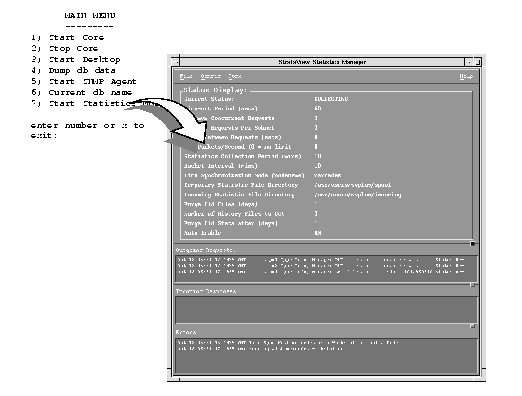
The Statistics Manager window, which contains a built-in watchdog process, automatically restarts the GUI in case of abnormal GUI termination. Network statistics configuration for statistics enable or disable is also managed through the GUI. To configure the statistics for collection and interval periods, the GUI invokes the TFTP (Trivial File Transfer) "PUT" command on enabled files to each of the user configured nodes. StrataView Plus collects statistics individually unless you configure otherwise from the StrataView Plus Main Menu.
A StrataView Plus workstation start-up automatically generates topology information. This information consists of the current node, connection, circuit line, trunk, and frame relay port conditions which are formatted into reports and statistics. Statistics are stored in the Informix data base on the StrataView Plus hard disk.
Each node, if enabled for statistics, collects statistics according to individual configurations for collection interval, duration of retention, and bucket size. Throughout the network, TFTP batches specific types of statistics and transmits them to StrataView Plus. Batching increases the efficiency of available bandwidth at the node's NMS port. For time synchronization, a telnet command is sent to the time sync node connected to the StrataView Plus workstation to obtain the current GMT (Greenwich Mean Time) of the node which is then used for the statistics time stamp.
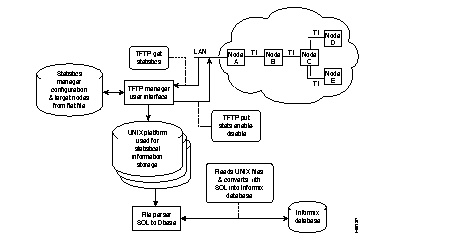
Preparation for statistic collection includes:
/etc/hosts file.
The Status Display field in the Statistics Manager main window lists some, but not all, of the possible parameters that you may want to consider setting. To view all of the possible parameters and to change any of them, select Network Parameters from the Config pull down menu. The Statistics Parameters dialog box appears. Most of the parameters can be left at the default. The parameters that you should review are:
| Time Synchronization Node | Select the node supplying the master system timing. If possible, it should be set to the attached IPX node where SCM is installed. If your network crosses over time zones, it is important that all nodes in all time zones remain synchronized to a single clock (namely, the clock in the node defined as the Time Synchronization Node in the Statistics Manager main window). |
| Peak Statistics Enable Toggle Button | Toggle to OFF unless peak statistics are required. |
| Statistics Collection Period | Collection interval display. |
| Bucket Interval | This must not exceed the value set for the collection period. |
| Purge Old Files | Recommended unless doing a long-term study on only one or a few statistics. |
Before statistics collection is enabled. use the cnfdate or cnftime commands to configure all the nodes in your network to the same time as the Time Synchronization Node. Use the cnftmzn GMT command to set the node time to GMT (Greenwich Mean Time). Once all the nodes are using the same time as the Time Synchronization Node, you can use the cnftmzn command to set the node time to whichever time zone you want, but the time MUST come from the Time Synchronization Node.
File directories are given a default name by the system. These fields may be renamed if desired to something more appropriate to what is being collected (such as when collecting trunk statistics, name the Incoming File Directory with trunk in its name). These parameters should be configured before any statistics collection is initiated. They can be changed later but the statistics collection process must first be stopped.
Prior to installing StrataView Plus, you should decide the types and quantity of statistics to be collected. Configurations for statistics in larger networks may involve trade-offs to accommodate procurement of high-volume statistics as well as to maintain sufficient node memory allocation, StrataView Plus link bandwidth, or Informix database disk capacity for statistics.
By default, all statistics associated with trunks and circuit lines are automatically enabled at start-up. To collect statistics from a BPX/IPX network, other types of statistics must be defined and enabled at each node. Each node then gathers data and periodically transmits it to the StrataView Plus workstation, where it is stored in the StrataView Plus database.
For each statistic, you can select the bucket interval (also called the bucket type and sometimes granularity of the sample), the collection interval, and retention interval.
| Bucket interval Default: 60 | Specifies the interval over which the node accumulates a sample (i.e., every 1, 5, 10, 15, 30, or 60 minutes). When all buckets are full, the collection wraps around and fills the first bucket. The number of buckets retained is constrained by the amount of memory allocated for this process. |
| Collection interval Default: 60 | Specifies the frequency with which StrataView Plus collects these samples and has a default value of 60 minutes. The collection interval should always be set equal to, or longer than, the bucket interval. |
| Retention interval | Specifies how long the data is maintained by the StrataView Plus database. The retention period is 24 hours. The maximum retention period is 8960 hours (1 year). |
The Statistics Manager window is presented either as a result of a full start-up, or by invoking it from the SV+ Main Menu. Only one statistics manager window per session may be opened.
Use this window to view current statistics as they are gathered at StrataView Plus, set network parameters, select nodes, and enable statistics. While this window is displayed, you can also invoke fresh display of ongoing statistics.
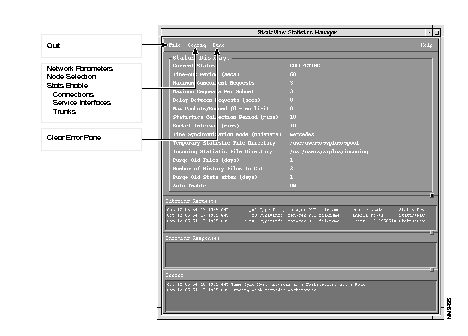
Use this menu to close the Statistics Manager window. This menu presents a confirmation dialog window.
Use this menu to present the Network Parameters dialog window.
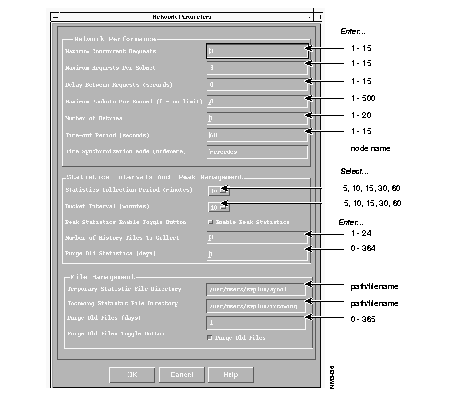
Maximum Concurrent Requests | This setting controls the number of child processes created. Each child process is responsible for one file transfer at a time, which indicates the number of concurrent requests to the network. |
| Maximum Requests per Subnet Default: 3 | Type the number of requests allowable per subnet. This setting is used to throttle the number of requests being retrieved from the network on a particular access point. Statistics enable files are not considered part of this throttling |
| Delay Between Requests (seconds) Default: 0 | Type the duration for child process to sleep prior to each request. |
| Maximum Packets Per Second Default: 0 | Type the maximum packets to be transmitted from the child process. A packet is fixed at 512 bytes in TFTP specifications. A value of 500 will therefore transfer at up to 256K/Second.
An entry of 0 (zero) indicates unlimited transfer rate |
| Number of Retries Default: 1 | Type the number of retries the child process makes in attempting to get files from the network. |
| Time-out Period Default: 60 | Type the time-out value (in seconds) for TFTP GET requests. Increase this value on busy networks. Busy networks should be configured for a high value. |
| Time Synchronization Node | Type the name of the node that Statistics Manager uses for time synchronization. It should be set to the name of the workstation where SCM is installed. If you must use a network node as the Time Synchronization Node, choose the IPX node closest to the StrataView Plus workstation (least number of hops). The node must have NPCs and must be configured in /etc/hosts. Note: Yellow Pages are supported for the /etc/hosts file. If the node is unavailable, the nodes in the Selected Node list will be scanned in ascending alphabetical order.The first reachable node becomes the time synchronization node. All nodes in all domains must be set to GMT using the cnftmzn command. |
| Statistics Collection Period Default: 60 | Type the interval value (in minutes) in which stats are gathered from the network |
| Bucket Interval | Type the Bucket Interval Period value (in minutes) to be kept for the single bucket on the node. |
| Peak Statistics Enable Toggle Button Default: ON | Toggle to set peak values on network stats to either ON or OFF. |
| Number of History Files to Collect Default: 5 | The total number of history files to collect. If, for example, you select 5, and the interval is set at 60 minutes, then the current hour and the prior 4 hours will be tracked for collection from the network. This "history" on collection completion or failure will be tracked for 5 files (1 file = 1 collection interval). It is recommended you select at least 5 for this setting. |
| Purge Old Statistics (hours) Default: 30 | This field identifies the number of days to keep old statistics. Statistics older than the current date/time less this field in days are DELETED from the database, automatically.
A value of zero (0) will disable stats deletion. If you choose a value of zero, your database can become full in a very short time |
| Temporary File Directory | Type the filename to use as temporary storage for incoming files. |
| Incoming File Directory | Type the name of the incoming file directory used by the parser to locate incoming files to be parsed. The incoming and temporary directories must be within either the same UNIX partition or NFS mounted partition. |
| Purge Old Files (days) Default: 2 | The value you specify to purge old file when the disc space in the Incoming partition drops below 20 megabytes. The files with a date 'N' days older than today's date will be purged. (0= no purging to be done.) |
| Purge Old Files Toggle Button Default: ON | This toggle controls the ability to purge files as they are parsed from the stats parser.
Set to OFF to move files to the directory ~/spool. Currently, the save directory is not configurable. It is recommended that you delete old files. |
Use this menu to presents the Statistics Node Selection Dialog window.
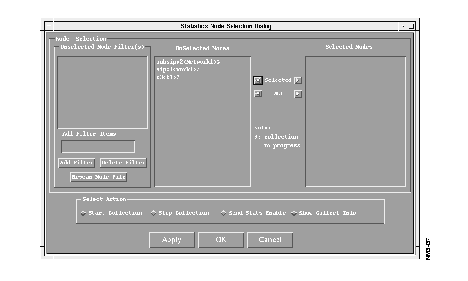
Unselected Node Filter(s) | These are strings to help sort nodes with similar node names from long lists of nodes. Strings can be any combination of characters. If multiple filters appear in this list they will be treated as a logical OR. Add filters using the buttons below this window. |
| UnSelected Nodes | Shows all nodes reachable in the network |
| Selected Nodes | Shows all nodes that this StrataView Plus needs to collect statistics from. To add nodes to this list, select the node from the UnSelected Nodes List, then press the Selected Nodes right-arrow button or press the ALL nodes right arrow button. To remove a node, press either left-arrow select button. |
| Add/Delete Filter Buttons | Select the Add Filter Items box by clicking inside the box and type the filter string. Then click Add Filter to place it in the Node File Filter window. Deselect a filter in reverse order using the Delete Filter button. |
| Rescan Node File | After all of the file filters are added to the Unselected Node File Filter box, click on this button to rescan the list of all nodes recognized by StrataView Plus. Only those matching the filter will be displayed in the UnSelected Nodes box. |
Use this menu to presents the Connection Statistics Enable/Disable dialog window.
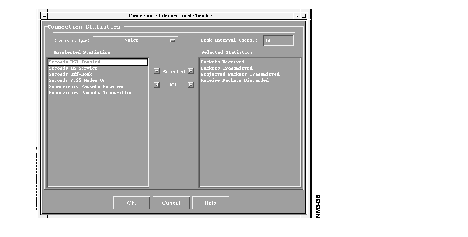
Statistic Type | Clicking on the small button to the right presents a list of the object sub types for the Stats Enable Object Type selected. |
| Peak Interval | This field is the peak values set on all statistics within a subtype. It is applicable only when the user enables Peak Values toggle button in the Network Parameters dialog box. This can be modified by clicking in the box and typing in a new value. |
| UnSelected Statistics | Presents a list of all statistics types available for this subobject type that have not been selected. |
| Selected Statistics | Presents a list of all statistics types for this subobject type that have been selected. To select a statistic, click on the desired statistic in the unselected list then click on the Selected Stats right-arrow button. To select all stats, press ALL Stats right-arrow button. To remove a particular statistic, click on the desired statistic in the selected list then click on the Unselected Stats left-arrow button. To disable all stats for the current object, press ALL Stats left-arrow button. |
In addition to collecting and configuring statistics via the Statistics Manager GUI, a separate Systems Query Language (SQL) database parsing process is used to parse the statistics UNIX files that are gathered from the network. This parser tool manages the UNIX files that have been placed in a UNIX directory, parses the statistics contained within the files, and writes them into the StrataView Plus Informix data tables. Once the parsed statistics are written into the data tables, the parser deletes the parsed UNIX files or moves the files to a backup directory.
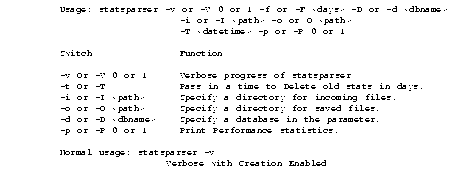
The user interface to the parser tool has several options. You activate these options by adding the appropriate switches to the statsparser command line when the parser is invoked.
See Table 5-1 for a description of each functional feature enabled by a statsparser parameter switch, the appropriate switch character, and the default for each switch.
| Parser and Interaction With Processes | Switch Character | Description | Default |
|---|---|---|---|
| Define location of saved files | -o or -O
<path> | Output save directory | Not moved, deleted. Path default is
~svplus/save |
| Define age to delete old stats in days | -t or -T
<age> | Retain period in days | Not moved, deleted. Path default is
~svplus/save |
| Enable verbose mode | -v or -V
1 or 0 | Verbose listing | Disabled |
| Define incoming file directory | -i or -I
<path> | Incoming directory | ~svplus/incoming |
| Print performance statistics | -p or -P
1 or 0 | Print performance | Disabled |
You can access on-line help for the statsparser parameter switches by entering the following at the shell prompt:
% statsparser
The system responds with the parameter switch description as shown in the following table.
You must prepare a list of all nodes in the network that will be collecting statistics for display on this StrataView Plus workstation. If there is only one StrataView Plus workstation attached to the network, this list will consist of all nodes in the network. Every node without a LAN IP address must have an IP Relay IP address assigned. Use the cnfnwip command to assign IP Relay addresses.
Use this command to configure an IP address and subnet mask for the node. Network statistics are collected by the Statistics Master process resident in StrataView Plus. The Statistics Manager requests/receives statistics using TFTP Get and Put messages. These TFTP messages are transferred between the node and the Statistics Master via IP Relay. This command defines the IP address used to route the messages from/to the node.
| Full Name | Configure network node IP address. | |
| Syntax | cnfnwip parameters | |
| Related Commands | cnfstatmast, dspnwip | |
| Attributes | Privilege | 1-6 |
| Jobs | No | |
| Log | Yes | |
| Node | IPX and BPX | |
| Lock | Yes | |
| Example 1 Description | cnfnwip 199.35.96.217 255.255.255.0 Configure 199.35.96.217 as the IP address and 255.255.255.0 as the subnet mask for the node. | |
Nodes that you add an IP address to using the cnfnwip command must also be added to the StrataView Plus /etc/hosts file so that the Statistics Manager can use TFTP to collect statistics from them.
The StrataView Plus workstation must also have an IP address assigned. Use the cnfstatmast command to assign an IP address to the StrataView Plus workstation and define it as the statistics collection point. Each node that will be managed by the StrataView Plus workstation must run this command in order to route messages to and from the StrataView Plus workstation. The cnfstatmast command can be included in a job to automate the process.
This command configures an IP address for the Statistics Master process resident in StrataView Plus. Network statistics are collected by the Statistics Master process via TFTP. The Statistics Manager requests/receives statistics using TFTP Get and Put messages. These TFTP messages are transferred between the node and the Statistics Master via IP Relay. This command defines the IP address used to route the messages from/to the Statistics Master. See the cnfnwip command for details on setting a nodes address.
| Full Name | Configure statistics master SV+ address | |
| Syntax | cnfstatmast parameters | |
| Related Commands | cnfnwip, dspnwip | |
| Attributes | Privilege | 1 |
| Jobs | Yes | |
| Log | Yes | |
| Node | IPX a | |
| Lock | Yes | |
| Example 1 Description | cnfstatmast 199.35.96.217 Configure 199.35.96.217 as the IP address for the statistics master. The IP address is a 32-bit address specified in the format x.x.x.x where each x is a value from 1 to 255. | |
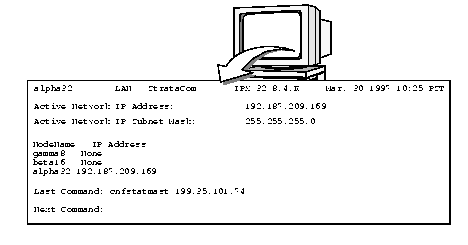
For large networks, there may be multiple StrataView Plus workstations, each one managing a part of the overall network. A separate list needs to be prepared for each StrataView Plus workstation. IP addresses must be configured as described above.
To view the default list of statistics enabled or disabled for collection and to modify this list, select the Stats Enable command from the Config menu of the Statistics Manager window to select connections, service interfaces, trunks, or ports.
| Connections | Service Interfaces | Trunks | Ports |
|---|---|---|---|
| Voice | T1 | Narrowband | Frame Relay ASI Port |
| Data | E1 / J1 | IPX ATM | FastPAD ASI Port |
| Frame Relay | ASI line | BPX ATM | AXIS Frame Relay Port |
| FastPAD Voice | AXIS E1/ T1 | AXIS Narrowband | ATM |
| FastPAD Switched Voice | |||
| FastPAD Data | |||
| FastPAD Frame Relay |
Use the Selected Stats or ALL Stats soft buttons in the Statistics Configuration dialog box to move the statistics to be enabled to the Selected Statistics list on the right side of the dialog box.
Use the left-arrow buttons to remove statistics you no longer want enabled from the Selected Statistics list. Statistics lists can be created without interrupting normal statistics collection from the network.
The following system constraints apply:
To model a system, follow these steps:
Determine your requirements (i.e. given no constraints, the statistics that you want to capture).
Step 1 Using the default parameters for bucket interval, number of buckets, collection interval and collection request rate, are the system bounds met? Calculate the IPX memory requirements and collection request rate based on the bucket interval and collection interval to see if the desired set of statistics are available without reconfiguration.
If yes, then the desired subobject statistics classes need only be enabled.
If not, the following parameters may need to be modified before the statistics can be enabled:
If IPX memory is the critical parameter: the bucket interval may be raised to a longer interval:
If the collection request rate is the critical parameter:
Step 2 Has the parameter modification allowed collection of the desired statistics?
If yes, then modify the selected parameters and enable the statistics.
If no, it may be necessary to distribute statistics collection over a number of StrataView Plus workstations in the network. It should be noted that the situation in which two StrataView Plus workstations each collect half of a node's statistics provides a better aggregate collection capability than if a single StrataView Plus workstation collects all of one node's statistics.
In general, the collection interval should be no shorter than an hour for general statistics collection (diagnostics are an exception). Having more buckets available at the IPX reduces the likelihood of a lost bucket. Bucket interval, number of buckets, and collection interval can be adjusted so that more statistics can be captured for a given node.
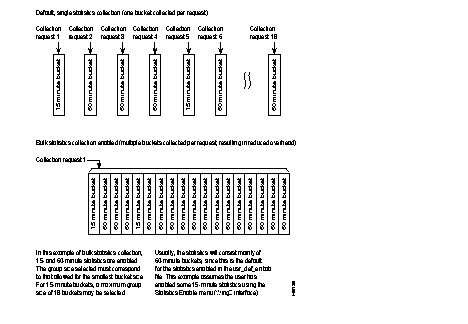
If you have multiple statistics enabled, the group size is limited to that specified for the smaller bucket size enabled. For example, if you have 15 and 60 minute buckets enabled, you must choose a group size of £18, rather than £30. Otherwise, the data for the 15 minute buckets will be lost.
If, after starting StrataView Plus, you add statistics with bucket sizes smaller than that allowed by the selected group size, you need to stop StrataView Plus, reselect the smaller group size, and restart StrataView Plus. Otherwise, data will be lost.
For example, if you enabled some 15 minute stats and had previously selected a group size of 30 (applicable to 30 and 60 minute buckets), you would need to stop StrataView Plus, select a group size of 18 or less using item 7, the Bulk Statistics selection, then restart StrataView Plus.
|
|