


|
|

This chapter describes the two main methods of of monitoring network events, the Error Log Administration and Event Log.
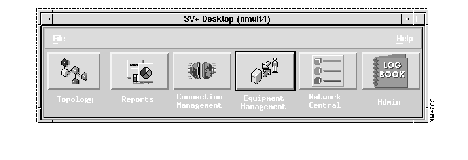
Error Log Administration is one of the six choices on the SV+ Desktop, as shown in Figure 4-1.
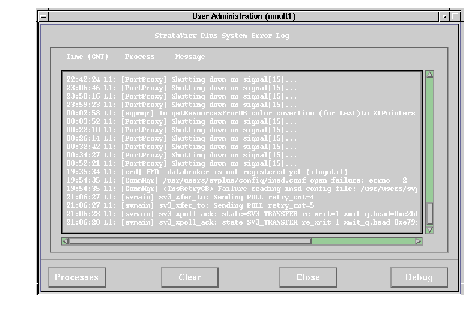
This window provides a time-stamped list of each StrataView Plus process, along with a text message describing the process. The Error Log Administration window can be cleared so that you can watch current SV+ messages. If you close the window and re-open it, the messages that were cleared will be redisplayed.
The StrataView Plus Event Log displays descriptions of network- and operator-generated occurrences. Internally, event descriptions are generated as a result of the trap information which transpires between the network management system and the network agents. These traps are controlled by Simple Network Management Protocol (SNMP) processes.
An SNMP agent is software that is capable of answering valid queries from an SNMP station (such as your StrataView Plus workstation), about information defined in the Management Information Base (MIB). A network device that provides information about the MIB to StrataView Plus has an SNMP agent.
StrataView Plus and the SNMP agents exchange messages over the network's transport layer protocol. SNMP conducts five valid types of messaging:
Get-Request | Used by StrataView Plus to retrieve information from network devices that have SNMP agents. |
|---|---|
| Get-Response | Response by network agent to the Get-Request message. The response typically includes system information such as the name of the system, how long the system has been running, and number of network interfaces on the system. |
| Get-Next-Request | Used with Get-Request when compiling the list of objects, to ask for the next object in the table. |
| Set-Request | Enables remote configuration of parameters on a device. |
| Trap | An unsolicited message by an SNMP agent to the StrataView Plus. Trap messages inform the server about the occurrence of a specific event. |
The StrataView Plus SNMP traps are enhanced by a Robust Trap Mechanism (RTM) to ensure detection and retrieval of missed traps. With RTM, StrataView Plus can maintain sequential tracking of traps from specific agents. SV+ detects missed traps as based on sequence numbers and uploads the missing number from the agent using SNMP Get-Requests.
The AXIS node reports the aggregate shelf alarm status. This is evident at the LED on the node which is affected by a specific new trap.
The StrataView Plus Event Log Database is an Informix" Relational Database used to capture event log messages from the network. After 8192 records have been captured, each succeeding record causes the database to wrap around, replacing the oldest record with the newest record. The Event Log window displays the latest events from the node. As long as the scroll bar is at the bottom of the log, new data is displayed as it arrives from the node.
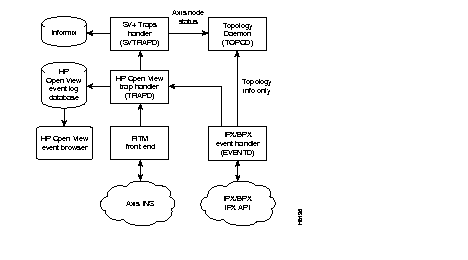
Once these events have been captured in the database, users can selectively filter the data using their own search criteria. This search capability is a flexible tool for troubleshooting the nodes in a network. You can configure the event log to filter reports by network name (non-structured network), domain (structured network); time, date, and time zone; node name; alarm type; and specific search strings.
You can save the filtered Event Log to a text output file for later printing or examination, or output it directly to a printer (if one is connected and configured, i.e., "lpr device" for printer).
The 8.1 Release of StrataView Plus uses the HP OpenView Event Browser application to display the list of events and alarms. The event browser application allows you to selectively browse through the events. StrataCom's network elements events are stored under the StrataCom Events category.
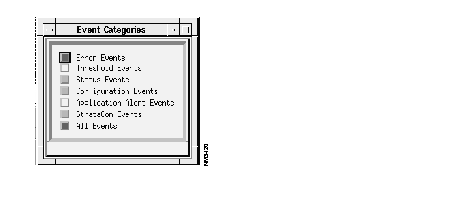
When you select the StrataCom Events category, all events triggered by StrataCom's network elements are shown in the new window (called the browser window).
The StrataCom Events Browser is presented as a result of selecting an item in the Event Categories dialog window. This window contains menus for configuring event displays and saving event information.
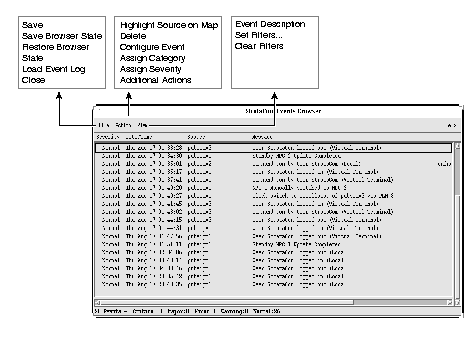
| Severity | This column displays the criticality of the event. Severity values are: critical, major, minor, warning, and normal. You can modify event severity by using the Action-Assign Severity menu of this window. |
| Date/Time | The week, calendar date, and time of event occurrence. |
| Source | The object identifier affected by the event. |
| Message | Description of the event. |
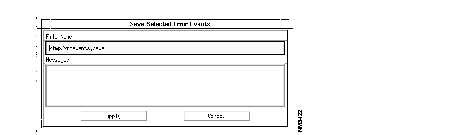
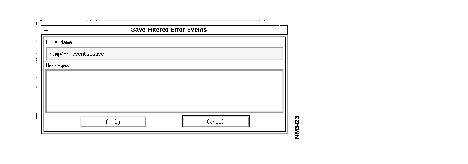
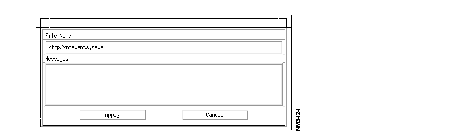
Use this menu to exit the Event Log Browser window. You can reopen the window by clicking on an item in the Event Categories dialog window.
Use this menu to highlight the source of selected events in the Topology window.
Use this menu to remove selected events, regardless of event category, from the Event Browser window.
Use this menu to remove all filtered events, regardless of event category, from the Event Browser window.
Use this menu to clear all events within the Event Browser window associated with the selected event category.
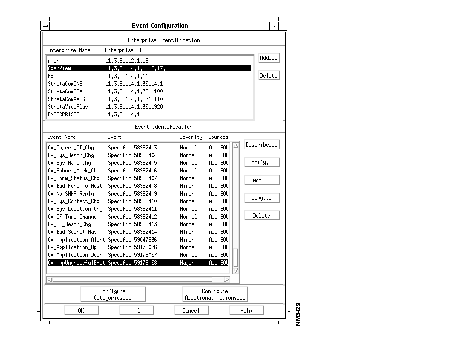
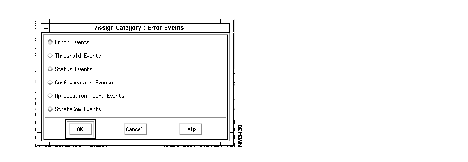
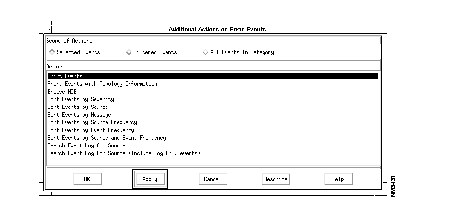
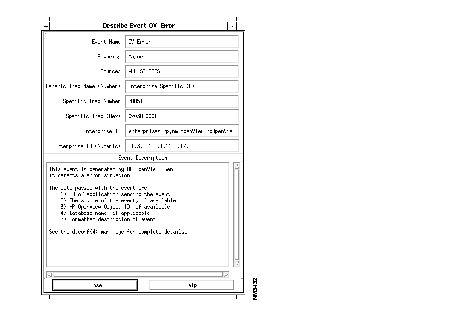
Use this menu to assign one of the following assessments to selected events:
|
|