


|
|

This chapter is a guide to performing a first time installation of StrataView Plus and associated software programs. There are two methods for installing StrataView Plus:
Most initial installations of StrataView Plus will be preformed using the instructions in this chapter. The main reason for doing a manual installation is if you need to set up a different raw partition size for Informix. NetView should be installed on your workstation before installing StrataView Plus 9.0. Refer to the installation instructions included with each software product.
The following are prerequisites for a successful installation:
The AIX operating system and NetView should be installed on your workstation before you install StrataView Plus 9.0. Refer to the installation instructions included with each software product.
Software Development Solutions for AIX 4.1 is available on CD-ROM with complete installation instructions for the following libraries:
Install and brand the Wingz 2.5 software according to the instructions provided in theWingz Installation Guide that comes with your Wingz software. Follow the Wingz instructions for branding by entering the serial number and key.
Swap space should be three times real memory, as a minimum. The maximum amount of swap space you should allocate would be five times real memory.
To set up the Informix partition, follow these steps:
Step 1 Using SMIT (System Management Interface Tool) create a logical volume of 300 MB.
Step 2 Assign a volume name. The following is the default name:
/dev/informix_lv: /dev/informix_db
The installation procedure should appear on your screen. Respond to the prompts, by typing in the appropriate information.
An initial installation of StrataView Plus includes setting up Informix and StrataView Plus user and group accounts, and running SMIT to install StrataView Plus and Informix. After you install the StrataView Plus software, you must configure your StrataView Plus workstation to BPX/IPX interface for either an RS-232 or LAN connection. See the example in Figure 2-1.

This section gives installation procedures for installing the products from tape and from CD-ROM.
If you are using tape, follow these steps:
Step 1 Start an xterm or aixterm.
Step 2 Set DISPLAY environment variable to
Where, <hostname> is name of the host/X Terminal from which you are performing the installation.
All the following commands must be entered in the xterm/aixterm.
Step 3 Log in as root using the command:
Step 4 Rewind the tape using the command:
Step 5 Start SMIT using the command:
Figure 2-2 shows the SMIT Multi-select List Window.
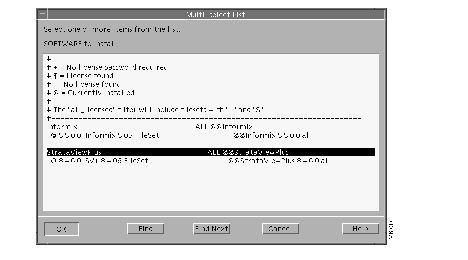
Step 6 Use the following Navigation path to start the installation:
Software Installation and Maintenance
|
V
Install and Update Software
|
V
Install/Update Selectable Software (Custom Install)
|
V
Install Software Products at Latest Level
|
V
Install New Software Products at Latest Level
The above action should bring up a dialog box prompting for the installation device name.
Step 7 Type in device name or select tape device from the list.
Step 8 Click on OK button to continue.
The above action should bring up product install dialog.
Step 9 Click on the List button for the field SOFTWARES To Install.
Step 10 Select Product Informix from the list and Click on OK button.
During the installation, the install program will verify whether following groups and user accounts exist.
Groups:
informix groupid=79
users groupid=21
User Accounts:
informix userid=270 home=/usr/users/informix groupid=79
svplus userid=271 home=/usr/users/svplus groupid=21
If the above accounts do not exist on the system, the installer will attempt to create these accounts.
If the above accounts exist on the system exactly as specified above, the installer will proceed and install rest of the package. If, however, these accounts exist on the system but not as required by the StrataView Plus installer, then installation will fail.
Step 1 Start an xterm or aixterm.
Step 2 Make sure to set DISPLAY environment variable to:
Where, <hostname> is name of the host/X Terminal from which you are performing the installation.
All the following commands must be entered in the xterm/aixterm.
Step 3 Log in as root using the command:
Step 4 Mount the CD-ROM using following command:
Step 5 Start SMIT using the command:
Step 6 Use the following Navigation path to start installation:
Software Installation and Maintenance
|
V
Install and Update Software
|
V
Install/Update Selectable Software (Custom Install)
|
V
Install Software Products at Latest Level
|
V
Install New Software Products at Latest Level
The above action should bring up a dialog box prompting for the installation device name.
Step 7 Type in device name or select CD-ROM device from the list.
Step 8 Click on OK button to continue.
The above action should bring up product install dialog.
Step 9 Click on the List button for the field SOFTWARES To Install.
Step 10 Select the product, Informix, from the list and Click on OK button.
During the installation, the install program will verify whether following groups and user accounts exist.
Groups:
informix groupid=79
users groupid=21
User Accounts:
informix userid=270 home=/usr/users/informix groupid=79
svplus userid=271 home=/usr/users/svplus groupid=21
If the above accounts do not exist on the system, the installer will attempt to create these accounts. If the above accounts exist on the system exactly as specified above, the installer will proceed and install rest of the package. If, however, these accounts exist on the system but not as required by the StrataView Plus installer then installation will fail.
The following steps guide you through installing StrataView Plus from tape.
Step 1 Start an xterm or aixterm.
Step 2 Set DISPLAY environment variable to
Where, <hostname> is name of the host/X Terminal from which you are performing the installation.
All the following commands must be entered in the xterm/aixterm.
Step 3 Log in as root using the command:
Step 4 Rewind the tape using the command:
Step 5 Start SMIT using the command:
Use the following Navigation path to Start Installation:
Software Installation and Maintenance
|
V
Install and Update Software
|
V
Install/Update Selectable Software (Custom Install)
|
V
Install Software Products at Latest Level
|
V
Install New Software Products at Latest Level
The above action should bring up a dialog box prompting for the installation device name.
Step 6 Type in device name or Select Tape device from the list.
Step 7 Click on OK button to continue.
The above action should bring up product install dialog.
Step 8 Click on the List button for the field SOFTWARES To Install.
Step 9 Select the product, StrataView Plus, from the list and Click on OK button.
During the installation, the install program will verify whether the following groups and user accounts exist.
Groups:
informix groupid=79
users groupid=21
User Accounts:
informix userid=270 home=/usr/users/informix groupid=79
svplus userid=271 home=/usr/users/svplus groupid=21
If the above accounts do not exist on the system, the installer will attempt to create these accounts.
If the above accounts exist on the system exactly as specified above, the installer will proceed and install rest of the package. If, however, these accounts exist on the system but not as required by the StrataView Plus installer then installation will fail.
To install StrataView Plus from CD-ROM, follow these steps:
Step 1 Start an xterm or aixterm.
Step 2 Make sure to set DISPLAY environment variable to:
Where, <hostname> is name of the host/X Terminal from which you are performing the installation.
All the following commands must be entered in the xterm/aixterm.
Step 3 Log in as root using the command:
Step 4 Mount the CD-ROM using following command:
Step 5 Start SMIT using the command:
Step 6 Use the following Navigation path to start installation:
Software Installation and Maintenance
|
V
Install and Update Software
|
V
Install/Update Selectable Software (Custom Install)
|
V
Install Software Products at Latest Level
|
| V
Install New Software Products at Latest Level
The above action should bring up a dialog box prompting for the installation device name.
Step 7 Type in device name or select CD-ROM device from the list.
Step 8 Click on OK button to continue.
The above action should bring up product install dialog.
Step 9 Select the product, StrataView Plus, from the list and Click on OK button.
During the installation, the installer program will verify whether following groups and user accounts exist:
Groups:
informix groupid=79
users groupid=21
User Accounts:
informix userid=270 home=/usr/users/informix groupid=79
svplus userid=271 home=/usr/users/svplus groupid=21
If the above accounts do not exist on the system, the installer will attempt to create these accounts.If the above accounts exist on the system exactly as specified above, the installer will proceed and install rest of the package. However, if these accounts exist on the system but not as required by the StrataView Plus installer then installation will fail.
Follow the procedure described in this section to install StrataView Plus manually.
You must create a group name and account number for the Informix database. The group account number [79] must be used, as it is already incorporated into the files on the software installation tape. You will also create a group for the svplus user account.
Step 1 Log in as root.
Step 2 Edit the /etc/group file by adding the following two lines:
users:*:21:svplus
informix:*:79:informix
Step 3 Save the file and exit the editor.
Step 1 Type the following three commands to create two user login accounts:
cd /usr/etc/install <RETURN>
Step 2 Verify the login accounts in the/etc/group file.
mkuser informix id= '270' Pgrp = 'informix' home = '/usr/users/informix' shell= '/bin/csh' gecos='Informix Software' informix <RETURN>
mkuser informix id= '271' Pgrp = 'users' home = '/usr/users/svplus' shell= '/bin/csh' gecos='StrataView Plus' svplus <RETURN>
You must then assign passwords to these user accounts.
Step 3 Type passwd informix and follow on-screen directions.
Step 4 Type passwd svplus and follow on-screen directions.
Step 5 Edit the /usr/users/informix/.cshrc file and enter the following two lines:
Step 6 Save the file and exit the editor.
Step 7 Type cp /usr/users/svplus/.cshrc.
Step 8 Enter the following command to change the ownership of the .cshrc file to svplus.
chown svplus /usr/users/svplus/.cshrc <RETURN>
This completes the creation of the SV+ and Informix accounts.
The installation script guides you through the Informix ESQL/C and Informix OnLine installation procedure. If you have questions regarding the Informix products, refer to the appropriate Informix user's documentation.
Step 1 Insert the 8 mm Informix ESQL/C Informix OnLine tape cartridge and close the door.
Step 2 Type the following command:
cd /
Step 3 Log in as root, do so now.
Step 4 Type mt -f /dev/rmt0.1 <RETURN>.
Step 5 Type tar xvpf /dev/rmt0.1 <RETURN>.
Installation will proceed normally.
Perform the following steps to install StrataView Plus:
Step 1 Log in as root by entering this command:
Step 2 Type the following command:
Step 3 Insert the StrataView Plus tape and type:
The BPX/IPX On-Line Help files for StrataView Plus come on a separate tape that is installed after StrataView Plus has been installed.
Proceed as follows to install the IPX On-Line Help files:
Step 1 Log in as svplus.
Step 2 Enter a pwd command to verify that you are at the /usr/users/svplus directory.If the /usr/users/svplus/onlinehelp directory does not already exist, enter:
mkdir onlinehelp
Step 3 Enter the following command to change to the onlinehelp directory:
cd /usr/users/svplus/onlinehelp
Step 4 Enter the following command to verify that you are at the /usr/users/svplus/onlinehelp directory:
pwd
Step 5 Load the StrataView Plus Help tape.
Step 6 Enter the following:
Step 7 Enter the following command:
tar xvpf /dev/rmt0.1
The first time that StrataView Plus is started, it obtains the current network topology information and enables default trunk and circuit line statistics that you selected using the SCM software.
Before starting up StrataView Plus, you need to plan the statistics types that you want to enable automatically and enable these using the SCM program. Refer to Chapter 5 of the StrataView Plus Operations Guide for information on enabling statistics using SCM.
Start up StrataView Plus as follows:
Step 1 Enter the following command to display the SV+ menu:
SV+
Step 2 Select option 1 (Start Core) to start StrataView Plus.
The Statistics Collection Manager (SCM) files for StrataView Plus are installed by SPI as part of the StrataView Plus installation. If there are multiple NMS workstations used to control the network or if this is a structured network, you must upgrade each instance of StrataView Plus and configure SCM on each NMS workstation. Proceed as follows to configure the network for management by SCM:
Step 1 Change directory to /etc.
Step 2 If your workstation is not running NIS, edit the /etc/hosts file of the local StrataView Plus workstation.
Make a list with a single line with the nodename and IP address for each node in the network to which this SCM is to connect to.
Step 3 For example, to add an IPX node named alpha enter:
Step 4 If you have a workstation that is running NIS (yellow pages), do step 2 on the NIS server instead of the local StrataView Plus machine, and remake the NIS maps.
Step 5 Enter the following command to change back to the svplus directory:
exit
The config.sv file contains a single line (or lines for more than one network or domain) of parameters used by StrataView Plus to establish a connection to the BPX/IPX node at start-up. After both an upgrade and an initial installation, this file will contain the default values (user configurable) of /dev/ttya and 9600.
For an initial (first time) installation of StrataView Plus, the default parameters gateway and 9600 are not applicable. the config.sv file should be modified to set up the required links from StrataView Plus to the attached network(s) or domains.
Configure the workstation interface to the node LAN port as follows:
Step 1 Log in as svplus. If your are at root level, exit from root by entering exit or log in as svplus from the workstation window.
Step 2 Modify the config.sv file for the network configuration by changing the third field to the node's LAN port hostname, that is, sanfran as follows:
Leave the other fields as they are. For example, the baud rate of 19200 does not apply to a LAN connection.
Configure the workstation interface to the node control port as follows:
Step 1 Log in as svplus. If your are at root level, exit from root by entering exit or log in as svplus from the workstation window.
Step 2 Modify the config.sv file for the network configuration for baud rate, port, and if necessary telephone number as follows:
where:
The first field is the network id and must be unique.
Contact your System Administrator to obtain IP addresses for your workstation and for the BPX/IPX node you are going to configure.
Normally, the System Administrator will update the NIS database, as applicable (if an NIS is used), and will add the IP addresses for the workstation and node to the NIS database.
If the System Administrator takes care of the addressing for the workstation, including the /etc/services file, proceed to step 3. If not, and an NIS is not being used, do the following:
Step 1 Using SMIT (mkhostent), modify the /etc/hosts file in your workstation, and add the following entries if they do not already appear there.
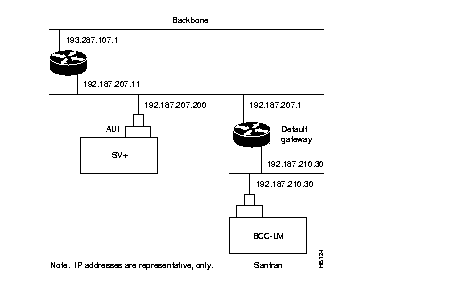
The addresses shown are just examples. Use the addresses obtained from your System Administrator. (This example uses internet address 192.187.207.200 and host name of hedgehog for the workstation and internet address 192.187.210.30 and name sanfran for the node.) Your own host name and addresses will be different.
Step 2 Using SMIT mkservices, modify the /etc/services file in your workstation and add the following:
Step 3 Reboot the workstation so that the changes to the /etc/services file to take effect.
Step 4 Modify the config.sv file for the network configuration by changing the third field to the node's LAN port hostname as follows:
Leave the other fields as they are. For example, the baud rate of 19200 does not apply to a LAN connection.
Step 5 Configure the LAN port on the BPX/IPX node using a dumb terminal or an RS-232 connection via the workstation (using the vt command, as applicable) to enter the appropriate cnflan parameters.
The cnflan command configures the node's communication parameters so that the node can communicate with a StrataView Plus terminal over an Ethernet LAN using the TCP/IP protocol. The parameters contain address information about the Ethernet TCP/IP network that is used to connect the StrataView Plus station to an IPX or BPX node. The values used must conform to those of the network and should be supplied by the Ethernet network administrator.
The cnflan command has the following parameters:
/etc/service file on the workstation. It is 5120 for all BPX/IPX nodes.
Step 6 A cnflan screen is shown in Figure 2-3. The active IP address for the workstation has been entered as the IP address selected previously for the node, 192.187.207.30. The IP Subnet mask is entered as 255.255.255.0 for a Class C LAN network. The TCP service port is entered as 5120. Since the workstation and node are on different networks in this example, a gateway address of 192.187.207.1, which must be obtained from your System Administrator, has been entered. If the workstation and node are both on the same network, no gateway address is needed. The "Maximum LAN Transmit Unit" and "Ethernet Address" parameters are not configurable by the cnflan command. The "Ethernet Address" is different for every BPX/IPX control port.
Step 7 Verify that the IPX node contains an SCC-B backcard and an NPC card (required for LAN connection to IPX). Also, if the node is an IPX 8 or 16 single shelf unit, verify that the utility bus has been upgraded to a UBS-2, model 550058. Refer to the IPX Reference Manual for further information on upgrading these components.
D2.cb1         LAN   Cisco/StrataCom       BPX 15    8.2 Oct. 1996 14:23 PST
Active IP Address:                     192.187.210.30
IP Subnet Mask:                        255.255.255.0
TCP Service Port:                      5120
Default Gateway IP Address:            192.187.207.1
Maximum LAN Transmit Unit:             1500
Ethernet Address:                      00.55.43.00.04.55
Control Socket - Ready
Base Socket Descriptor - 1
Socket Closed
Last Command: cnflan
Next Command:
Step 8 Set all eight switches on the switch module on the NPC to ON (switches toggled toward the edge of the card). The OFF setting is for a serial connection.
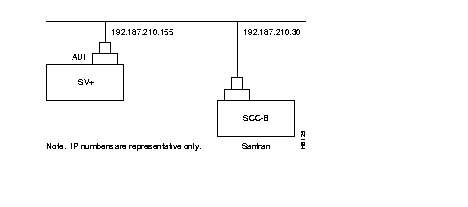
Step 9 Connect the StrataView Plus workstation and the BPX/IPX node to a LAN network. An example is shown in Figure 2-4. The LAN port on the BPX/IPX node provides a DB-15 connector for an AUI.
Step 10 To test that a LAN connection to the IPX/BPX port is okay, for example, for a hostname of sanfran entered in the config.sv file, you could enter the following:
ping sanfran
Step 11 Once the workstation and BPX/IPX node interface has been set up, StrataView Plus can be started. Figure 2-6 shows the dsplancnf screen after StrataView Plus has been started and the communication sockets are active.
D2.cb1         LAN   Cisco/StrataCom BPX 15    8.2 Oct. 1996 14:27 PST
Active IP Address:                     192.187.210.30
IP Subnet Mask:                        255.255.255.0
TCP Service Port:                      5120
Default Gateway IP Address:            192.187.207.1
Maximum LAN Transmit Unit:             1500
Ethernet Address:                      00.55.43.00.04.55
Control Socket - Ready
Base Socket Descriptor - 1
Open Socket Descriptor - 2
Last Command: dsplan
If you have not done so, please refer to Appendix B, Informix Database, Backup and Changing Size, in the StrataView Plus Operations Manual.
The following paragraphs describe how to connect an StrataView Plus workstation to a BPX/ IPX node via a modem. These procedures are for a typical connection. Refer also to the applicable Sun SPARCstation System Administration User's Guide, and the Codex V.34 RSA Modem User's Guide.
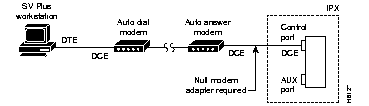
The connection of a StrataView Plus workstation to an IPX via modem (without using a terminal server) is shown in Figure 2-7.
The following commands are provided for configuring the Codex V.34 RSA modem. Auto-Answer (V.34 modem)
Using the cnfport command, set the IPX Control port (CONTROL TERMINAL port) to 9600 bps and disable the XON/XOFF flow control. Using the cnfportfunc command, set the terminal type to VT100/StrataView. To program the modem, temporarily attach a terminal to the modem using a 25-pin straight through cable. The modem EIA port will automatically match the 9600 bps setting of the terminal. Enter the following commands:
| 1. | AT&F | Reset to factory default and save. |
| 2. | ATSØ=1 | Enables Auto-Answer Mode (answer on first ring). |
| 3. | ATL1 | Modem speaker at low volume. |
| 4. | AT*SM3 | Enables automatic MNP error correction. |
| 5. | AT*DCØ | Disables data compression. |
| 6. | AT*FLØ | Disables XON/XOFF flow control. |
| 7. | AT&S1 | Sets DSR to "normal". |
| 8. | ATEØ | Disables local character echo. |
| 9. | ATQ1 | Disables result codes. (Modem will appear "dead".) |
| 10. | AT&W | Saves current configuration settings in non-volatile memory. |
Connect the workstation to the modem, with the serial port set to 9600 bps, using a 25-pin straight-through cable (uses RS-232 protocol) and enter the following commands:
| 1. | AT&F | Initializes factory defaults. |
| 2. | ATLØ | Modem speaker at minimum volume. |
| 3. | AT*SM3 | Enables automatic MNP error correction. |
| 4. | AT*DCØ | Disables data compression. |
| 5. | AT*SC1 | Enables DTE speed conversion |
| 6. | AT*FLØ | Disables XON/XOFF flow control. |
| 7. | AT&C1 | DCD controlled by modem. |
| 8. | AT&D2 | Modem disconnects when IPX toggles DTR. |
| 9. | AT&V | Verify entries. |
| 10. | AT&W | Saves current settings to non-volatile memory. |
For information on configuring an IBM workstation for communication via modem, refer to the applicable IBM user's guides.
Customer Service provides support for customers using StrataView Plus workstation via a dial-up modem connection. This support is available when a Motorola Codex modem is provided at the customer site. There are two procedures to be performed before the Customer Service can dial into the workstation.
The following paragraphs describe how to set up a dial-in connection. These procedures are for a typical connection. Refer also to the applicable IBM product's System Administration User's Guide, and the Codex V.34 RSA Modem User's Guide.
The connection from Customer Service to a StrataView Plus workstation via a terminal server and modem is shown in Figure 2-8.
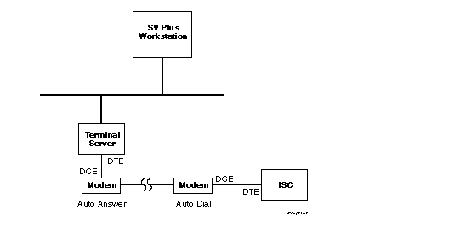
To set up an IBM Workstation for incoming modem calls, use the System Management Interface Tool (SMIT) to configure the settings. The instructions are as follows:
Step 1 From the menu bar select the System Management window.
Step 2 Select devices window.
Step 3 Select TTY window.
Step 4 Add a TTY
The window TTY type appears.
Step 5 Select TTY rs232 Available.
Step 6 Select Parent Adapter.
Step 7 Select sa0 Available.
Step 8 From the Parent Adapter window select sa0 Available 00-00-S1.
The Add a TTY window appears.
Step 9 Make the following selections:
7 Bits per character
Parity odd
click on enable login
Configure the modem connected to the workstation per the Auto Answer procedure.
| DCD - On | AT&CØ |
| DTR - On | AT&DØ |
| DSR - Normal | AT&S1 |
| CTS - ON when connected | AT&R1 |
| ATSØ=1 (answer on first ring) |
When the system is up, Customer Service is capable of calling into StrataView Plus via the serial port on the workstation.
This section describes how to start a copy of the GUI on another user's workstation.
Step 1 Bring up a Motif window manager on the user's workstation.
Step 2 Open a terminal window.
Step 3 Enter:
xhost or xhost + <host-workstation-name>
Step 4 Type the following command:
Step 5 Set the DISPLAY variable to local display.
For example, where the local workstation is maui:
setenv DISPLAY maui:0.0
in sh or ksh: export DISPLAY;DISPLAY=maui:0.0
Step 6 Enter:
cd /usr/users/svplus
Step 7 Enter the following to display the StrataView Plus main menu, and select option 3 (Start DeskTop).
SV+
/etc/hosts file to include your NCD terminal. The line should read something like:
192.9.200.8 xt008
/usr/lib/X11/ncd fonts
Step 1 If you are doing a remote login (rlogin), execute this command on your host system:
/usr/bin/x11/xhost +
Step 2 Type the following command:
Step 3 The DISPLAY environment logical should be set to your terminal, for example, enter:
setenv DISPLAY xtname:0.0
setenv DISPLAY dolphin:0.0
Step 4 Enter this command:
source setncd.csh
Step 5 You can now execute StrataView Plus. If another system has already started StrataView Plus, choose option 3 (Start Desktop). The Desktop GUI will open. Otherwise, choose option 1 (Start Core) to start the StrataView Plus core processes.
|
|