


|
|

This chapter presents guidelines for using the Sun workstation tools with the functions provided in MOTIF and HP OpenView windows. This chapter assumes that your Sun workstation is loaded with UNIX, HP OpenView, MOTIF, Informix, on-line Informix Wingz, and the StrataView Plus software. Details about installation of all StrataView Plus operational elements are provided in your StrataView Plus Installation Guide for Release 9.0.
The standard three-button mouse, which accompanies Sun workstations, is the tool you use to drive the StrataView graphical user interface (GUI). You can attach a printer to the SV+ workstation to produce hardcopy reports and statistics.
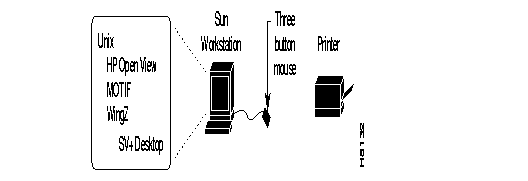
This section presents a brief overview of the mouse and printer devices.
The StrataView Plus GUI is controlled by the workstation's 3-button mouse. By either clicking or pressing a mouse key on a selected item in the SV+ display, you can rearrange your desktop display, activate menus, enter data, and view screens.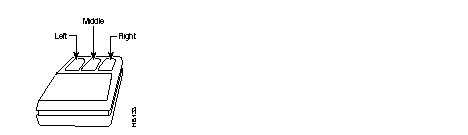
Throughout this manual, you are frequently advised to select an item in the StrataView Plus GUI. Unless otherwise expressed, a selection is executed by clicking the left mouse key at a specific cursor point. The table at the end of this chapter provides a list of the window tasks and corresponding mouse activators commonly required during SV+ operations.
The Sun SPARCstation supports printing on a Sun-compatible Postscript printer. For further information, consult the applicable Sun User's Guides and printer User's Guide. For specific information regarding printing with StrataView Plus, contact Customer Engineering.
The HP OpenView and MOTIF windows, dialog boxes, and screens used throughout the SV+ GUI contain common elements which provide the look-and-feel, as well as the tools you need to manage your StrataView Plus work environment.
StrataView Plus is compliant with MOTIF standards.You need to ensure that HP OpenView, MOTIF, and X Windows are loaded on the SUN workstation prior to loading and using StrataView Plus software. Installation guidelines are provided in your StrataView Plus Installation Guide.
This section describes the functional components of the windows used to maintain your network management tools. Windows consist of the HP OpenView as well as the StrataView Plus topological hierarchies.
In this manual, discussion of HP OpenView is limited to basic window structure, access to StrataView Plus, and the method for building StrataView Plus icons for your HP OpenView topology map(s). To find out more about HP OpenView, see Appendix D of this manual, the HP OpenView Network Node Manager reference manuals, or the abundant online help.
The HP OpenView window is displayed following a SV+ Full Startup. The HP OpenView window provides network management commands throughout the Menu Bar, launches the SV+ desktop, and enables access to network devices via easily identifiable icons from within the window display area.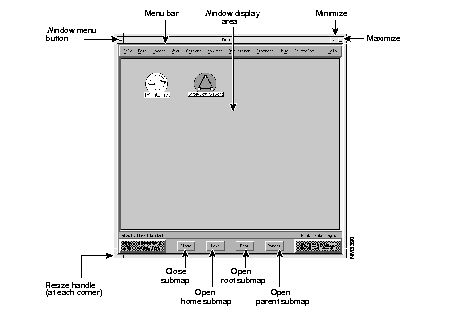
| Window Menu Button | Contains Restore, Move, Size, Minimize, Maximize, Lower, Workspace, Close, and Help commands. Press the left mouse button to view the menu and to select a command. |
| Menu Bar | Click the left mouse button on a menu bar subject to view the pull-down and cascade menus. Menu selection typically results in presentation of dialog boxes which contain various tools for creating and editing network and device specific information modules. |
| Window Display Area | Contains the default set of network icons--the StrataView Network and the IP Internet--as well as other icons you create. |
| Minimize | Click the left mouse button to iconify the window. Once in the icon box, the window can be restored to view by double clicking on the icon. |
| Maximize | Click the left mouse button to enlarge the window view to occupy the entire display screen. Once maximized, the window can be restored to original size by clicking the maximize button again. |
| Resize Handle | Use a resize handle at any corner of the window to either stretch or shrink the window perimeter. When the cursor is positioned near or on the resize handle, it becomes a right-angle symbol. Press the left mouse key and move the mouse to reshape the window. |
The SV+ command repertoire is located throughout the pulldown menus of the network topology map. Identical node menus are available from the Node selection of the Main Menu Bar as well as from the popup menu you invoke from a node in the network display.
Object and connection display is replicated on the Network Overview map which appears on your SV+ desktop with the Network Topology map. This map is useful for viewing the whole picture when you have partitioned views at the Network Topology map.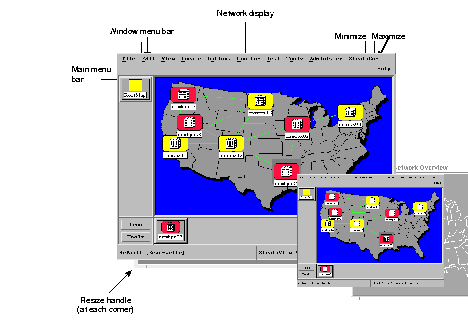
| Window Menu Button | Contains Restore, Move, Size, Minimize, Maximize, Lower, Workspace, Close, and Help commands |
| Menu Bar | Left click on a menu subject to view the pull-down and cascade menus. Menu selection typically results in presentation of dialog boxes which contain various tools for creating and editing network and device specific information modules. |
| Window Display Area | Graphically displays the StrataView Plus network topology with the current set of network icons. |
| Minimize | Left click on this button to remove the window from view, and store it in the icon box. Once in the icon box, the window can be restored to view by double clicking it from within the icon box. |
| Maximize | Left click on this button to enlarge the window view to occupy the entire display screen. Once maximized, the window can be restored to original size by clicking the maximize button again. |
| Resize Handle | Use a resize handle at any corner of the window to either stretch or shrink the window perimeter. When the cursor is positioned near or on the resize handle, it becomes a right-angle symbol. Press the left mouse key and move the mouse to reshape the window. |
A dialog window is usually presented after you select a menu item (either from the menu bar on a primary window or from a network topology icon). Dialog windows contain various combinations of the elements shown in the following illustration.
| Window Menu Bar | Contains Restore, Move, Size, Minimize, Maximize, Lower, Workspace, Close, and Help commands. |
| Title Bar | Contains the dialog window you selected from the menu. |
| Radio Buttons | Left click on one of these to toggle ON or OFF. When set to OFF, the button appears to protrude. When set to ON, the button appears depressed. |
| Data Input Area | Left click within the data input area to place the cursor, then type your information into the area. Press the TAB key or press RETURN to exit from the data input area and go to the next item in the dialog window. |
| Command Button Row(s) | Left click on a button to activate it. All dialog windows contain button options to (1) activate your dialog window settings (OK button), or (2) cancel or abort the current dialog window session (Cancel button).
Alternatively, you can press the RETURN key as a shortcut for OK, or the ESC key as a shortcut for Cancel. |
| Scroll Bar | Scroll bars can appear vertically or horizontally alongside a window view area whenever the text within is too large for the size of the view area.
Left click on an arrowhead to move text directionally line-by-line. For faster repositioning, place the cursor on the scrollbar thumb, left press the mouse and move the scrollbar. |
|
|