


|
|

This chapter explains how to install an IPX 8/16/32 and contains the following information:
The IPX 8/16/32 site must meet the following requirements:
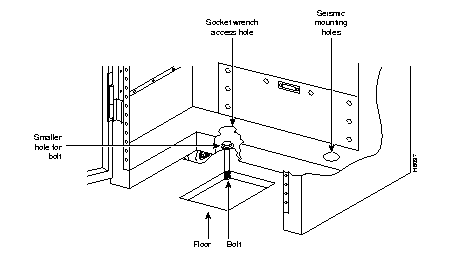
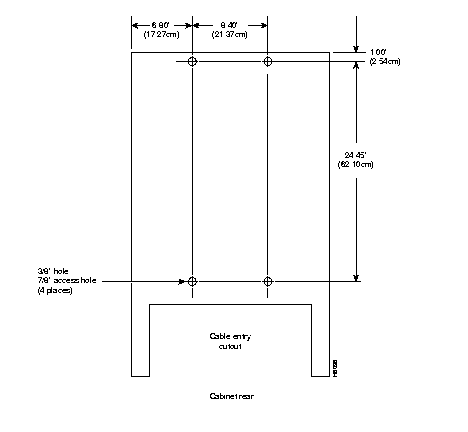
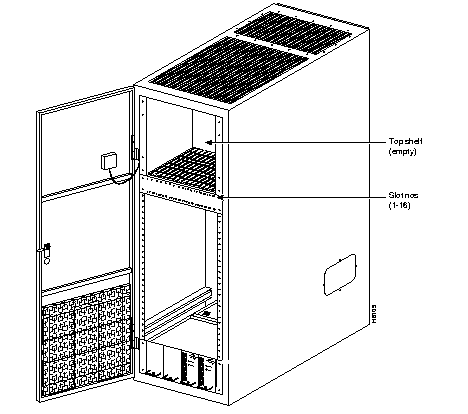
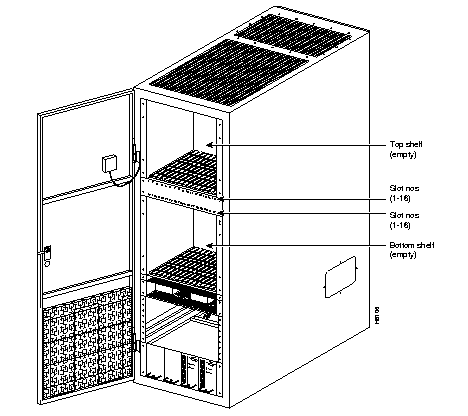
To provide protection against seismic activity, the IPX 16/32 cabinet is equipped with holes that permit the cabinet to be bolted to a concrete floor or to a structural member in the floor. The cabinet base has four sets of holes (two sets at the lower front and two sets at the lower rear). Each set consists of a large socket access hole above a smaller hole. The lower, smaller hole accepts the bolt that is attached to the floor. The upper, larger hole provides access for a socket wrench to tighten the bolt (see Figure 2-1 and Figure 2-2).
The following tools and equipment are required to install the IPX:
For installations in which multiple IPX 16/32 cabinets stand next to each other, an optional kit is available from Customer Service that provides brackets and screws for clamping the cabinets together.
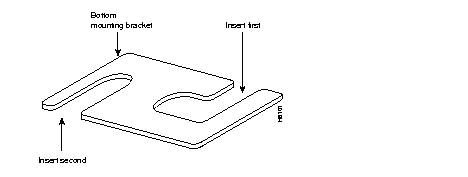
The Cabinet Side by Side Mounting Kit (Part No. 210372-00) consists of two top-mounting brackets, two bottom-mounting brackets, and two screws. The kit provides the necessary hardware to attach two cabinets at the top front, top rear, bottom front, and bottom rear.
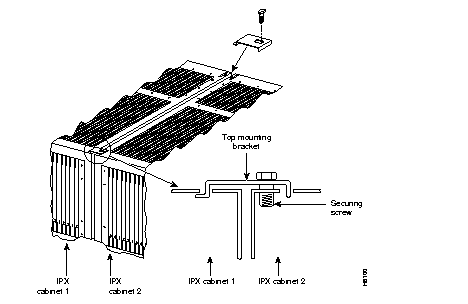
The front and rear corners on the top surface of the cabinet are equipped with a small slot and small screw hole. To attach two cabinets at the top (front and rear), do the following:
Step 1 Place the "L" shaped flange of one of the top mounting brackets into one of the slots in the top surface of the cabinet (Figure 2-3 and Figure 2-4).
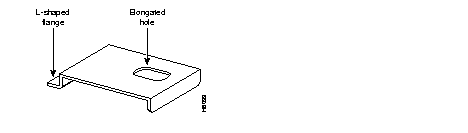
Step 2 Rotate the top mounting bracket towards the second cabinet so that the flange at the other end of the top mounting bracket fits into the slot on the top surface of the second cabinet (Figure 2-4).
Step 3 Secure the mounting bracket by inserting the provided screw into the elongated hole in the mounting bracket and screwing it in the hole in the cabinet (Figure 2-4).
Step 4 Perform this procedure for both the front and rear of the cabinets.
The bottom mounting bracket, shown in Figure 2-5, uses the cabinet feet and the securing nuts to attach the two cabinets together at the bottom.
To attach two cabinets at the bottom (front and rear), do the following:
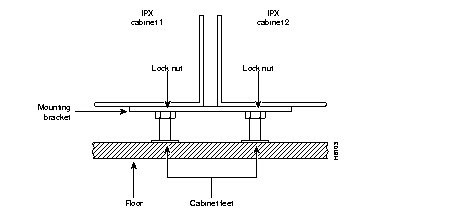
Step 1 On the front corners where the two cabinets are to be joined, loosen the lock nuts securing the cabinet feet enough to slide the bottom mounting bracket between the nut and the bottom surface of the cabinet.
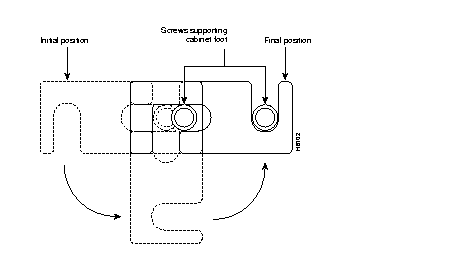
Step 2 Insert the mounting bracket between the underside of the cabinet and the lock nut so that the screw supporting the cabinet foot slides into the L shaped recess.
Step 3 Rotate the mounting bracket towards the second cabinet so that the straight recess slides around the screw in the second cabinet (Figure 2-6).
Step 4 Tighten the lock nuts to secure the mounting bracket in place (Figure 2-7).
Step 5 Perform this procedure for both the front and the rear of the cabinet.
The IPX 8 cabinet can be mounted either in an equipment rack or left free-standing. It is self-contained and small enough to stand on a flat support such as a table or bench. For rack-mounting the IPX 8, the appropriate, optional rack-mounting kit should be ordered to obtain the appropriate mechanical mounting hardware. The paragraphs that follow describe the common mounting procedures.
For free-standing installation, move the IPX 8 cabinet into position. It rests on four fixed position rubber feet.
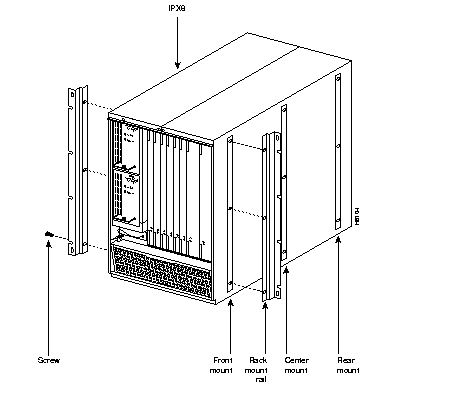
If an IPX 8 is ordered with the rack mounting hardware, it comes with two rack-mounting rails strapped to the top packing plate. To install the IPX 8 in a rack by using these rails, refer to Figure 2-8 and proceed as follows:
Step 1 Remove the rack mounting rails from the packaging along with the package of mounting hardware.
Step 2 Locate the tapped holes on the side of the IPX 8 cabinet. One set of holes is for front-mounting of the cabinet, the other set is used for center-mounting.
Step 3 Attach the rails to the cabinet by using the #10-32 machine screws.
Step 4 Identify the locator studs provided with the kit (threaded on one end, smooth on the other end).
Step 5 Secure locator studs into the rack holes that correspond to the top holes in the rack mounting rails.
Step 6 Lift the IPX 8 and temporarily hang it from the locator studs.
Step 7 Screw in the rack mounting screws then remove the locator studs.
The following paragraphs contain general safety information.
For safe operation, observe the following:
Consider the CEPT requirements prior to connecting a private network to the public switched networks in certain international service areas, as follows:
Step 1 Only those 48 VDC power sources that comply with EN60950 can connect to the 48 VDC power distribution unit.
Step 2 The following port types on the IPX are approved to carry public-switched non-voice traffic (OTR001, issue 3, port types 2DN):
Step 3 The following port type on the IPX is approved to carry PSTN voice traffic:
Step 4 To keep end-to-end delays at 10 ms or less, adhere to the following configuration constraints in relation to the IPX:
Compliance with Emission requirements depends upon adherence to the installation steps in this manual, including installation of faceplates for all slots and the use of shielded cables between systems.
Before proceeding, go through the parts checklists that follow to verify that all ordered parts are present and in good condition. If anything is missing or damaged, report it to your Cisco Order Administration representative.
Check the cabinet for the following:
_____ | [IPX 16/32] The unit has the correct number of shelves (1 or 2). |
|---|---|
| _____ | The unit has the correct power supply type (AC or DC). For IPX 16/32: open the back door. For IPX 8: look on the back. The words "AC (or DC) PWR DISTRIBUTION" are on the back panel of the Power Distribution Unit. |
| _____ | The unit has the correct number of power supplies (1, 2, 3, or 4). |
Verify that all cards are present for the ordered configuration.
| _____ | Correct number of NPCs | _____ | Correct number of LDIs |
| _____ | Correct number of SCCs | _____ | Correct number of BC-T1s |
| _____ | Correct number of SCC-Bs | _____ | Correct number of BC-E1s |
| _____ | Correct number of CDPs | _____ | Correct number of BC-SRs |
| _____ | Correct number of NTCs | _____ | Correct number of BC-J1s |
| _____ | Correct number of FRPs | _____ | Correct number of BC-Y1s |
| _____ | Correct number of FRIs | _____ | Correct number of LECs1 |
| _____ | Correct number of SDPs | _____ | Correct number of AITS |
| _____ | Correct number of SDIs | _____ | Correct number of BC-AIT-T3s |
| _____ | Correct number of LDPs | _____ | Correct number of BC-AIT-E3s |
| _____ | Blank covers for all unused back slots | _____ |
 | Caution Ground yourself before handling IPX cards by placing a wrist strap on your wrist and clipping the strap lead to the cabinet, or use the wrist strap that is connected to the cabinet. |
The IPX 16 has one (upper) card shelf. Its card slot numbers are 1 through 16 (left to right when viewed from the front of the cabinet). In addition to an upper card shelf, the IPX 32 contains a bottom shelf with card slots numbered 17 through 32. A front view of the IPX 16 and the IPX 32 appear in Figure 2-9 and Figure 2-10, respectively.
The locations of the system cards in an IPX depend on the configuration. The only cards that are always in the same locations are the NPCs, the SCC, and the LEC. The locations of these cards for an IPX 16 and an IPX 32 are as follows:
Use of the remaining slots depends on the node configuration. The position of the various utility buses installed on the System Bus backplane determines in which slots the cards can be installed. Figure 2-11 shows the six types of utility buses as viewed from the back of the cabinet. These are the NPC-UB, LB/1, and UB 240 utility buses. Except for the NPC bus, the locations of these buses can vary from node to node.
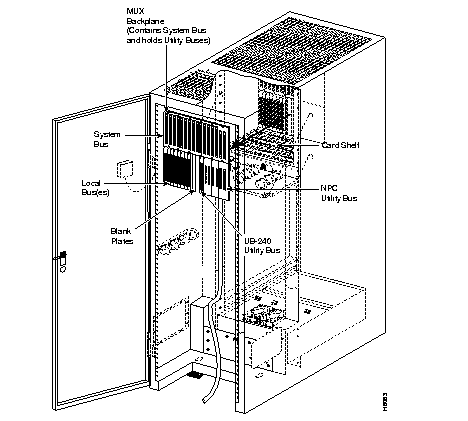
The use of the MUX backplane, system bus, and utility buses is as follows:
The IPX 8 cabinet contains one card shelf with front and back slots for card access. Figure 2-12 illustrates the slot numbering.
Front slots 1 and 2 are reserved for the primary and redundant NPC controller cards. The accompanying SCC is factory-installed in rear slot 1. If the system has a redundant NPC, it resides in front slot 2, and rear slot 2 remains empty.
Various cards can reside in card slots other than 1 and 2. These include the NTC, CDP, FRP, SDP, LDP, ARC, and AIT. The cards in the back slots are the network and user interface cards. These include the BC-E1, BC-T1, BC-SR, FRI, SDI, ARI, ATM-T3/E3 and LDI. Most card types can reside anywhere a vacant slot and the appropriate utility bus exists. Only the controller card and power supply have assigned slots for primary and redundant units.
System assemblies indicated as T1 are configured with a BC-T1 as the back card associated with the NTC and CDP. Assemblies indicated as E1 are configured with a BC-E1 as the back card associated with the NTC and CDP. System assemblies indicated as J1 are configured with a BC-J1 as the back card associated with the NTC card and a BC-Y1 as the back card associated with the CDP.
The IPX 8 has one card shelf. The card slot numbers are 1 through 8 (left to right from the front of the cabinet). Figure 2-12 shows a front view of the card shelf. The locations of the system cards in an IPX depend on the configuration. The NPCs, and SCC occupy reserved card slots.
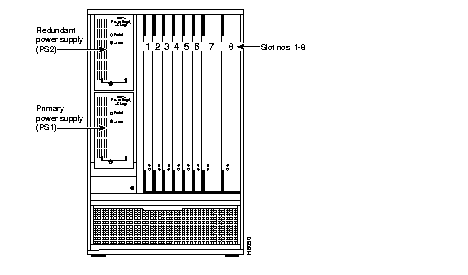
The locations for the NPCs, the SCC, and the power supplies are as follows:
If a second power supply is later added for redundancy, it is used as a hot backup. Remove the front top blank panel and install it in the upper power supply slot in place of the blank panel (Figure 2-12).
Use of the remaining empty slots in the cabinet depends on the node configuration. Each slot requires a utility bus to provide an electrical interface between the front card and the back card. You must not randomly install a card in an empty slot because the card may require a specific utility bus that may or may not be installed.
For the IPX 8, the choice of utility buses for the last several slots narrows down to either Local Bus 1 (LB/1) for the CDP, NTC, AIT, and LDP cards or the UB-240 bus for the SDP card.
IPX nodes are available in both AC-powered and DC-powered versions and may be provisioned with redundant power supplies.
The paragraphs that follow provide information on making power connections for both the AC and DC powered versions of the IPX 16/32 and IPX 8 nodes. Note that differences exist in the power supply designed before and after August, 1994.
The IPX16/32 nodes operate from a power source of 208/240 VAC over a range of from 47 to 63 Hz. Figure 2-13 shows the location and connections to the AC Power Distribution Unit (PDU). An easily accessible socket outlet should be installed near the equipment. Installing a power outlet strip inside or near the cabinet for test equipment and modems is recommended.
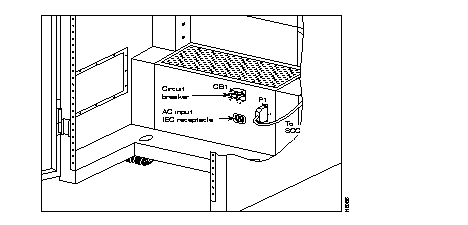
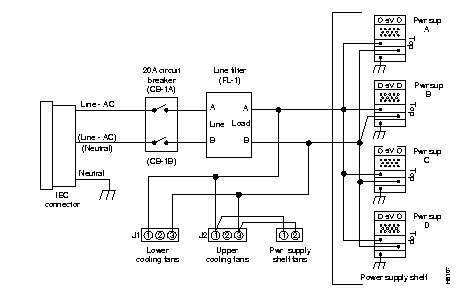
Figure 2-14 shows the wiring of the AC PDU. This PDU is installed in all cabinets configured for AC operation. To support power connections in a variety of countries, six different power cords are available for the IEC connector.
For a DC IPX 16/32 node, the positive, negative, and safety ground wires are connected from a -48 VDC power source to the IPX 16/32 power distribution unit. The -48 VDC source must be connected to earth and electrically isolated from the main AC source. Wiring must be attached to the IPX 16/32 with the correct size ring-lug for the wire gauge.
 | Warning For CEPT installations, the DC source must comply with EN60950. |
For power and ground connections to a an IPX 16/32, a minimum 6 AWG (or equivalent for CEPT E1 systems) conductor must be used. The conductors should have double-crimped spade or closed-loop connectors suitable for the size of conductor used. A 50-amp DC circuit breaker is recommended for the power source supplying -48 VDC power to an IPX 16/32. An easily accessible disconnect device should be included in the facility wiring.
| Warning Before connecting power, make sure that all IPX 16/32 power switches and the DC source breaker are turned off. |
To connect the wiring to a DC IPX 16/32 unit, proceed as follows:
Step 1 At the back of the cabinet, locate the DC power distribution unit at the bottom of the cabinet.
Step 2 Locate the wiring terminal block for customer wiring, TB1, at the rear of the power distribution panel (Figure 2-15).
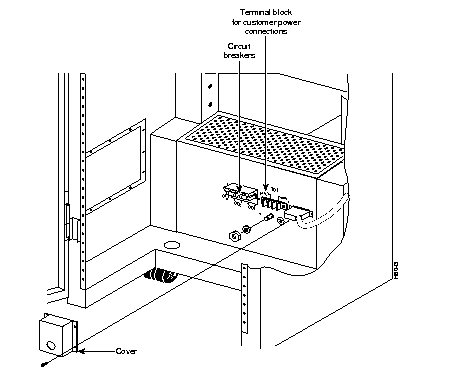
Step 3 Run the DC power cable through the opening at the bottom right of the cabinet, and tie it to the cable tray. Using a cable with black, white, and green/yellow-colored wires for the DC power connection is recommended.
Step 4 Connect the IPX 16/32 end of the safety ground wire (green/yellow) to the dedicated grounding stud below TB1 (next to the ground symbol). Secure it with a lock washer and nut. Verify that the other end of this wire is attached to an approved facility safety (earth) ground.
| Warning The facility end of the chassis ground wire must be connected to safety (earth) ground and lugs must be on the wire ends connected to the terminal block. |
Step 5 Connect the IPX 16/32 end of the black wire to the "+ RETURN" screw of the terminal block. Connect the other end of the black wire to the source "DC POWER RETURN" connection point (Figure 2-15).
| Warning The DC terminal block has three terminal screws (the middle one is not used). The two mounting screws (one at each end of the block) and the terminal screws are about the same size, so be careful not to confuse them. |
Step 6 Connect the IPX 16/32 end of the white wire to the "-48V" screw of the terminal block and the other end to the source "-48 VDC" connection point (Figure 2-15).
Step 7 Check that all connections are tight.
The IPX 8 may be configured for either 110 or 220 VAC operation at 47 to 63 Hz. The voltage input is selectable as either 110 or 20 VAC by the voltage select switch at the rear of the IPX 8 cabinet. IPX 8 nodes with redundant AC power supplies are equipped with a power cord for each power supply. This provides extra protection but does require the installer and maintenance personnel to be sure that power is off on both supplies when working with the node's power. The AC-powered IPX 8 differs from the IPX 16/32 in that it has a voltage selector switch that is used to set the power supply input to match the branch voltage.
| Caution Before powering up the unit, verify the voltage selector switch is configured for the branch circuit voltage. When the voltage selector switch is set at 120V, the branch circuit voltage should be 90-125V. |
| Caution Vergewissern sie sich, vordem anschliessen des gerätes, dass der spannungswahlschalter auf den zutreffenden wert eingestelltist. |
| Caution Avant de mettre sous tension, s'assurer que le sélecteur de tension est réglé à la tension de la dérivation. |
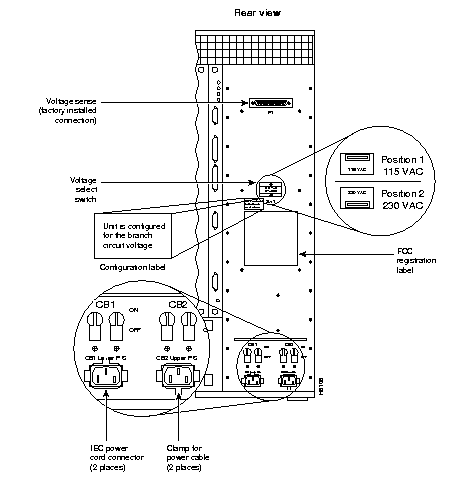
An AC Power Distribution Unit (AC PDU), located at the rear of the IPX 8 cabinet (Figure 2-16), protects the system and distributes the AC voltage. The voltage selector switch, two circuit breakers, two AC receptacles, and a voltage sense connector are mounted on the rear panel of the AC PDU.
The left-most AC connector supplies input power to power supply number 1 (the lower supply), which is always present. The right-most connector supplies power to power supply number 2 (the upper supply), which is the optional, redundant power supply. Clamp the power cord in the receptacle using the attached cable clamp.
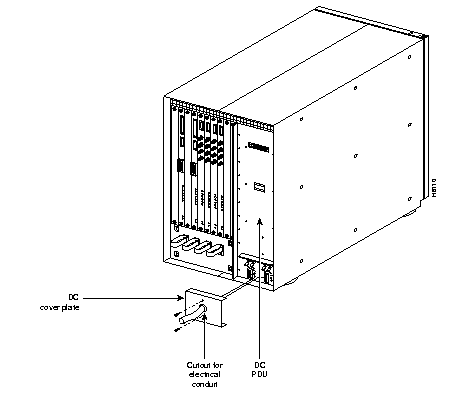
The DC power-type IPX8 cabinets are equipped with a DC Power Distribution Unit (DC PDU). The DC PDU has two 3-connector terminal blocks (Figure 2-17). Input power connections for power supply number 1 (lower) are made to the terminal block located immediately below CB1. Input power connections for power supply number 2 (upper) are made to the terminal block located immediately below CB2. The user supplies the input power cabling for DC-powered systems. The terminal blocks are protected against accidental contact by a cover plate that has a punch-out hole for wiring conduit (see Figure 2-18).
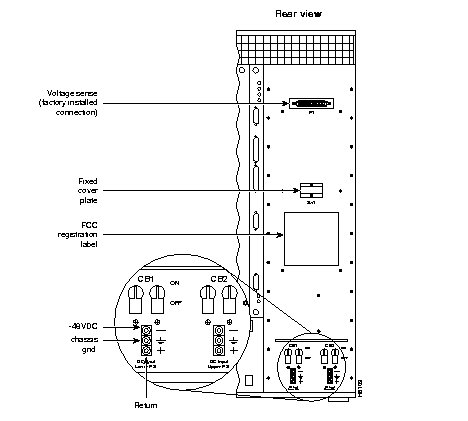
In Figure 2-17, carefully note the polarity of the terminal block connections. The middle terminal is used for chassis ground. Use a wire gauge suitable for carrying up to 10A for the power and power return leads (14 AWG or 2.5 sq. mm).
The sections that follow describe how to make connections for T1, E1, ATM-T3/E3, data, frame relay, voice, alarms, and external clocks.
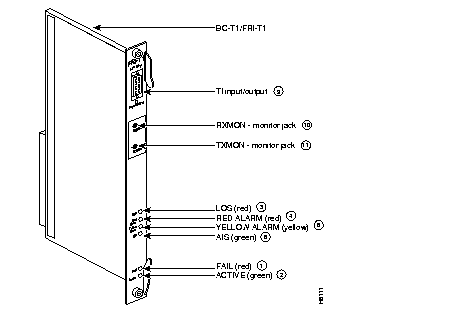
Three distinct card sets are available for terminating T1 connections. Circuit line T1 connections use the CDP front card, the BC-T1 back card, and the LB bus. T1 trunk connections use the NTC front card, the BC-T1 back card, and the LB bus. The third card set uses an FRP Model E front card and an FRI-T1 back card for Frame Relay T1 applications. Figure 2-19 shows an FRI-T1 backcard.
Make the T1 connections as follows:
Step 1 Bring each T1 cable through the opening at the bottom of the cabinet then up the side of the card cage (Figure 2-20).
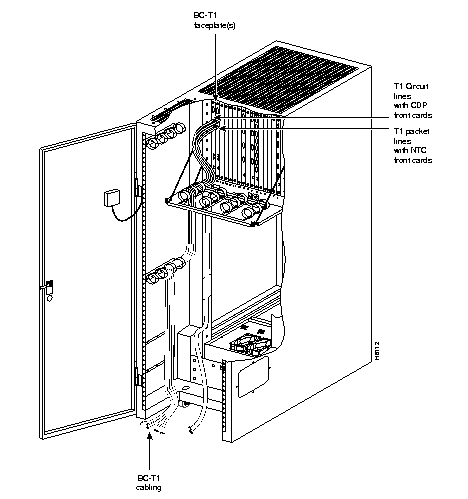
Step 2 Inside the cabinet (Figure 2-21), separate as needed the hook and loop straps that hold the cabling in place.
Step 3 Place the routed cable in position, and wrap the strap around the cable.
Step 4 Close the loops by pressing the two end pieces together.
Step 5 T1 lines are attached to DB-15, Sub miniature, 15-pin connectors on the BC-T1 cards.
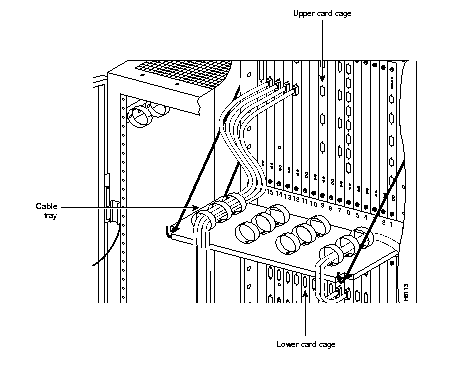
Step 6 Connect the circuit lines to the connectors on the BC-T1 back cards that are part of CDP/BC-T1 card sets (Figure 2-21).
Step 7 Connect the trunks to the connectors on the BC-T1 back cards, e.g., NTC/BC-T1 and card sets (Figure 2-21).
Back slot line numbers correspond to the back slot numbers in which the BC-T1 cards reside. Record the back slot number for each line for network configuration.
The instructions for making signal connections and the initial start-up of the IPX 8 are the same as the corresponding instructions in this chapter for the IPX 16/32.
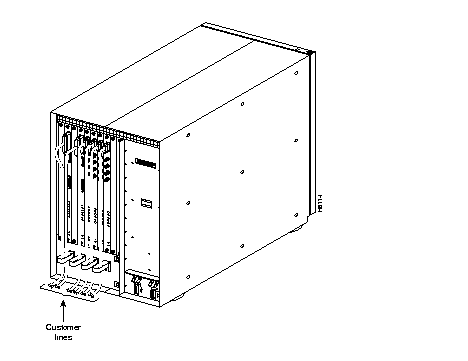
Three Velcro strips are located at the rear of the IPX 8 cabinet for routing and gathering the various signal cables attached to the back cards. Route the cables down and out the cutout provided at the bottom, rear of the cabinet (Figure 2-22). Always secure the cable connectors to the back card receptacles with the provided screws.
Three distinct card sets are available for E1 connections. A subset of these is available for Subrate E1. Circuit line E1 connections use the CDP or CIP front card, the BC-E1 back card, and the LB bus. E1 trunk connections use the NTC front card, the BC-E1 back card, and the LB bus. Subrate E1 connections use the NTC front card, the BC-SR back card, and the LB bus. Frame Relay E1 applications use an FRP Model E front card with an FRI-E1 back card.
The FRI-E1 back card has the same connectors as the BC-E1 card. The E1 Trunk Interface Cards BC-E1/FRI-E1 (Figure 2-23) contain the E1 trunk connector (G.703 Input/Output), which is located at the top of the back card. There are four 75 Ohm BNCs on the BC-E1/FRI-E1 faceplate.
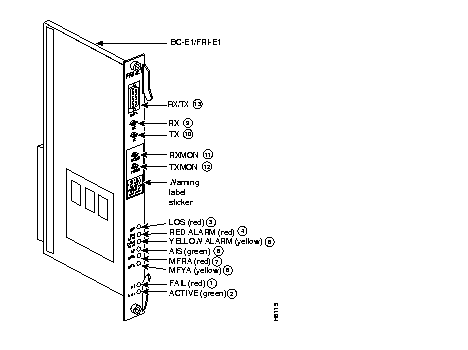
| Caution Connect equipment that complies with BS6301 to ports and monitor jacks. |
Make the E1 connections as follows:
Step 1 Bring each E1 BNC patch cable (or 15-pin cable) through the opening at the bottom of the cabinet then up the side of the card cage (Figure 2-24).
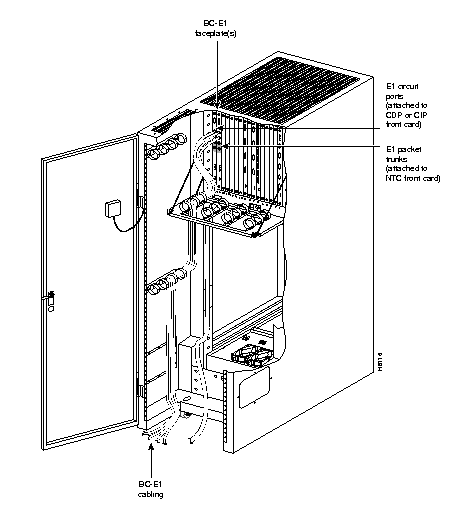
Step 2 Connect the circuit lines to connectors on the BC-E1 back card that are part of a CDP/BC-E1 card set (Figure 2-25).
Step 3 Connect the trunks to connectors on the BC-E1 back card, e.g., NTC/BC-E1 card set (Figure 2-25).
The back slot line number corresponds to the back slot number in which the BC-E1 card resides. Record the back slot number associated with each line. These numbers are necessary for configuring the network.
The IPX has Velcro loops inside the cabinet to hold cabling in place. Pull the Velcro hooks apart as needed and place the routed cable in position. Wrap the Velcro around the cable and remake the loops by pressing the two Velcro pieces together.
ATM Trunk cables connect the ATM back card to either a DSX-3 cross connect point, another ATM back card in a co-located node, or a BPX node at the LM-3T3 back card.
The ATM back card has female BNC connectors for transmit and receive trunk connections. Use 75-ohm coax cable RG-59 B/U for short runs and AT&T 734A for longer runs. Each T3/E3 trunk has an XMT cable and an RCV cable.
The LDP and SDP front cards operate in conjunction with a variety of data interface back cards to provide data connections.
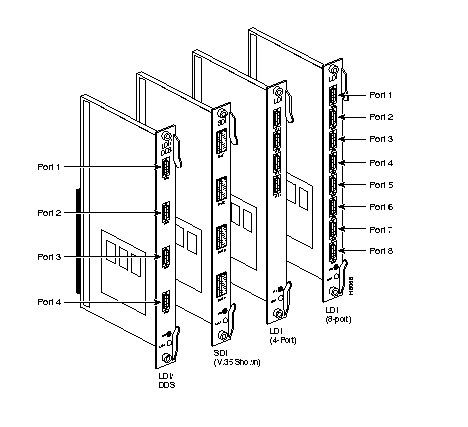
The LDP front card is used with the 4-port and 8-port versions of the LDI back card for RS-232C/D (V.24) connections and with the LDI4/DDS back card for DDS (Digital Data Service) connections. The four-port LDI has four data connection ports whose labels are PORT 1 through PORT 4 (Figure 2-26). The eight-port LDI has eight data connection ports labeled PORT 1 through PORT 8 (Figure 2-26). The four-port LDI4/DDS has four data connection ports labeled PORT 1 through PORT 4 (Figure 2-26).
Four types of SDI back cards work with the SDP front card. An SDI back card supports V.35, RS-449/422, RS-232D, or RS-232C (V.24). (X.21 requires RS-449 plus an adapter cable.) Each SDI has four connection ports labeled PORT 1 through PORT 4 (Figure 2-26).
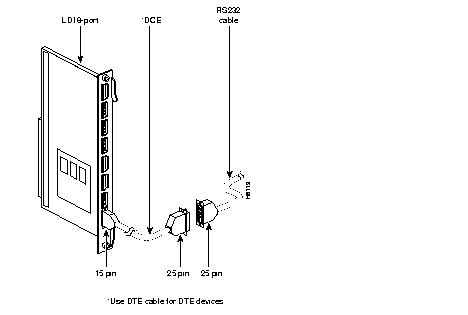
Three types of LDI back cards exist. These are: a four-port RS-232C/D LDI (for V.24), an eight-port RS-232C/D LDI (for V.24) and a four port DDS LDI. Attach the data lines to the SDI, LDI, and DDS port by connecting as short a cable as necessary to reach the ports. The four-port and eight-port LDI cards use one of two special cable types. The cable is either a DTE or DCE cable. Refer to Configuring the SDI Cards for instructions on configuring the cards for operation as a DTE or DCE.
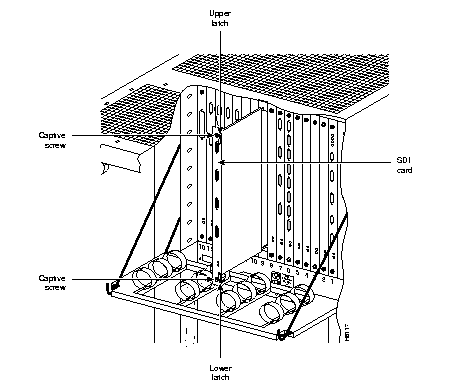
If the system includes SDP cards with attached SDI cards, the SDI ports are factory-configured as DCE interfaces. To change the interface configuration, reposition the jumper board for the SDI ports as follows:
| Caution To prevent damage to the SDI cards, ground yourself before handling IPX cards by clipping on a wrist strap and clipping the wrist strap lead to the enclosure. |
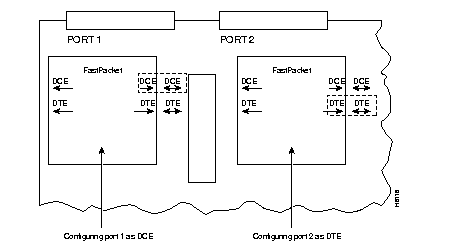
If the system includes Low-Speed Data Pad (LDP) card sets, each port on the LDI card requires either a special DCE or DTE adapter cable for proper port configuration (Figure 2-29). Removing the card from its slot to attach these special cables is unnecessary. Logic circuits on the card check the identifying pins on the special cables and configure the ports as DTE or DCE, as applicable.
The four different types of frame relay interfaces are:
The T1 line terminates on the FRI-T1 card to a DB15 sub miniature connector. The FRI card has a female connector. A BNC-type connector is used for the unbalanced connection.
The FRI-E1 card provides for a 75-ohm unbalanced coax line termination or a balanced 100-120-ohm twisted pair termination. A DB15 connector is used for the balanced connection. The FRI card has a female connector.
The V.35 connection uses a standard 34-pin female MRAC-type connector with a standard
V.35 cable.
The FRI-X.21 has female DB15 sub miniature connectors.
For detailed cabling requirements, see the IPX Reference Manual.
All voice connections are made using the CDP front card with either a T1 back card or an E1 back card.
For detailed cabling requirements, see the IPX Reference Manual.
The AIT back card uses BNC coax connectors and cabling for either T3 or E3 operation.
For detailed cabling requirements, see the IPX Reference Manual.
Alarm output connections are made at the DB37 connector on the ARI card. For the connector pin assignments and alarm signal names, see the IPX Reference Manual.
Wire a 22 or 24-gauge cable with the appropriate number of pairs (generally 12 pairs) with a male DB37 connector at one end. Connect this cable to the DB37 connector on the ARI card and tighten the connector captive screws.
There is a RS-232 connector on the front panel of the SCC and SCC-B for connecting two external sources of a high-stability clock (primary and redundant). These inputs are 1.544 MHz for T1 systems and 2.048 MHz for CEPT systems. A third clock source is the internal IPX clock. One of the packet or circuit line inputs may also be selected for a source of timing for the node. The clock sources PRI, INTC, EXT1 and EXT2 are software selectable through the NPC.
The separate A and B clock inputs are the primary and standby clock sources. Either or both of these can be 1.544 Mbps or 2.048 Mbps. SCC itself selects clock input A or B.
The connector pinouts are described in the IPX Reference Manual.
To support peripheral attachments, the IPX 16/32 has the two ports CONTROL TERMINAL and AUX PORT on the SCC in back slot 1. A network must have at least one attached control terminal (or StrataView Plus workstation for statistics collecting). A network printer for printing out the state of the system is optional.
For Customer Service to perform remote troubleshooting, the network must have a modem. This is a requirement for all Customer Service plans.
The sections that follow describe procedures for attaching peripherals to the IPX. Read the manufacturer's literature to ensure the equipment is ready for attachment before you attempt to attach it to the IPX.
At least one node in a IPX network must be connected to a StrataView Plus workstation. The workstation connects to the LAN port (AUI-Ethernet) on the System Clock Card at the rear of the IPX (Figure 2-30).
StrataView Plus can be used to configure and maintain all IPX nodes in a network. For instructions on using the StrataView Plus workstation, refer to the StrataView Plus Operations Guide.
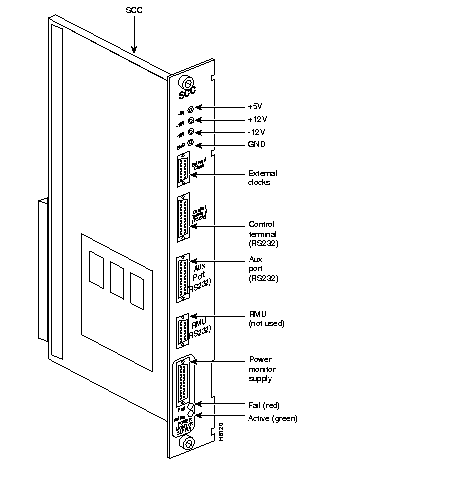
Refer to the IPX Reference Manual for information on control terminals supported by the IPX and their required configuration settings. Refer to the IPX Reference Manual for information on pin assignments for the IPX control terminal port.
Attach the control terminal (or StrataView Plus workstation) to the IPX as follows (refer to Figure 2-30 and Figure 2-31).
Step 1 For a terminal, from the back of the cabinet, run the control terminal RS-232/V.24 cable through the opening at the bottom and up to the SCC card in back slot 1.
Step 2 For a control terminal, attach the RS-232/V24 cable to the CONTROL TERMINAL connector on the SCC.
Step 3 For a StrataView Plus NMS connection, at the AUI-Ethernet connector on the SCC, attach the AUI and connect to the LAN network.
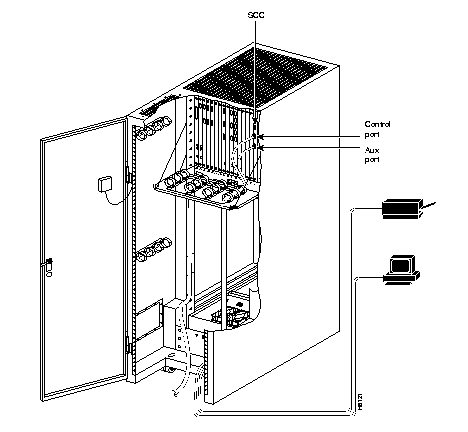
At least one node in the IPX network should have a printer. The printer connects to the AUX PORT on the SCC at back slot 1. The printer is used to display information about network operation. It can be configured to print maintenance information on a regular basis, and it can print specific diagnostic information whenever required. The Command Reference contains instructions for using the printer for this purpose.
Attach the printer to the IPX as follows:
To provide access for remote troubleshooting and remote alarm logging, two modems can be connected to the IPX.
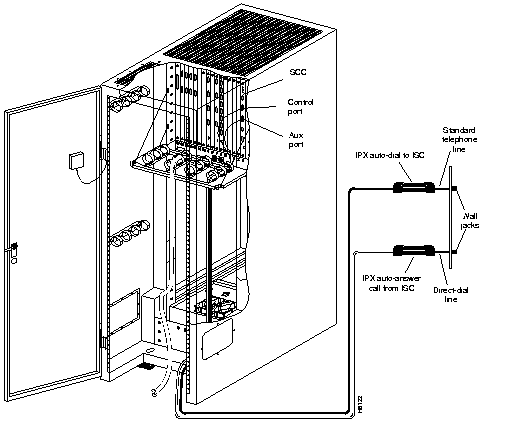
The modem that provides access for remote troubleshooting from the Customer Service office (Customer Service-to-IPX modem) is connected to the CONTROL TERMINAL port on the SCC at back slot 1. Typically, it connects to the telephone wall jack with a direct-dial line (see Figure 2-32).
The modem that provides remote alarm logging (IPX-to-Customer Service modem) connects to the AUX PORT on the SCC at back slot 1. This modem connects to a wall jack with a standard telephone cord.
The modem-to-IPX connections require special cables and setup procedures. Refer to the IPX Reference Manual for instructions on connecting and setting up the modem.
Although the initial startup tasks are similar for the IPX 16/32 and the IPX 8, some differences exist. The two sections that follow explain these differences.
Before operating the IPX 16/32, make sure the following procedures have been performed:
Step 1 The IPX cabinet frame is attached to an isolated ground connection.
Step 2 The IPX unit using AC facility power is plugged into an appropriate AC receptacle. The IPX unit using DC facility power is connected to an appropriate dedicated DC source.
Step 3 From the back of the enclosure, turn the power switches to the ON position. The power switches are located on the AC or DC Power Distribution Unit.
Step 4 The power supplies have been checked for correct output.
Step 5 The full complement of cards for the specific node are mounted in the correct slots, correctly seated, and locked.
Step 6 The T1 connections are attached to the appropriate BC-T1 faceplate.
Step 7 The E1 connections are attached to the appropriate BC-E1 faceplate.
Step 8 The Fractional E1 or T1 connections are attached to the BC-E1 or BC-T1 card connector if the IPX is used to provide Fractional E1 or T1 service.
Step 9 The Subrate connections are attached to the BC-SR card connector if the IPX is used to provide Subrate E1 or T1 service.
Step 10 The data connections are attached to the appropriate SDI/LDI cards.
Step 11 The Frame Relay (User Device Connections) are attached to the appropriate FRI card connectors.
Step 12 A control terminal or StrataView Plus workstation can be connected to the SCC. A control terminal is connected to the CONTROL TERMINAL port on the SCC in back slot 1, and the power cord is plugged into the appropriate AC receptacle. If the StrataView Plus NMS is to be connected to the node, it is connected to the AUI-Ethernet connector.
Step 13 If needed, a printer connects to the AUX PORT on the SCC in back slot 1, and its power cord is plugged into the appropriate AC receptacle.
Step 14 If needed, one or more modems connect to the CONTROL TERMINAL port or AUX PORT on the SCC in back slot 1, and each modem power cord is plugged into the appropriate AC receptacle.
Step 15 Observe that, after you turn on the IPX node, the cards go through a series of initial diagnostic self-tests.
Step 16 If an alarm is present for a T1 or an E1 line that is physically connected to the IPX, try reconnecting the line to make sure there is a good physical connection.
Before IPX 8 operation begins, make sure the following procedures have been performed:
Step 1 The IPX cabinet frame is attached to an isolated ground connection.
Step 2 The IPX unit using AC facility power is plugged into an appropriate AC receptacle. Each power supply has its own power cord. The IPX unit using DC facility power is connected to an appropriate dedicated DC source.
Step 3 From the back of the enclosure, turn the power switches to the ON position. The power switches are located on the lower, right, rear of the cabinet.
Step 4 The power supplies have been checked for correct output. The power supply outputs are tested by using the test points on the SCC card.
Step 5 The full complement of cards for the specific node are mounted in the correct slots, correctly seated, and locked.
Step 6 The T1 connections are attached to the appropriate BC-T1 faceplate.
Step 7 The E1 connections are attached to the appropriate BC-E1 faceplate.
Step 8 The Fractional E1 or T1 connections are attached to the BC-E1 or BC-T1 card connector if the IPX is used to provide Fractional E1 or T1 service.
Step 9 The Subrate connections are attached to the BC-SR card connector if the IPX is used to provide Subrate E1 or T1 service.
Step 10 The data cables are attached to the appropriate SDI/LDI cards.
Step 11 The Frame Relay cables (User Device Connections) are attached to the appropriate FRI card connectors.
Step 12 A control terminal or StrataView Plus workstation can be connected to the SCC. A control terminal is connected to the CONTROL TERMINAL port on the SCC in back slot 1, and the power cord is plugged into the appropriate AC receptacle. If the StrataView Plus NMS is to be connected to the node, it is connected to the AUI-Ethernet connector.
Step 13 If needed, a printer connects to the AUX PORT on the SCC in back slot 1, and its power cord is plugged into the appropriate AC receptacle.
Step 14 If needed, one or more modems can connect to the CONTROL TERMINAL port or AUX PORT on the SCC in back slot 1, and each modem power cord is plugged into the appropriate AC receptacle.
Step 15 Observe that, after you turn on the IPX node, the cards go through a series of initial diagnostic self-tests.
Step 16 If an alarm is present for a T1 or an E1 line that is physically connected to the IPX, try reconnecting the line to make sure the physical connection is a good.
IPX software includes a group of diagnostic tests that run on system hardware at power-up. The startup diagnostic either passes or fails the NPC(s). Each test result is displayed on the control terminal screen as pass or fail (Figure 2-33 or Figure 2-34).
**************************************************************************************
Release 8.5 Boot power up diagnostics starting.
Release 8.5 Power up diagnostics complete.
**************************************************************************************
**************************************************************************************
Release 8.5 Boot power up diagnostics starting.
Remove and reinsert this NPC to see if it fails again.
**************************************************************************************
If a NPC fails the power-up diagnostic (Figure 2-34), it does not boot. When this happens, do the following:
Step 1 Remove the failed NPC.
Step 2 Re-install it in the same slot.
Step 3 Wait for the power-up diagnostic to run.
Step 4 If the NPC fails the power-up diagnostics a second time, replace it with another NPC that is known to have passed the test.
The IPX software requires configuration before the IPX can function. Some of the tasks to perform are:
For details of IPX commands and usage, refer to the Command Reference Manual.
After the IPX is powered up, inspect the status lights on the front cards, back cards, and power supplies. Measure the power supply voltages and replace any power supplies that are out of tolerance.
Table 2-1 shows the normal status of each light, assuming n+1 redundancy for NTC and CDP cards
| Card | Active Status | Standby Status1 | Alarms |
|---|---|---|---|
| NPC | 1 | 1 | -- |
| CDP | -- | -- | -- |
| NTC | -- | all | -- |
| BC-T1/E1 | -- | all | -- |
| BC-SR (Subrate) | -- | all | -- |
| AIT-BC-T3/E3 | -- | all | -- |
| SDP/LDP | -- | all | -- |
| SDI/LDI | -- | all | -- |
| FRP | -- | all | -- |
| FTC | |||
| SCC (A or B) | 1 | 0 | -- |
| LEC | 1 | 0 | -- |
| ATMT | -- | all | |
| ARC | 1 | - | - |
| Power Supplies | All | -- | -- |
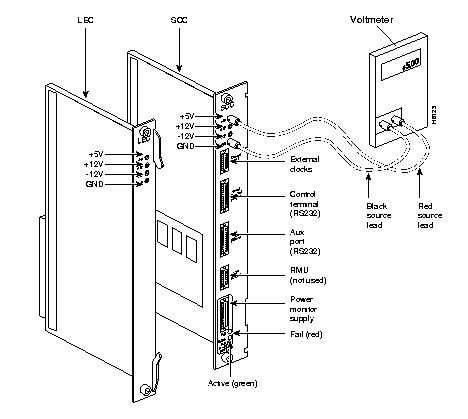
The measuring points for the power supply voltages for a one-shelf system are on the SCC (Figure 2-35). Measuring points for an IPX 32 system are provided on both the SCC and the LEC. Measuring points for the IPX 8 system are provided on the SCC. To measure the power supply outputs, do the following:
Step 1 Set the voltmeter for 20 VDC scale or lowest range applicable to the measurement.
Step 2 Locate the voltage test points on the SCC at back slot 1 (Figure 2-35).
Step 3 To check the +5 VDC power output, touch the voltmeter's black ground lead to GND test point, and touch the red source lead to the +5 VDC test point. The voltmeter should read 5 ± 0.25 VDC.
Step 4 Keep the black ground lead on GND test point. Touch the red source lead to the +12 VDC test point. The voltmeter should read +12 ± 0.5 VDC.
Step 5 Keep the black ground lead on GND test point. Touch the red source lead to the 12 VDC test point. The voltmeter should read -12 ± 0.5 VDC.
Step 6 For the two-shelf system, locate the test points on the LEC card at back slot 17 and repeat the three preceding measurements on the LEC.
Power supplies are not field-adjustable. If the power supply voltage is out of tolerance, remove and replace with one known to be within tolerance.
|
|